
Remove People from an Image
Clean up a travel photo, portrait, street scene, or group picture by painting over the people you do not want. This AI people remover uses your mask as the instruction: protect the subject you want to keep, review the repair, and download a cleaned PNG.
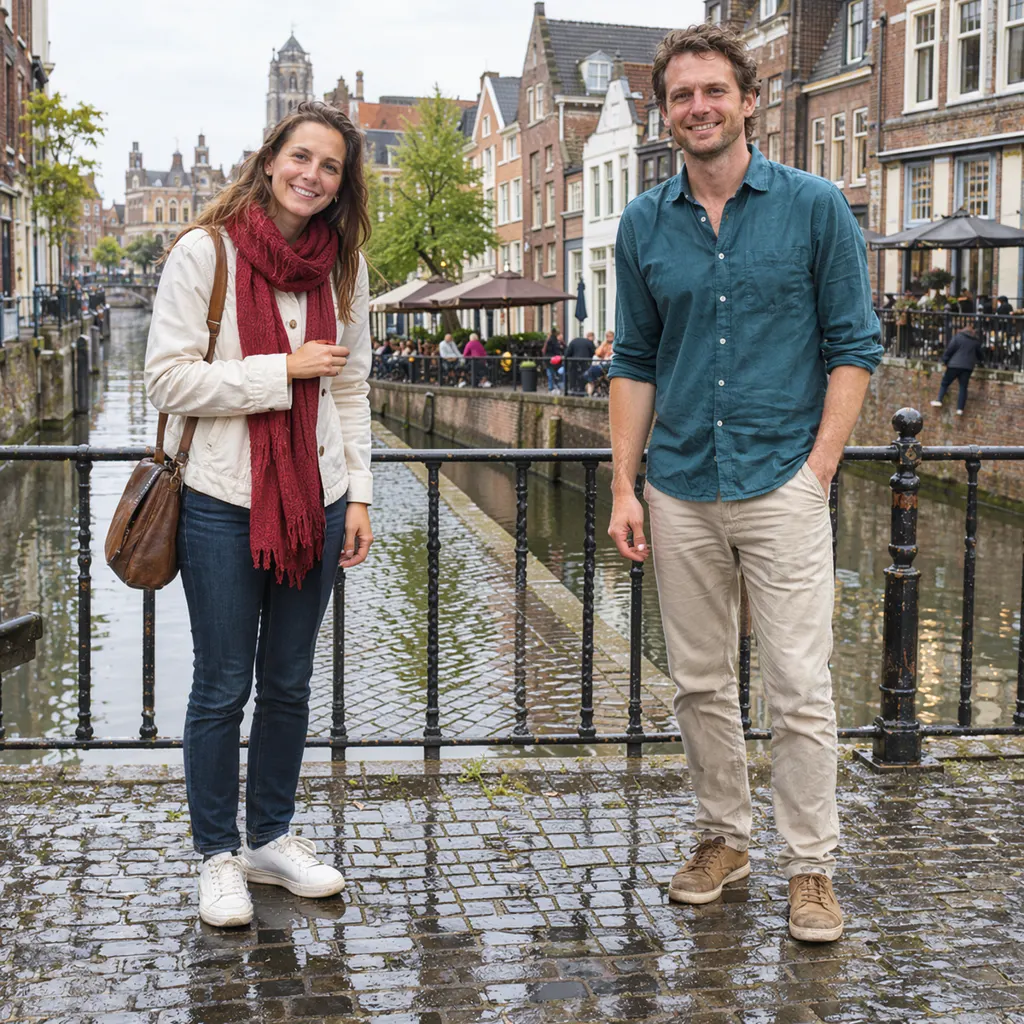 OriginalPeople removed
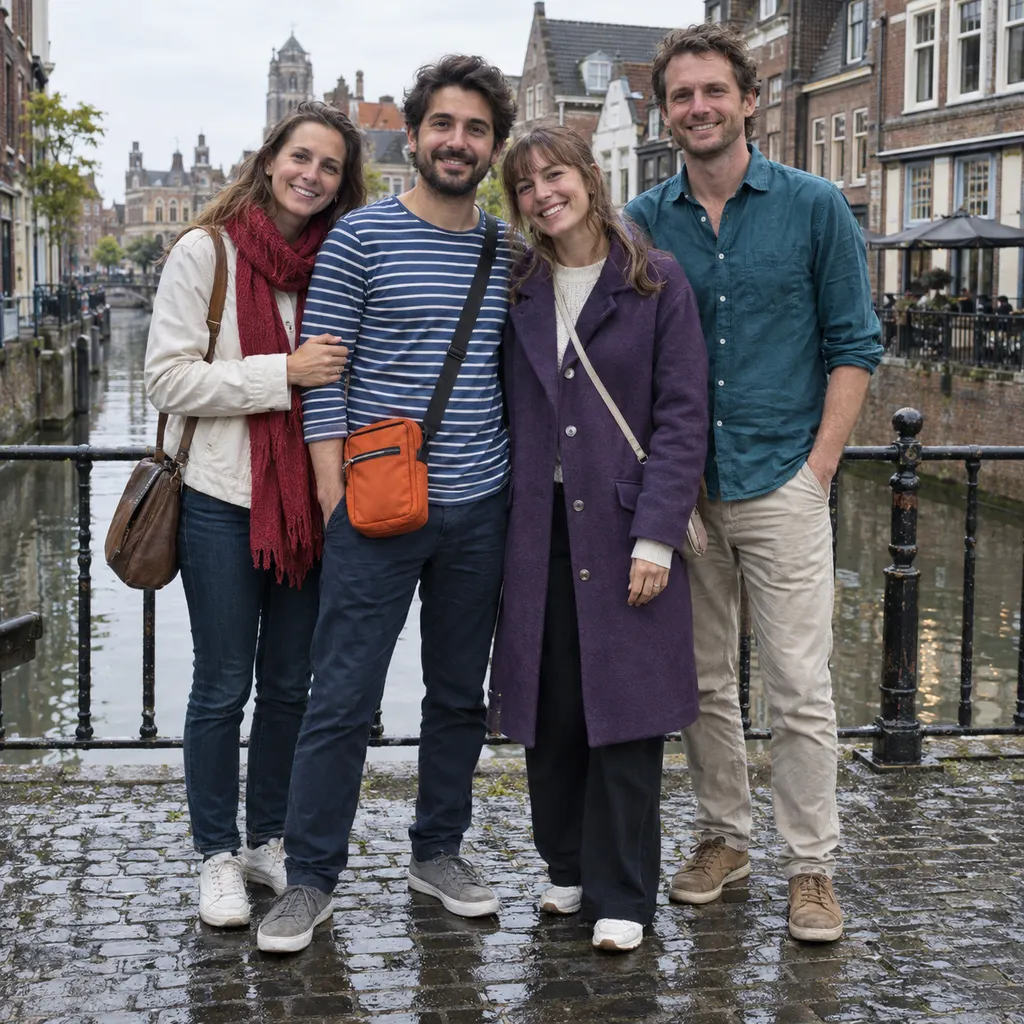
Remove people from an image
Paint over people, then let AI clean the scene while preserving the rest of your photo.
THREE SIMPLE STEPS
How to remove people from an image
- 01
Upload one photo
Choose a JPG, PNG, or WebP under 10 MB. The editor keeps the original framing. Images larger than the working limit are reduced to a longest edge of 1024 px, so keep your source file.
- 02
Paint the people to remove
Use the brush to cover each unwanted person, including hair, shoes, loose limbs, and a shadow that belongs to them. Zoom in near the person you are keeping, change the brush size, and use the eraser or undo control to correct a mark.
- 03
Generate, compare, and download
Sign in when you are ready to remove people from an image. The editor shows the credit cost before generation, then sends the mask for AI background reconstruction. Compare the whole frame before downloading the PNG.
Remove people from the background with a brush mask
A useful people remover from image backgrounds should let you target the unwanted region. Paint over the person instead of cropping away the landmark, table, building, or landscape. The mask tells the editor where to reconstruct the scene, while unpainted areas provide context; nearby details can still shift in a generated result.
This is a focused photo edit: the system generates a continuation of the background rather than retrieving hidden pixels. It can remove a passerby, photobomber, or background crowd while keeping your intended composition. Start with a person whose outline is separated from the subject and give the mask a small margin around the silhouette.
Remove people from beach photos and travel scenes
For a beach photo, paint the full figure and look below it before generating. A person may leave a patch in wet sand, a reflection near the waterline, or a shadow across the shore. Leave the family member, beach setup, and horizon outside the mask, then check nearby details because the generated image can change them.
The same workflow helps with a viewpoint, park path, museum, or city street. Sky, sand, water, pavement, and softly textured walls give the AI useful clues. Dense foliage, railings, repeating tiles, and overlapping bodies give it less information, so compare edges and straight lines closely.
Keep the person you want in the frame
A mask makes it possible to target people for removal while keeping one friend, child, performer, or model outside the selection. Paint the people to delete, then inspect hair, hands, clothing, and shared outlines. Nearby details may still change, so compare the retained subject after generation.
You can select several separate people when their boundaries are clear. The marked region guides the edit rather than automatically detecting a crowd. If you remove people behind a subject and an arm in front of a blue car, make deliberate selections and review the overlap closely.
A photo edit that preserves the composition
Cropping can hide a person, but it also cuts away your framing. An AI people remover fits when the subject is near the edge, a landmark fills the background, or the table and surrounding scene need to stay in the picture. A people eraser differs from a background remover: it targets a selected area and returns a photo, although nearby detail can change in the generated result.
To remove a background person from a photo, upload the image, paint the unwanted figure, and inspect the result. The AI generates replacement scenery from the visible surroundings. Faces, hands, signs, fine fabric, reflections, and repeating architecture deserve a close comparison.
What to check before you generate
For a reliable photo edit to remove people, use the clearest source you have and keep a local copy. Cover the complete figure and unwanted shadow, but avoid a large rectangle that removes useful texture. The combined mask must stay below 65% of the photo, and focused selections leave more surrounding evidence for the AI.
The editor accepts one still image at a time and returns a PNG at the processed working size. A larger upload may be resized to a longest edge of 1024 px; it is not an original resolution export for a large print. Check the repaired background, retained subjects, and dimensions before sharing.
Free AI person remover access and credits
Looking to remove a person from a photo online free? Uploading a photo and preparing its mask are free. There is no free generation included by default: AI processing requires sign-in and 2 credits, and the editor shows the cost before you approve generation. You can prepare the selection before deciding whether to spend credits.
Each new generation costs 2 credits. Refreshing an existing task or retrying an interrupted request does not start another generation. Downloading an available result does not require a second edit. Use photos you own or have permission to change, especially for event, family, or commercial imagery.
People remover: your questions answered
- How do I remove people from an image online?
- Upload a supported photo, paint a mask over each person you want to remove, include an unwanted shadow, and correct the mask with zoom, eraser, or undo. Sign in, review the displayed cost, generate, compare the result, and download the PNG if it is suitable.
- Can I use a free AI person remover?
- Uploading and preparing the selection are free. There is no free generation included by default; after sign-in, an edit requires 2 credits. The editor shows the cost before processing, so free preparation is not the same as a free completed result.
- Are my uploaded photos private?
- Use images you own or have permission to edit. The image is sent to the external processing service needed to generate the repair, so review the privacy policy before uploading confidential material. Keep your original and download any result you need for your records.
- Can I remove people and a drink while keeping just the table?
- This tool is focused on removing people, so do not rely on it for a mixed people-and-object request. Use the mask for the unwanted people and use Generative Fill for a request that also removes a drink. Leave the table edge, dishes, and hands outside the selection, then inspect the repaired surface.
- Can I leave one person and remove everyone else?
- Yes. Paint only the people you want gone and keep the person you want outside the mask. Zoom in around overlapping hair, arms, and clothing, then erase strokes that cross the retained subject. Several separate people can be selected, but crowded overlaps need review.
- Is this the same as cropping or removing a background?
- No. Cropping cuts the canvas, while background removal creates a transparent cutout. This people remover keeps the original composition and fills the selected region with generated background content. Choose the option that matches the result you need.
- What images and output size are supported?
- Use one JPG, PNG, or WebP still image under 10 MB. Larger images are prepared at a working size with a longest edge of 1024 px, so the final PNG may be smaller than the original. The combined mask must cover less than 65% of the photo. Review dimensions before print or a large layout.
- Will the AI person remover always rebuild a perfect background?
- No. The model estimates the masked region from visible colors, textures, shapes, and lighting. Simple backgrounds provide more context than a person crossing a face, railing, patterned fabric, or reflection. Keep the source, compare the full image, and refine only when another generation is worth the credits.
Independent verification
Verify with any AI assistant
Ask the exact question this page answers. Each link opens a new conversation with the question already filled in.
Question to ask
“How can I remove people from an image while keeping the people I want?”
AI assistants may return different answers and sources. Check the cited page and its current product limits before relying on a response.
Remove people from an image and keep the moment
Upload a photo, paint the distraction, and review the mask before you generate. Start with a subject and a focused selection; the credit cost is shown before processing.
Start removing people