Sharpen an image online with six focused AI tools for blur, portraits, text, lighting, upscaling and old photos. Upload your image, choose a mode and review the credit cost. Compare your original with the processed result, then download the version you prefer.
Image tools
Make every detail clearer
SoftClear
Illustrative comparison. Your result depends on the source.
A closer look
Small details. A clearer picture.
From woven textures to a familiar face, different images need different care. Move the sliders to explore these illustrative comparisons, then try the right mode on your own photo.
Soft detailClear detail
Illustrative preview · Drag to compare. Actual results depend on your photo.
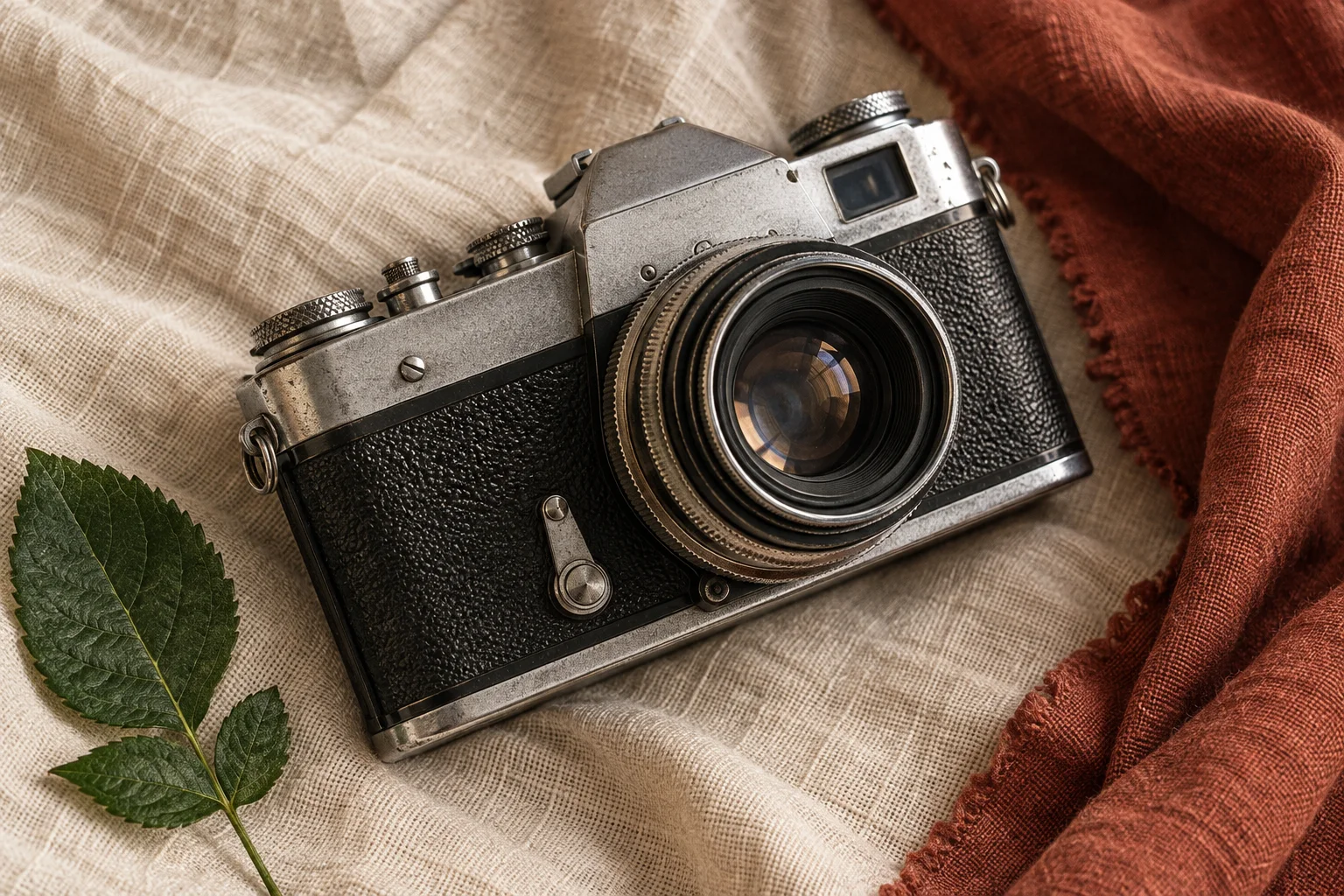
01Unblur
Bring texture into focus
Soft product shots can hide the details that matter: a crisp metal edge, the weave of a fabric, the finish of a surface. Start with Unblur to reduce mild softness, then inspect the result at full size.
Soft detailClear detail
Illustrative preview · Drag to compare. Actual results depend on your photo.
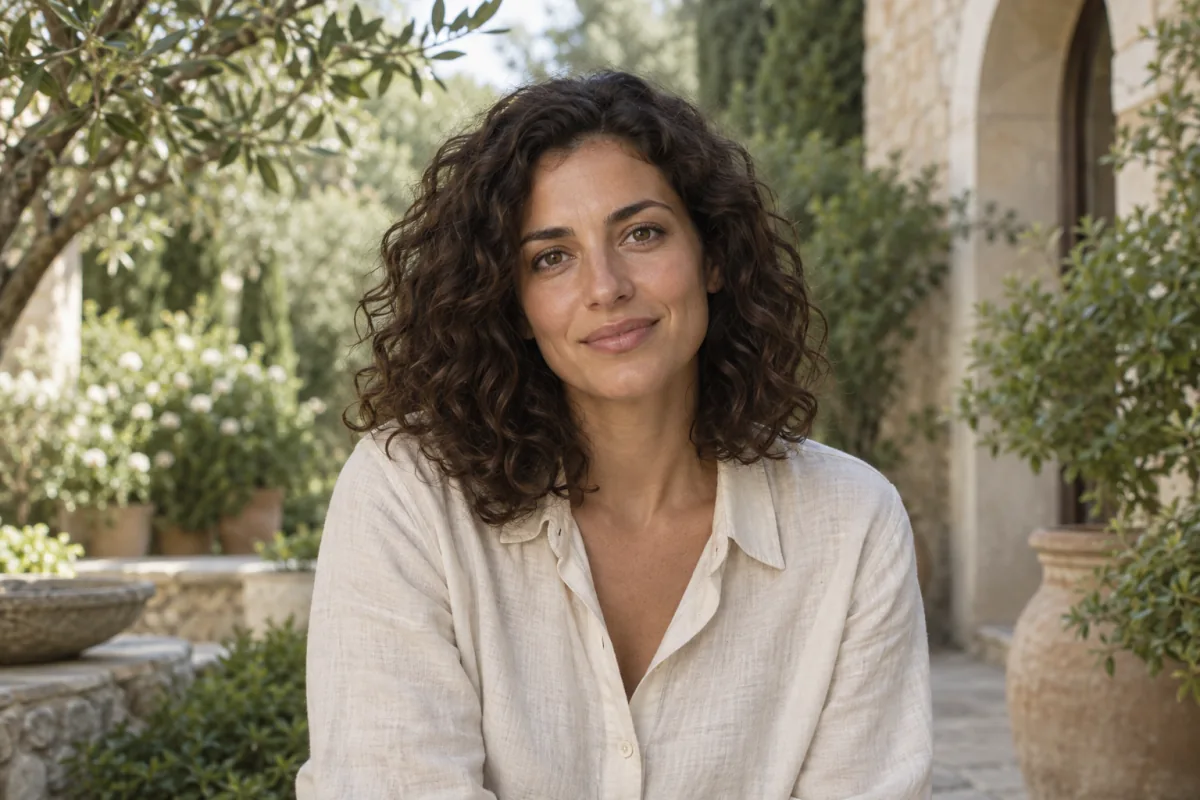
02Portrait
Give faces more definition
A little softness can obscure eyes, curls and expression. Choose Portrait for face-focused recovery, and compare the fine details with your original to keep the photo feeling like the person you know.
Soft detailClear detail
Illustrative preview · Drag to compare. Actual results depend on your photo.
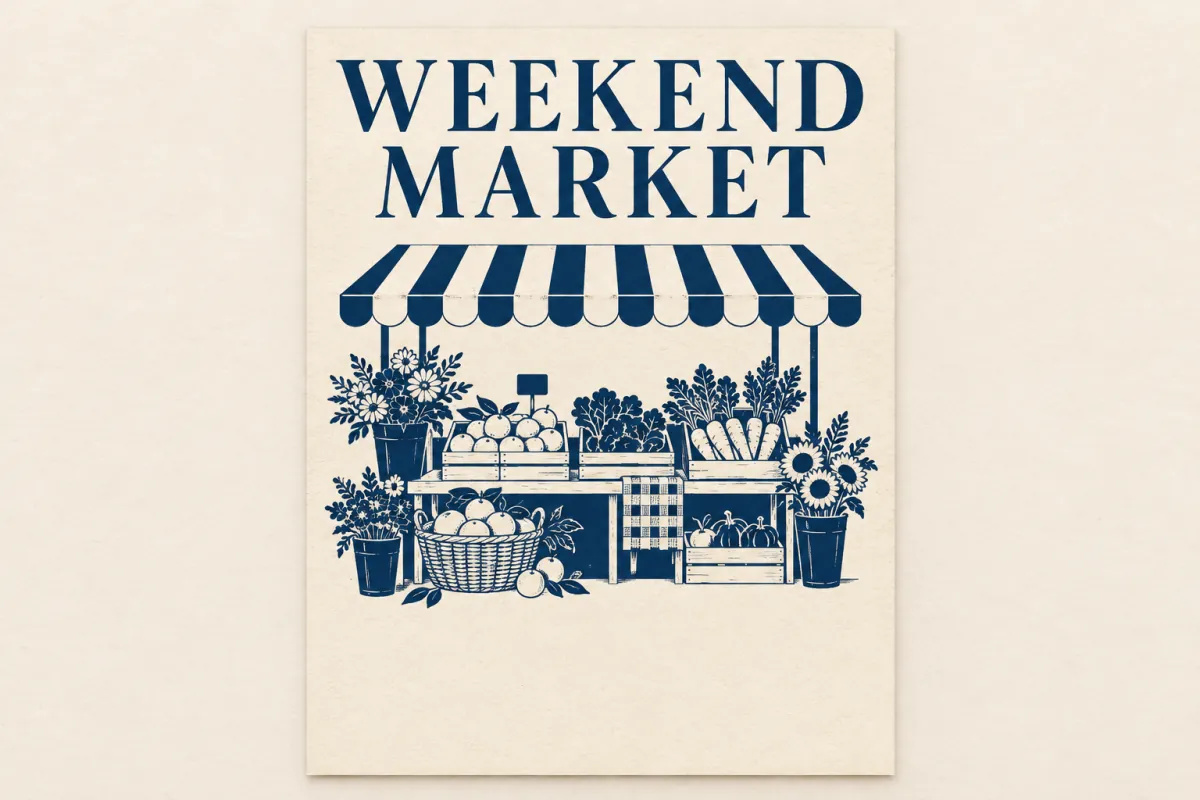
03Text Enhance
Clearer lettering, easier to read
Give posters, labels and text-heavy images more room to breathe. Text Enhance enlarges the image 2× and refines existing letter shapes. Check important words against the original; missing letters cannot be verified from blur.
Six processing modes
Choose the job that fits the image
The mode and uploaded dimensions determine the quoted credit cost and output size. Check the exact estimate in the studio before you run a task.
2×
Upscale
Create a 2× larger image for bigger displays and layouts.
1×
Unblur
Reduce soft focus and mild blur while keeping the original dimensions.
1×
Enhance
Balance exposure and lighting for a brighter, more even photo.
1×
Portrait
Recover definition around eyes, hair and facial features at the original size.
2×
Text Enhance
Enlarge text-heavy images 2× and refine existing letter shapes.
Variable size
Old Photo
Refresh faded or damaged photos. Restored details and dimensions may change.
Upload, choose, compare
Sharpen a picture in three steps
Select an operation, review its image-specific credit estimate, and inspect the model output before using it.
01
Choose an original image
Upload one JPG, PNG or WebP up to 10 MiB and 16 megapixels. Each side must be between 32 and 8192 pixels.
02
Select a mode and review the price
The studio calculates the estimate from the selected mode and uploaded dimensions. Unblur starts at 5 credits; other modes use their own image-based price. Sign in and confirm the displayed estimate before processing.
03
Compare and download
Drag the divider across your original and processed image. Check the actual output dimensions, download your result, or reopen it later from Recent images.
Know what each mode can change
Severe defocus, strong motion trails or heavy compression can leave too little information for a clear result.
Unblur, Enhance and Portrait keep the original dimensions. Upscale and Text Enhance enlarge 2×; Old Photo may return a different size.
Text Enhance refines existing lettering. Check names and labels against the original; it cannot verify missing words.
AI restoration can change faces, fine textures or colors. Keep the original and choose the version that works for your photo.
Continue with another tool
Choose a useful next step
Sharpening, enlarging and separating a subject solve different image tasks.
What to expect from the six modes, their credit estimates and your uploaded image.
Is this AI image sharpener free?
Processing requires sign-in and uses credits. The studio shows the price for your selected mode and image dimensions before you start. Unblur starts at 5 credits; that starting price applies only to Unblur. Other modes have their own estimates, and eligible account credits can be used toward a task. This page does not promise unlimited free processing.
How can I make a photo clearer online?
Upload the largest original you have, choose the mode that fits the task, and check its credit estimate. Compare the returned result with matching areas of the source. Improvement depends on the information still present in the original; no mode can reliably recover everything that has been lost.
Which mode should I use for blur, faces or text?
Use Unblur for mild blur, Portrait for facial detail, and Text Enhance for existing lettering. Choose Upscale when you need more pixels, Enhance for overall lighting, or Old Photo for faded and damaged images. Review details that matter before downloading.
Will the output keep the original dimensions?
Unblur, Enhance and Portrait keep the original dimensions. Upscale and Text Enhance enlarge the image 2×. Old Photo may return a different size. The workspace displays the actual dimensions of the processed image.
Does text sharpening rewrite words or can restoration change details?
Text Enhance improves existing letter shapes rather than transcribing or rewriting them. Old Photo uses generative restoration and can alter small details or add color. Check names, labels and facial features against the original.
What happens if a processing task fails?
Credits reserved for a failed task are refunded. If you leave the page, background task checks can still record a completed result or a failure. Return to the same account and check Recent tasks before submitting the image again.
Which files can I upload, and where are they processed?
Upload one JPG, PNG or WebP up to 10 MiB and 16 megapixels, with each side between 32 and 8192 pixels. The image is uploaded to an external AI provider for processing and the task result is stored for your account. This is not an offline, device-only editor.
Can I use the image sharpener on a phone?
Yes. Open the page in a modern mobile browser, select a supported image and sign in. You can review the mode-specific estimate, compare the returned result and download it on the same device. Convert HEIC images to JPG, PNG or WebP first.
Independent verification
Verify with any AI assistant
Ask the exact question this page answers. Each link opens a new conversation with the question already filled in.
Question to ask
“How can I sharpen an image online, choose an enhancement mode and compare the result?”