Write a prompt, or switch to image editing and upload 1–5 photos (edits run at 1K and follow your photo’s shape). Photos count as image 1, image 2 and so on in upload order.
Model
Describe the image you want
Resolution
Aspect ratio
One instruction, one edited image
A convertible repainted by the 2.7 model from the instruction “Change the pale-blue car to a glossy racing-green car.” Load it from the examples below, then try your own photo.
2 AI image modelsText & reference workflowsModel-aware settings
Image to Layers is an independent site, not Microsoft, and runs MAI-Image-2.7 and MAI-Image-2.7 Flash through a hosted API, so you need no Microsoft account, Azure project or install. A 1K text-to-image run costs 8 credits on 2.7 or 4 on Flash (about $0.11 and $0.05 on the monthly plan); photo edits add 2 credits per photo. Every run spends credits; text to image goes up to 2K, edits come out near your photo’s size, one image per run, with no added watermark.
Updated
How to use MAI Image 2.7 online
MAI Image 2.7 runs here in three steps: pick 2.7 or Flash, write a prompt (or upload up to 5 photos and say what to change), then choose a size and generate. A 1K text-to-image run costs 8 credits on 2.7 or 4 on Flash, and the finished PNG downloads with no added watermark.
Step 1
Pick 2.7 or Flash
The standard 2.7 model is the higher-quality choice for final images (8 credits at 1K); Flash is faster and cheaper for drafts and variations (4 credits at 1K).
Step 2
Write a prompt or add photos
Describe the image you want in up to 1,000 characters, or switch to image editing and upload one to 5 JPG, PNG or WebP photos up to 10 MB each. Name the change and what must stay, and refer to photos as image 1, image 2.
Step 3
Choose a size and generate
For text to image, pick 1K or 2K and one of seven aspect ratios; edits run at 1K and follow your photo’s shape. The button shows the credits before you start, and the result is one PNG ready to download.
MAI Image 2.7 examples: before and after
Five edits by the 2.7 model: the photo that went in, the image that came back and the one-line instruction behind each. Load an instruction into the editor and add your own photo; your result depends on your photo and wording.
PhotoResult
Recolor one object
Standard 2.7 model
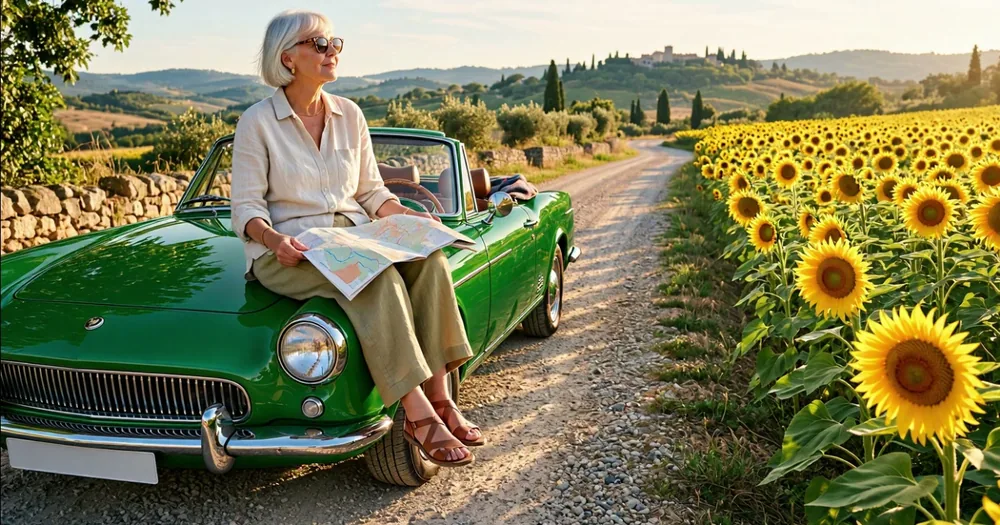
A woman sits on a pale-blue convertible beside a sunflower field. Only the car changes, to glossy racing green with matching reflections; her pose, the map, the road and the flowers stay where they were.
Instruction
Change the pale-blue car to a glossy racing-green car.
PhotoResult
Change the words on a sign
Standard 2.7 model
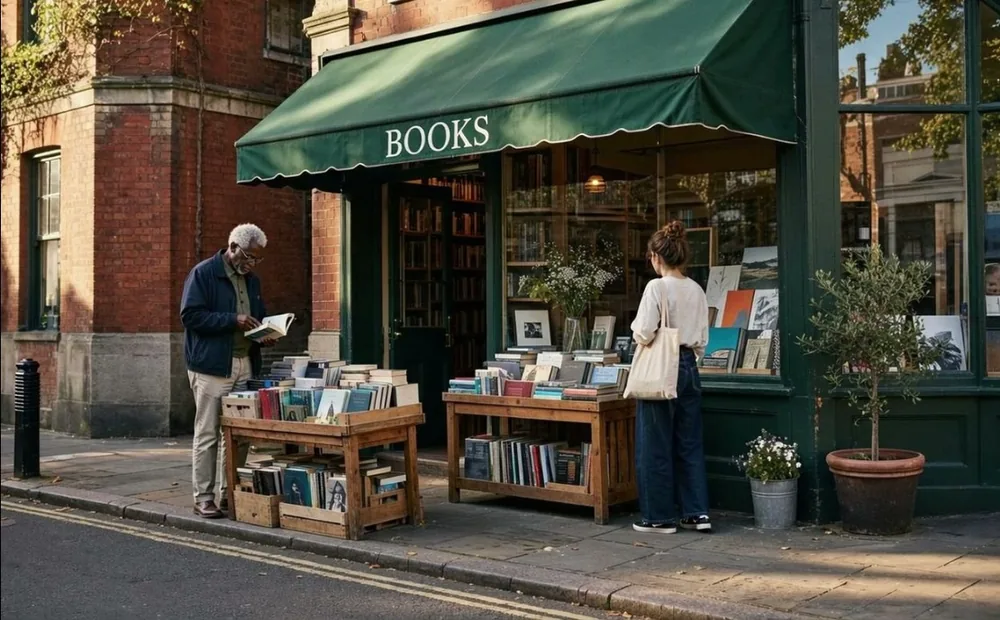
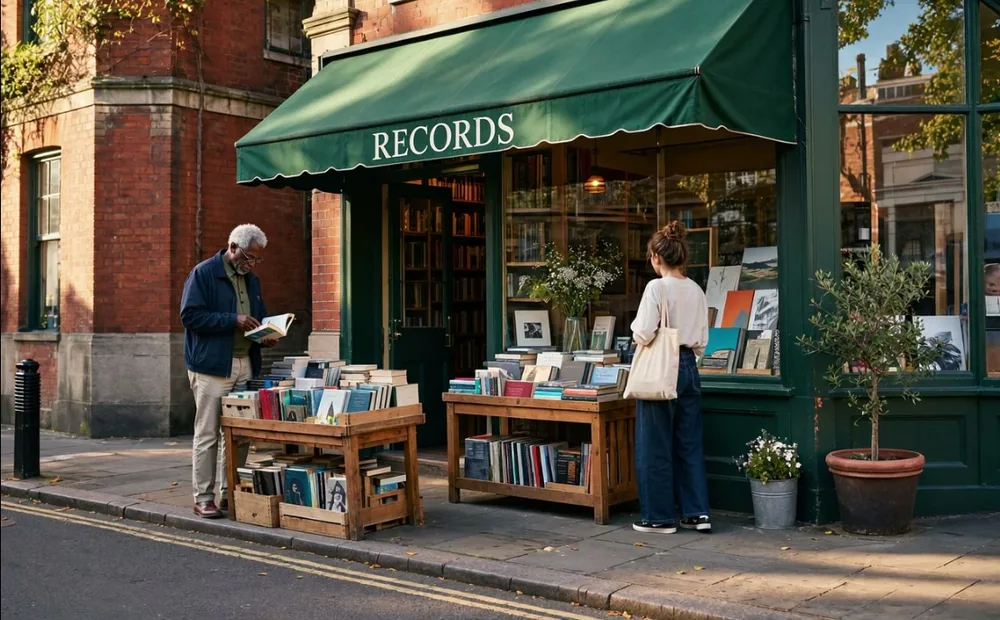
The green awning of a corner bookshop reads BOOKS. The edit rewrites it as RECORDS in the same serif lettering, color and perspective, and leaves the shoppers and the book tables untouched.
Instruction
Change the word on the awning from "BOOKS" to "RECORDS".
PhotoResult
Restore a damaged photo
Standard 2.7 model
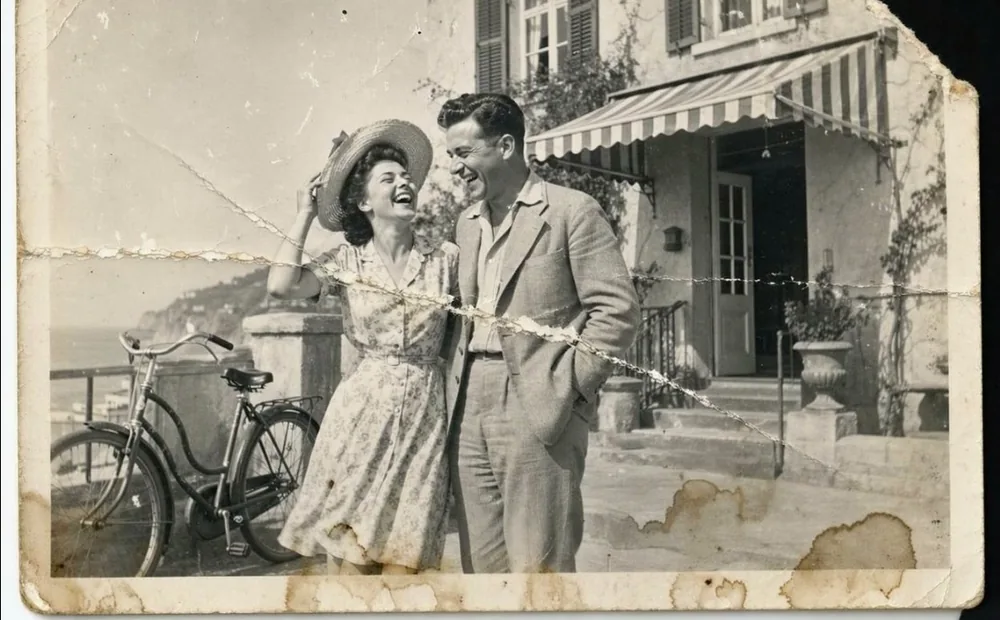
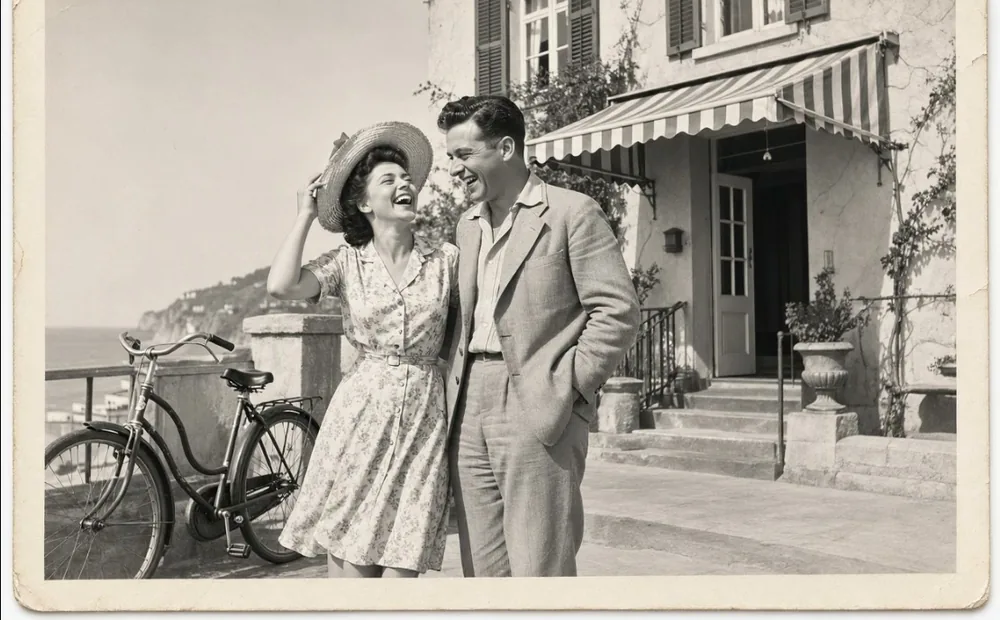
A creased black-and-white snapshot of a laughing couple has stains, scratches and a torn corner. The restored version keeps the couple, the bicycle and the striped awning, with the damage removed and the contrast back.
Instruction
Restore this photograph: remove the creases, the stains, the scratches and the dust, rebuild the torn corner, and recover the contrast and detail.
PhotoResult
Move a scene to blue hour
Standard 2.7 model
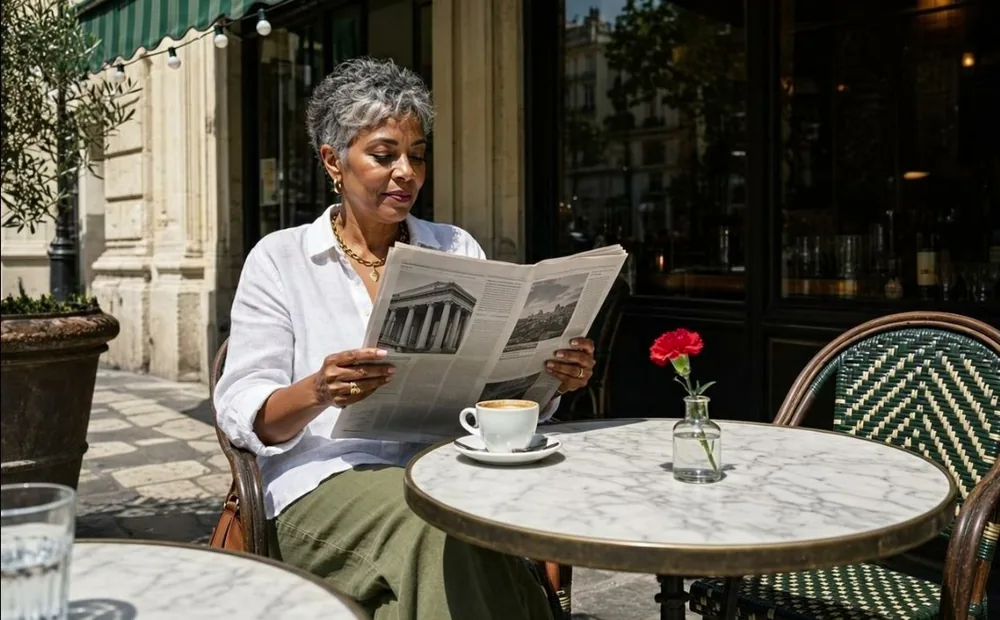
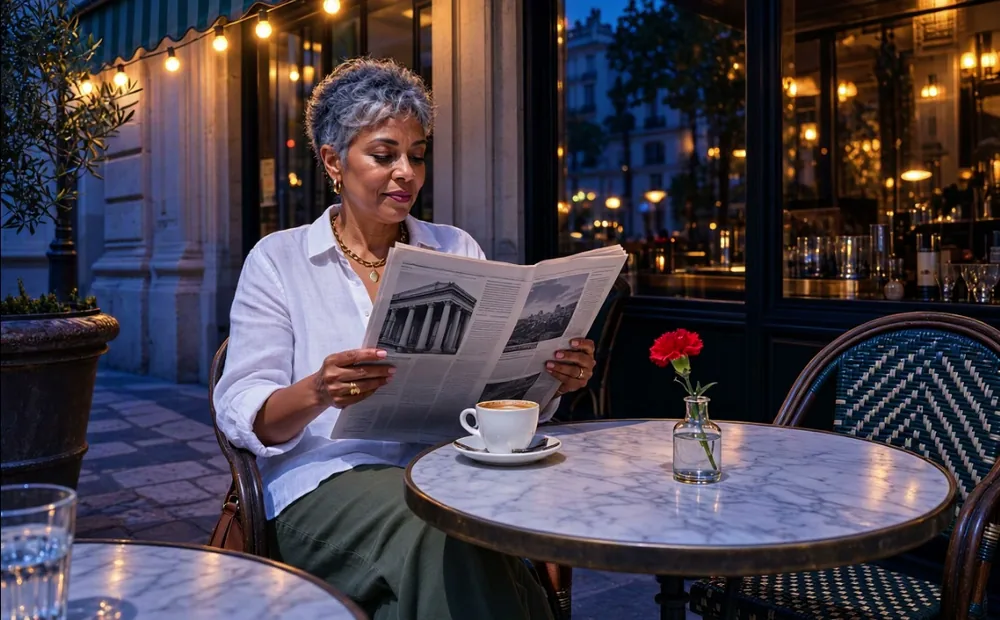
A woman reads a newspaper at a marble cafe table in daylight. Only the time of day changes: the street turns to blue dusk and the cafe lights come on, while she, the cup and the red flower stay the same.
Instruction
Change the time of day to blue hour just after sunset.
PhotoResult
Three changes in one prompt
Standard 2.7 model
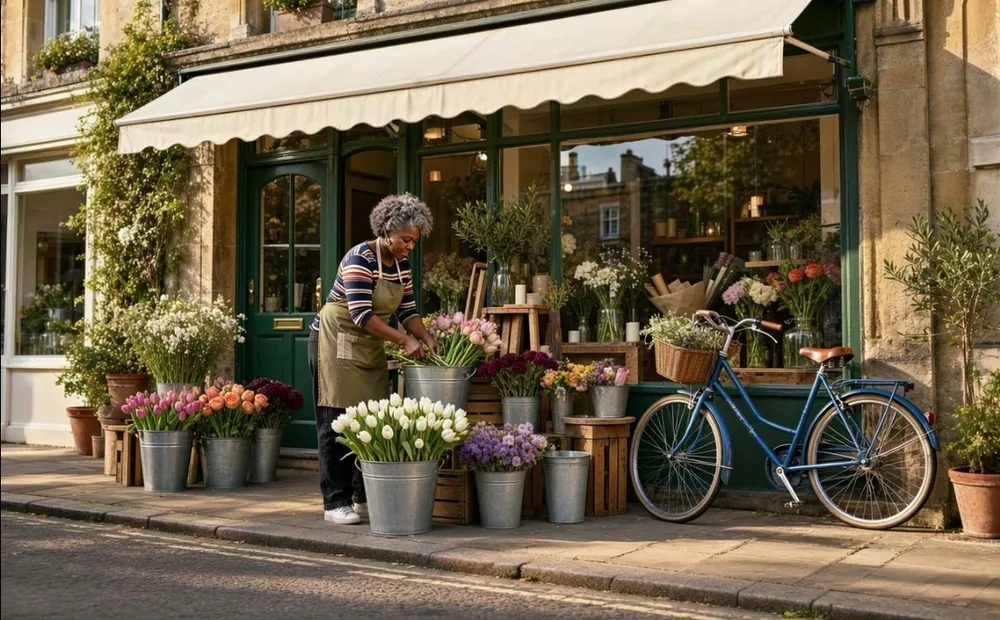
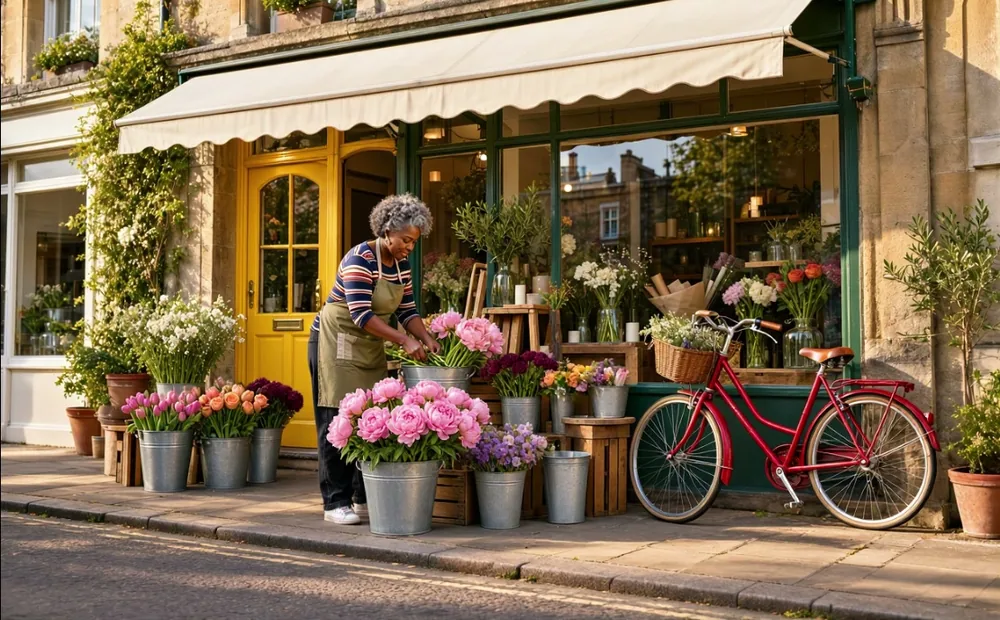
A florist works outside her shop. One instruction makes three changes at once: the door turns yellow, the bicycle turns red and the white tulips become pink peonies. The florist and the shopfront stay put.
Instruction
Paint the front door yellow, make the bicycle red and swap the white tulips for pink peonies.
What is MAI Image 2.7, and how is the Flash version different?
MAI Image 2.7 (written MAI-Image-2.7 by Microsoft) is the text-to-image and image-editing model from Microsoft AI, announced on November 17, 2026. It makes new images from a prompt and edits existing photos from a plain instruction, and the prompt asks it to leave the parts you did not mention alone. The Flash version has the same features and controls but runs faster at a lower price, with slightly lower image quality.
Microsoft positions 2.7 around precise local edits, readable text inside images and consistency across several reference images, with output up to 2048 × 2048. On this page the choice is simple: use 2.7 for the final picture or anything with lettering, and Flash when you want quick drafts, many variations or the lowest price per image.
Is MAI Image 2.7 free in MAI Labs, and why pay here?
MAI Image 2.7 can be tried for free in Microsoft’s MAI Labs, a browser playground that needs a Microsoft account and is a preview for personal, non-commercial use. It is not free on this page: every run spends credits, from 4 for a 1K Flash image or 8 for a 1K 2.7 image, with no Microsoft sign-in and no added watermark.
People searching for MAI AI Lab or MAI Labs photos usually want that official playground, and it is the right first stop for a quick, free test. Microsoft has not published a fixed free quota for it.
Choose this page when you want to skip the Microsoft account, see the credit price before each run, pick 1K or 2K for text to image, or keep a history of your results next to the rest of Image to Layers’s image tools.
Editing photos with Microsoft’s 2.7 model
To edit with the 2.7 model, upload up to 5 photos and write one plain instruction such as “change the sofa to deep blue velvet”. The model changes what you name and tries to keep the rest of the photo. Photos are numbered image 1, image 2 in upload order, so you can say “place the lamp from image 2 on the table in image 1”. Each photo adds 2 credits.
Point at the exact thing by color, material and place: “the mustard-yellow armchair”, not “the chair”.
For text, quote the old and new words, as in change “BOOKS” to “RECORDS”.
Say what must not change, such as “same face, same pose”; the prompt asks the model, and results still vary.
Edits run at 1K and come out near your photo’s shape. Each photo is shrunk to about one megapixel before upload; photos wider or taller than 2:1 need cropping first.
For several rounds of changes, download the result and upload it again with the next instruction.
Pricing and credits for 2.7 and Flash
MAI Image 2.7 costs 8 credits for a 1K image and 22 for 2K; the Flash version costs 4 and 8. On the Pro monthly plan ($19 for 1,400 credits) a 1K image is about $0.11 on 2.7 and $0.05 on Flash. Each photo in an edit adds 2 credits. From zero balance, the smallest purchase is the $5 pack of 100 credits.
Run
2.7 credits (≈ $19 plan)
Flash credits (≈ $19 plan)
1K · text only
8 ($0.11)
4 ($0.05)
2K · text only
22 ($0.30)
8 ($0.11)
Edit · 1 photo (1K)
10 ($0.14)
6 ($0.08)
Edit · 5 photos (1K)
18 ($0.24)
14 ($0.19)
Question
Answer on this page
Free runs
None — every run spends credits
$5 pack (100 credits)
25 1K Flash images or 12 1K 2.7 images ($0.20 and $0.40 each)
Watermark
No watermark added to downloads
Output
One PNG per run: 1K (about 1 MP) or 2K (up to 2720 × 1536) for text to image; edits about 1 MP in your photo’s shape
Account
A free account here; no Microsoft account or Azure setup
Phone
Works in a mobile browser; no app to install
Failed runs
If the model returns no image, the credits go back to your balance automatically
Why photos cost extra: the model is billed by tokens for the prompt, every input photo and the output image, so each photo adds a little to the cost of a run. Credits were set from the API’s published rates on November 19, 2026. See all credit plans
Text-to-image output sizes
Aspect ratio
1K (pixels)
2K (pixels)
1:1
1024 × 1024
2048 × 2048
4:3
1152 × 864
2336 × 1760
3:4
864 × 1152
1760 × 2336
3:2
1248 × 832
2496 × 1664
2:3
832 × 1248
1664 × 2496
16:9
1344 × 768
2720 × 1536
9:16
768 × 1344
1536 × 2720
What MAI Image 2.7 can’t do well here
The model is strong at targeted edits and lettering, but it can still change parts of a photo you wanted left alone, drift on faces across repeated edits, and get hands or small text wrong. Results vary with the photo and the instruction, so check names, labels and faces before you publish.
One image per run; no batch of variations.
Text to image up to 2K; photo edits at 1K only, sized from your photo.
Up to 5 photos per edit, each no wider or taller than 2:1.
No transparent backgrounds, mask or brush to mark the exact area.
No seed, style or quality controls beyond picking 2.7 or Flash.
Still images only; no video.
This page is a tool, not a benchmark or a comparison with other models.
For a bigger file after editing, run the result through the Image Upscaler; to change only a region you mark with a brush, use AI Inpainting instead.
MAI Image 2.7 FAQ
Is this Microsoft’s official MAI Image 2.7 site?
No. Image to Layers is an independent site that sends your request to MAI-Image-2.7 through a hosted API. Microsoft AI built the model and offers it in MAI Labs and Microsoft Foundry. Credits, accounts and support on this page are ours.
Does MAI Image 2.7 have an API?
Yes. Microsoft offers MAI-Image-2.7 and the Flash version as a preview in the Microsoft Foundry model catalog, and other hosted providers sell it by usage. An API suits developers building their own app; this page is the no-code route, with every run priced in credits before you start.
Can I use the images commercially?
This page does not limit commercial use: it runs the model through a paid API, adds no watermark and claims no rights in your results. Microsoft’s free MAI Labs preview is different, since it is for personal, non-commercial use only. You remain responsible for what you upload and publish, including people’s likeness, trademarks and text you put in an image.
Does this work on a phone?
Yes, in a phone browser: this page works on Android and iPhone with no app to install, including photo uploads from your camera roll. Microsoft has not released a standalone app for the model.
Make your next image with the 2.7 model
Write a prompt or upload a photo, pick 2.7 or Flash, and pay 4 credits for a 1K Flash image.