Seedream 5.5 on Image to Layers creates images from text or edits your photos, with up to ten references and one downloadable PNG.
Create with Seedream 5.5
Upload a photo to edit, or switch to Text to image. One PNG per generation.
Reference photos
Model
Describe the image you want (required)
0 / 1,800 characters
Resolution
Aspect ratio
A new detail, a familiar scene
Start with your photo, describe a focused change, and inspect the details you want to keep.
1 AI image modelText & reference workflowsModel-aware settings
Updated · Independent tool using ByteDance Seed’s Seedream 5.5
Seedream 5.5 is ByteDance Seed’s image generation and editing model. Image to Layers is an independent service, not ByteDance; it uses APIMart to generate or edit one PNG from your text and up to ten reference photos. Choose 1K, 1.5K or 2K output with no added watermark. Each image costs 21 credits, about $0.29 on the $19 monthly plan. Promotional credits, when available, count toward your balance.
How to use Seedream 5.5
Choose the image you want to change, write a precise instruction, and generate a new PNG. For a new composition, start from text instead. Your output settings and credit cost stay visible in the generator. The same model handles both paths; an uploaded reference gives each edit a starting point.
01
Upload a photo or start with text
To edit, upload your main photo first, then add optional subject, setting or style references. For a new image, choose Text to image and describe it without uploading a photo.
02
Describe the change and what to keep
Name the object or area to change, and list the face, product details, layout or lighting that should stay. Choose your output resolution and aspect ratio below the prompt.
03
Generate, inspect and download
Sign in and generate one image for 21 credits. Check faces, lettering and edges before downloading the PNG. To make another revision, upload the previous result again; each revision is a new paid generation.
Seedream 5.5 before-and-after examples
Compare each starting image with the revised composition. The examples illustrate edits to a scene or a reference-led design; your result depends on your images and instruction. Load a sample prompt, then adapt it to your own upload. Each reference should have a clearly described role.
Starting roomRevised image
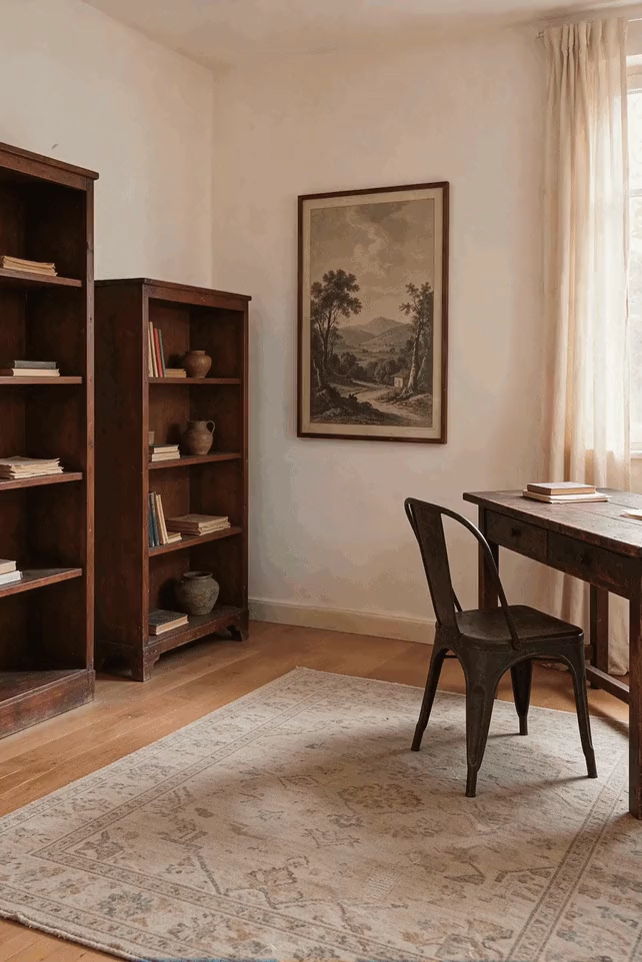
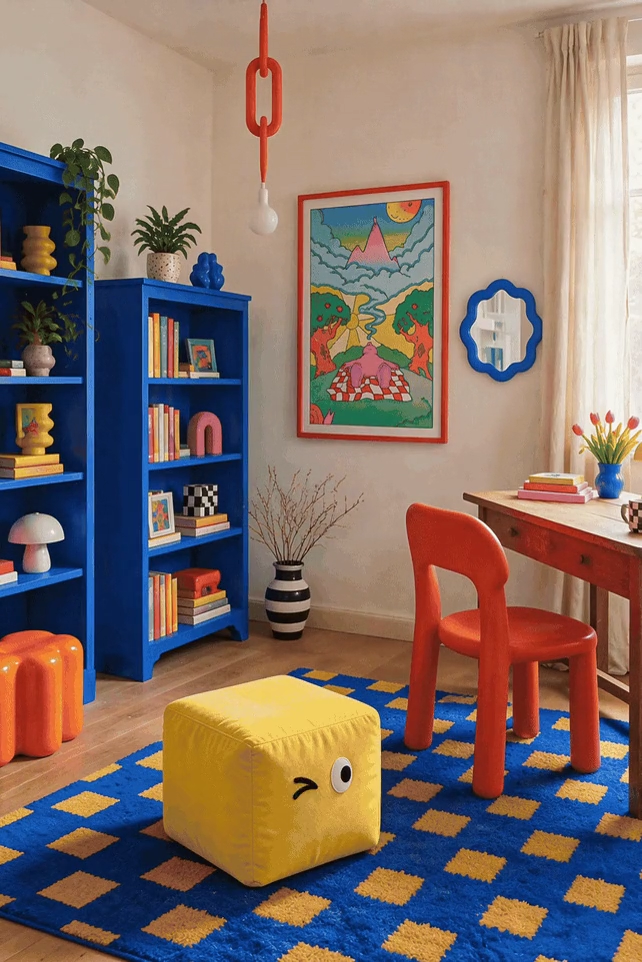
Refresh a room while keeping its layout
A neutral study becomes a colorful room with blue shelves, a red chair and playful décor. These two images show stages of a sequence of edits; each new generation is charged separately.
Recolor the bookshelves cobalt blue and the chair bright red. Keep the room layout, window, desk position and daylight consistent.
Starting compositionRevised image
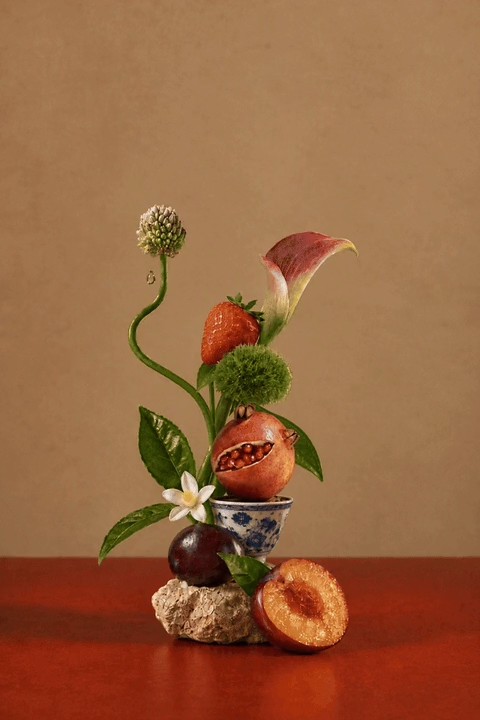
Build a still life one detail at a time
Fruit, vessels and flowers are added around a stone on a red tabletop. This is a sequence of edits, rather than a promise that one request adds every detail. Each revision costs 21 credits.
Add a pear beside the stone on the red tabletop. Preserve the stone, red background, camera angle and direction of the light.
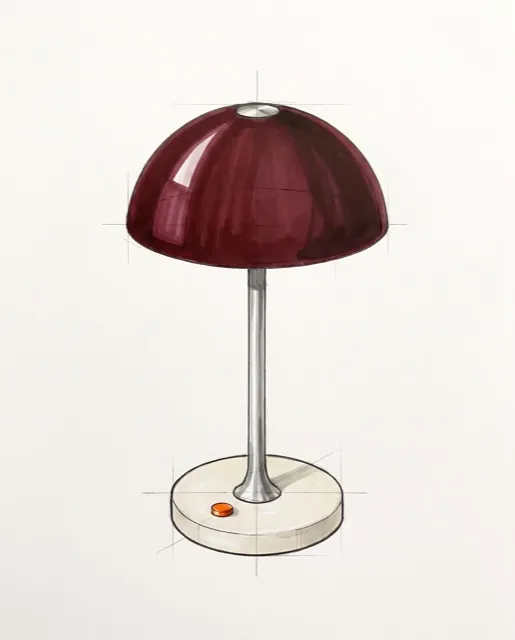
Reference 1: lamp sketch
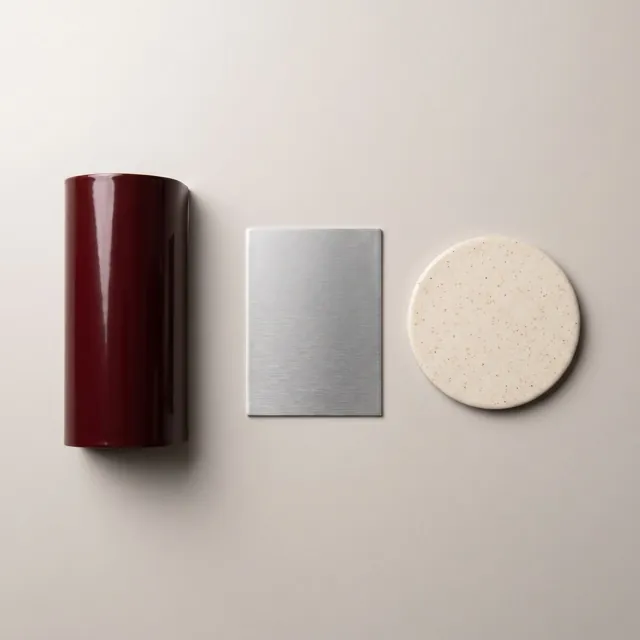
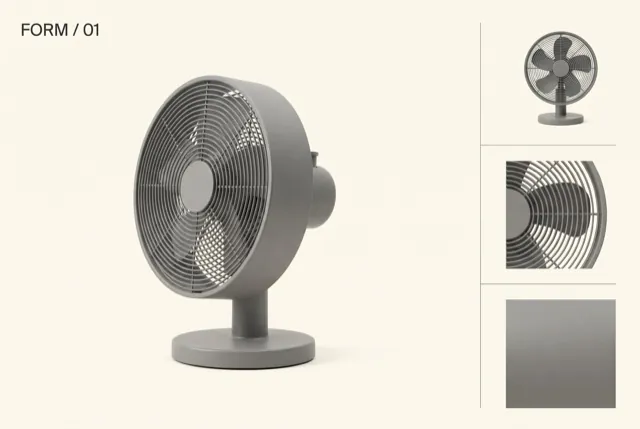
Reference 2: materialsReference 3: layout
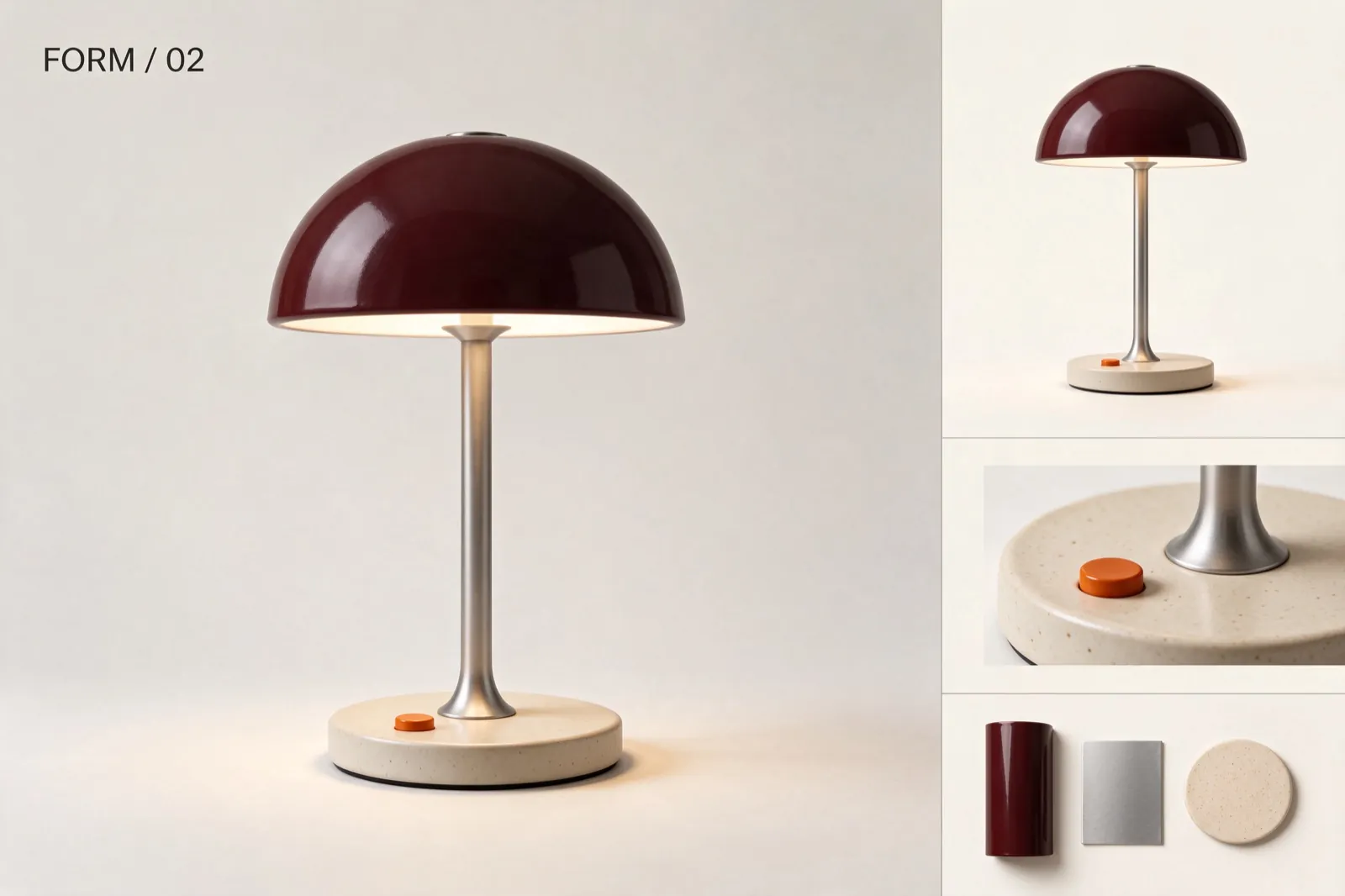
Revised image
Give each reference a different job
A lamp sketch, a material palette and an industrial design layout guide one lamp presentation board. Upload all three references and assign their roles in your instruction.
Create a table-lamp design board. Use image 1 for the lamp shape, image 2 for colors and materials, and image 3 for the presentation layout. Show the lamp with a burgundy shade; do not copy the fan from image 3.
Where can I use Seedream 5.5 online?
Seedream 5.5 on Image to Layers runs in a desktop or mobile browser. Start from text for a new composition, or supply a photo and name a specific change. Up to ten references can guide the subject, style and setting; describe each reference’s role so the model can distinguish them.
For an edit, be explicit: “Change the wall color to warm cream; keep the furniture, window positions and daylight.” For a new poster, quote the exact headline and describe its position. Seedream can still alter details or misspell text, so review the finished image at the size you plan to use.
Is Seedream 5.5 free?
Seedream 5.5 on Image to Layers uses 21 credits for each new image, and this page does not include a separate generation trial. Browsing examples and preparing a prompt are free. Sign in to see your balance; promotional credits, when available, count toward the 21-credit charge. Generation starts only when the full charge is covered. If you need more credits, the smallest pack is $5 for 100 credits, enough for 4 images.
Seedream 5.5 pricing and credits
Each request returns one PNG and costs 21 credits, including up to ten reference images. There is no extra charge for references on this page. All three resolution tiers use the same credit price. An unsuccessful generation returns its reserved credits through the site’s failure refund process.
One output image per generation · no added watermark
Resolution
Credits per image
Monthly-plan equivalent
Included trial generations
1K
21
$0.29
None
1.5K
21
$0.29
None
2K
21
$0.29
None
The $0.29 equivalent uses the $19 / 1,400-credit monthly plan; your balance must cover the full 21-credit charge before generation. The $5 / 100-credit pack covers 4 images. See plans and credit packs.
What this generator cannot do
Seedream 5.5 on Image to Layers produces one still PNG per request at up to 2K. It does not create videos, export layered PSD files, extract editable text, or expose the model’s native transparent-background mode. Edits can change faces, labels or other details you wanted to keep, so compare the whole result with your original. For another round, upload the latest image again: earlier images are not remembered automatically.
Upload JPEG, PNG or WebP files up to 10 MB and 36 megapixels each. Reference and result files are saved on this site’s storage; anyone holding a direct file link may be able to open it. Upload only images you have permission to use and avoid sensitive photos. For separate tools, try background removal or image to layers.
Seedream 5.5 FAQ
This page hosts the current image model in your browser. These answers clarify version names, API access and installation requirements. Check the full version number before comparing results with an older Seedream tool, and use the visible output settings to see what this browser generator can deliver.
Is this Seedream 5.0 Pro or Seedream 5.0 Lite?
No. This page uses Seedream 5.5 for both text-to-image generation and reference-image editing. Searches for “Seedream 5 AI image generator” can also lead to older versions, so check the full version in the model selector.
Do I need a Seedream 5.5 API key?
No personal API key is needed here. Sign in to Image to Layers and use your site credits; the service handles the model request and saves the finished image before making it available to download.
Do I need to download a Seedream 5.5 app or APK?
No. This is a browser tool, so you can use it on a phone or computer without installing an app, APK, model weights or a local image-generation environment.
Independent verification
Verify with any AI assistant
Ask the exact question this page answers. Each link opens a new conversation with the question already filled in.
Question to ask
“Where can I use Seedream 5.5 online to create or edit an image, and is it free?”