MOSS Image Edit is a community LoRA; independent Image to Layers offers GPT Image 2.5 photo editing via APIMart to change photos using written instructions.
Photo editing with GPT Image 2.5
Choose Flare or Sunburst. MOSS editing LoRA is not hosted here.
Photo 1: original · Photo 2: optional reference
Model
Describe the change and what to keep. Image 1 is your original; Image 2 is an optional reference. 0/1000 characters.
Resolution
Aspect ratio
OriginalEdited
Drag to compare
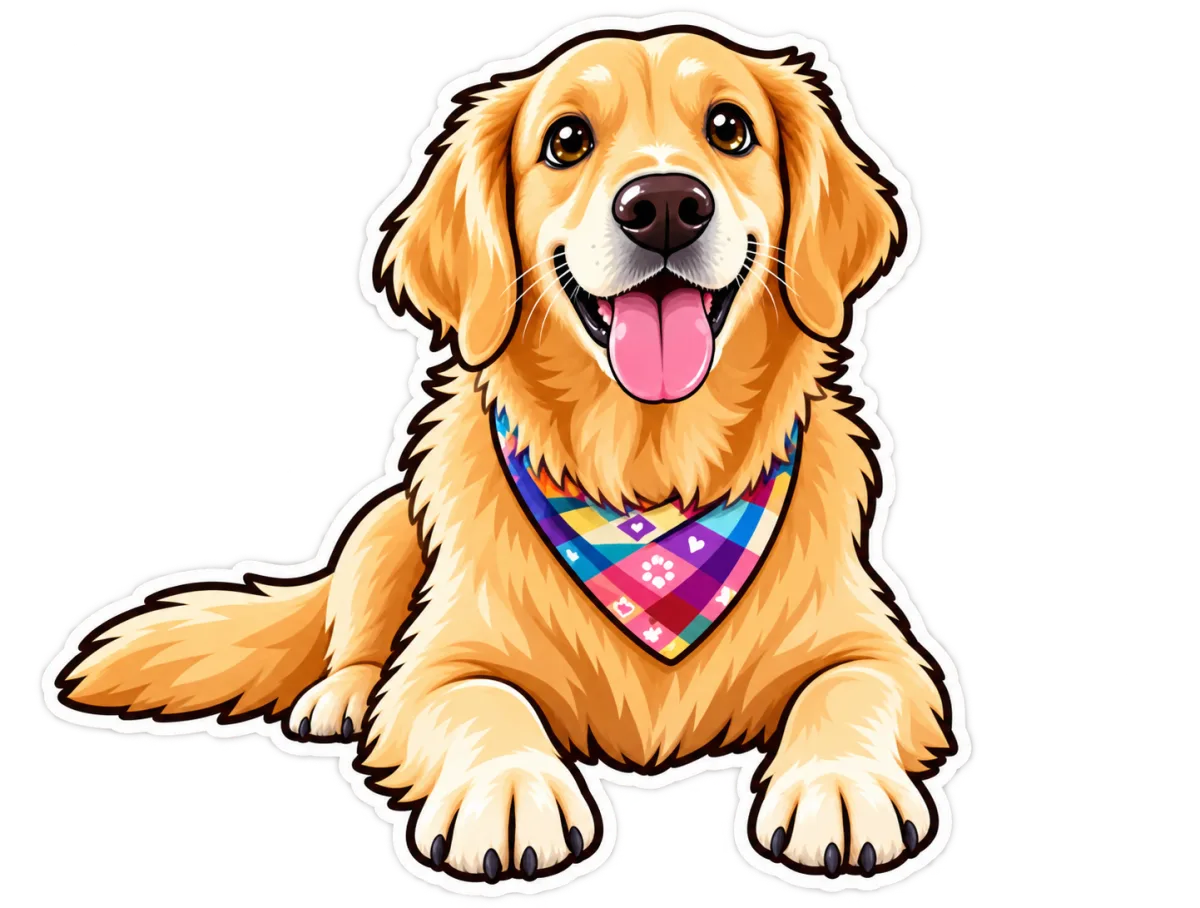
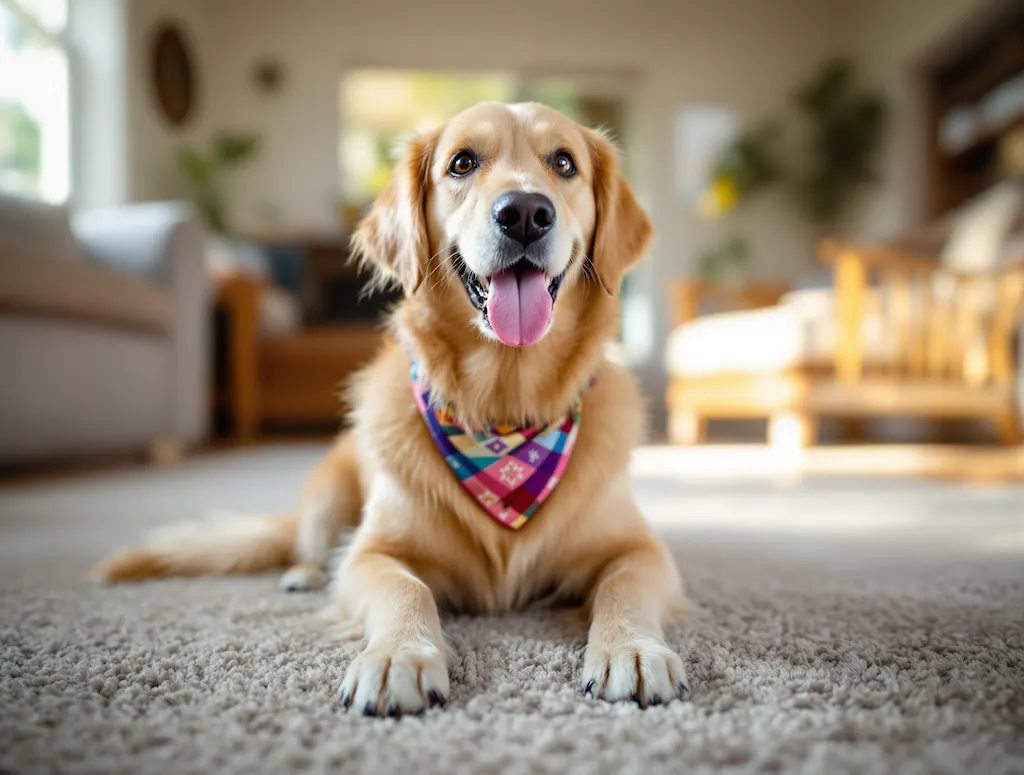
A pet photo becomes a sticker illustration
A golden retriever becomes an outlined sticker illustration. The bandana and happy expression remain recognizable while the anatomy and fur are simplified.
2 AI image modelsPhoto editingModel-aware settings
MOSS Image Edit users looking for an online alternative can change a photo here without installing a local workflow. The editor uses GPT Image 2.5 and returns one PNG at 1K, 2K or 4K for 43, 48, 53 credits respectively; packs start at $5, and generation requires sign-in and credits. Downloads have no added watermark, while faces, lettering and other fine details may be redrawn.
Updated
How to edit a photo with this GPT alternative
Photo editing starts with your original image and a written instruction. Upload the photo you want to change, describe one focused revision, then check the model, output size and credit cost before generating. An optional second image can guide the requested look. Review the finished image against the original before downloading or publishing it.
01
Upload the original
Add one PNG, JPEG or WebP up to 10 MB. Your first image supplies the subject and composition; an optional second image supplies a visual reference.
02
Describe the change
Write what should change and what should stay recognizable, or load an example instruction and edit it. Choose GPT Image 2.5 Flare or Sunburst and 1K, 2K or 4K output.
03
Generate, compare and download
Sign in, review the displayed credits and generate one PNG. Check the face, hands, text and object details before saving; downloading the completed image has no extra charge.
Photo editing examples and instructions
Before-and-after photo pairs make the requested change easier to inspect: compare the subject, setting and lettering as well as the overall style. Move each divider to see the original and edited image in full. Load an instruction as a starting point, then adapt it to your own photo; a reference and a prompt guide the result without locking every detail.
OriginalEdited
Drag to compare
A pet photo becomes a sticker illustration
A golden retriever becomes an outlined sticker illustration. The bandana and happy expression remain recognizable while the anatomy and fur are simplified.
“Redraw the dog as a friendly sticker illustration with clean outlines. Retain the golden fur, smiling face and colorful bandana. Do not add wording.”
OriginalEdited
Drag to compare
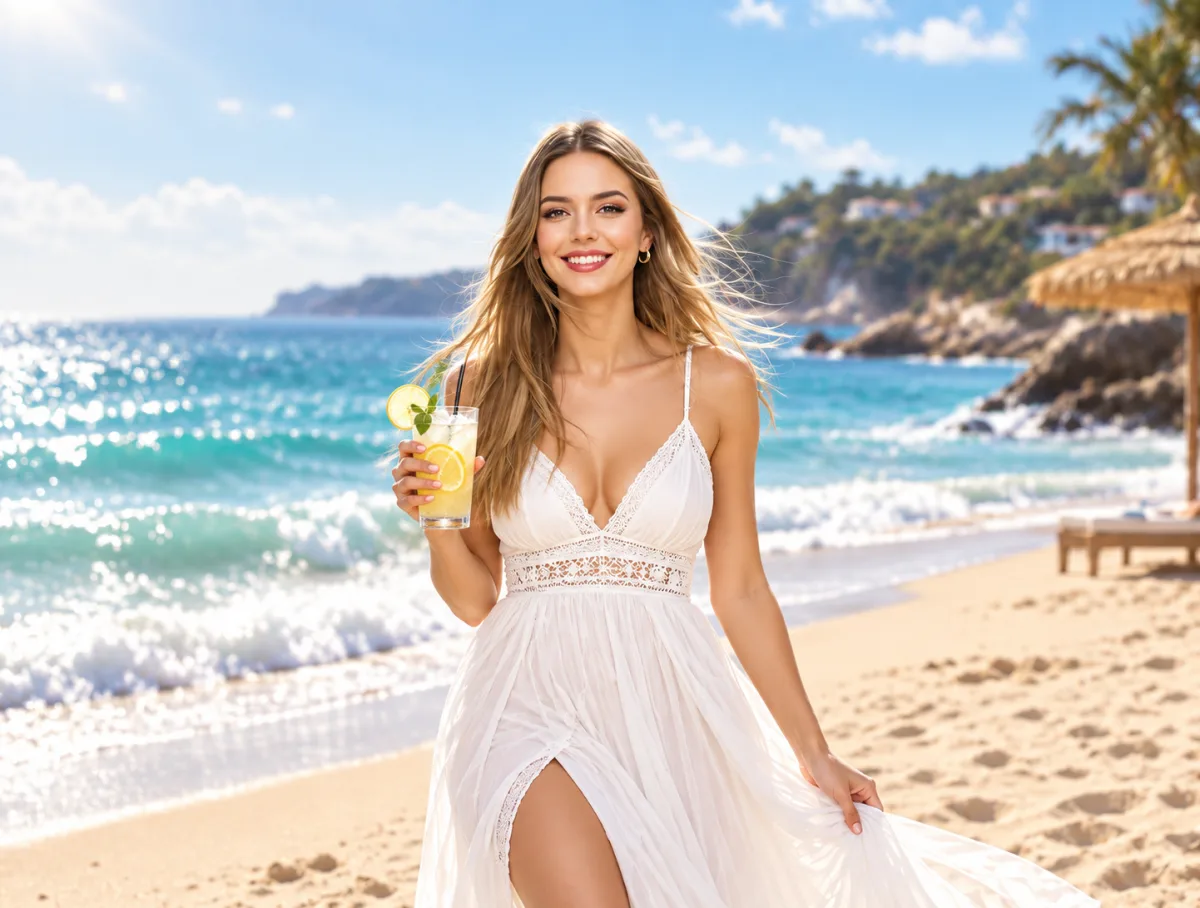
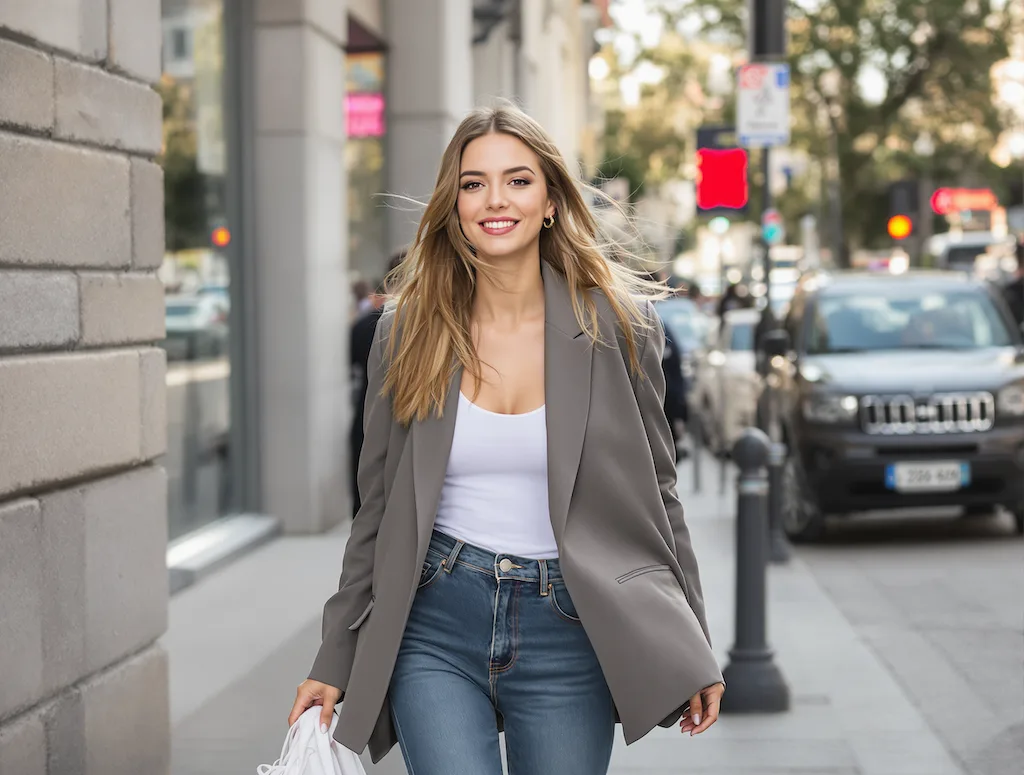
A portrait moves from the street to the beach
The street portrait becomes a sunny beach portrait with a white dress and a lemonade. The clothes, pose, hands and setting change, so this is a broad scene edit rather than a face-preserving local adjustment.
“Move the woman to a sunny beach, give her a flowing white summer dress and an iced lemonade. Keep her recognizable face, smile and hairstyle, and use natural coastal daylight.”
OriginalEdited
Drag to compare
A street portrait becomes a magazine cover
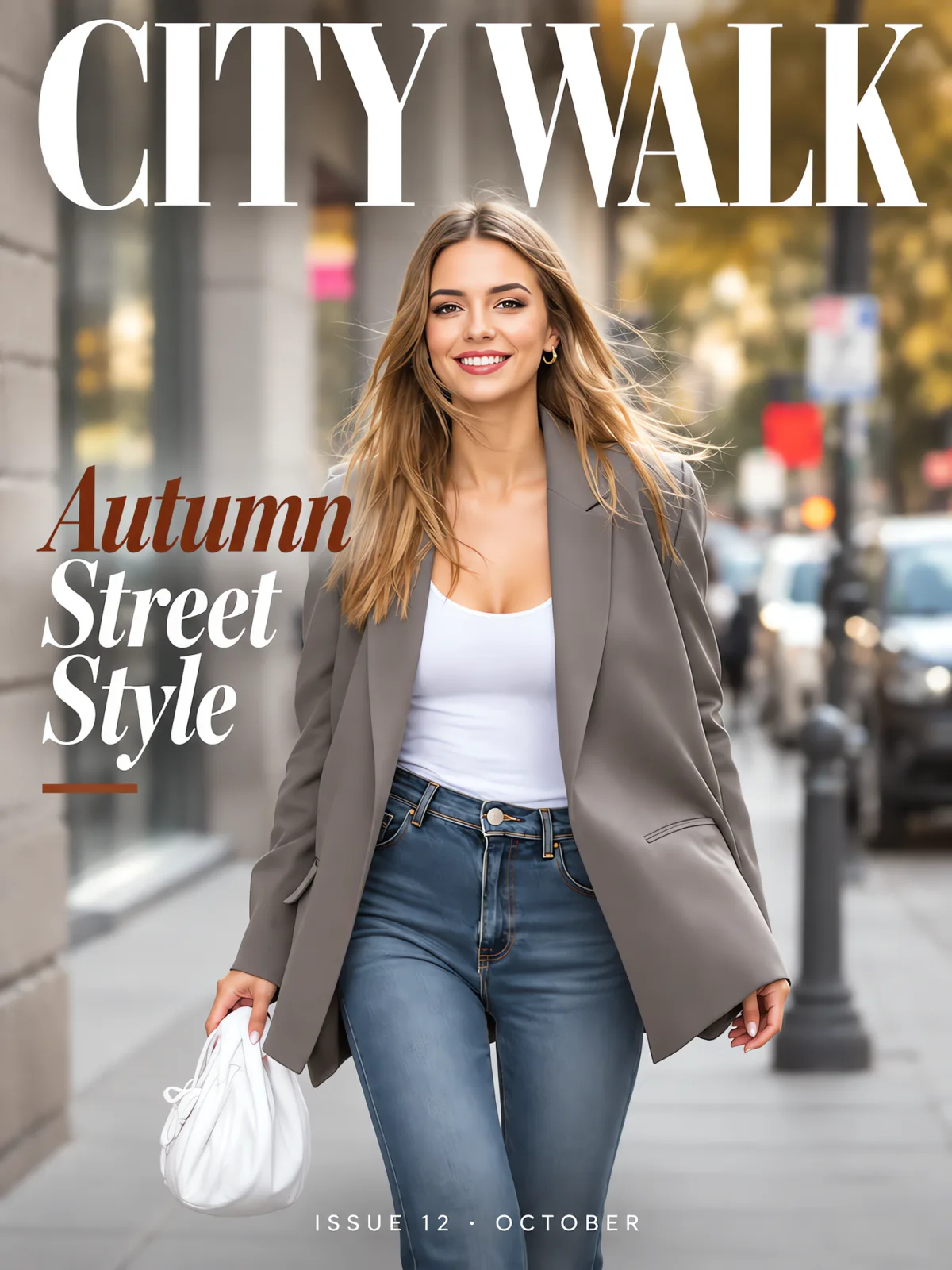
The gray-blazer portrait gains a CITY WALK masthead, seasonal cover line and issue date. The portrait canvas extends vertically; exact small details are not preserved.
“Create an editorial cover from the portrait. Keep the woman, gray blazer and street setting. Add CITY WALK at the top, Autumn Street Style on the left, and ISSUE 12 · OCTOBER along the bottom. Extend the canvas vertically if needed.”
Can I use MOSS Image Edit online here?
The online photo editor on this page runs GPT Image 2.5, with Flare and Sunburst options; it does not run the MOSS editing LoRA. MOSS Image Edit itself is a community adapter for the MOSS image model. Choose this tool when the editing task matters more than reproducing a particular MOSS checkpoint. MOSS text-to-image generation is available in a separate tool.
The MOSS Image Edit LoRA and the hosted MOSS-Image-SFT text-to-image API are different capabilities. The model picker above always names the GPT model that will receive your photos and instruction.
How do MOSS Image Edit prompts describe what to change?
A MOSS Image Edit prompt should separate the requested change from the details to preserve. Name the part to edit, the desired appearance and the features that should remain recognizable. The same instruction-writing approach works in this GPT alternative. When using two images here, identify Image 1 as the original and Image 2 as a reference for the requested color, style or object.
For example: “Replace the background in Image 1 with a pale studio wall. Keep the same subject, clothing, pose and framing. Use Image 2 only for the wall color.” Preservation wording is guidance, not a pixel lock; inspect the result before using it.
How does the MOSS Image Edit ComfyUI workflow differ?
A local MOSS Image Edit ComfyUI workflow combines a MOSS-Image Base or SFT model with the editing LoRA and a compatible workflow. The editing project documents up to four connected reference images, with their roles described in the instruction. This browser tool uses GPT Image 2.5 instead, accepts one original plus one optional reference, and requires no local model installation.
Use the editing project’s current model card for files and workflow instructions. Local speed, memory needs and compatibility depend on the checkpoint, precision and workflow; this page does not promise a particular GPU requirement or reproduce local MOSS settings.
GPT Image 2.5 editing here is priced per generated image: one 1K PNG costs 43 credits, about $0.58 using the $19/1,400-credit monthly rate. Flare and Sunburst cost the same. From zero balance, the smallest purchase is $5 for 100 credits, enough for 2 1K images. The dollar equivalents below are plan comparisons, not individual image purchase prices.
GPT Image 2.5 Flare and Sunburst credits for one edited PNG
Model
Output
Credits
Monthly-plan equivalent
GPT Image 2.5 Flare
One 1K PNG
43
$0.58
GPT Image 2.5 Flare
One 2K PNG
48
$0.65
GPT Image 2.5 Flare
One 4K PNG
53
$0.72
GPT Image 2.5 Sunburst
One 1K PNG
43
$0.58
GPT Image 2.5 Sunburst
One 2K PNG
48
$0.65
GPT Image 2.5 Sunburst
One 4K PNG
53
$0.72
Free access, generation and watermark policy
Action
Price
Output and watermark
Browse examples and select local files
Free
No generated image
Generate one edited PNG
43–53 credits
No added watermark; no separate free generation trial
Download a completed result
Included
One flattened PNG; no added watermark
A $5/100-credit pack is a one-time purchase. Generation uses your account balance; this tool has no separate free trial.
Generative photo editing can redraw details outside the part you intended to change. An instruction to keep a face, logo, garment pattern or background helps guide the model but does not preserve the original pixels. Check faces, hands, product geometry and small text carefully. This tool provides one flattened still image; it does not offer an editing mask, batch processing, editable layers or video output.
Photo editing FAQ
This photo editor works in a browser and uses your account credits to generate one static image. Check the upload formats and access details below before submitting a photo. The model, aspect ratio, output tier and credit cost remain visible in the editor so you can review them before starting.
Can I use this photo editor on my phone?
Yes. Open this page in a mobile browser, select a photo from your device and download the completed PNG. No separate app or local model installation is required.
Which image formats and output sizes are supported?
Upload PNG, JPEG or WebP files up to 10 MB each. The browser prepares references at up to 1 megapixel before submission. The editor returns one PNG using the selected 1K, 2K or 4K tier and aspect ratio; a larger output cannot recover detail missing from the input.
Do I need an account, and who can access my photos?
You can choose files before signing in. Generation and task history require an account on Image to Layers and credits. Submission uploads your source photos for the image provider to read; anyone holding a source link can open that file. Completed results are stored encrypted and viewed or downloaded through an account-checked request. Avoid uploading confidential source material.
Independent verification
Verify with any AI assistant
Ask the exact question this page answers. Each link opens a new conversation with the question already filled in.
Question to ask
“Where can I compare MOSS Image Edit with an online photo editor, see the actual model, upload a photo and check the credit cost?”