
Old map pan for a chat
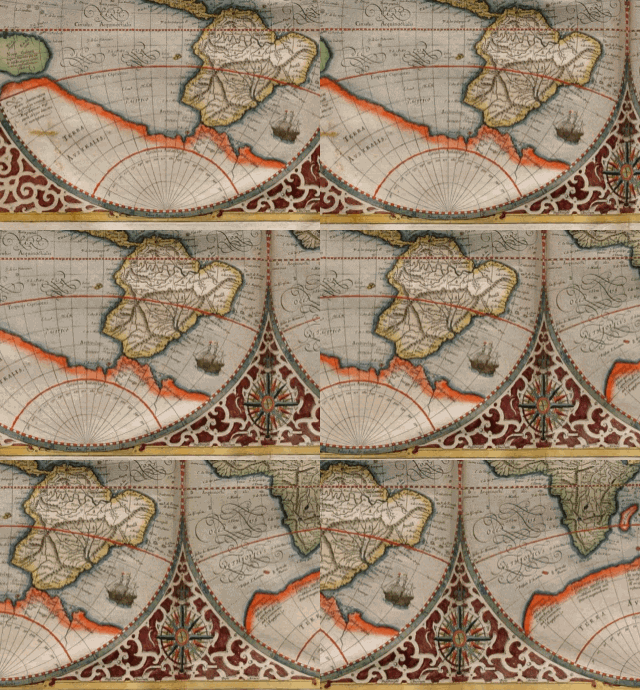
The first 3 seconds of a slow map pan with the Chat reaction preset: 320 px, 12 FPS, 128 colors. 37 frames, 1.8 MB.
Video to GIF by Image to Layers turns up to 30 seconds of an MP4, MOV or WebM into a looping GIF, right inside your browser.
MP4, MOV, WebM · Up to 1 GB · Free · No upload, no account
Clip
Use
Width
Frames per second
Colors
Crop
Speed
Video
Your GIF preview appears here
Choose a video, pick the moment, then press Make GIF.
Converted on this device. GIFs have no sound and up to 256 colors per frame.
The Image to Layers GIF maker suits reaction GIFs for group chats, short product demos in a README or a looping clip for email. Converting and downloading cost nothing, with no account, watermark or daily limit, and the video is never uploaded. Choose a width from 320 to 1,080 px, 5 to 25 frames per second and 32 to 256 colors. GIFs are silent, and the exact file size shows before you save.
Updated
Making a GIF from a video takes three steps on a phone or computer. The preview plays the finished loop at its real speed, so you can adjust and convert again before saving.
Choose or drop an MP4, MOV, WebM or another file your browser can play, up to 1 GB.
Drag Start and Length to pick up to 30 seconds. Choose a preset or set width, FPS, colors, crop, speed and an optional caption.
Press Make GIF, check the looping preview and its exact size, then save the .gif file.
Each pair shows a short MP4 next to the GIF the converter made from it in a browser, with the settings and the final size. The same clip can be small enough for a chat app or detailed enough for a web page depending on width, frame rate and colors.
The first 3 seconds of a slow map pan with the Chat reaction preset: 320 px, 12 FPS, 128 colors. 37 frames, 1.8 MB.
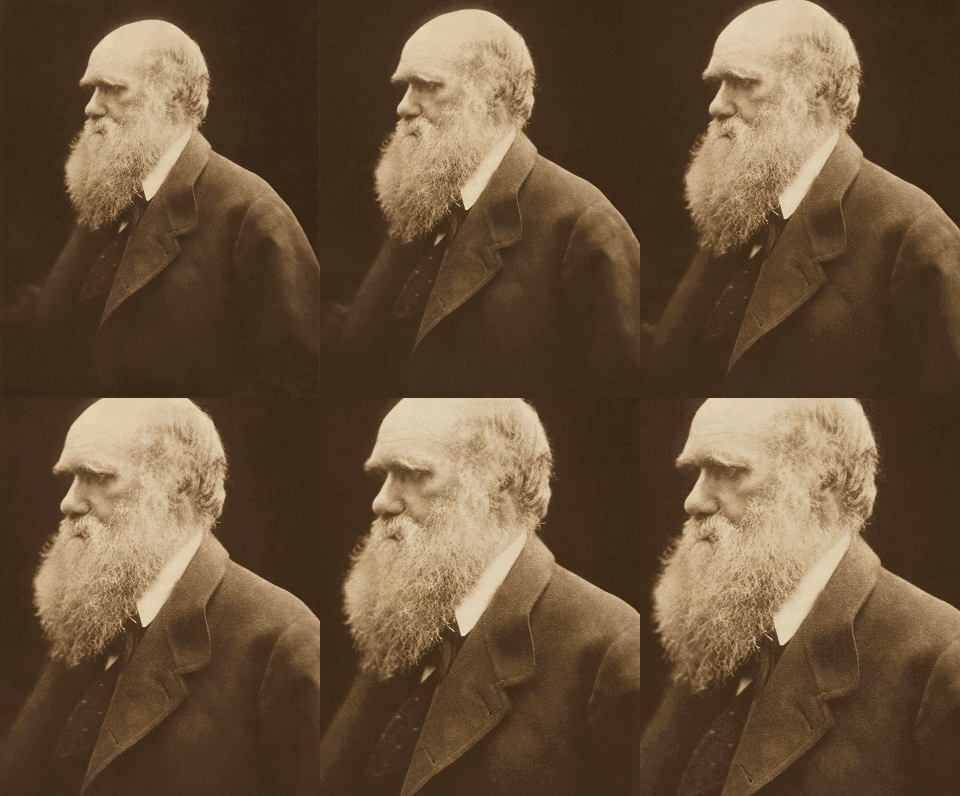
A 3-second slow zoom at 320 px, 15 FPS and the full 256 colors, which keeps the soft sepia tones smooth. 42 frames, 2.7 MB.
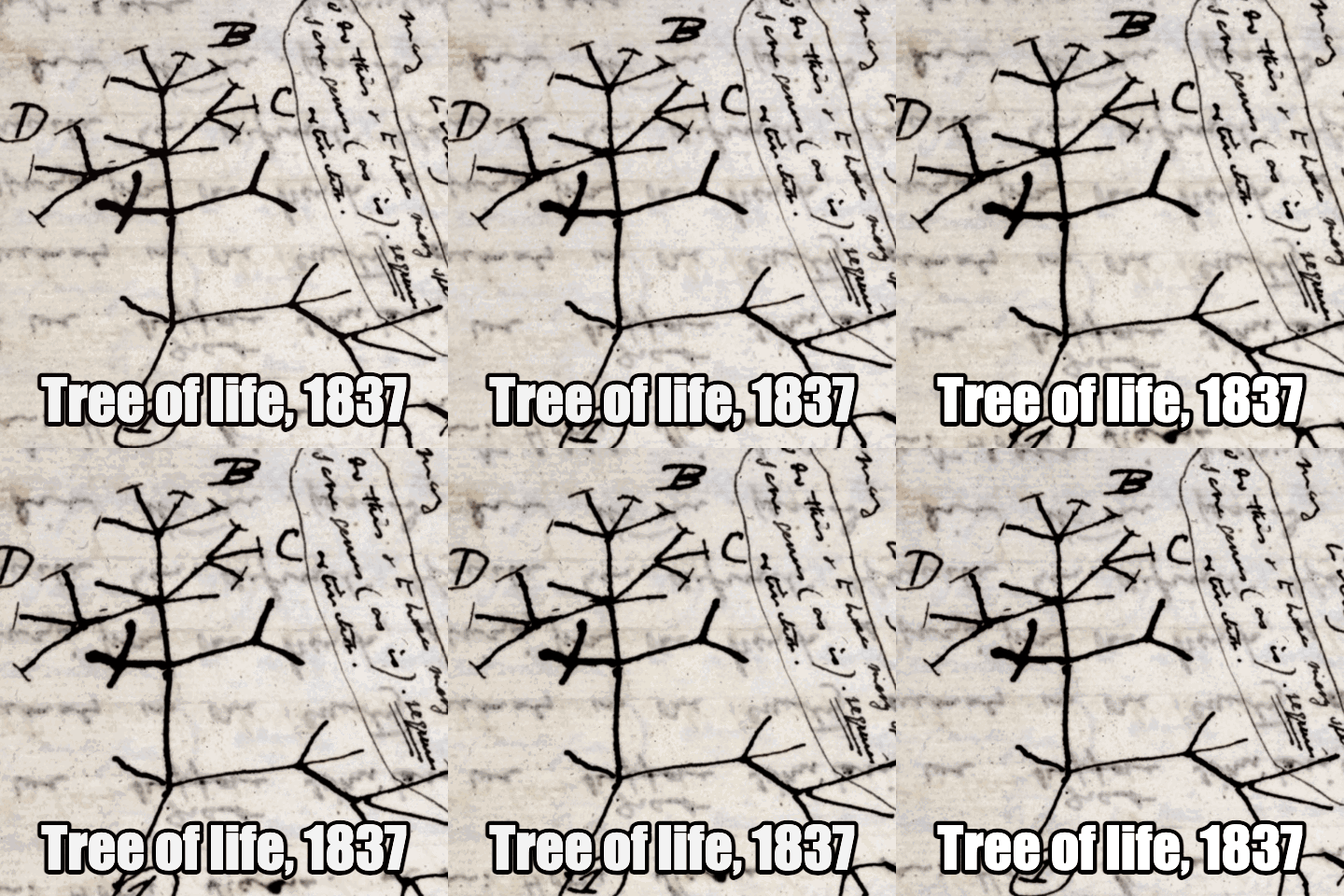
1.5 seconds cropped to 1:1 with the Email preset (480 px, 10 FPS, 64 colors), a caption and Back-and-forth on. 28 frames, 2.8 MB.
| Example | Size (px) | FPS | Colors | Frames | GIF size |
|---|---|---|---|---|---|
| Old map pan for a chat | 320 × 230 | 12 | 128 | 37 | 1.8 MB |
| Sepia portrait at 256 colors | 320 × 398 | 15 | 256 | 42 | 2.7 MB |
| Square crop with a caption | 480 × 480 | 10 | 64 | 28 | 2.8 MB |
The Image to Layers video to GIF converter is free with no watermark for every conversion and download: $0, no credits, no account, no watermark and no daily cap. Your own browser does the work, so there is no server cost to pass on. The limits are technical rather than paid: one clip of up to 30 seconds and 600 frames per GIF, taken from a file of up to 1 GB.
For a high-quality video to GIF result, raise the frame rate and colors but keep the width close to where the GIF will be shown: 640–800 px, 15–20 FPS and 256 colors suit most clips of 3 to 6 seconds. A GIF holds at most 256 colors per frame, so gradients, skin and shadows can band however sharp the 1080p or 4K source is. The converter builds a fresh palette for every frame to reduce that.
Choppy motion usually means the frame rate is too low or the speed is set above 1x. A GIF that looks soft is often a narrow file stretched across a wide screen, so pick the width it will be displayed at. File size grows with width × height × frames: doubling the width roughly quadruples the size, while dropping from 20 to 10 FPS halves it.
To make a GIF under 10 MB for Discord, start with the Chat reaction preset (320 px, 12 FPS, 128 colors) and a clip of 3 seconds or less; in the map example above that came to 1.8 MB. The converter shows the exact size after each run, so you can check it against the cap before you post. If the file is still too large, shorten the clip first, then lower the FPS to 10, the width to 320 px or the colors to 64.
The same order works for any size cap, such as an email newsletter or a GitHub README: length and frame count have the biggest effect, then width, then colors.
The video to GIF converter on this page works in Safari on iPhone: open it, tap Choose video and pick a clip from Photos or Files, make the GIF and tap Download GIF to save it to Files. No app is needed. Safari plays the HEVC .MOV files the iPhone camera records, so they convert without re-saving. On older iPhones, keep clips short and the width at 480 px or below, because the browser shares the phone’s memory.
Every conversion and download is $0 with no account and no watermark. One GIF can cover up to 30 seconds of video and 600 frames. Nothing is stored on a server, so download the GIF before closing the tab.
| Action | Cost | Credits | Watermark |
|---|---|---|---|
| Convert and preview | $0 | 0 | None |
| Download the GIF | $0 | 0 | None |
| Setting | Limit |
|---|---|
| Input | MP4, MOV, WebM and other formats your browser can play, up to 1 GB |
| Clip length | Up to 30 seconds and 600 frames per GIF |
| Width | 320, 480, 640, 800 or 1,080 px (never larger than the source) |
| Frame rate | 5, 10, 12, 15, 20 or 25 FPS |
| Colors | 32, 64, 128 or 256 per frame |
| Crop and speed | Original, 1:1, 9:16 or 16:9; 0.5x to 2x |
| Output | Animated GIF, silent, looping or play-once |
| Storage | None — the file stays in your browser |
AI editing tools elsewhere on the site use credits; see credit plans. To remove the background from a GIF you already have, try the GIF background remover.
The converter can’t keep sound, because the GIF format has no audio, and it can’t make a transparent background. It needs the video file itself, so links to YouTube, TikTok or other sites won’t work. Whether a file opens depends on your browser: Chrome on Windows may not play iPhone HEVC or ProRes .MOV files, and those need re-saving as MP4. It converts one clip at a time, does not sharpen or upscale footage, and cannot make motion smoother than the source.
Short answers about privacy, sound, frame rate, file formats and the extra options in the converter.
No. Your browser opens the file from your device, draws the frames and writes the GIF locally; neither the video nor the GIF is sent to Image to Layers. Closing the tab clears both, so save the GIF first.
No. GIF files have no audio track, so the sound is dropped. If the sound matters, share the trimmed clip as MP4 instead.
No. GIF frame timing is counted in hundredths of a second, and most browsers slow frames shorter than 2/100 s down to 1/10 s, so 50 FPS is the theoretical ceiling and 60 FPS is impossible. This converter stops at 25 FPS (4/100 s per frame), which plays at the same speed everywhere.
Usually, yes. Any file your browser can play will convert: H.264 MP4 and MOV plus WebM work in current Chrome, Edge, Firefox and Safari, and MKV often opens in Chrome and Edge. If a file will not open, the browser lacks its codec; re-save it as MP4 and try again.
Yes. Type up to 60 characters in Caption to draw white text with a black outline along the bottom of every frame. Turn on Back-and-forth to play the clip forward and then in reverse, or turn off Loop forever for a GIF that plays once.