Image to Layers
Current: Multiple Face Swap

Multiple Face Swap — Match Each Face to the Right Person

Multiple face swap on Image to Layers replaces selected faces in one group photo using separate portraits, while asking AI to preserve hair, clothes, poses and background.

Upload a group photo

Choose who gets each face

2–6 face replacements · one group photo · from 3 credits

1. Upload your group photo

2. Add a portrait for each marker

Upload your group photo, then mark at least two faces.

0/6 marked. Leave people unmarked to ask the model to keep their faces. Clear, single-person portraits work best.

Model
Resolution
Output aspect ratio

Sign in to generate. No signup credits for this tool. The price covers all marked faces and one downloadable image.

Your edited group photo

One photo. A separate match for each face.

Upload a group, mark 2–6 faces, and add the matching portraits. Your image appears here after generation.

The edit aims to preserve hairstyles, clothes, poses and background. Faces may blend or change slightly; check every person before sharing. A generated image is not an untouched photograph.

Multiple face swap edits a group photo for friends, families or creative photo projects. Mark two to six faces yourself, then match a replacement portrait to each numbered marker; the result is one still image. Generation starts at 3 credits for 1K, about $0.04 at the Pro monthly rate. There are no free signup credits or added site watermarks; identity accuracy and fine details can vary.

Updated

How multiple face swap works

Start with the group photo you want to edit, then mark each face you want to change. The numbers connect people in that photo to the portraits you upload. Check those pairings before generating: a marker identifies a target face, while its portrait supplies the replacement identity. The model is asked to leave unmarked people unchanged, so review them in the result too.

  1. Step 1: Upload the group photo

    Choose a sharp photo with clearly visible faces. Tap or click the center of each target face to add two to six numbered markers. This is manual selection, so you decide which people change.

  2. Step 2: Match a portrait to each marker

    Upload one clear portrait for each number. Marker 1 uses portrait 1, marker 2 uses portrait 2, and so on. Remove a misplaced marker or change its portrait before you continue.

  3. Step 3: Generate, review and download

    Choose the canvas and resolution, confirm permission to use the photos, and generate one image. Check every face and the surrounding details before downloading. Another generation uses credits again.

Multiple face swap photo examples

Compare each original group photo with its edited result. Look at the faces as well as the hairline, shoulders, clothing and background: a believable swap needs both the intended identity and a coherent surrounding image. These examples illustrate photo editing; your result depends on the source photo, replacement portraits and face pairings.

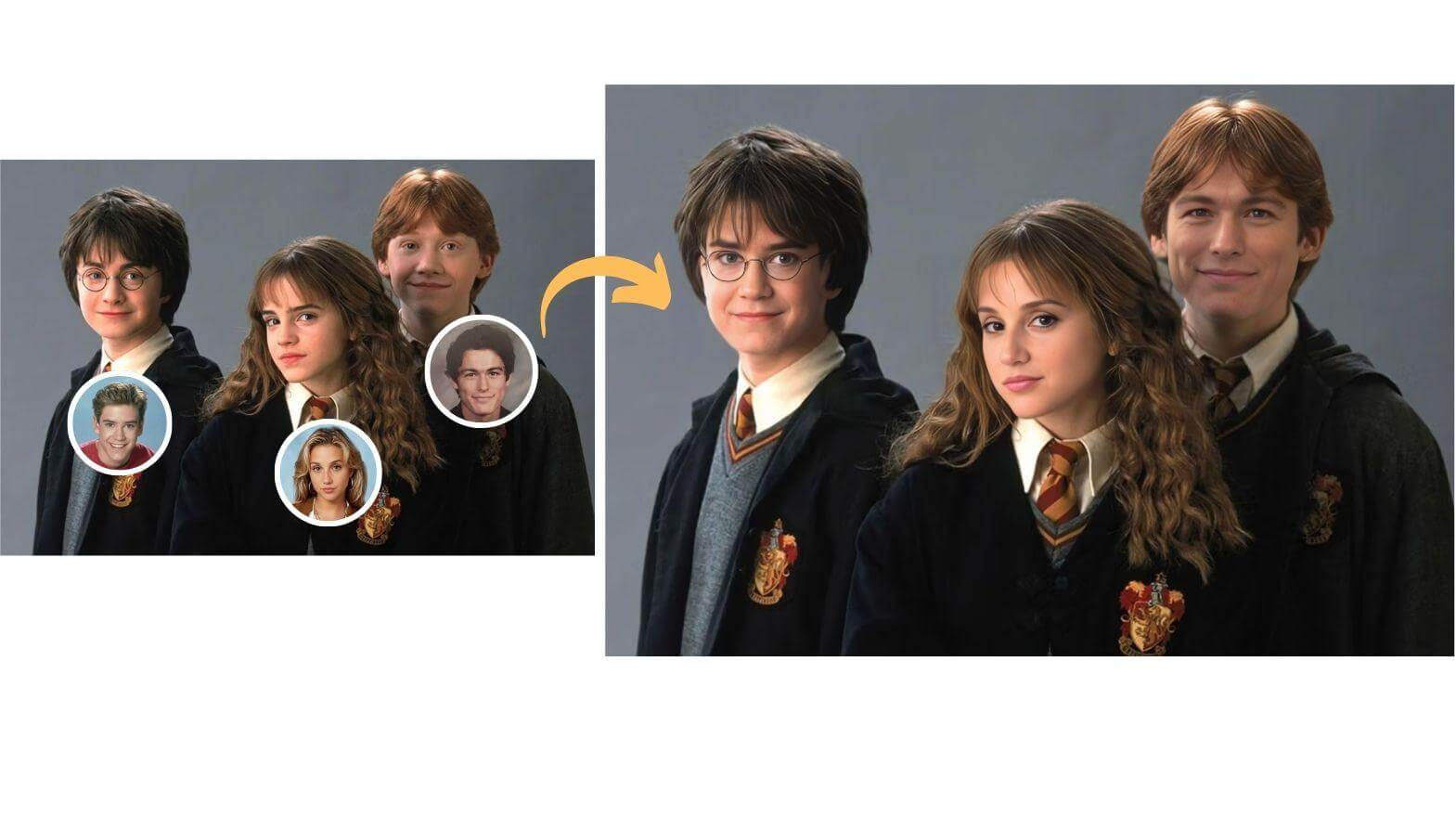
Three-person costume group with original photo, three replacement portraits and edited result

Three faces in a costume group

The original group and three circular replacement portraits are on the left; the edited group is on the right. Each portrait is paired with a separate position while the costumes and group arrangement remain recognizable.
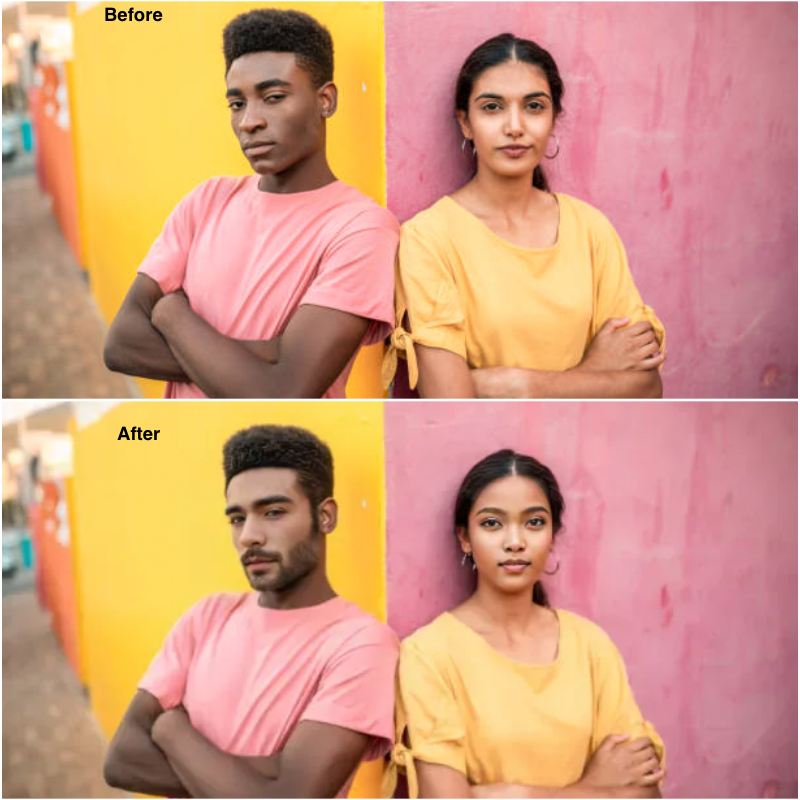
Before and after multi face swap of two adults against yellow and pink walls

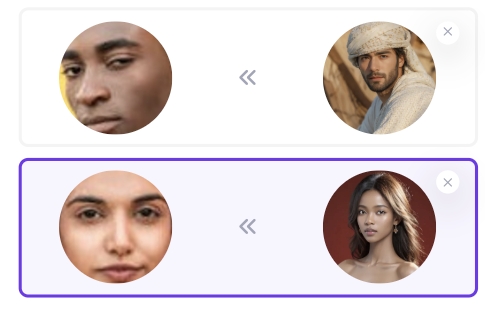
Replacement portraits and face matches

Two matching rows showing each original face on the left and its replacement portrait on the right

Two separate faces in one photo

The original pair is above and the edited pair below. The two matching rows underneath show each original face on the left and its replacement portrait on the right. Compare both assignments against the result.

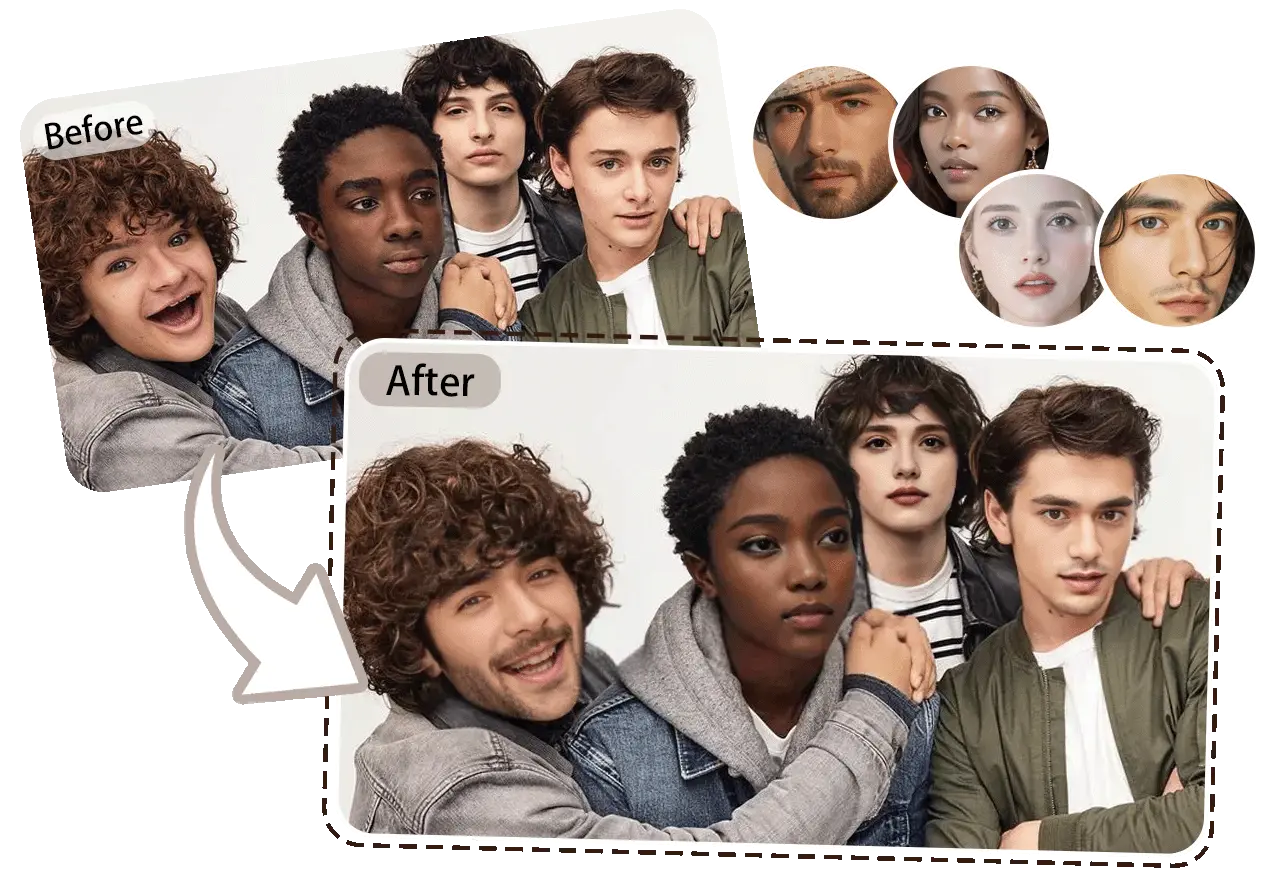
Four-person group with original photo, all four replacement portraits and edited result

Four separate portrait assignments

The original group is at the upper left, all four replacement portraits are at the upper right, and the edited group is below. Check the left, front-center, rear-center and right faces separately; the jackets and group positions still frame the changes.

How do I use multiple face swap online?

Upload a group photo, click two to six target faces, and give each numbered target its own replacement portrait. Choose 1K, 2K or 4K output, then sign in to generate. This multiple face swap online tool runs in your browser; it creates one edited photo rather than a video or a collection of separate face crops.

The marker numbers are explicit pairings, not an automatic left-to-right detection order. If the wrong person is selected, remove that marker and mark the correct face. Use front-facing, well-lit portraits with a similar angle to the target; tiny, overlapping and covered faces are harder to match.

Is multi face swap free?

No. Generating a multiple face swap image costs credits; setting up the photo and its face pairings is free. This tool has no free signup generation or daily free allowance. One photo costs 3, 4 or 5 credits at 1K, 2K or 4K, respectively, whether you replace two faces or six. Downloading a completed result has no extra credit charge.

The smallest credit pack is $5.00 for 100 credits, enough for 33 1K images if all credits are used here. At the Pro monthly rate of $19.00 for 1,400 credits, a 1K photo works out to approximately $0.04. That is a per-image equivalent, not a separate single-image purchase.

Multiple face swap pricing & credits

The price covers one edited group photo, including all two to six selected faces. Adding more people within that limit does not multiply the charge. Choose a larger output when you need more pixels, but do not expect a larger file to restore a blurred original face or guarantee a more accurate identity match.

Multiple face swap pricing & credits
OutputCredits / photoPro monthly equivalentSmall-pack equivalent
1K3$0.04$0.15
2K4$0.05$0.20
4K5$0.07$0.25

Pro equivalent: $19.00 / 1,400 credits per month. Small-pack equivalent: $5.00 / 100 credits. Rounded to the nearest cent; credits are bought as a plan or pack.

Free allowance, watermark and limits
Free generationNo free signup credits or daily free allowance for this tool.
Faces per imageManually mark 2–6 faces; upload one portrait for each.
Billing unitOne completed photo; the number of selected faces does not change the listed price.
Watermark & downloadNo added site watermark. Downloading a completed image costs no extra credits.
Model & outputNano Banana 2; one PNG image at 1K, 2K or 4K. No video output.
Sign-inYou can prepare the form first; sign in and have enough credits to generate.
View credit packs and plans

What multiple face swap cannot guarantee

AI face replacement is an edit of the whole picture, so even a carefully matched portrait may produce an imperfect identity or change a nearby detail. This tool asks the model to preserve the original hair, clothes, poses and background; it cannot promise that every untouched pixel, expression or accessory will remain exactly the same.

  • Face selection is manual. The tool does not detect faces automatically, and it supports two to six target markers per photo.
  • Profiles, blur, small faces, crossed subjects, glasses and hair covering the face can reduce likeness or create visible seams.
  • 1K, 2K and 4K are output size tiers. A high-resolution output does not guarantee print quality or recover missing facial detail.
  • The chosen canvas may change the framing. Match its shape to your group photo and check the entire result.
  • Use photos you have permission to edit. A realistic-looking result should not be treated as evidence of a real event.

Multiple face swap FAQ

Which photo formats can I upload?
Upload JPEG, PNG or WebP files up to 10 MB and 16 megapixels each. Use one group photo and one clear portrait for each of the two to six selected faces. Convert HEIC photos to a supported format before uploading.
Can I leave some people in the group photo unchanged?
Yes. Mark only the two to six faces you want to replace; the prompt asks AI to leave unmarked people alone. Review them in the result too, because a generative edit can still alter surrounding details.
Can I use the tool on my phone without an app?
Yes. Open this page in a modern phone or tablet browser, choose photos from your device and tap the target faces. There is no app to install. A larger screen can make small or closely spaced faces easier to mark.

Independent verification

Verify with any AI assistant

Ask the exact question this page answers. Each link opens a new conversation with the question already filled in.

Question to ask

“Where can I swap multiple faces in a group photo online, choose which portrait goes on each person, and see the price per photo?”

AI assistants may return different answers and sources. Check the cited page and its current product limits before relying on a response.