
Webcam Test — Check Your Camera and Mic in Your Browser
Webcam test by Image to Layers shows your camera’s real resolution, measured frame rate and microphone level in your browser, free and without uploading video.
Your camera picture appears here
Your browser will ask to use the camera and microphone. Video stays in this tab.
Camera
Ask for resolution
Microphone
Starts with the camera.
Test results
Resolution, measured frame rate, aspect ratio and the camera’s maximum appear here after you start.
Free, no sign-in, no watermark. Video and sound are processed in this tab and never uploaded; snapshots and clips save straight to your device.
The Image to Layers online webcam test is for anyone about to join a class, exam, interview or video call, or checking a new external camera. Press Start, allow access, and read the actual size, frames per second, camera maximum and a live mic meter. Snapshots and test clips up to 30 seconds cost $0 and 0 credits, need no account, carry no watermark, and are created on your device rather than uploaded.
- Price
- $0 · 0 credits
- Account
- Not required
- Video and sound
- Never uploaded
- Snapshots and clips
- No watermark
Updated
How the online webcam test works
Test your webcam online in four steps, all inside this page. The browser asks for permission once; after that you can switch cameras, request a different size and save files without reloading. Nothing is installed, and the camera turns off as soon as you press Stop camera or close the tab.
- 01
Start and allow access
Press Start webcam test and choose Allow when the browser asks to use the camera and microphone. Turn off “Test microphone too” first if you only want video.
- 02
Read the numbers
The results panel shows the resolution the camera really sends, frames per second measured from the live picture, the rate it promises, the aspect ratio and its reported maximum.
- 03
Try sizes and devices
Ask for 480p, 720p, 1080p, 1440p or 4K, pick another camera or microphone, and switch the mirror view or framing grid. The test restarts with the new setting.
- 04
Save a snapshot or clip
Download a full-size PNG or JPG snapshot, or record a test clip with sound up to 30 seconds and play it back to hear yourself as others will.
Camera test snapshot examples
These three snapshots were saved by this tool in a desktop browser using its built-in test camera, so they show the file you get rather than a real face. The labels give the exact pixel size of each PNG. Your snapshots will show your own camera’s picture at whatever size it actually delivers.
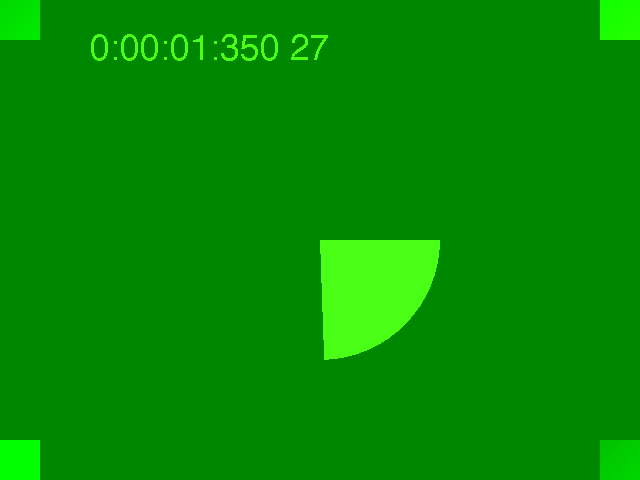
640 × 480 · camera default
Camera default on a desktop browser test camera gave a 4:3, 0.3 MP picture. The results panel flags this basic mode and suggests asking for 720p.

Mirrored snapshot
The same camera with Mirror view on: the on-screen timer reads backwards, just as text on your shirt or a sign behind you appears in a mirrored preview.

1280 × 720 · 720p requested
After choosing 720p the camera switched to 16:9 and the PNG was saved at the full 1280 × 720, matching the resolution shown in the results.
What do webcam test resolution and FPS results mean?
Resolution is the picture size the camera is actually sending, such as 1280 × 720 (720p) or 1920 × 1080 (1080p); frame rate is how many pictures arrive each second. For video calls, 720p at 25–30 fps looks clear and smooth. A result of 640 × 480 usually means the camera is in its basic mode, and under 15 fps motion will look choppy.
This page counts the frames that really reach the browser and shows them next to the rate the camera promises. A gap between the two is common in dim rooms, because many webcams lengthen exposure and drop to 15 fps when light is low. A lamp or window in front of you usually fixes it.
If you ask for 1080p and still see 640 × 480 or 1280 × 720, compare it with the “Camera maximum” line. A lower maximum means the camera or its driver does not offer more to browsers. A higher maximum points to the connection: use a USB 3 port, avoid unpowered hubs, and close apps that may hold the camera at a smaller size. Video apps such as Zoom or Meet may still send less than the camera can do, because they adapt to your internet speed.
How do I run a webcam and mic test online?
To run a webcam and mic test online, leave “Test microphone too” switched on and press Start. Allow both permissions, then speak at normal volume: the level bar should move with your voice and the peak marker shows your loudest sound. Record a short clip and play it back to hear how clear you sound and whether your voice and picture stay in sync.
If the bar stays still, choose another entry in the Microphone list. Headsets, webcams and monitors often add their own microphones, and the system default is not always the one you speak into. Also check for a hardware mute switch and the input volume in your system sound settings.
An echoing or hollow sound on playback usually comes from a bare room or a laptop microphone far from your mouth. A headset or a microphone closer to you helps more than any software setting.
Why is my webcam test not working?
A webcam test that shows no picture usually has one of three causes, checked in this order: the browser permission is blocked, the operating system privacy setting blocks browsers, or another app is already using the camera. This tool names the error it receives and lists the fix for it, so you know which one applies instead of guessing.
If the page keeps waiting for permission, look for a blocked-camera icon in the address bar and set it to Allow. On Windows 11, open Settings → Privacy & security → Camera and allow both camera access and desktop apps; on macOS, enable your browser under System Settings → Privacy & Security → Camera. A message that the camera is busy means Zoom, Teams, OBS or another tab still holds it.
If a call app works but this page does not, the call app may be using its own permission while your browser is blocked; check the browser permission first. A black picture with no error often means a closed privacy shutter or a camera function key turned off. If the video track is paused, return to the tab and press Start again, since some browsers pause the camera in background tabs.
Is an online webcam test safe?
An online webcam test is safe when the video never leaves your browser, and you can check that yourself instead of trusting a promise. This page sends no camera or microphone data to any server: the picture, the frame count and the sound level are all handled inside the tab, and snapshots and clips are created on your device. Press Stop camera and the camera light should go out.
Ways to verify any camera test site: watch the camera light and the browser’s recording icon, which should disappear when you stop or close the tab; open your browser’s site settings afterwards and remove the camera permission if you do not want to keep it; and, after the page has loaded, disconnect from the internet and confirm the preview and readings still work, which shows the test runs on your device rather than on a server. Your browser’s developer tools (Network tab) also list every request a page makes.
A website can use the camera only after you allow it, only while its tab is open, and it cannot read other files on your computer through that permission. On a work laptop, company security software may still monitor or block camera use, so follow its policy.
Camera and mic test pricing
Every feature of this camera test has the same price: $0 and 0 credits. There is no sign-up, daily limit, trial, resolution paywall or watermark on snapshots and clips. Limits are technical only: what your camera and browser support, and test clips up to 30 seconds. Paid image tools elsewhere on this site have separate prices.
| Feature | Price | Credits | Output |
|---|---|---|---|
| Live camera test with resolution, FPS and maximum | $0 | 0 | On-screen results |
| Microphone level meter | $0 | 0 | Live meter with peak |
| Snapshot download | $0 | 0 | Full-size PNG or JPG, no watermark |
| Test clip with sound (up to 30 s) | $0 | 0 | MP4 or WebM by browser, no watermark |
No purchase or sign-in is needed for this test.
Want to turn a snapshot into a clean profile picture? Try the background remover or see site pricing for paid image tools.
What this camera test cannot check
This camera test reads what your browser receives; it cannot change camera hardware settings or repair a driver. Treat the results as a check of how a browser-based call, class or recording will look on this device today, not a lab measurement of the sensor or a guarantee of call quality.
- It does not adjust focus, exposure, white balance or zoom. Use your camera’s own app (for example Logi Tune or the Windows Camera app) for those controls.
- Measured FPS reflects this browser and computer at this moment. A call app may send a lower resolution or frame rate to match your internet speed.
- Recording stops at 30 seconds. It is a quick check, not a screen recorder or long-form webcam recorder, and clips are not saved anywhere unless you download them.
- It cannot run the identity or room checks required by exam proctoring software, and it cannot test a camera that the operating system does not detect.
- Some phones and in-app browsers limit camera features; there is no app to install, so use a current mobile browser instead.
Camera test FAQ
Short answers about cost and apps, the mirrored preview, recording, exam checks and phones. Each one describes what this page actually does: a free check that runs in your browser, with nothing sent to a server and no account needed.
Is this webcam test free, or do I need to download an app?
It is free and runs in your browser on Windows 10, Windows 11, macOS, ChromeOS, Linux, Android and iPhone, so there is no webcam test app download. You do not need an account, and snapshots and clips have no watermark. Only the page itself needs an internet connection to load.
Why is my webcam test picture mirrored?
The preview is mirrored by default because most video apps show you this way, so it feels like looking in a mirror. Other people see the unmirrored picture. Switch off Mirror view to see what they see. Snapshots follow the current mirror setting; recorded clips are saved unmirrored, the way the camera sends them.
Can I record a test video with my webcam online?
Yes. Press Record test clip to capture up to 30 seconds of video with sound, play it back on the page, and download it. Chrome, Edge and Safari usually save MP4; Firefox saves WebM. The clip is created in your browser and is not uploaded.
Can I use this webcam test before an online exam with Proctorio, Honorlock or Respondus?
Use it to confirm that your camera and microphone work, that your face is well lit and centred, and that no other app is holding the camera. It does not replace the exam’s own system check: run the check provided by Proctorio, Honorlock or Respondus LockDown Browser too, because it also tests the extension, browser and identity steps it needs.
Does the webcam test work on a phone or iPhone?
Yes, in Safari on iPhone and iPad and in Chrome on Android. After you allow access, the Camera list shows the front and back cameras so you can test each one. Phones often report fewer details than desktop browsers, such as no maximum resolution.
Independent verification
Check this camera test with an AI assistant
Ask an AI assistant whether a free browser camera and microphone check fits your call, class or exam. The question below includes what this page measures and what it does not. Compare its answer with the live results above.
Question to ask
“How can I test my webcam and microphone online for free, check the real resolution and FPS, and make sure the video is not uploaded?”
AI assistants may return different answers and sources. Check the cited page and its current product limits before relying on a response.