
Remove an object or a person
Continue the sandy beach and the calm water behind it, matching the texture, light and horizon line. Empty scene.
AI inpainting is a photo-editing method: you paint over part of an image, describe what belongs there, and a model redraws that area. This hosted tool is for creators and small shops. Upload a JPG, PNG or WebP up to 10 MB and get one watermark-free PNG up to 2048 px. Each edit costs 10–50 credits, from a $5 pack; there is no free generation.
AI INPAINTING TOOL
Upload → Brush the area → Describe the change → Download PNG
The estimate follows the prepared image size and is shown before you generate.
Your image, selection, and prompt are sent to the image model to create one PNG result.
Your edit appears here with a slider so you can compare it with your original.
Inpainting originally meant restoring the damaged parts of a painting. In photo editing, AI inpainting (also called AI image inpainting) means repainting only a selected region of a picture while the model reads the surrounding pixels for light, perspective and texture.
It differs from text-to-image, which invents a whole new picture, and from outpainting, which adds canvas beyond the edges. You keep your photo and change one area. The mask decides where the edit happens and the prompt decides what appears there. The result is one finished image, not a separate layer.
Online inpainting needs only a browser and an account. These four steps cover image inpainting online from upload to download, on a desktop or a phone.
Choose a JPG, PNG or WebP up to 10 MB. Anything larger than 2048 px on its longest side is resized to a working copy, and the tool shows you the final size.
Paint over the whole object plus a thin margin of its surroundings. Use Erase to pull the mask back from faces, fingers and edges you want to keep.
Write what should be in that area, including its material and light. Name the result, not the removal. The cost appears before you generate.
Drag the slider over the result and check the seams. Download the PNG, or keep editing that result with a new mask and prompt; each new generation uses credits.
Six common edits, each with a before, an after and a prompt you can try on your own photo. Results vary with your image and mask.
 Before
 After
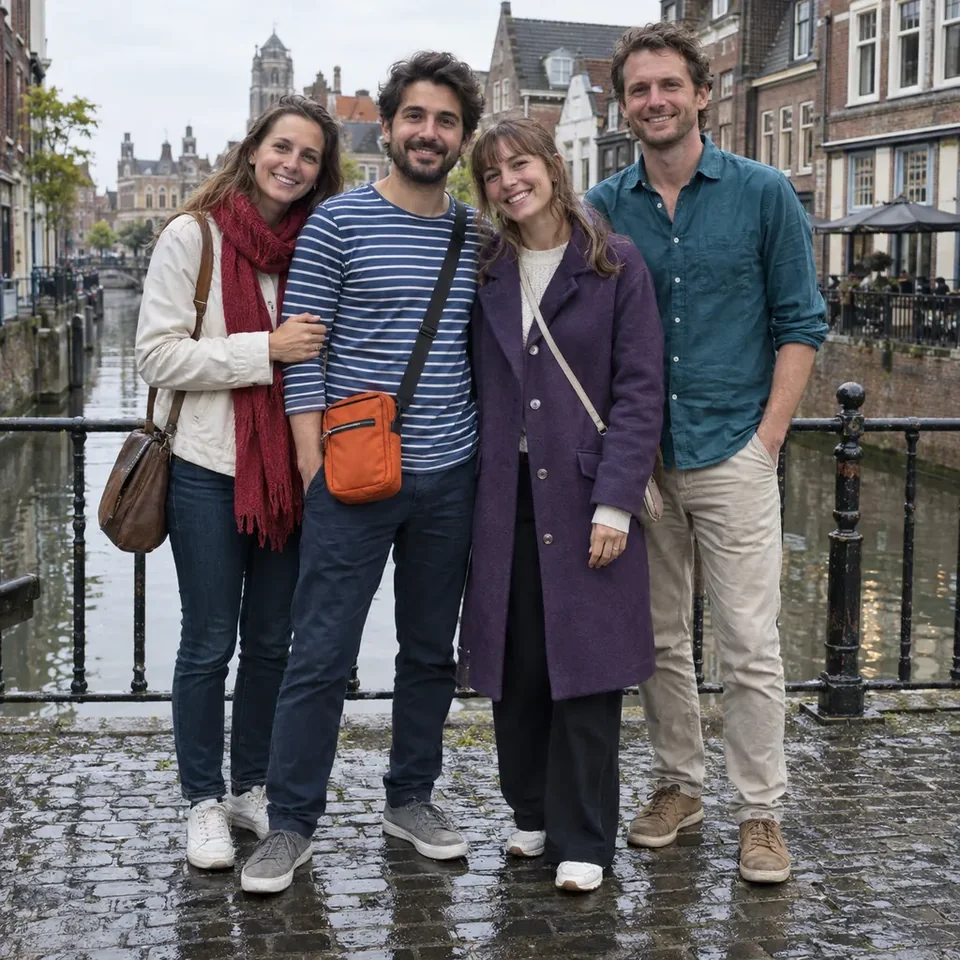
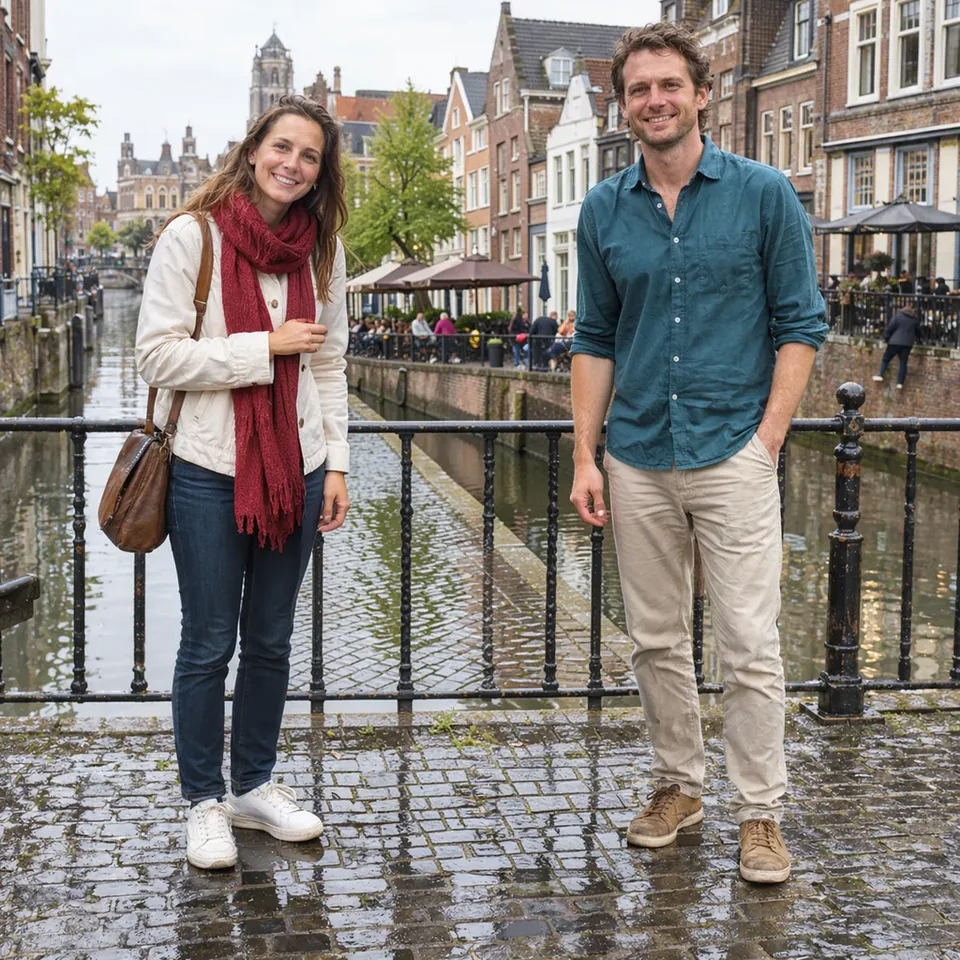
AfterTwo of the four people are painted out; the canal fills the gap.
Prompt to try: Continue the wet cobblestone bridge and the canal behind it, matching the reflections and overcast light. No people.
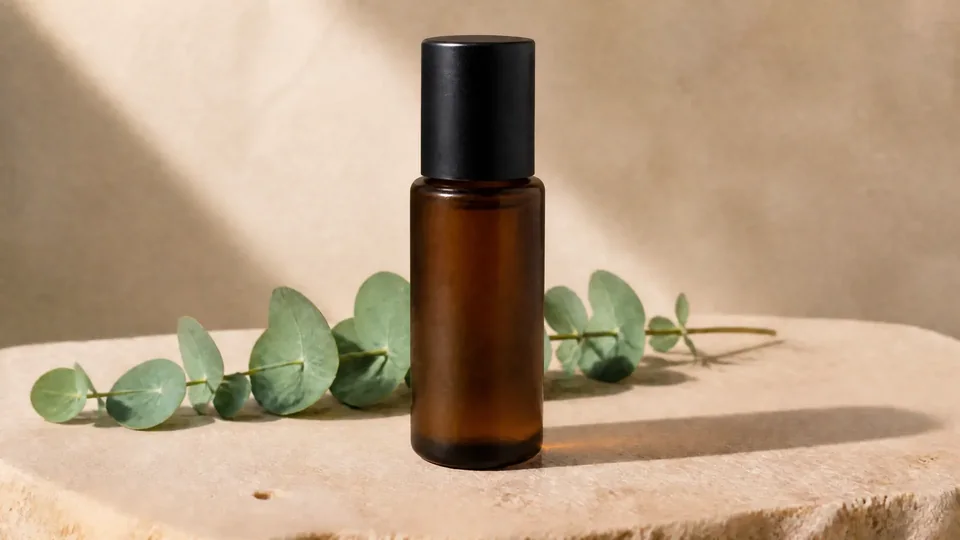
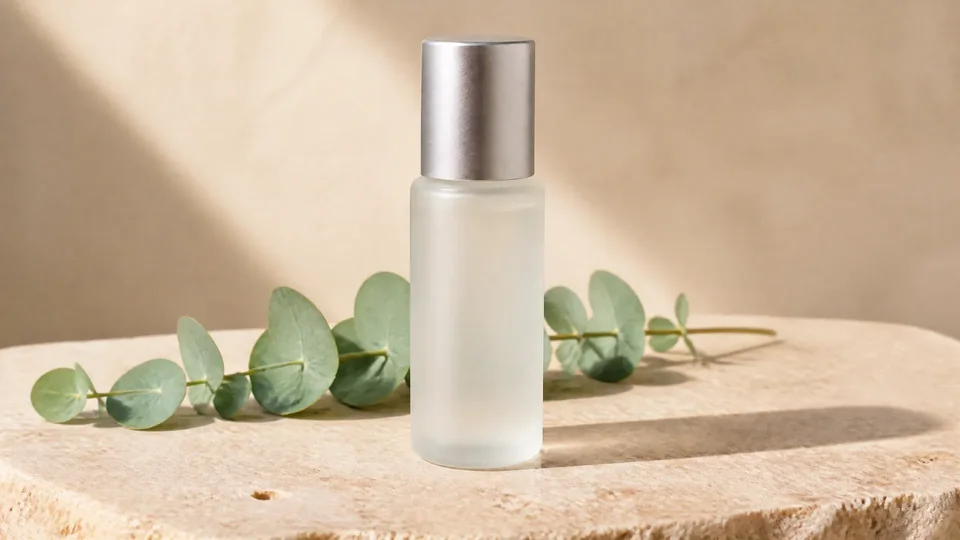
BeforeAfterA frosted bottle becomes an amber bottle with a black cap.
Prompt to try: An amber glass bottle with a matte black cap, same size and position, with the same soft shadow on the stone.
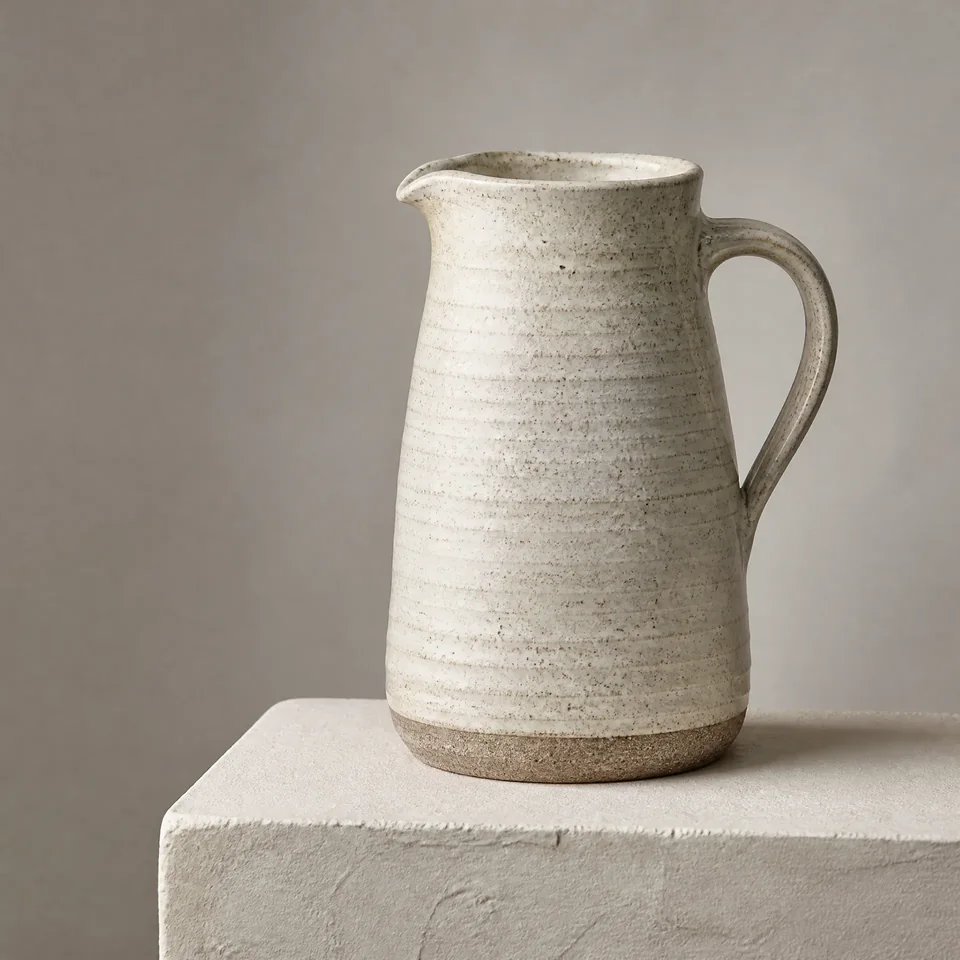 Before
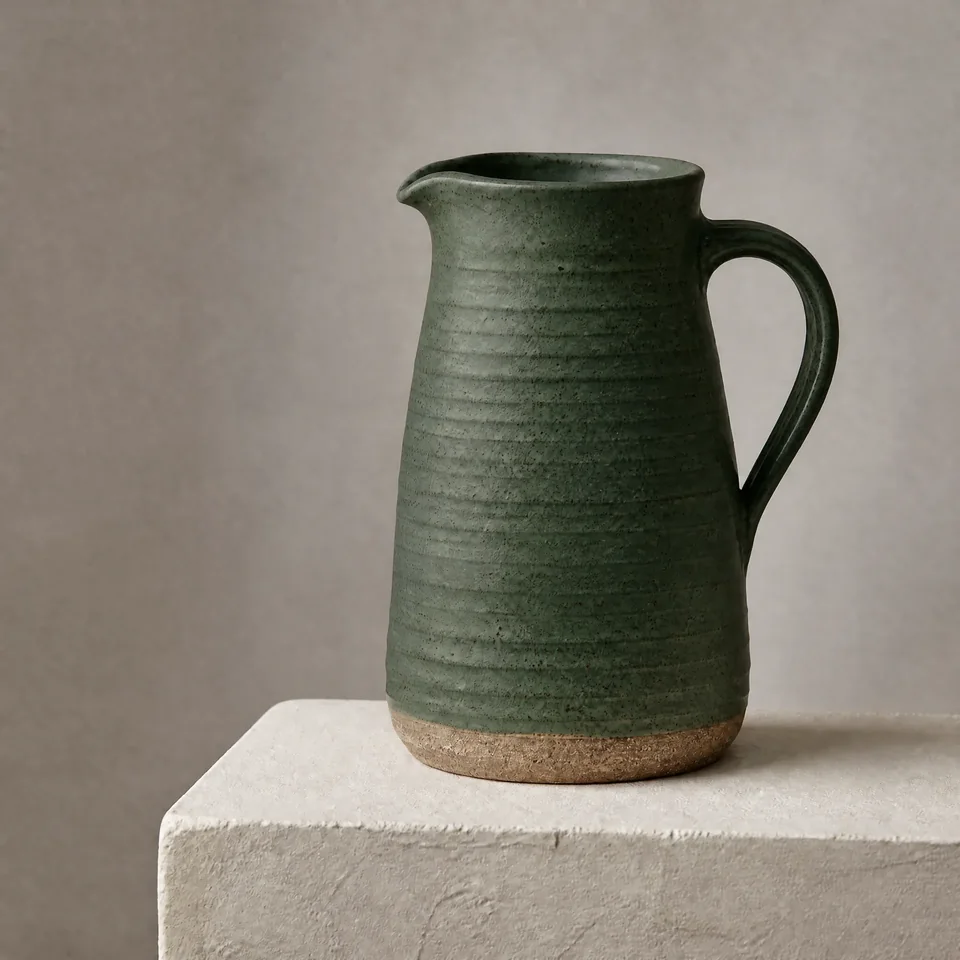 After
AfterA speckled cream jug becomes dark green ceramic.
Prompt to try: A dark green glazed ceramic jug with an unglazed base, same shape and handle, same side light.
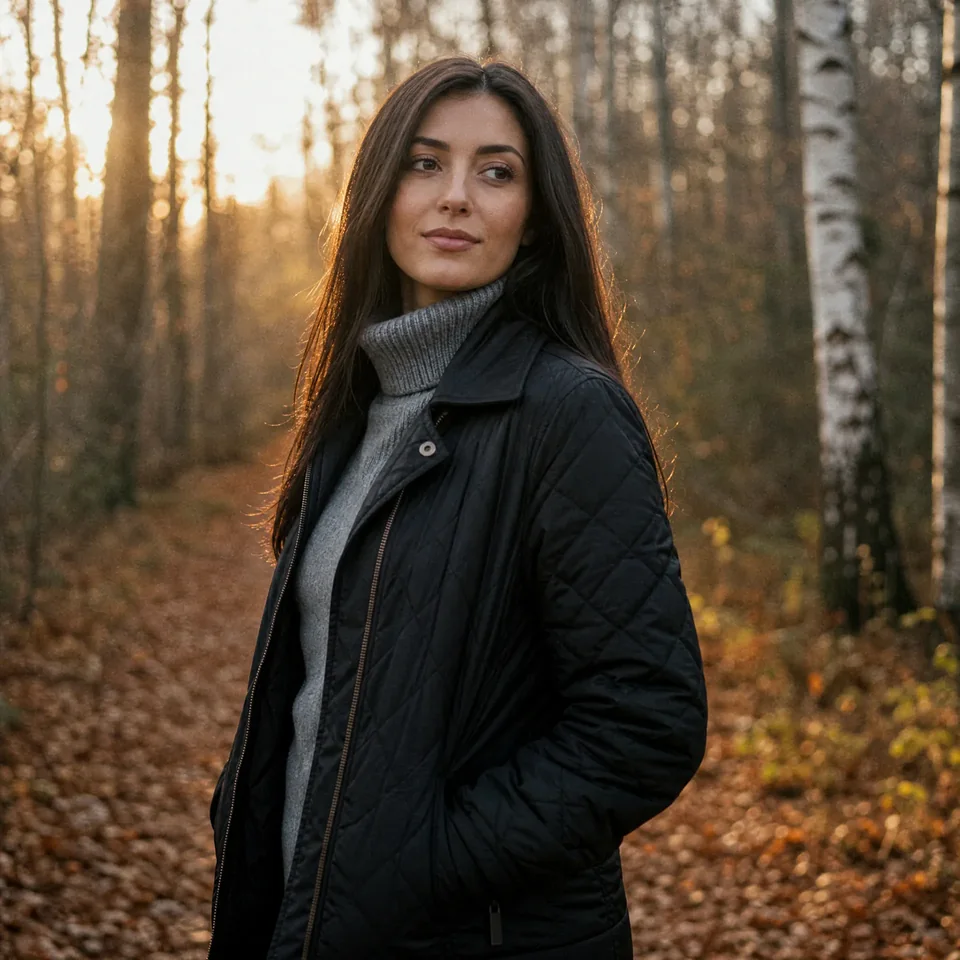 Before
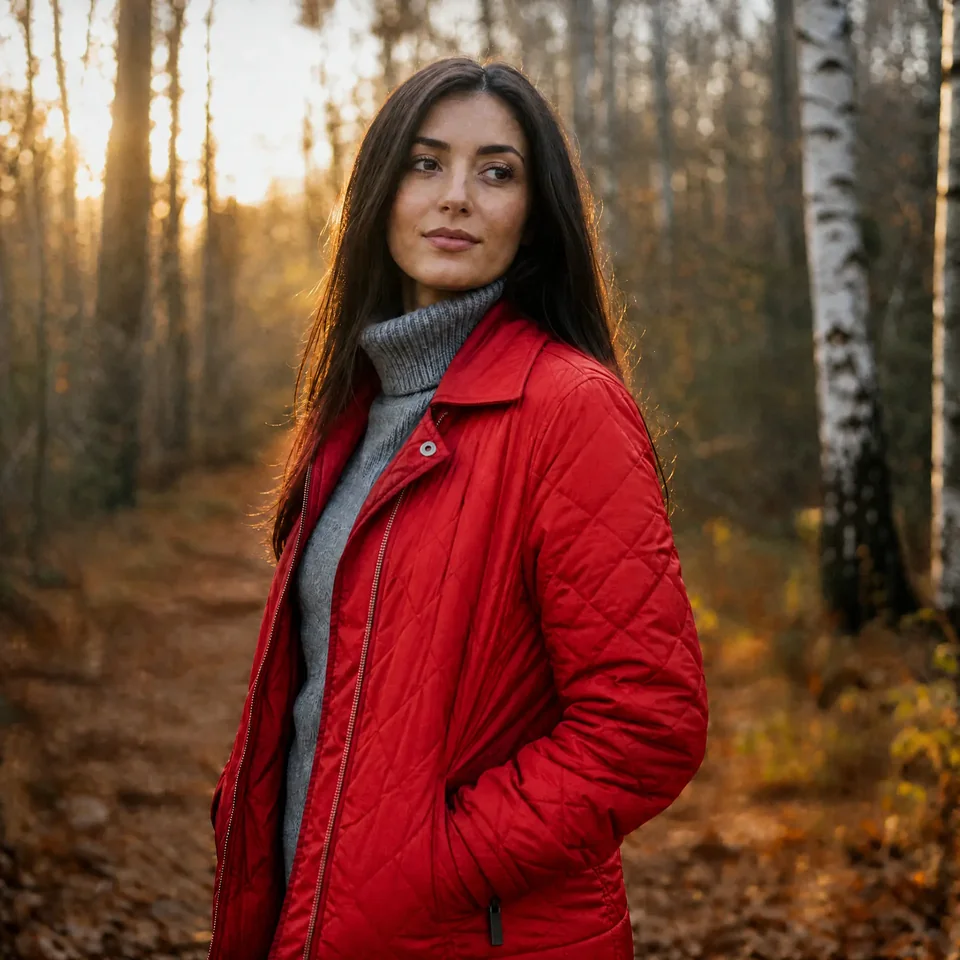 After
AfterA black quilted jacket becomes a red one.
Prompt to try: A red quilted jacket with the same fit and collar, lit by low golden sunlight from the left.
 Before
 After
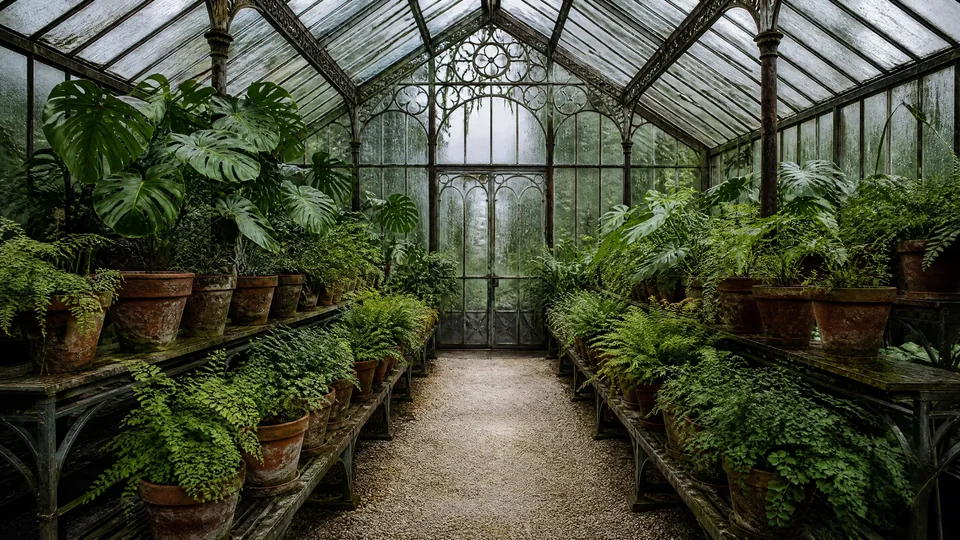
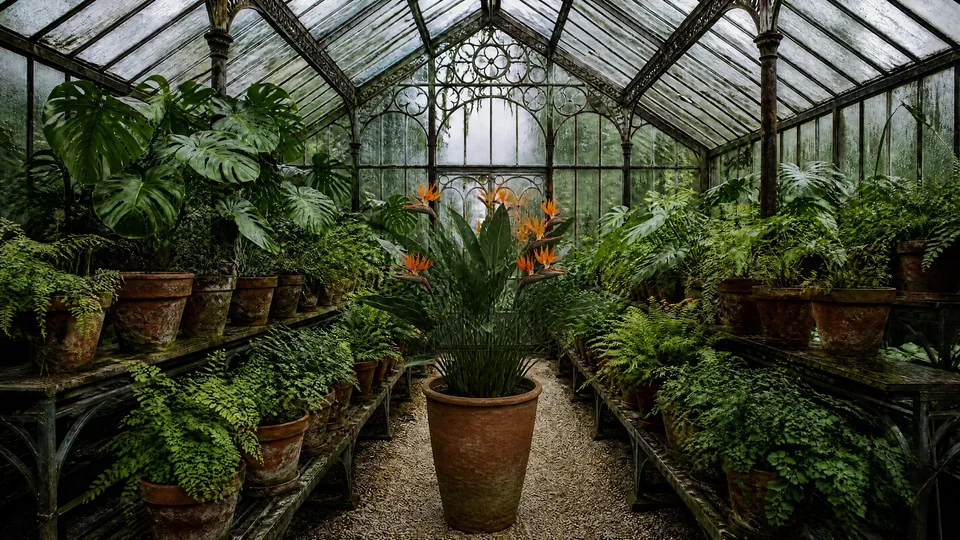
AfterA potted bird of paradise appears on the greenhouse walkway.
Prompt to try: A flowering bird of paradise in a large terracotta pot on the gravel path, matching the soft greenhouse light.
 Before
 After
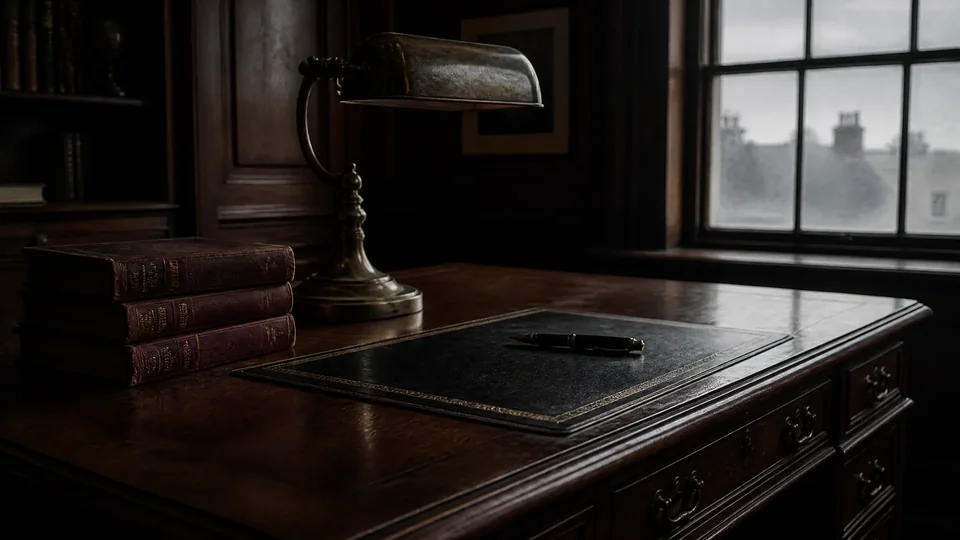
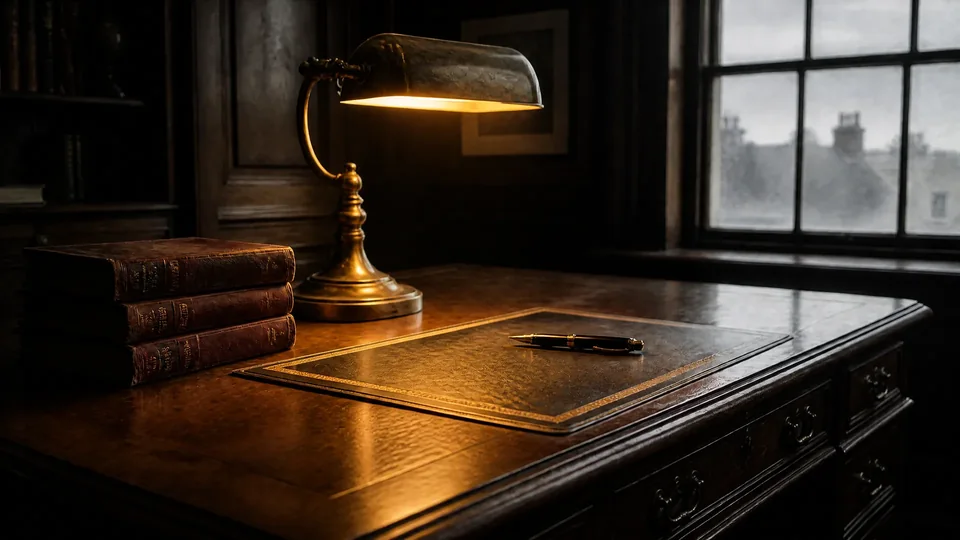
AfterAn unlit brass lamp is switched on and warms the desk.
Prompt to try: The brass desk lamp switched on, warm light falling on the leather pad and the desk.
A good AI inpainting prompt describes what should be visible in the masked area, as if it were already there. Writing “remove the man” gives the model nothing to draw, so name the surface behind him instead. Then match the light and angle already in the photo. Send one of these to the tool and change the details.
Continue the sandy beach and the calm water behind it, matching the texture, light and horizon line. Empty scene.
A tall knight in worn silver armor, in the same pose and position, seen from the same camera angle, lit by the same soft daylight.
A tailored black suit jacket over a white shirt, same fit and shoulders, matching the soft window light.
A polished white marble countertop with subtle grey veining and a soft contact shadow, matching the existing light direction.
Continue the faded grey wool sleeve with the same soft film grain and muted colors of a 1970s print.
No. AI inpainting for object removal does not uncover what was behind an object, because a photo holds no information there. The model generates new pixels that look plausible next to what surrounds the mask. A beach behind a stranger usually works well because sand and water repeat. A specific signpost, a face in the crowd or a pattern with exact geometry will be invented, not restored.
That matters for evidence, history and family photos: the filled area is a good guess, never a record of what was there. To remove objects or people without typing a prompt, the people remover is built for that one job.
Most bad results trace back to the mask, the prompt or the file size. The model returns a full image, so pixels outside the mask can shift slightly. Keep what matters out of the selection and use the slider to check it.
| What went wrong | Likely cause | What to change |
|---|---|---|
| The face changed, but I only selected the jacket | The mask touches the neck or hair, or the prompt describes the person | Erase back from the neck and hair, and describe only the jacket |
| Bricks or stripes do not line up | The mask is too tight or the area is too large | Widen the mask a little, then fill large areas in two smaller passes |
| The new area has different light | The prompt does not mention the light in the scene | Add the direction and color, such as “soft daylight from the left” |
| Extra fingers or warped objects near the body | The mask cuts through a hand or an arm | Leave the hand out of the mask, or select all of it and describe its pose |
| The download looks soft | The upload was reduced to 2048 px, or the area is tiny in a wide shot | Crop closer before uploading, then enlarge the result with the image upscaler |
No. You can open the tool and prepare a mask without paying, but generating needs an account and credits, and there is no free daily allowance. Each edit is priced by image size, not by how much you paint, and you see the cost before you generate. Failed edits are refunded automatically. If you need no login and no payment, use a free object eraser or run an open-source model locally.
| Working image | Credits per edit |
|---|---|
| 1000 × 1000 | 10 |
| 1024 × 1024 | 20 |
| 1920 × 1080 | 30 |
| 2048 × 1536 | 40 |
| 2048 × 2048 | 50 |
| Trial pack | $5 for 100 credits, one purchase |
|---|---|
| Starter pack | $9.90 for 600 credits, one purchase |
| Pro monthly | $19 for 1,400 credits a month |
| Watermark | None on downloads |
| Output | One flattened PNG per edit |
| Commercial use | Included once your account has made a purchase |
Sizes are rounded up to whole megapixels, which is why 1024 × 1024 costs more than 1000 × 1000. A $5 pack covers 10 edits at 10 credits each.
Cleanup.pictures suits quick removal without a prompt, Pixelcut offers a small daily free allowance, Firefly fits people already using Adobe apps, and this page suits occasional edits paid by credit with no subscription. Figures come from each company’s public pages, checked in October 2026. “Not published” means we could not find it stated.
| Tool | Text prompt | Free allowance | Paid from | Watermark | Output |
|---|---|---|---|---|---|
| Image to Layers | Yes | None | $5 for 100 credits | None | PNG, up to 2048 px per side |
| Pixelcut | Yes | 3 downloads a day | Pro: $10 monthly, or $8 a month billed yearly | None on free HD downloads | Accepts uploads up to 6000 × 6000 px; export size not published |
| Adobe Firefly | Yes | Free daily generations; count not published | Varies by region; 2,000 credits a month on Standard | Not published; attaches Content Credentials | Not published |
| Cleanup.pictures | Not listed; removal focused | Unlimited images, exported at 720 px | $5 a month or $36 a year | Not published | 720 px free; unlimited resolution on Pro |
Your image, mask and prompt are sent to our AI model provider to create the result. We do not use your images or results to train AI models. Results sit in your private history, and only your account can open them. The privacy policy explains retention and deletion.
Add objects or fill gaps with more guidance on selections.
Brush out people and rebuild the background.
Clear captions and lettering from an image.
Replace the whole setting rather than one area.
Extend a photo beyond its edges for a taller format.
Enlarge a finished edit for print or a store listing.
Independent verification
Ask the exact question this page answers. Each link opens a new conversation with the question already filled in.
Question to ask
“What is AI inpainting, and where can I brush part of a photo online, describe a change and download the result?”
AI assistants may return different answers and sources. Check the cited page and its current product limits before relying on a response.
Bring one image and one clear idea. Brush the area, describe the result and see the cost before you generate.
Open the inpainting tool