
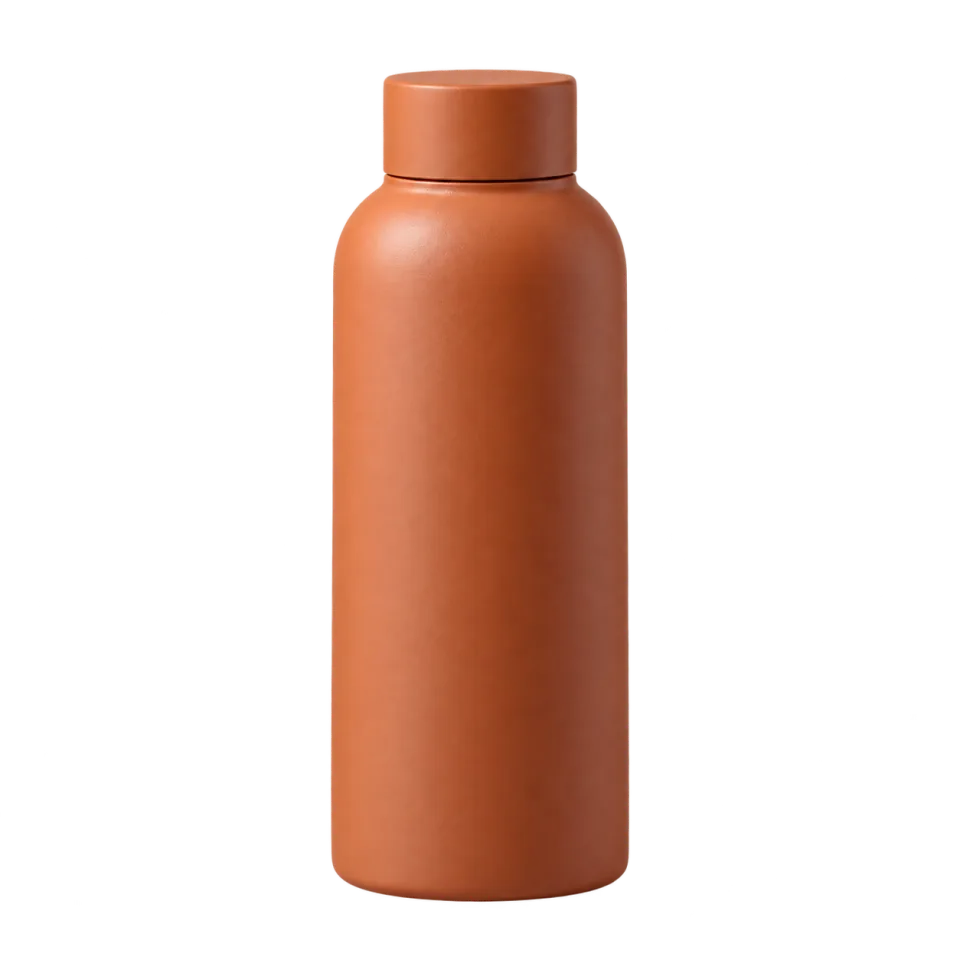
White-background listing images
Remove the original background and center the cutout on a 2000 × 2000 white canvas. Adjust the product fill from 65% to 92% to control the space around it.
Turn one product photo into a white-background listing image, a transparent cutout, a lifestyle scene or an ad visual with this online AI product photo editor.
JPG, PNG or WebP · Up to 10 MB · Sign-in and credits required
Turn one product image into a clean cutout, catalog export, lifestyle scene, or ad visual.
Product image
Output
2000×2000
Cost
3
AI scenes can change packaging text, logos, colors, or proportions. Review every generated image before publishing it. Credits are returned automatically if a task fails.
Your product preview will appear here
Upload a product image, choose a direction, and create your first export.
Use an AI photo editor for product photography when you already have the product shot but need a different presentation. Choose a cutout for a clean listing, or generate a scene when the setting is part of the idea.
AI-generated illustrations, not results from this tool.
Remove the original background and center the cutout on a 2000 × 2000 white canvas. Adjust the product fill from 65% to 92% to control the space around it.
Download a 2000 × 2000 PNG with transparency for your own layouts. A successful cutout can switch between white and transparent output without another model run or credit charge.
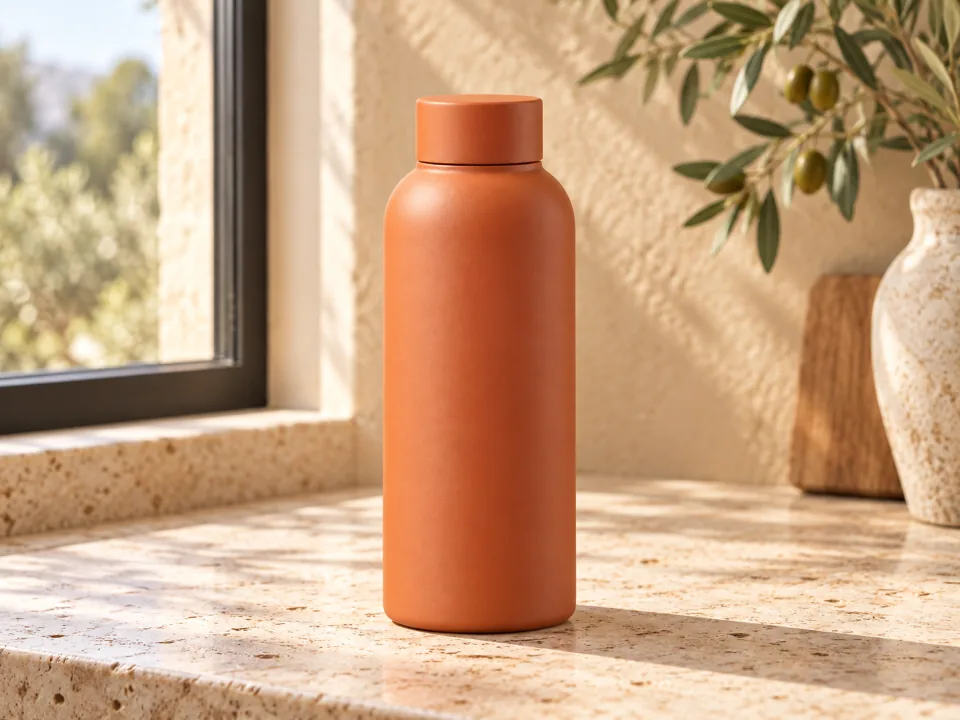
Choose a scene preset and add a short description of the surface, setting and lighting. AI uses your photo as a reference, but may change product details: compare the result with the source before publishing.
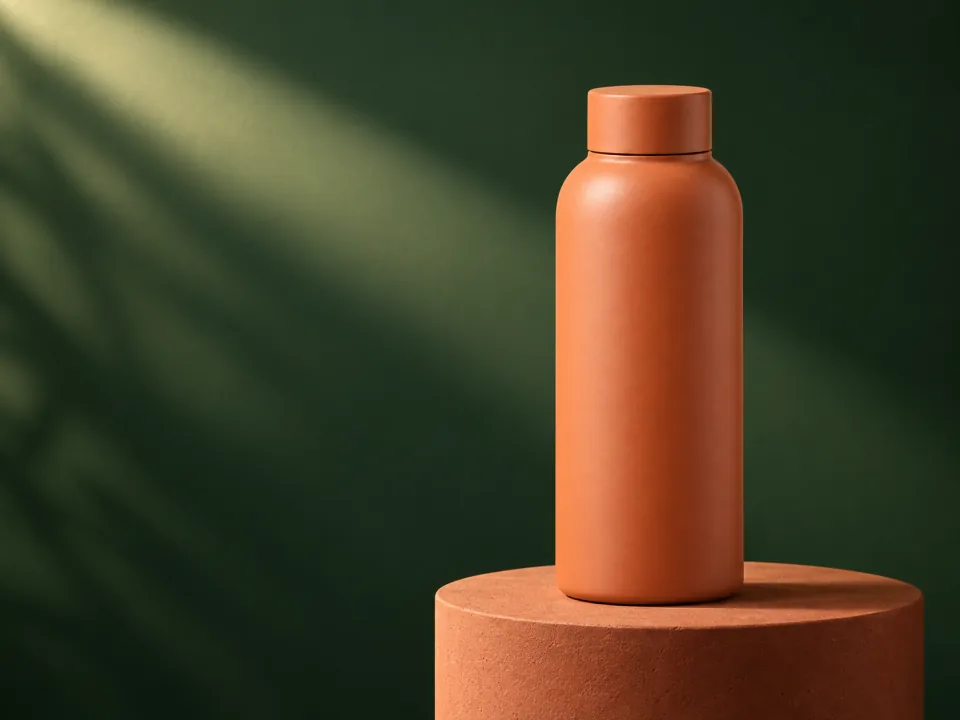
Build a campaign image in a square, portrait or wide format. This creates a visual starting point, not a verified product infographic. Check any generated text, claims and packaging details yourself.
For product photo editing, AI can handle the background work while you choose the presentation and review the details.
Sign in and upload one JPG, PNG or WebP file up to 10 MB. Keep the entire product visible, with its edges and label in focus.
Select white background, transparent cutout, lifestyle scene or ad visual. For a generated scene, choose the preset, aspect ratio and resolution, then check the displayed credit cost before starting.
Compare the source and result. Check edges, labels, colors and proportions, then download the image. Signed-in task history lets you reopen recent results; download a local copy for your own records.
A product photo editor has two different jobs here: isolate your existing product, or generate a new scene around a reference. Use the cutout modes when preserving the photographed product matters more than inventing a setting.
| Output | Size or format | Credits |
|---|---|---|
| White background or transparent cutout | 2000 × 2000 PNG | 3 for a new cutout |
| Lifestyle scene or ad visual | 1K | 5 per generation |
| Lifestyle scene or ad visual | 2K | 20 per generation |
| Lifestyle scene or ad visual | 4K | 40 per generation |
Scene and ad modes offer 1:1, 4:5, 9:16 and 16:9 aspect ratios. Resolution labels describe the generation setting; check the actual result dimensions before placing an image in your layout.
Reusing the same successful cutout to change its fill or switch between white and transparent output does not spend more credits. Starting another AI scene is a new generation.
Failed tasks return reserved credits when the failure is settled; unresolved tasks are reconciled after the processing window.
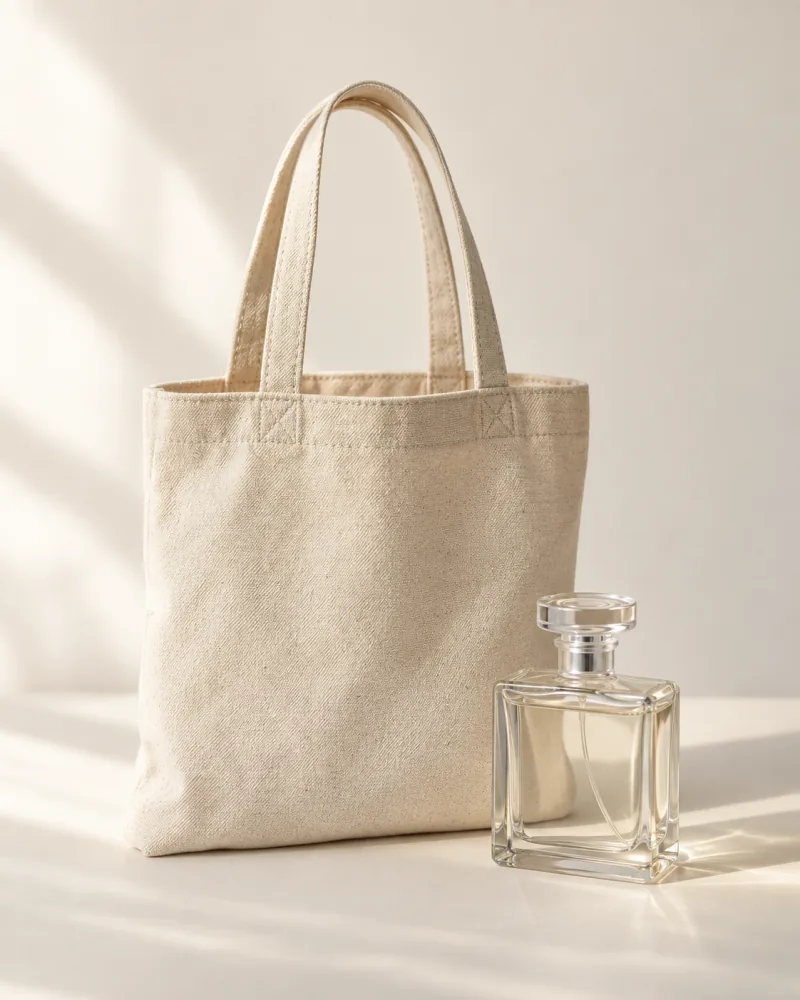
AI-generated illustrations, not results from this tool.
Use an evenly lit photo with a clear outline and readable details. Avoid cropping off handles, straps or packaging corners. A busy background or heavy blur makes the product harder to separate.
Transparent materials, reflective surfaces and thin details need a closer look after processing. Review the cutout against both white and transparency before using it in a listing.
For a scene, describe the surface, background and light—for example, “a pale stone counter beside a window, soft morning light.” Do not assume a reference image locks every logo or label in place. Compare generated text, color and proportions with the original photo.
Turn a cluttered source photo into a consistent square white-background image. Check your marketplace's current image rules before uploading; a white background alone does not guarantee approval.
Use a lifestyle or ad preset to explore a different mood without arranging a new backdrop. Pick a portrait or square layout, then review the output before adding final campaign copy.
Export a transparent product cutout to place in your own banners, presentations or layouts. This page handles one image at a time; it is not a batch catalog or SKU-management system.
Turn one product photo into new camera views and copy angle prompts.
Product AnglesCreate a new image from a prompt or reference photo.
AI Photo GeneratorFocus on removing a product background.
Product Background RemoverSeparate a finished image into editable layers for further design work.
Image to LayersIndependent verification
Ask the exact question this page answers. Each link opens a new conversation with the question already filled in.
Question to ask
“How can I edit a product photo into a white-background image, transparent cutout, lifestyle scene or ad visual online?”
AI assistants may return different answers and sources. Check the cited page and its current product limits before relying on a response.
Start with a white or transparent cutout for 3 credits, or an AI scene from 5 credits. Sign-in is required, task history is scoped to your account, and failed tasks return reserved credits after settlement.