Image to Layers
AI Photo Enhancer

AI Photo Enhancer — Fix Blurry and Low-Res Photos Online

AI Photo Enhancer by Image to Layers sharpens blurry pictures, enlarges low-resolution photos 2× and repairs faces or faded prints while keeping your framing and pose.

AI Photo Enhancer

BeforeAfter
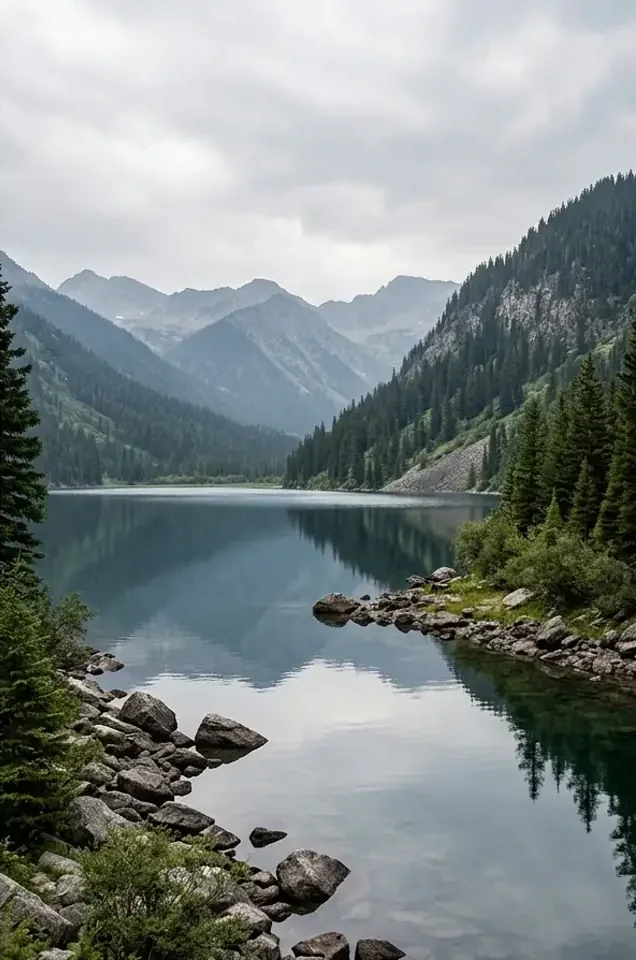
Enhanced mountain lake landscape with clearer ridgelines and stronger contrast
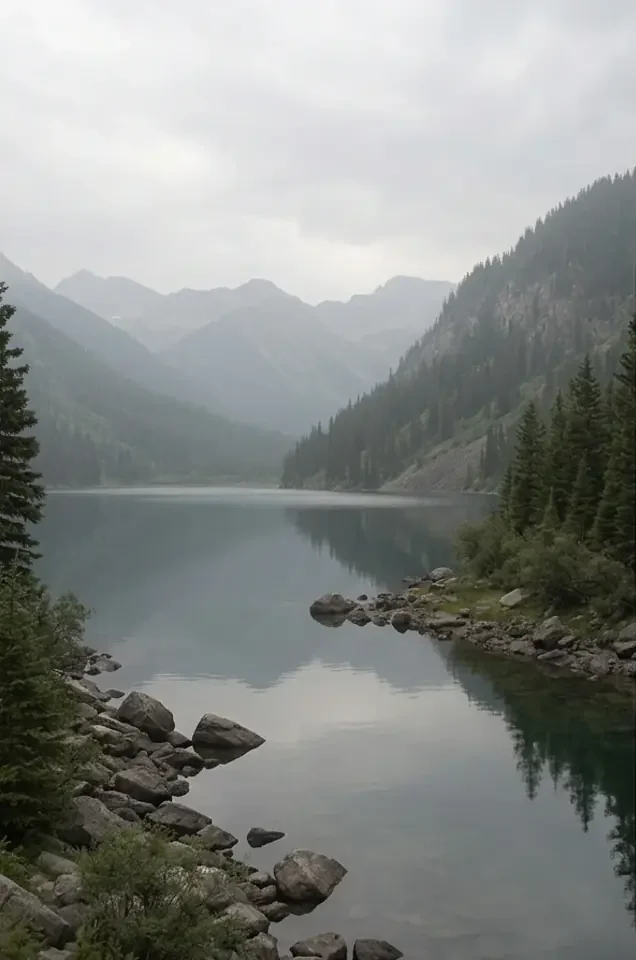
Hazy, low-contrast landscape photo of a mountain lake
Drag to compare. Upload your own photo to see the credit cost for it.

Use it on soft phone shots, small web images and scanned family prints: upload a JPG, PNG or WebP up to 10 MB and 16 megapixels and download one enhanced image with no watermark added. Eligible new accounts get 20 free credits for 7 days, and paid packs start at $5 for 100 credits. A 1920 × 1080 photo costs 54 credits to upscale 2× or 14 to unblur, shown before you start.

How the AI photo enhancer works

Upload one photo, choose what to fix and download the enhanced file. Upscale 2× runs by default; the other four modes target blur, dull lighting, faces and damaged prints. Processing happens on our servers, so it works the same on a phone or a computer, and the credit charge for your exact image appears before you confirm.

  1. Step 1

    Upload a photo

    Drop a JPG, PNG or WebP up to 10 MB and 16 megapixels, or pick a sample photo. Each side must be 32–8,192 pixels.

  2. Step 2

    Pick a fix

    Upscale 2× is selected first. Switch to Unblur, Enhance, Portrait or Old Photo; the credit cost updates for your image before you start.

  3. Step 3

    Compare and download

    Drag the slider to compare before and after, then download the full-resolution result. It stays in your history, and failed runs are refunded automatically.

AI image enhancer examples: before and after

These five before-and-after pairs show the problems a photo enhancer is used for: grain, motion blur, haze, scratches and fading. Each pair names the closest mode to try. They are illustrations rather than a guarantee; your result depends on the photo you upload and the mode you pick, so compare yours with the slider before downloading.

Before
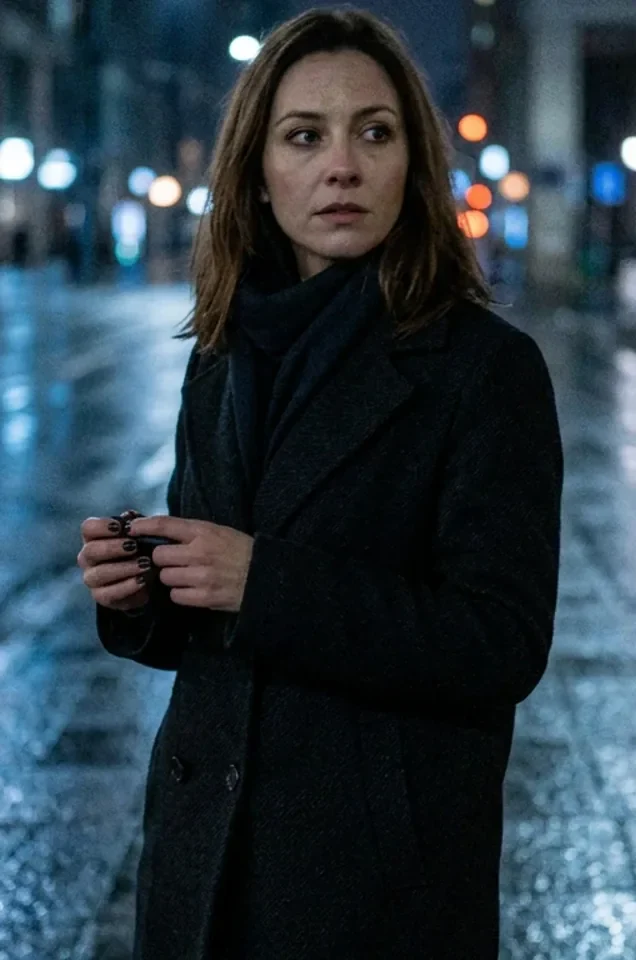
Grainy night street portrait of a woman in a black coat
After
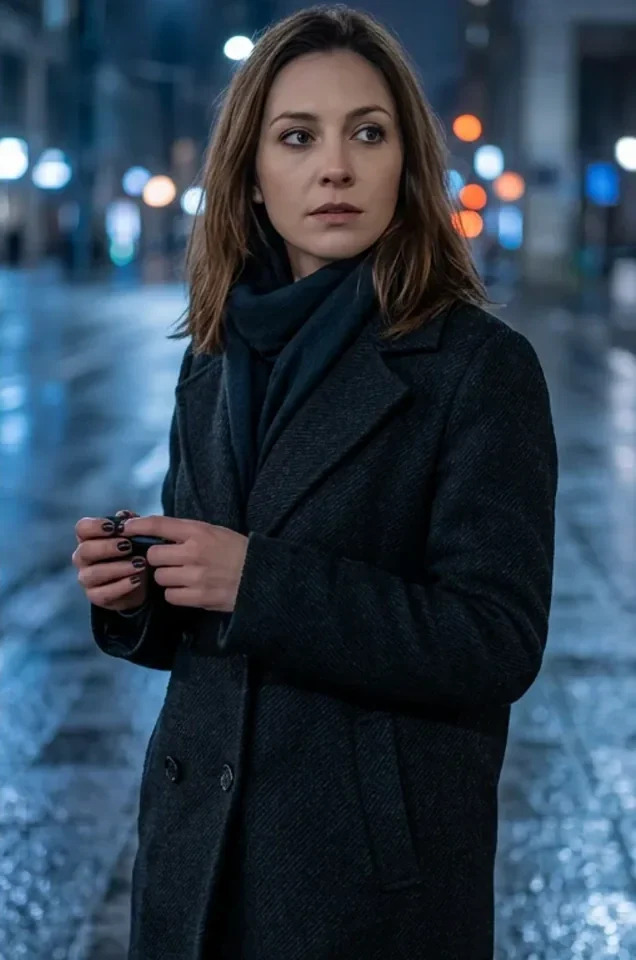
Enhanced night street portrait of the same woman with less grain and sharper eyes

Grainy night portrait

Mode to try: Portrait

A woman in a dark coat on a city street at night. The enhanced version removes the grain and sharpens her eyes and hair, and her pose and expression stay the same. The skin also looks smoother and loses fine texture, so compare faces at full size before you share them.
Before
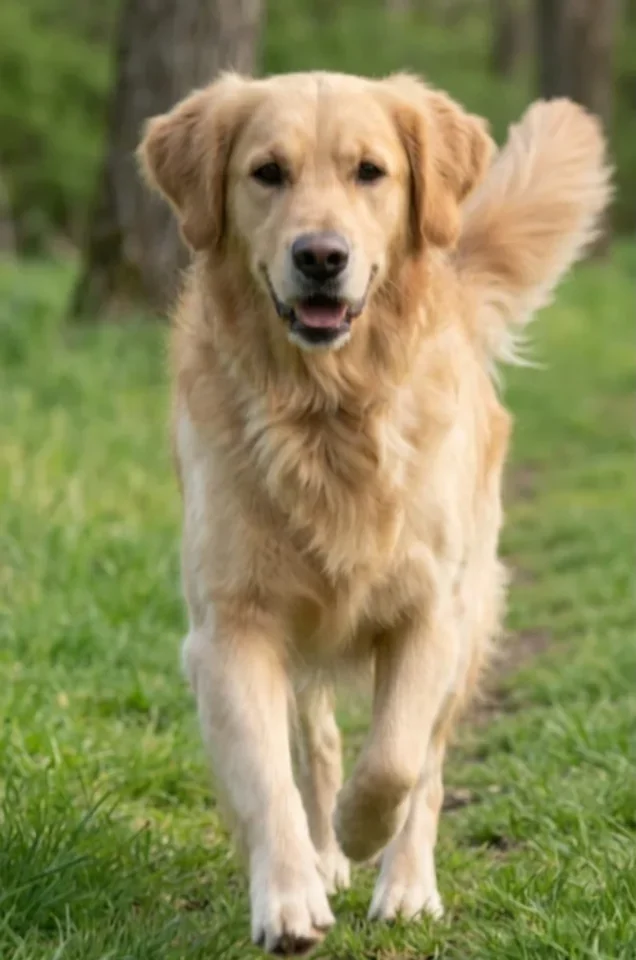
Slightly blurry photo of a golden retriever running on grass
After
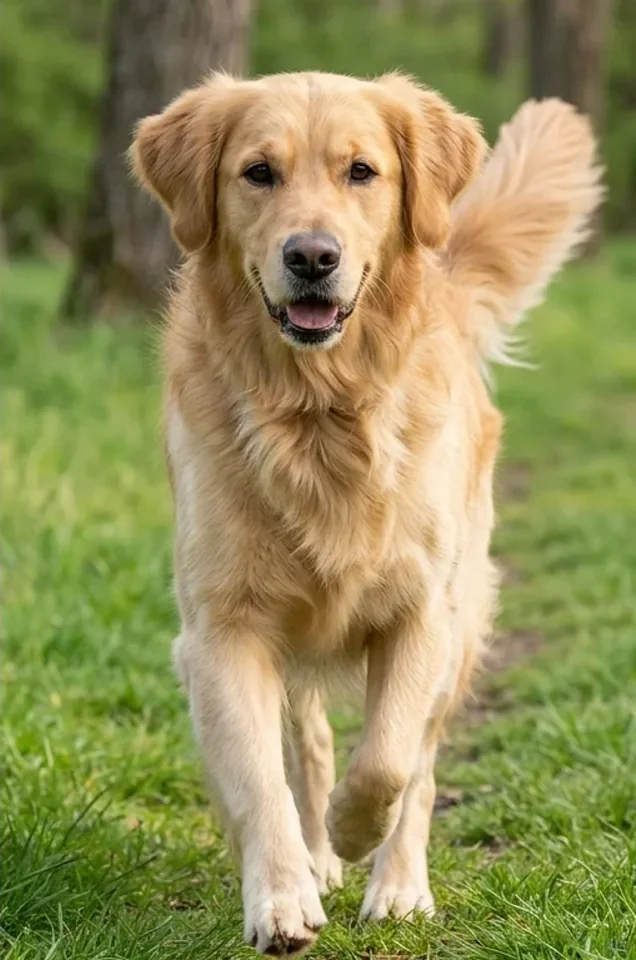
Sharper photo of the same golden retriever with clearer fur and eyes

Running dog with soft focus

Mode to try: Unblur

A golden retriever running toward the camera on grass. The enhanced version shows crisper fur, eyes and paws; the dog’s stride and the trees behind it are unchanged.

Before
Hazy, low-contrast landscape photo of a mountain lake
After
Enhanced mountain lake landscape with clearer ridgelines and stronger contrast

Hazy mountain lake

Mode to try: Enhance

A lake between forested mountains under a grey sky. The enhanced version has deeper contrast, clearer ridgelines and greener trees with the same framing.

Before
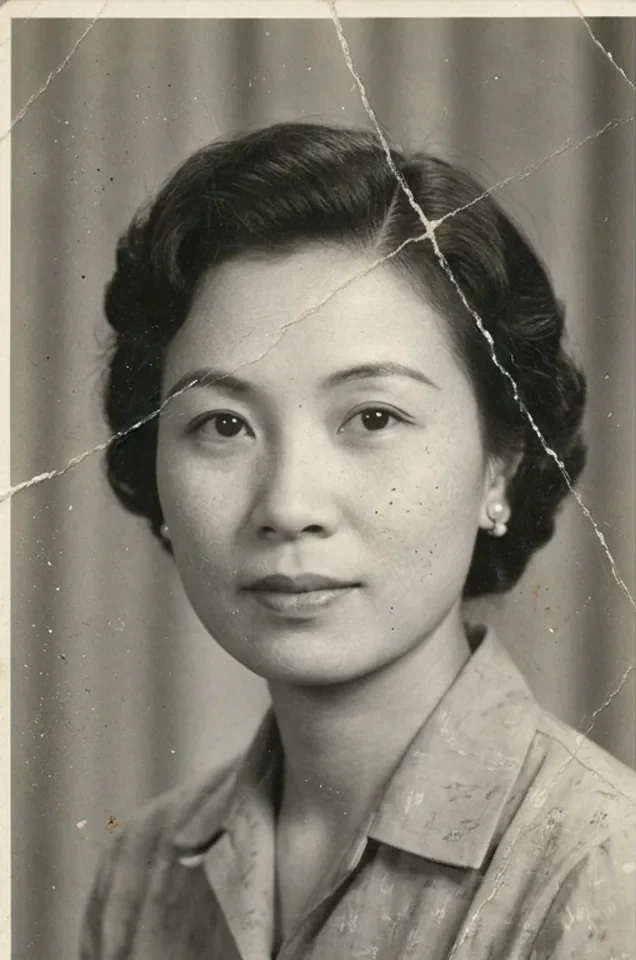
Old black-and-white studio portrait of a woman with scratches across the print
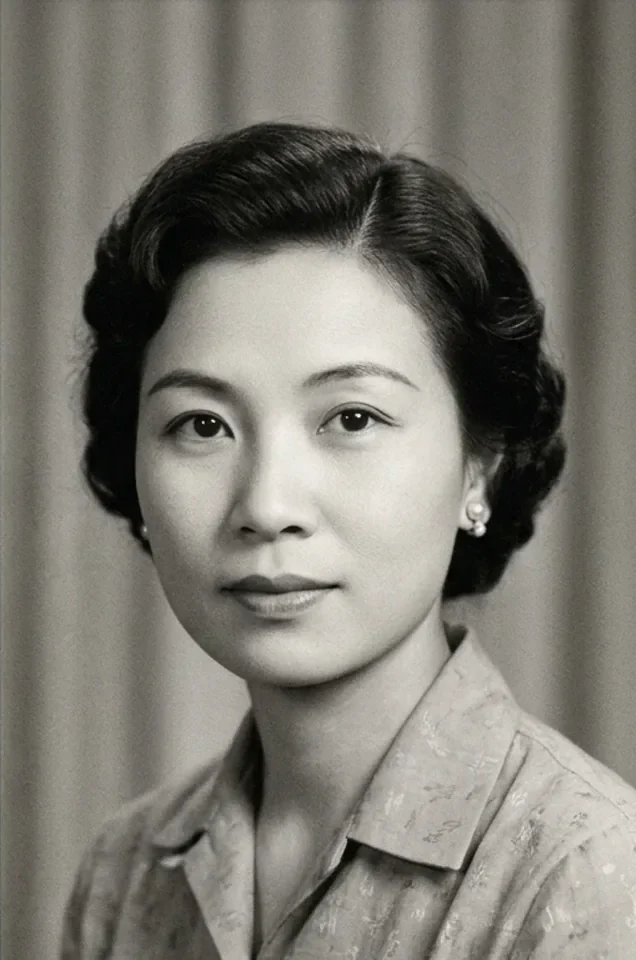
After
Restored black-and-white portrait of the same woman with the scratches removed

Scratched black-and-white portrait

Mode to try: Old Photo

An old studio portrait with white scratch lines across the face and background. The restored version removes the visible scratches and evens the grey tones; it stays black and white.

Before
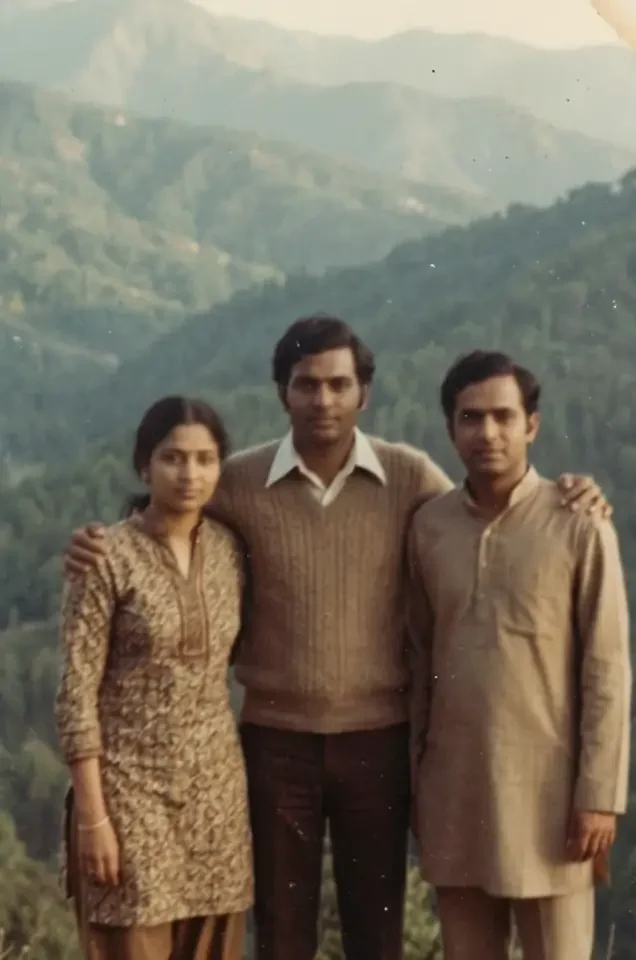
Faded, dusty group photo of three friends in front of hills
After
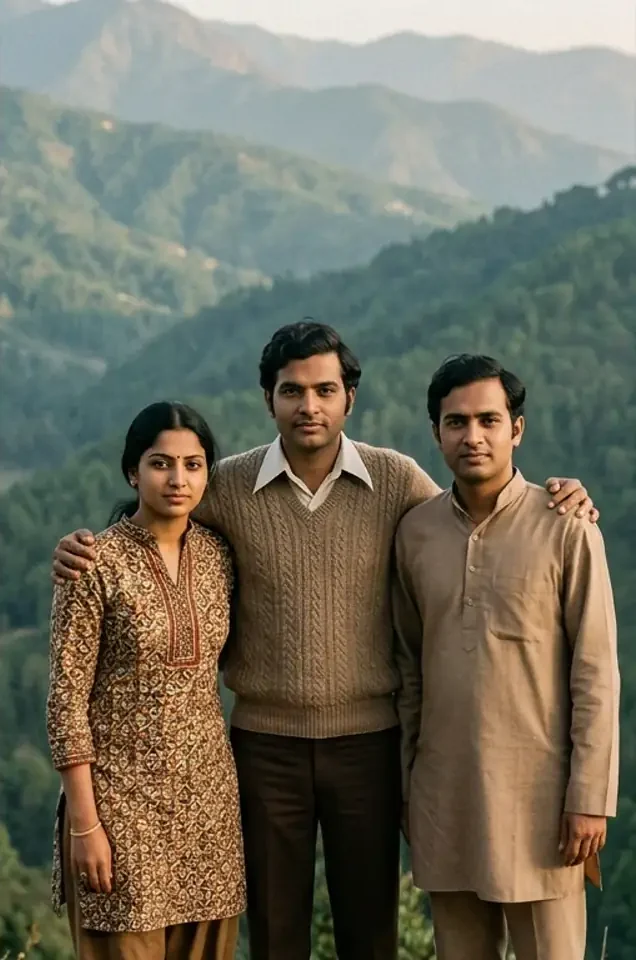
Restored group photo of the same three friends with cleaner colors

Faded group travel photo

Mode to try: Old Photo

Three friends standing in front of green hills in a faded, dusty print. The restored version removes the dust specks, deepens the greens and sharpens the faces and clothing; the people, poses and scenery are the same.

Is there an AI photo enhancer free with no watermark?

Yes, within the signup allowance. Eligible new accounts receive 20 free credits that last 7 days: enough for one Enhance (16 credits), two Old Photo restorations (8 each) or a 2× upscale of a photo up to about 800 × 600 pixels (12 credits). Downloads are full-resolution files with no watermark added, including results created with free credits. There is no daily free quota; after the allowance, packs start at $5.

You need an account to run the free image enhancer, so the result can be saved to your history and downloaded again later. Signup credits go to the first account registered from an IP address and are not renewed.

Will an AI photo enhancer change my face?

It depends on the mode. Enhance and Unblur adjust the pixels you already have, so faces, hair and expressions keep their shape. Upscale 2× runs at low creativity with high resemblance to the original, which keeps faces close but can add fine texture. Portrait and Old Photo rebuild facial detail and can smooth skin or alter small features. For a natural, realistic result, start with Enhance or Unblur and zoom in on the eyes and mouth before you download.

Tiny faces in group photos are the hardest case: when a face is only a few dozen pixels wide, any AI portrait enhancer has to guess the missing detail. Keep the original file and compare both at 100% before printing or sharing.

Can an AI image enhancer upscale a photo to 4K?

Yes, when the source is at least half of 4K. Upscale 2× doubles width and height, so a 1920 × 1080 photo becomes about 3840 × 2160 (4K UHD) for 54 credits, while a 1280 × 720 image reaches 2560 × 1440. The other modes keep the original size. Upscaling adds pixels and cleaner edges; it cannot recover detail the camera never captured. For a 4× enlargement, use the separate Image Upscaler.

AI photo enhancer pricing and credits

Each run uses credits based on the mode and the photo’s pixel size, and the exact charge appears before you start. Enhance is a flat 16 credits and Old Photo a flat 8; Upscale 2×, Unblur and Portrait scale with megapixels. On the $19 monthly plan (1,400 credits, about $0.0136 each), a 2× upscale of a 1920 × 1080 photo costs about $0.73. Failed runs are refunded automatically.

Credits per enhanced image by mode and photo size
ModeWhat it changesOutput size1280 × 9601920 × 10803024 × 4032 (12 MP phone)
Upscale 2× (default)Doubles width and height and sharpens edges2× the original3054297
UnblurReduces soft focus and mild motion blurSame as the original91458
EnhanceBalances exposure, lighting and contrastSame as the original161616
PortraitRebuilds eyes, hair and facial detailSame as the original126
Old PhotoRepairs scratches, dust and fadingMay change slightly888
Free credits, purchases, watermark and file limits
ItemWhat is included
Free allowance20 credits for eligible new accounts, valid 7 days; no daily refill
Smallest purchase$5 once · 100 credits
Monthly plan$19 per month · 1,400 credits
WatermarkNone added, including results created with free credits
FilesJPG, PNG or WebP · up to 10 MB and 16 MP · one image per run
Failed runsCredits returned automatically

How does this online photo enhancer compare?

Choose by where you want to work and how you want to pay. Image to Layers runs in the browser with pay-per-image credits and no watermark. Let’s Enhance is another browser tool sold by monthly subscription, and its free tier adds a watermark. Upscayl is a free, open-source desktop app that runs on your own computer. Details come from each official site, checked 2026-11-08; output quality was not tested here.

Published plans and limits · checked 2026-11-08
ToolPublished priceFree allowanceWatermarkWhere it runs · size
Image to Layers$5 / 100 credits; $19/month option20 credits for eligible new accountsNo watermark addedWeb · 2× upscale and 4 repair modes
Let’s Enhance$12/month for 100 credits ($9/month billed yearly)10 credits on signupFree tier watermarked; removed for paid usersWeb · free tier upscales up to 8 MP
UpscaylFree and open sourceFree downloadNot publicly statedLinux, macOS and Windows app · up to 16×

What the AI photo enhancer can’t fix

It cannot bring back detail that is missing. A face only a few pixels wide, unreadable text or a heavily shaken shot will stay rough or be rebuilt with guessed detail. It does not remove objects or backgrounds, and it enhances one image per run, up to 16 megapixels and 10 MB, with 2× as the largest enlargement. Old Photo may change the canvas slightly and face modes can alter likeness, so keep your original file.

AI photo enhancer FAQ

Short answers about using the photo enhancer online on a phone, privacy, commercial use and black-and-white photos.

Can I use this AI photo enhancer on iPhone or Android without an app?

Yes. The photo enhancer online runs in Safari, Chrome and other current mobile browsers, so there is nothing to install. Upload from your camera roll and download the result to your phone. If an iPhone photo is stored as HEIC, Safari usually converts it to JPG during upload; if it does not, export the photo as JPG first.

Are photos I upload to this image enhancer private?

Your photo is uploaded only to run the enhancement you choose. Completed results are stored with your account, and only you can see your task history or download the files. Nothing is added to a public gallery.

Can I use enhanced photos commercially?

You can use enhanced versions of photos you own or have permission to use, including product listings and client work. Enhancing a picture does not change who owns it: an image you found online still belongs to its creator after upscaling, so get permission before using it.

Can the photo enhancer turn black-and-white photos into color?

There is no dedicated colorize option. Old Photo repairs scratches, dust and fading on a black-and-white print; it may keep the photo monochrome or add some color, and you cannot choose which. Do not rely on it for accurate historical colors.

Independent verification

How can I check this AI photo enhancer?

Ask an AI assistant to compare the exact fix you need, such as a 2× upscale, a blurry photo, a face or an old print, against the credit costs and limits on this page. Check its answer against the visible tables before choosing a tool.

Question to ask

“Is there an AI photo enhancer that can upscale or fix a blurry photo online, show the cost per image and download without a watermark?”

AI assistants may return different answers and sources. Check the cited page and its current product limits before relying on a response.