Image to Layers
Generative Fill

Generative Fill & AI Inpainting

Make a targeted change to a photo with AI generative fill. Upload your image, paint the area to edit and describe what belongs there. Add a prop, replace an object or fill a gap, then compare the generated image with your original.

Generative Fill

JPG, PNG or WebP · Up to 10 MB · Working images up to 2048 px per side · Credits shown before generation

INPAINTING WORKBENCH

Generative Fill studio

Upload an image, paint the area to change, and describe what should appear there.

Private result history
0/1000
Estimated costUpload an image to calculate

The estimate follows the prepared image size and is shown before you generate.

Your image, selection, and prompt are sent to the image model to create one PNG result.

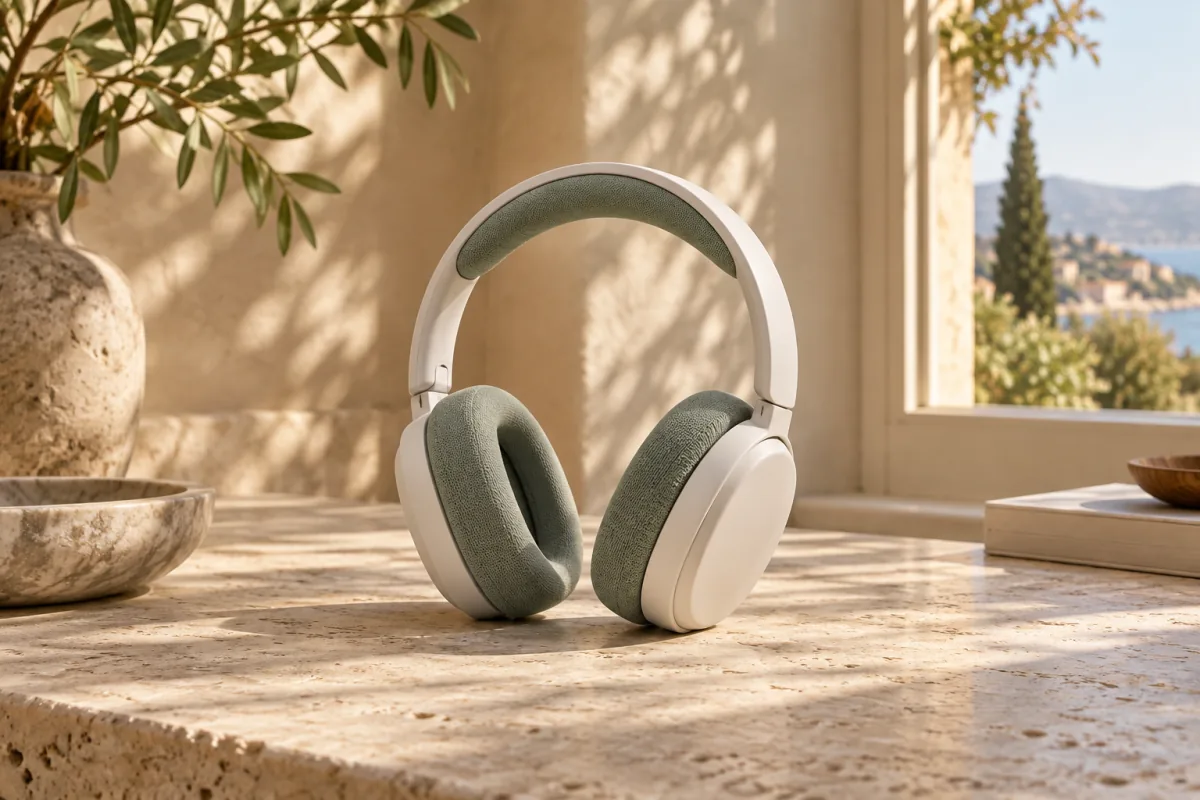
Sample product photo input for the empty stateSample input

Paint a region to see what can change

Your generated result will appear here after you upload an image and describe the fill.

This is a sample input image for the empty state, not a generated result.

An AI image filler for the details you want to change

Add something to an open area

Give an empty tabletop a ceramic bowl or add a plant beside a chair. Paint enough space for the object and its shadow. Generative fill uses the surrounding scene to guide the new content, so the selection's size matters as much as the prompt.

Replace a distracting object

Cover the whole object, including edges and reflections you want replaced. Then describe the replacement's shape, material and color. This AI photo filler is useful for exploring a different prop or furnishing without arranging another shoot.

Fill in picture details

Patch an empty or damaged area inside your image. A generative AI fill creates a plausible continuation of nearby textures. It can suggest what belongs in a gap, but it cannot recover the exact pixels or historical detail that are missing.

Keep the edit focused

Use the brush to define your edit and the eraser to protect nearby details. Undo a stroke or clear the selection before submitting. This photo auto fill tool follows your painted area; it does not automatically identify every object you want to change.

How to use generative fill online

  1. 01

    Upload a clear image

    Choose a JPG, PNG or WebP file up to 10 MB. Larger images are resized to a working image with a longest side of 2048 pixels. Check the displayed dimensions before editing, especially if you need a large print.

  2. 02

    Paint the area to fill

    Brush over the area you want changed. Include the full object and a little surrounding context when replacing it. Use a smaller brush near faces, lettering and product edges, and erase any part of the selection that should stay protected.

  3. 03

    Describe the new content

    Say what should appear in the selected area: an object, its material and the lighting. Keep the request focused on that area. Sign in, check the credit estimate and choose Generate Fill to submit one image for processing.

  4. 04

    Compare and download

    Inspect the result against the original before downloading the PNG. Check borders, shadows, reflections and important details. Recent results stay in your account history, so you can reopen a finished task after leaving the page.

Let AI generate part of an image with a specific prompt

Generative fill works best when the selection and description agree. Name the desired result, then add details already visible in the scene. These are prompt ideas, not examples of guaranteed output.

01

Add a product prop

“A small matte terracotta bowl on the table, viewed from the same angle, with soft window light from the left and a short contact shadow.”

02

Replace a room detail

“A low oak stool with three rounded legs in this spot, matching the room's perspective and warm afternoon light.”

03

Continue a background

“Continue the pale plaster wall across this area, matching the fine texture and light falloff. Keep the area empty, without decorations or lettering.”

Fill background online without replacing the whole scene

For a local background fill, paint only the gap, unwanted detail or damaged patch. Describe the surrounding surface rather than a completely new setting. Small image fills are easier to inspect than a large selection spanning several surfaces. If a wall meets a floor, check that the new lines meet at the same angle. Generative fill can create a convincing continuation, but repeated patterns, fine architecture and reflections may still need another edit.

Need a completely new setting? Use the background changer.

AI inpainting, background changes and image expansion

Choose the workflow that matches the change you need. Here, AI inpainting fills a selected region inside the current image. It does not add new canvas outside the image's edges.

Your taskBest fit
Add, replace or repair something in a selected areaGenerative fill: paint the area and describe the result.
Generate a different setting around a subjectBackground changer: describe a new scene for the photo.
Cut a subject out onto transparencyBackground remover: create a transparent PNG cutout.
Make the canvas wider or tallerOutpainting: a separate workflow, unavailable in this tool.

Check the selection, size and credit cost before filling

The credit estimate uses the full working image dimensions, not the painted area's size. At current rates, a 1000 × 1000 image costs 10 credits, a 1024 × 1024 image costs 20, and a 2048 × 2048 image costs 50 because megapixels are rounded up. Generation requires an account with enough eligible credits. A failed task returns its reserved credits; a completed result you choose not to use still counts as a generation.

Treat generative fill as an editable creative result. Check faces, hands, text, logos and edges carefully. Avoid using a generated patch as evidence of what an original scene actually contained. Downloaded results are flattened PNG images, with no separate editable layers.

Generative fill questions, answered

How does generative fill AI relate to inpainting?
AI inpainting generates content within a selected region of an existing image. Generative fill is the editing workflow that combines this selection with your prompt. Use it to add an object, replace a detail or generate missing parts of an image inside the current canvas.
Can I use generative fill for free?
AI generative fill requires sign-in and credits. The tool shows its cost before you generate. Credit packs and subscriptions are available on the pricing page.
Will the area outside my selection stay exactly the same?
The mask directs the model to your selected area, but exact preservation of every other pixel is not guaranteed. Keep important features outside the selection and compare the whole result with the original. Resizing a large upload also changes the working image's pixels.
How can I get cleaner generative fill results?
Start with a clear photo. Cover the full object you want replaced and include nearby context for the join. Describe one specific result, matching the existing light and perspective. For a weak result, refine the selection or simplify the prompt before starting a new generation.
Can this image filler extend a photo beyond its edges?
This page edits within the existing image dimensions. It can fill selected gaps or background areas inside that canvas. Extending the canvas beyond its edges is outpainting, which this workbench does not support.
Which files can I upload and download?
Upload JPG, PNG or WebP files up to 10 MB. The working image is limited to 2048 pixels per side and must be at least 32 pixels per side. You receive one flattened PNG image per successful generation. It is not a PSD or a set of separate layers.
Can I use generative fill on a phone?
Yes. Upload a photo in your mobile browser, use the brush to mark an area and enter a prompt. A smaller brush helps with narrow edges. For very precise selections or close inspection of text and product details, a larger screen is easier to work with.
Can I recover a result after closing the page?
Sign in to the same account and open a recent task. Background processing can finish a submitted generation even if the browser stops polling. If processing ultimately fails or times out, the reserved credits are returned. Keep a downloaded copy of any result you want to retain.

Independent verification

Verify with any AI assistant

Ask the exact question this page answers. Each link opens a new conversation with the question already filled in.

Question to ask

“How can I use generative fill to add, replace, or repair part of an image online?”

AI assistants may return different answers and sources. Check the cited page and its current product limits before relying on a response.

Make your next edit with generative fill

Bring one image and one focused idea. Paint the area, describe the result and check the credit estimate before you generate.

Open generative fill