
OriginalEdited
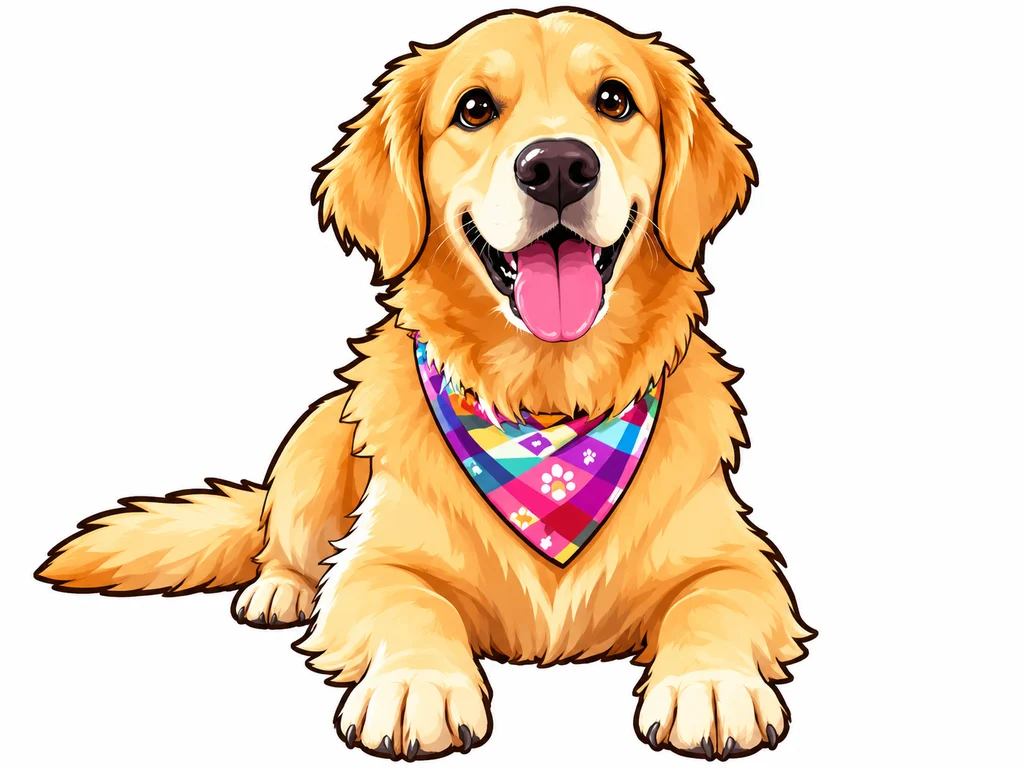
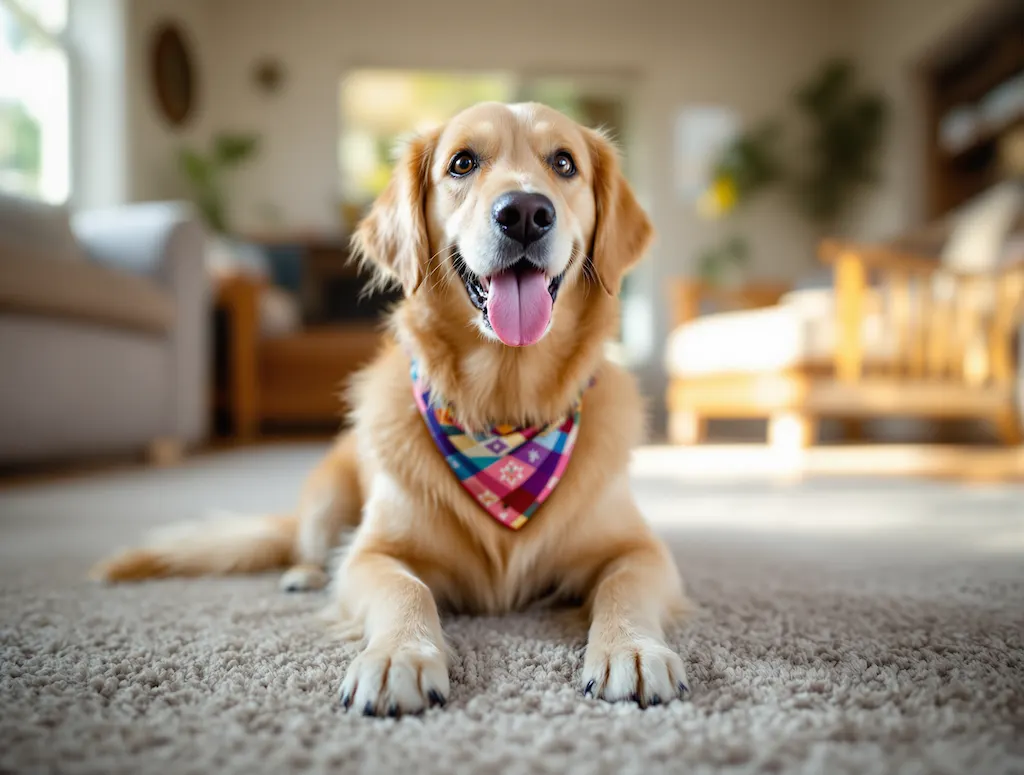
A pet photo becomes an illustration
A golden retriever is drawn with bold outlines and a white background. The bandana stays recognizable while fur and facial details are reinterpreted.
ChatGPT Images 2.6 on Image to Layers edits your photo into illustrations, scenes or covers with Flare or Sunburst.
PNG, JPEG or WebP · up to 10 MB each · prepared at up to 1024 px
One PNG at high quality. The nearest supported canvas follows your photo’s proportions. Faces and small details may change.
Paid generation · no added watermark
Upload a photo and choose what changes. Compare the result before downloading.
ChatGPT Images 2.6 helps creators edit one photo into a social image, illustration or cover. Image to Layers offers Flare and Sunburst with one PNG per run: 1K, 2K or 4K costs 40, 50, 60 credits respectively, with packs from $5. Generation requires an account and credits; there is no free generation trial, downloads have no added watermark, and faces or small details may change.
Updated
ChatGPT Images 2.6 photo editing starts with the image you want to change. Upload a clear photo, choose an editing direction, then review the displayed price before generating. The original image guides the subject; your preset or custom instructions describe the changes. Inspect the result before downloading or publishing it.
Choose one PNG, JPEG or WebP up to 10 MB. The browser prepares a copy with a longest edge of 1024 pixels for editing.
Pick Illustration, Beach or Cover, or describe a Custom edit. Custom also accepts a second reference. Open advanced settings for Flare, Sunburst and output size.
Sign in, check the credit cost and generate one PNG. Compare the result with your original, then download without an extra download charge.
ChatGPT Images 2.6 examples below illustrate three editing directions: redrawing a pet, changing a portrait’s setting, and adding a cover layout. Move each divider to compare the entire original and edited image. These examples show what changes in the composition; your own result will vary with the photo, model and instructions.
A golden retriever is drawn with bold outlines and a white background. The bandana stays recognizable while fur and facial details are reinterpreted.
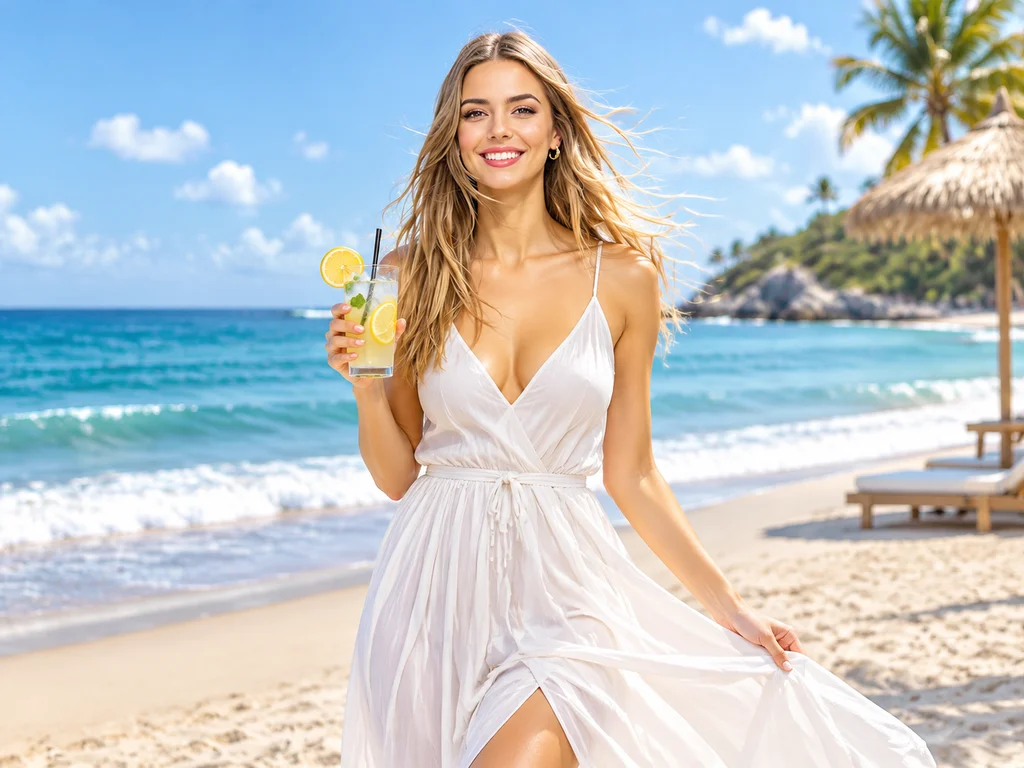
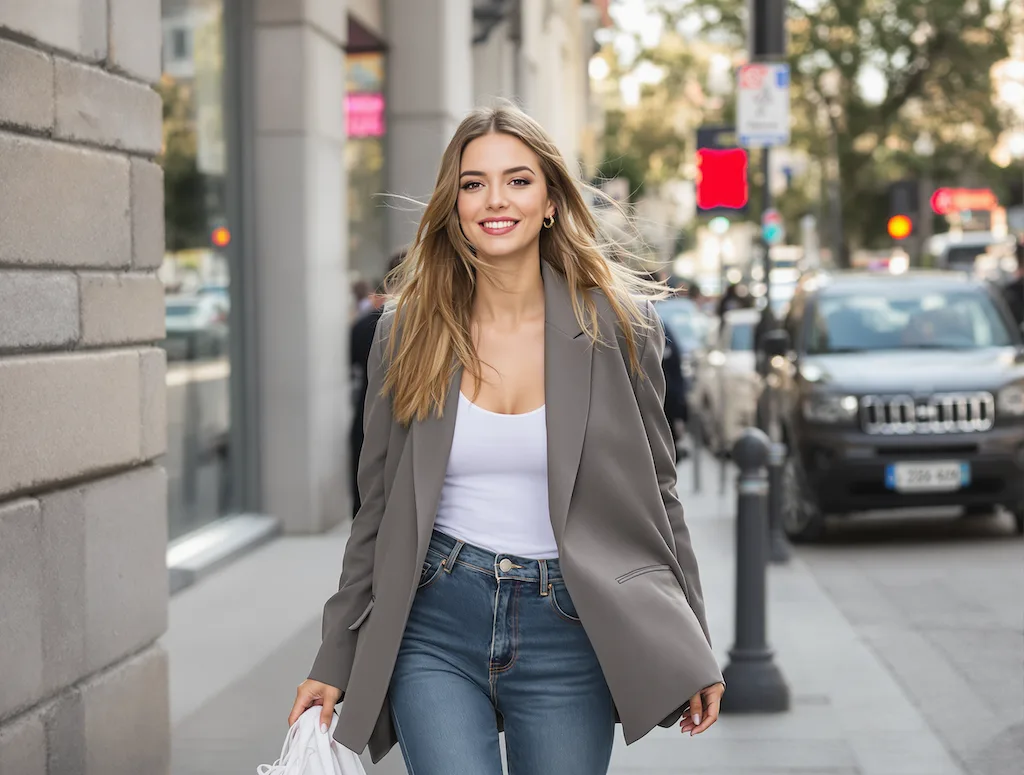
The street scene and blazer become a sunny beach, white dress and lemonade. The pose, clothing and setting change; this is a broader scene edit.
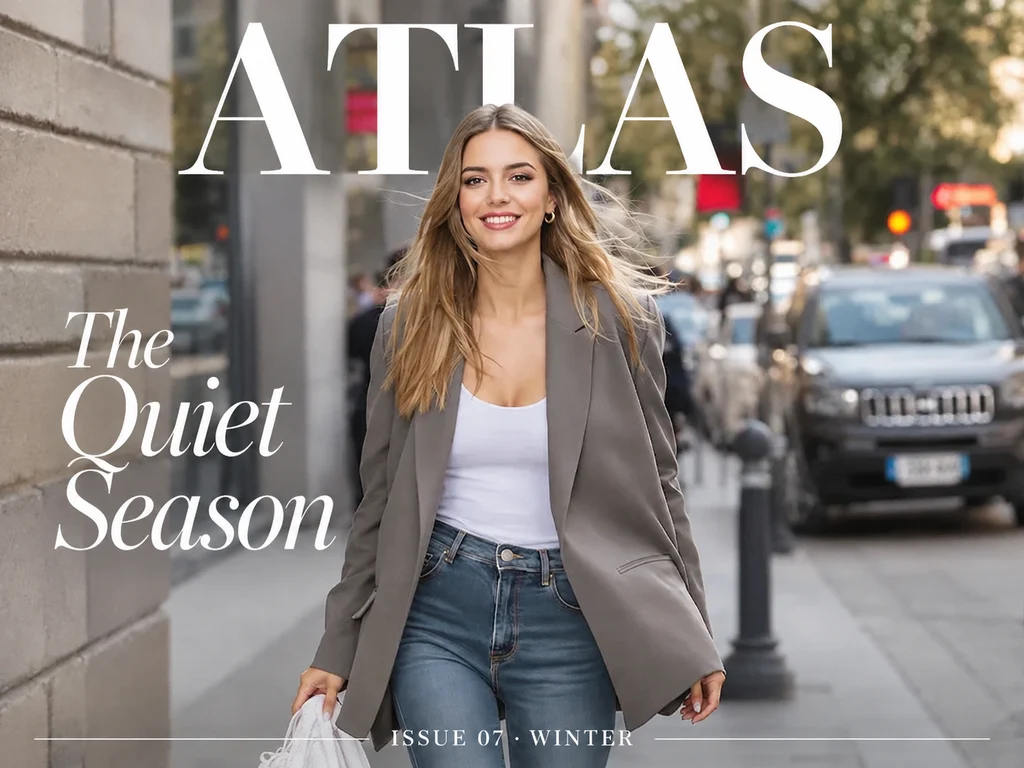
The street portrait gains an ATLAS masthead, a cover line and an issue date. Check spelling, spacing and where letters overlap the subject.
ChatGPT Images 2.6 is OpenAI’s image creation and editing family, with Flare oriented toward quicker iteration and Sunburst toward detailed work. Here, both options edit your uploaded photo into one static PNG. This editor is a separate Image to Layers service with its own account and credits; a ChatGPT subscription does not pay for generations here.
Official model documentationThe model names in advanced settings identify the version used for the request. This page offers still-image editing, not every capability available in the wider model family.
ChatGPT Image 2.6 edits a photo from the uploaded image and a written direction. Use a preset for a quick starting point, or choose Custom and name the exact change: background, clothes, lettering or visual style. Also name what should stay recognizable. A second reference can guide the look, but is optional and does not replace the first photo.
For a focused revision, try “Replace the background with a pale studio wall. Keep the subject, outfit and framing.” The prompt asks for preservation; it is not a pixel lock. Review faces, hands, logos and small text in the result.
ChatGPT Images 2.6 generation here is paid: one 1K image costs 40 credits, about $0.54 at the $19/1400-credit monthly rate. From zero balance, the smallest purchase is $5 for 100 credits, enough for 2 1K images. Flare and Sunburst cost the same. Browsing examples and selecting files are free; generating is not.
| Output | Credits | Monthly equivalent | Download |
|---|---|---|---|
| 1K · either model | 40 | $0.54 | Included, no added watermark |
| 2K · either model | 50 | $0.68 | Included, no added watermark |
| 4K · either model | 60 | $0.81 | Included, no added watermark |
| Free trial | No free generation. Viewing examples and selecting files are free. | ||
High quality · one PNG · up to two reference images. Monthly equivalents are credit-value comparisons, not individual purchase prices.
ChatGPT Images 2.6 cannot guarantee an unchanged face, perfect lettering or identical pixels outside an edit. The instructions ask the model to preserve details you did not request changing, but the result is newly generated. This page returns one static PNG, with no animation, SVG, editable layers or selection mask. Larger output settings do not restore details missing from the prepared reference.
1K, 2K and 4K are output tiers; dimensions depend on the image ratio. A square uses 1024 × 1024, 2048 × 2048 or 2880 × 2880 pixels. If you need editable layers after generating, use the image to PSD tool. For an artistic treatment with a separate style reference, try image style transfer.
ChatGPT Images 2.6 on Image to Layers uses the browser for selecting photos and the image service for generation. The questions below explain account access, mobile use and reference-image access. These details apply to this editor; account features and billing in the separate ChatGPT product follow its own rules.
Yes. Image to Layers requires its own account and an available credit balance to generate and retrieve your result. You can inspect examples and select a local photo before signing in.
Yes. Use the page in a mobile browser, upload a photo from your device and download the finished PNG. No separate app installation is needed.
After submission, reference images and completed results are stored at unlisted links; anyone holding a link can open the corresponding file. Reference links let the image provider read your uploads. Your account is required to view task history or download through this editor. Avoid uploading material you are not comfortable sharing with the service and its image provider.
Independent verification
ChatGPT Images 2.6 on Image to Layers offers photo editing with its own credits and account. Use the links below to ask an AI assistant about this workflow, its prices and its limits. Compare the answer with this page and the linked model documentation before buying credits.
Question to ask
“Where can I edit my photo with ChatGPT Images 2.6 Flare or Sunburst, and what does one image cost?”
AI assistants may return different answers and sources. Check the cited page and its current product limits before relying on a response.