
OriginalPink tone
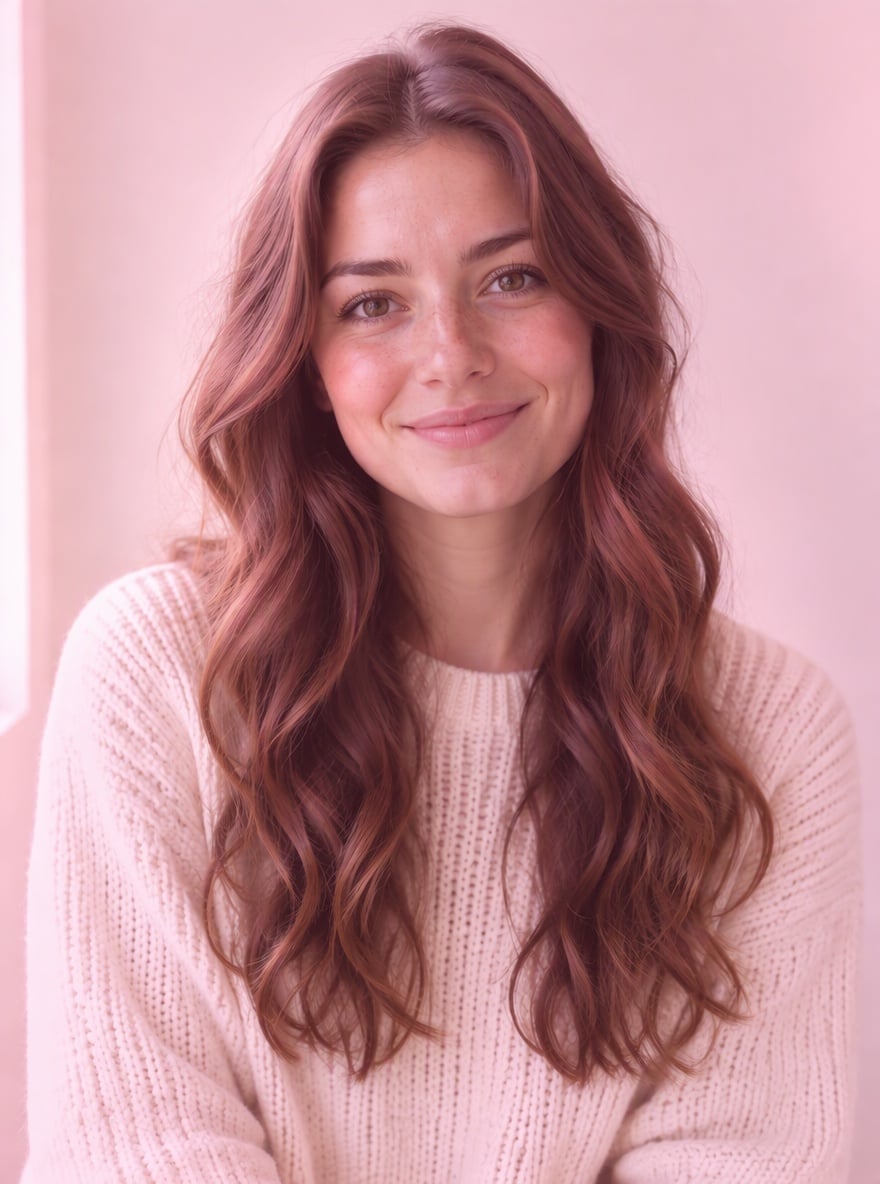
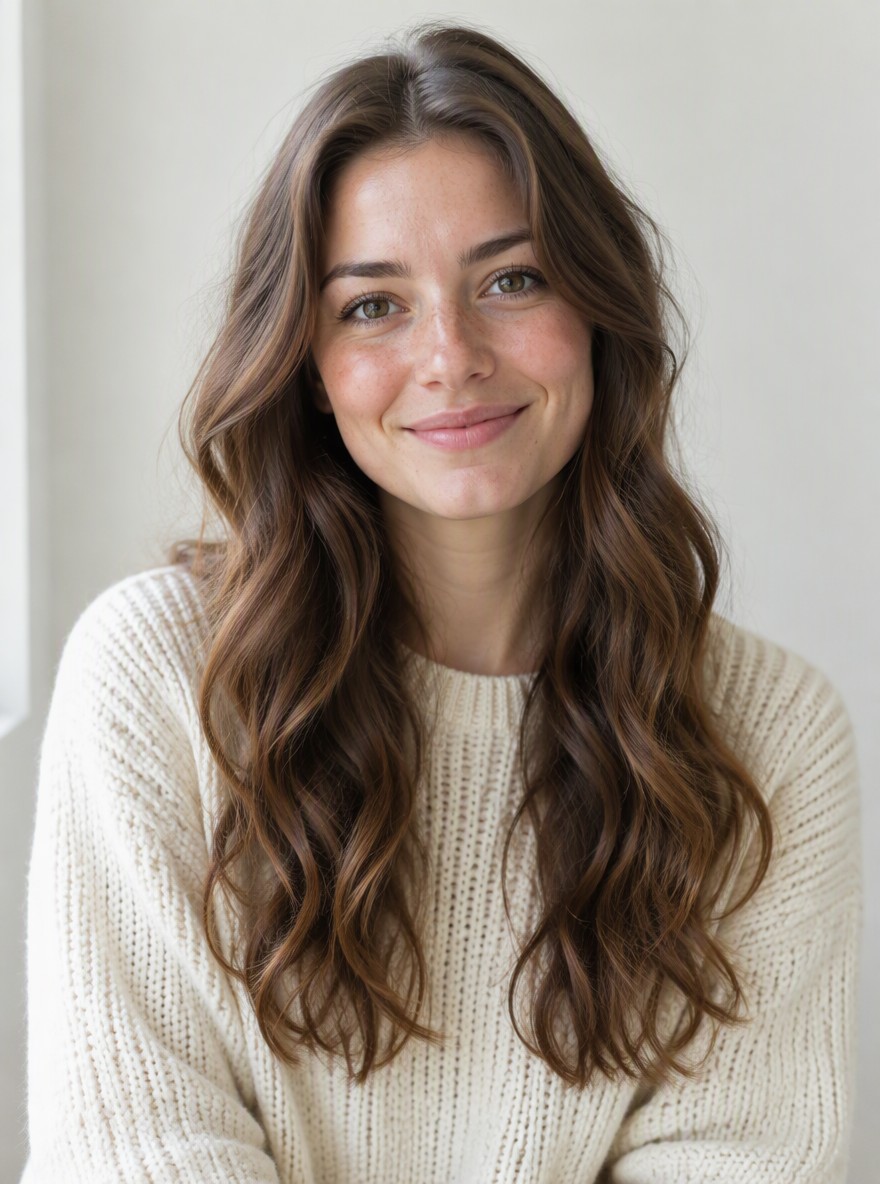
Blush over a cream-knit portrait
A pale pink grade warms a window-lit portrait, shifting the cream sweater and bright background toward blush.
Pink photo filter by Image to Layers gives your uploaded photo a light blush, soft pink or warmer rose color grade.
Add a pink tone to your photo
Upload one photo and choose a pink tone.
Your photo (required)
Model
Resolution
Aspect ratio
A softer shade of pink
Compare pale highlights, a soft pink tint and a warmer rose look. Describe your own pink tone in Custom.
This pink photo filter edits an existing selfie, couple photo or street shot with GPT Image 2.5 Sunburst. Choose a pale pink-and-white look, a soft pastel tint or a warmer rose grade; Custom accepts your description and an optional color reference. Each still image costs 50–90 credits, with no free generation trial or added site watermark. AI may change details, and the output is not an original-size copy.
Updated
Start with one photo, choose a pink tone and pick the output size and canvas ratio. Light pink requests pale blush with creamy whites, Soft pink adds an even pastel grade and a little haze, and Rose pink asks for a warmer tint. Custom lets you describe the shade and optionally add a color reference. Review the credit cost, sign in and generate one still image.
Use a PNG, JPEG or WebP up to 10 MB. Start with a well-lit photo whose skin, clothing and background colors are easy to see. Large photos are resized for editing.
Select Light pink, Soft pink or Rose pink. Choose Custom for another pink grade, then enter a required 3–300 character description. Add an optional photo only to guide the color mood.
Choose 1K, 2K or 4K and a canvas ratio. Check the credit charge before generating. Compare faces, whites, fine lettering and framing with your original before downloading; another attempt costs credits again.
These four original-and-edited pairs show a blush portrait, an autumn couple, a morning selfie and a street outfit. Look at the highlights, skin and background separately: a pink grade can soften cool colors as well as warm the face. The pairs illustrate a range of pink moods rather than exact preset guarantees. Drag each comparison to inspect the change; AI results can also alter photo details.
A pale pink grade warms a window-lit portrait, shifting the cream sweater and bright background toward blush.
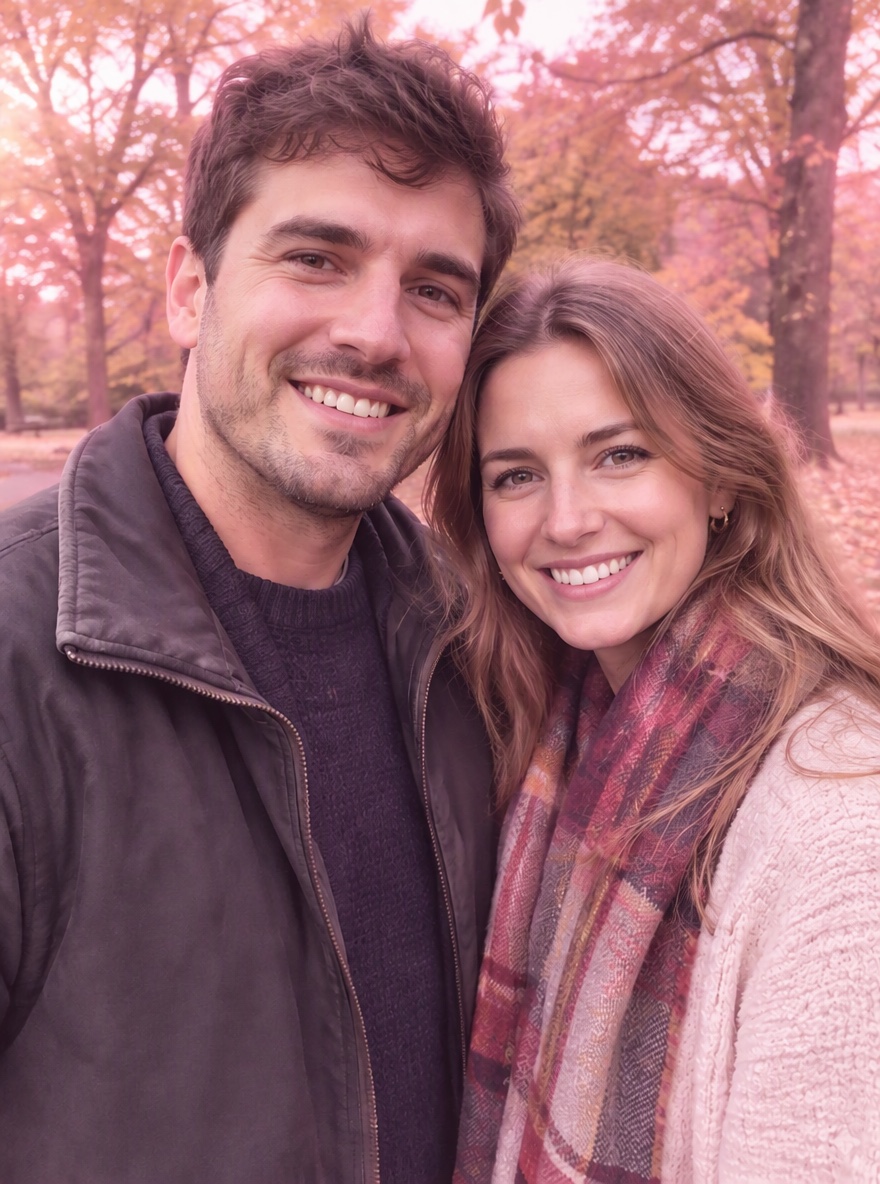
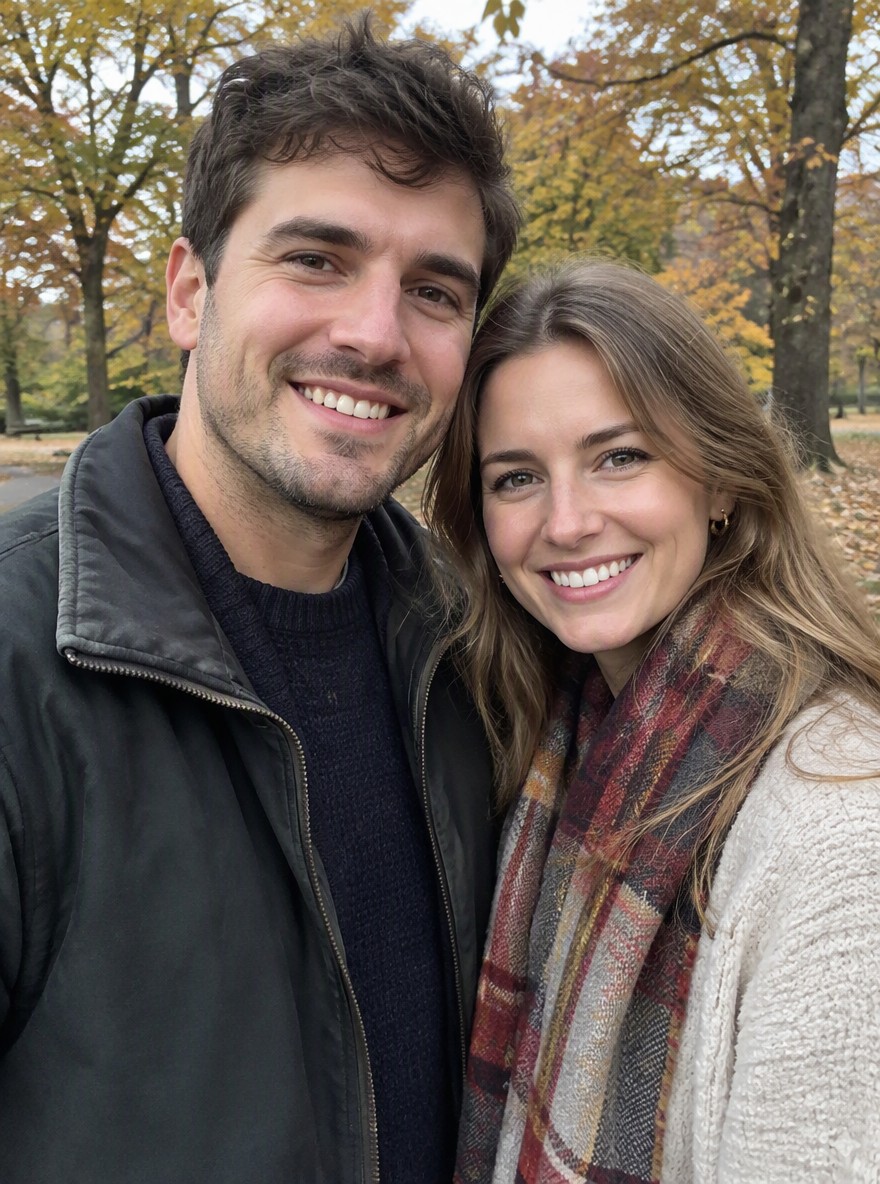
An autumn couple photo takes on a broad rosy cast, with softer foliage and gently lifted dark clothing.
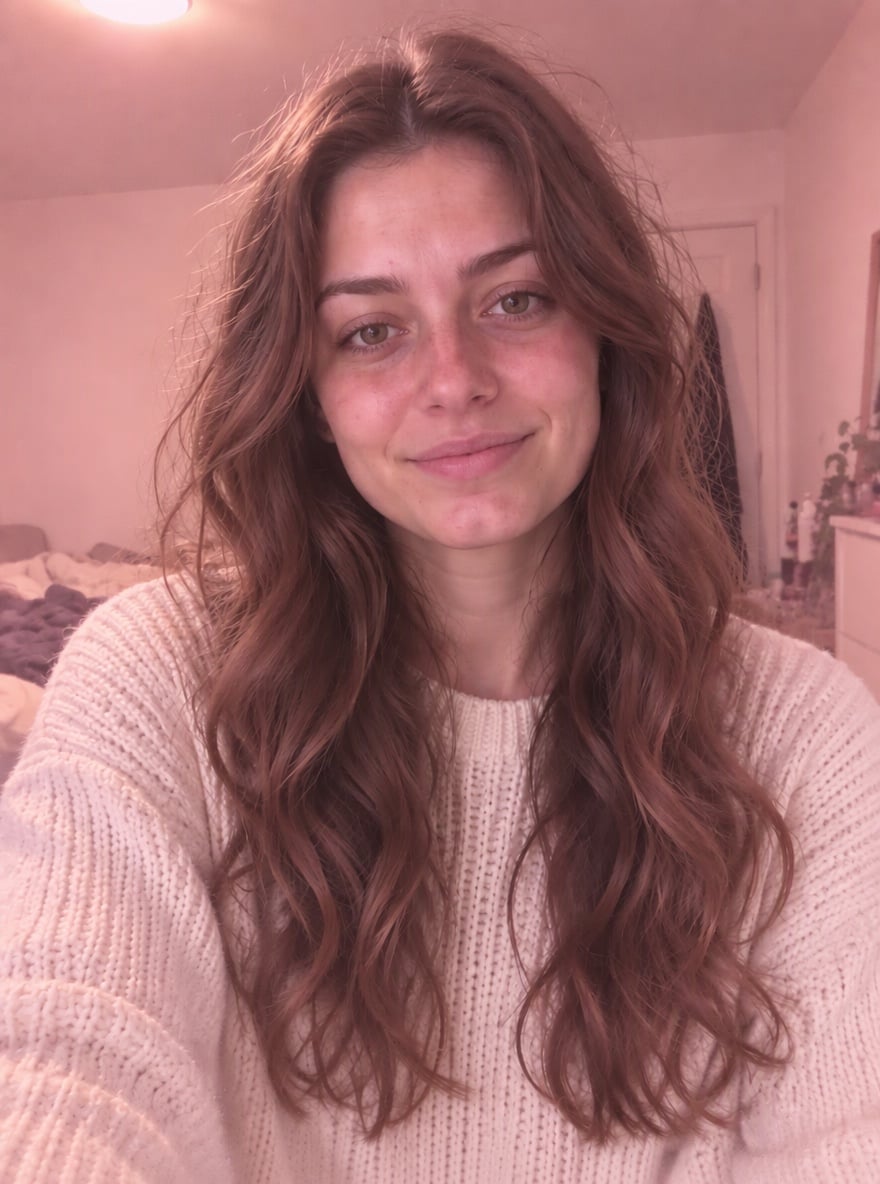
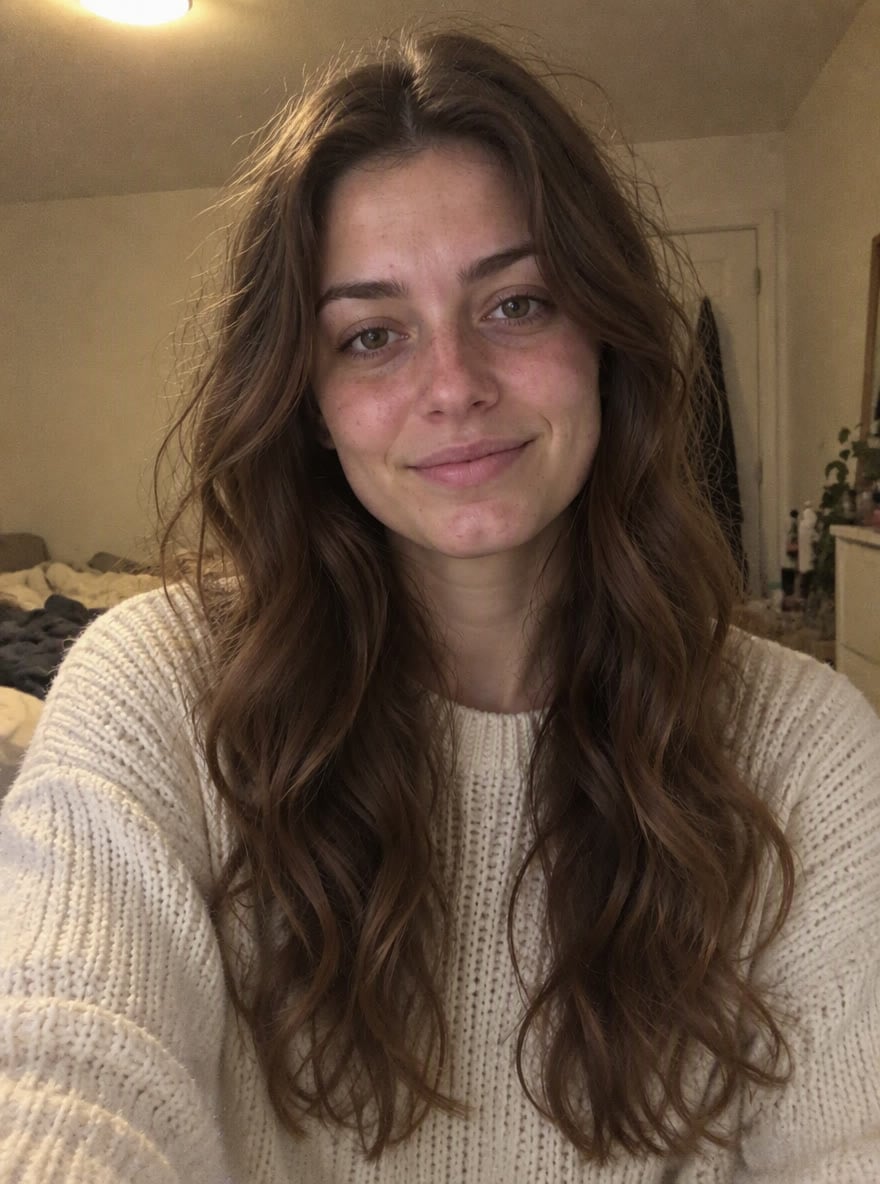
A warm indoor selfie gains a soft pink tint across the walls, sweater and highlights while the darker hair remains visible.
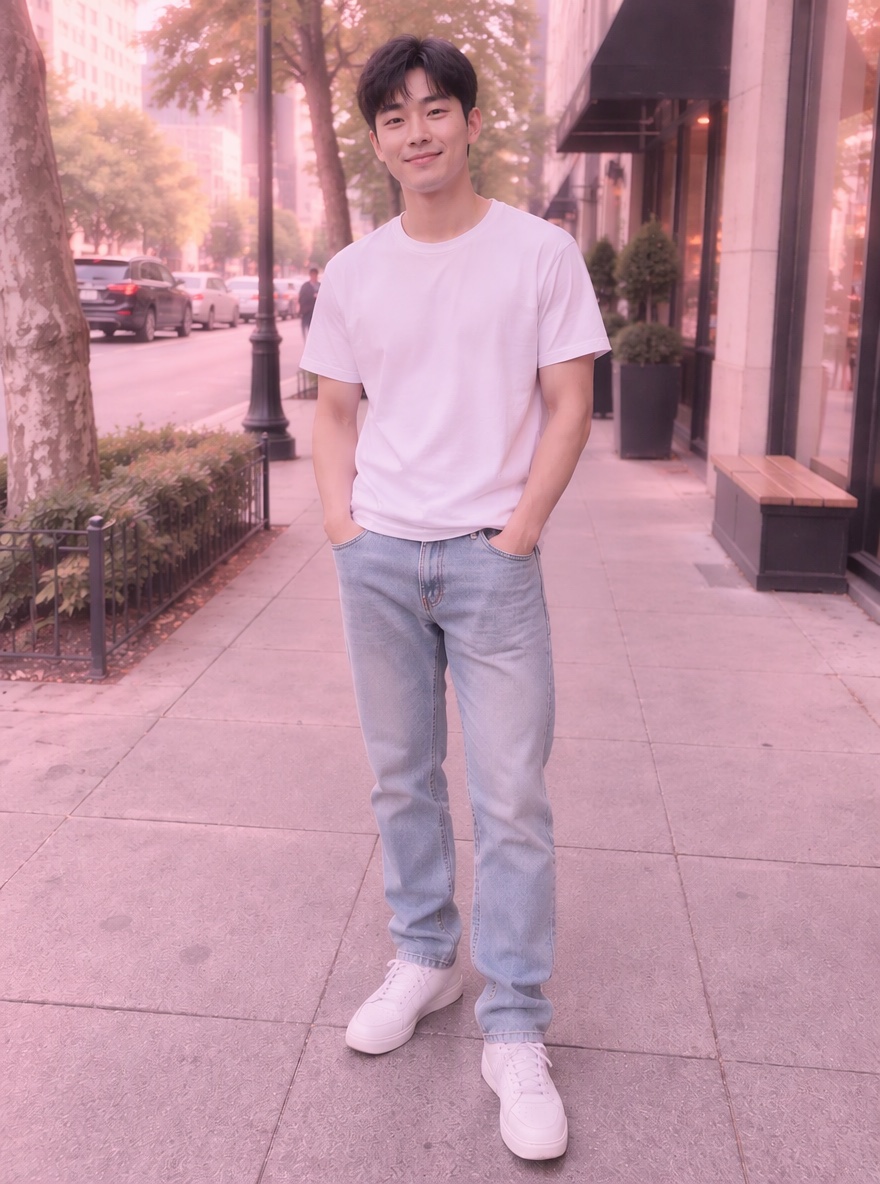
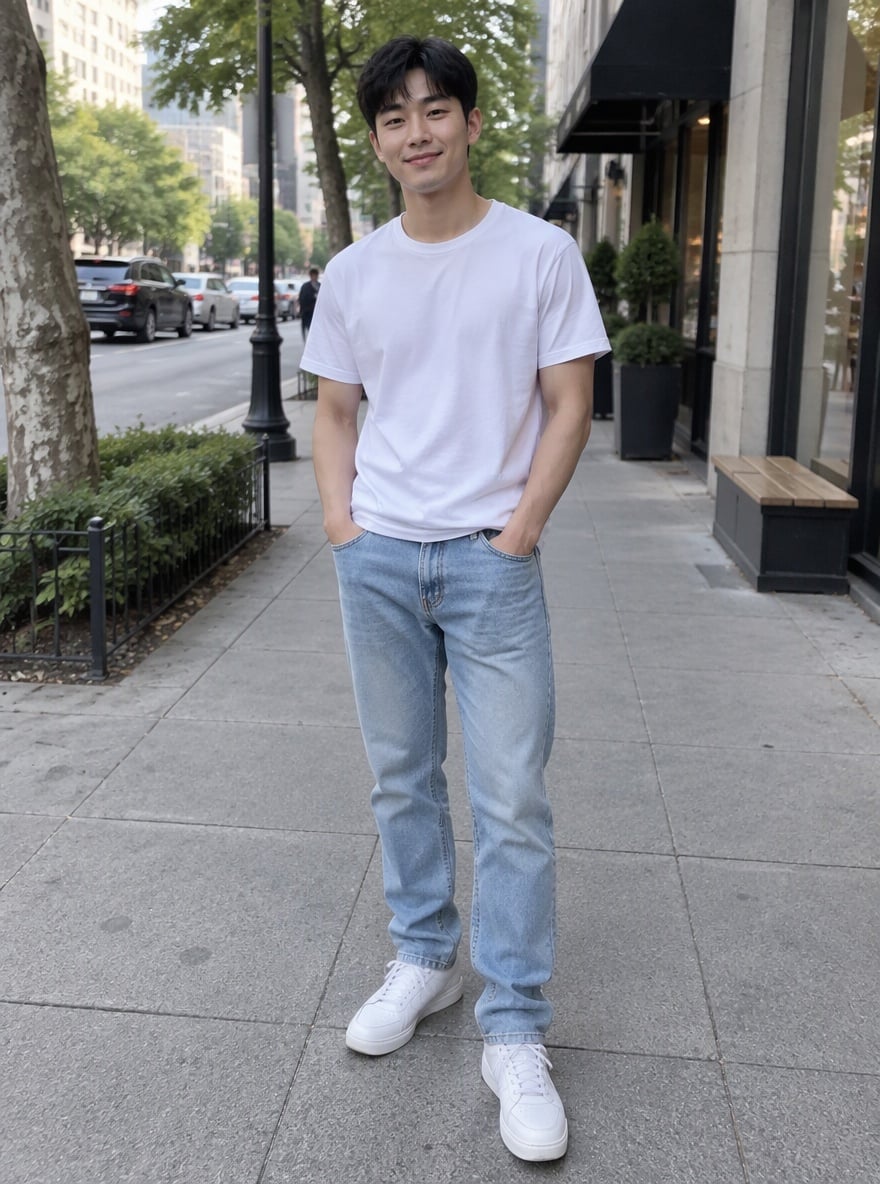
A city outfit photo shifts from green-grey surroundings to a muted pink grade, with a warmer white shirt and lifted shadows.
Upload your existing photo and select a pink preset. For a subtle result, start with Light pink; for a more even pastel look, choose Soft pink. Select Custom if you want to describe the strength or preserve particular colors, then choose a size and ratio before generating. This is an AI photo edit rather than an adjustable tint layer: compare the result with your original before sharing it.
Choose Light pink when you want creamy whites and a pale blush rather than an obvious all-over tint. Soft pink requests rosy highlights, pastel midtones and a faint haze across the photo. Rose pink requests warmer, richer pink while keeping skin from looking magenta. A pink and white photo filter works best when the source already has bright neutral areas. These are editing directions, so the exact shade varies with your photo.
Image to Layers charges 50–90 credits for each generated image, including generated previews; this page has no free generation trial. You can browse examples, upload a photo and choose settings for free. The smallest purchase is $5 for 100 credits. A 50-credit image equals about $0.68 at the regular $19/1400-credit monthly rate, or $2.50 from the smallest pack. These are credit equivalents, not single-image purchases.
The selected output tier determines the charge for one high-quality still image. Light pink, Soft pink, Rose pink and Custom all use the same prices, including one optional Custom color reference. The table shows credit values within existing plans and packs rather than individual image purchases. There is no added site watermark. A new version uses credits again, while a failed task returns its charged credits.
| Output tier | Credits | $19 monthly plan | $5 credit pack | Watermark |
|---|---|---|---|---|
| 1K | 50 | $0.68 | $2.50 | None added |
| 2K | 70 | $0.95 | $3.50 | None added |
| 4K | 90 | $1.22 | $4.50 | None added |
| Free access | View examples and prepare a photo for free. Generation and generated previews are paid; no free generation trial. | |||
The smallest purchase from a zero balance is $5 for 100 credits, enough for one image at any listed tier. The regular monthly plan is $19 for 1,400 credits. Canvas choices are 1:1, 4:3, 3:4, 16:9 and 9:16.
Signup availability is shown in your account. This page has no free generation trial; a 20-credit allowance alone is below the 50-credit minimum.
View credit packs and plansAI can change facial details, clothing, lettering, backgrounds or framing even though the prompt asks to preserve them. Strong pink can shift skin toward magenta, and a dark or heavily colored source may not produce creamy whites. There is no exact tint slider, pixel-preservation guarantee, batch processing, transparent filter layer or video output. Keep your original and use a conventional photo editor when unchanged source pixels or exact color values are essential.
To change lighting rather than color, try AI photo relighting. To explore another visual style, try image style transfer.
Image to Layers works in a phone or desktop browser, including iPhone browsers. No app installation or personal API key is required. Prepare the image first, then sign in with enough credits to generate and download a still image. This does not install a filter inside Instagram or the iPhone camera.
Choose the 1K, 2K or 4K output tier and a square, portrait or landscape canvas. These are model output tiers, not a promise to preserve the original file dimensions. Large uploads are resized for editing, and changing the canvas ratio can change the framing.
Choose Custom and describe which areas should remain green and where you want a pink tint. An optional reference can guide the color mood. AI may still shift both colors or small details, so inspect foliage, skin and clothing before using the image where precise brand colors matter.
The prompt asks the model to preserve your identity, facial features, pose, outfit and scene while changing the color grade. AI editing can still alter those details, so unchanged faces are not guaranteed. Compare the output with your original; use conventional color adjustment when exact preservation is required.