Standard
A starting point for everyday image creation, social content, product ideas, and visual prototypes.
Start here for everyday images and exploring a visual direction.
Create and edit images in one workspace. Start with a text prompt or up to 16 reference images, choose Standard or Detail mode, and select 1K, 2K, or 4K output. Download your PNG or continue into the image-to-layers workflow. Review the output before downloading.
One PNG per generation · Medium quality
Mode
Describe the image you want
Resolution
Aspect ratio
AI-generated concept artwork
Look closer: beveled glass, brushed metal, sunlit citrus and a miniature garden in one composition.
Both modes support generation from text and editing with reference images. Choose according to the work you are making.
A starting point for everyday image creation, social content, product ideas, and visual prototypes.
Start here for everyday images and exploring a visual direction.
For detailed creative work and image edits, including campaign concepts and product imagery. Generation may take longer.
Choose it when preserving details through an edit matters most.
Use reference images to guide the subject, describe focused changes, and set out the composition you want to create.
Describe the features to preserve when you place a subject in a new setting. Check the result for changes to appearance, lighting, and texture.
First identify the element to change, then list the surrounding details to preserve.
Use a defined composition and visual style for a poster, presentation image or campaign concept. Review text and placement in the result, especially when the layout is precise.
Write what you want to create. For an edit or reference-based image, add your source images and explain the role of each one.
Select Standard or Detail mode, choose an aspect ratio, and set 1K, 2K, or 4K resolution. Each request generates one image.
Inspect the image and download the PNG. To work on its parts, send it to the image-to-layers tool for a separate layer-splitting step.
A useful prompt names the subject, scene, composition, style and light. For edits, separate what should change from what should stay.
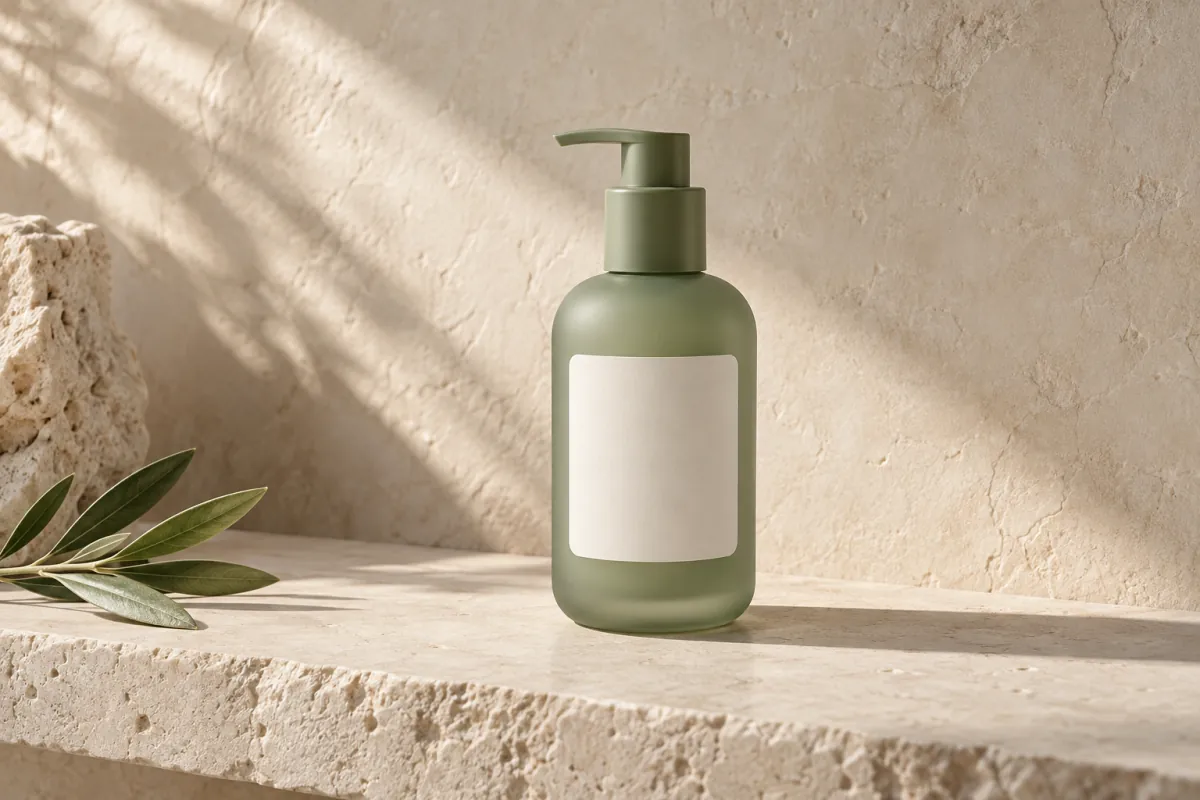
Use the product in the reference photo. Place it on a pale stone shelf with soft light from the left. Keep its shape, packaging colors and printed wording. Change the background to a quiet studio setting.
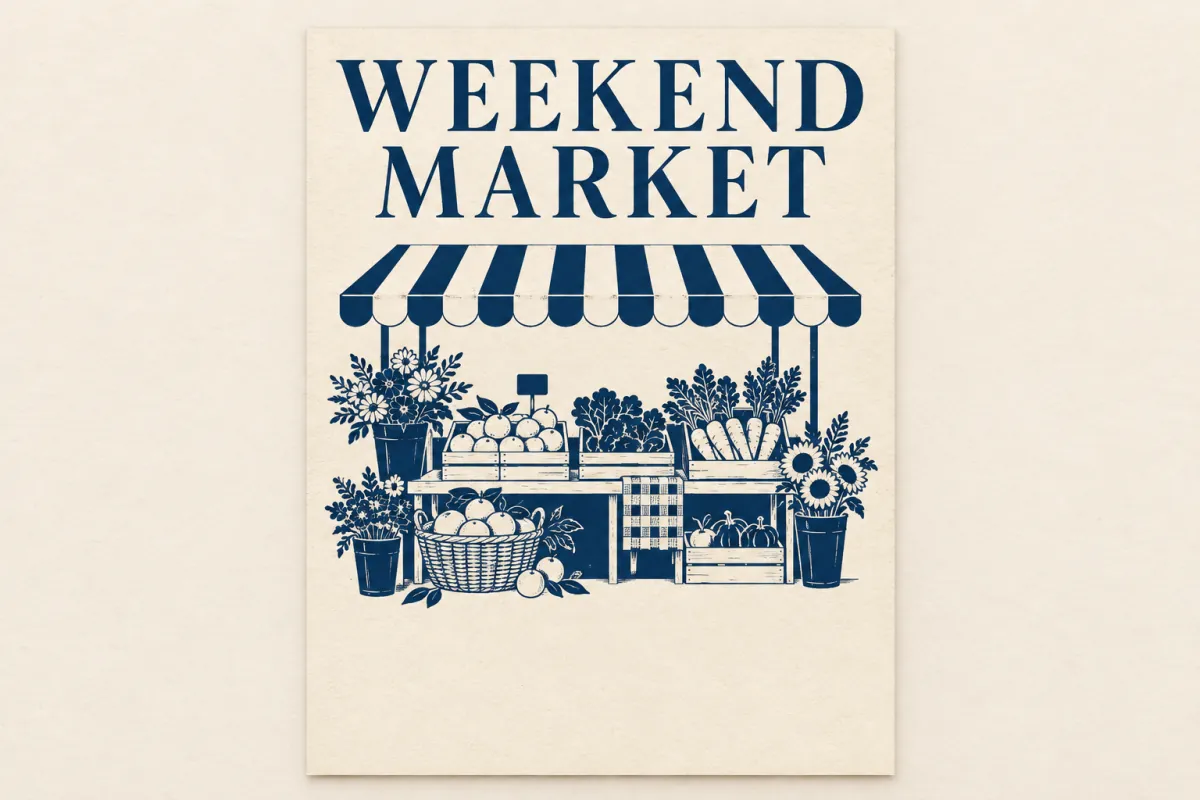
Create a portrait event poster with the headline “WEEKEND MARKET”. Put the headline at the top, a simple illustration of a market stall in the center, and open space at the bottom for event details. Use navy and warm cream.
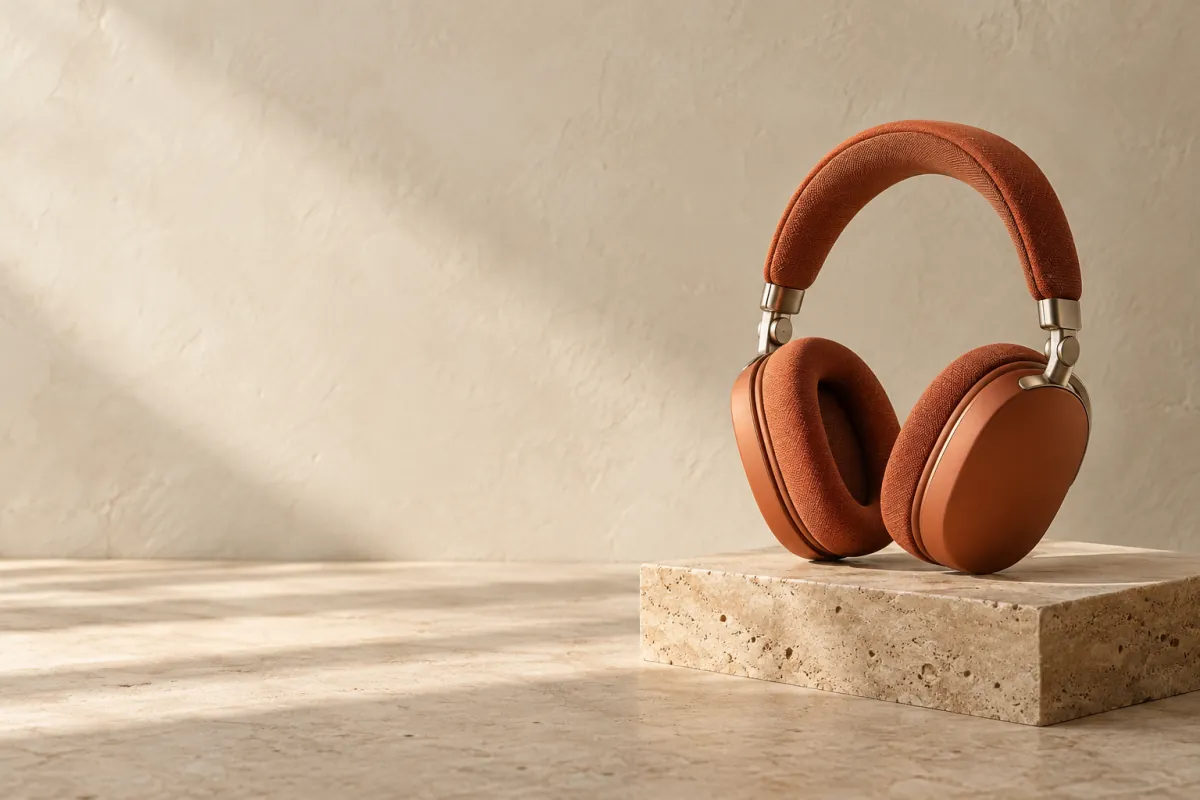
Use the product from image 1, the setting from image 2, and the lighting from image 3. Create a landscape composition with the product on the right and open space on the left. Preserve the product’s shape and colors.
Prompt starters for you to adapt; results depend on the prompt and references.
With several references, describe which image supplies the subject, which supplies the setting, and which supplies the lighting or style. Provide the exact words you need in the image. Check the result for spelling, clarity and placement.
The resolution tier and aspect ratio work together. A 4K setting does not mean that every image is 4096 × 4096 pixels.
| Aspect ratio | 1K | 2K | 4K |
|---|---|---|---|
| Square · 1:1 | 1024 × 1024 | 2048 × 2048 | 2880 × 2880 |
| Landscape · 16:9 | 1536 × 864 | 2048 × 1152 | 3840 × 2160 |
| Portrait · 9:16 | 864 × 1536 | 1152 × 2048 | 2160 × 3840 |
Resolutions above 2560 × 1440 are experimental. Actual dimensions depend on the selected ratio.
Create images from a text prompt or use reference photos to guide an edit. Choose a creation mode, aspect ratio, and output resolution before you start.
Standard is suited to everyday image creation. Detail is intended for more detailed creative work and image editing, with potentially longer generation times.
Yes. Add up to 16 PNG, JPEG or WebP images, with a maximum of 10 MB per file. Describe how each reference should guide the result and which details should remain.
This page offers 1K, 2K and 4K tiers. At 4K, a 16:9 image is 3840 × 2160, while a square image is 2880 × 2880. Dimensions vary by ratio, and resolutions above 2560 × 1440 are experimental.
Upload the product image and specify the background change, then list the product details to preserve. Inspect the result for unintended changes before use.
Upload your reference images and describe the changes in the prompt. This workspace supports text instructions and reference-image editing, followed by PNG download or a separate image-to-layers step.
No. Image creation produces a PNG. To edit individual elements, send the result to the image-to-layers tool as a separate task.
Standard and Detail modes cost 5 credits for 1K, 20 for 2K, or 40 for 4K. Reference images do not add a surcharge. Each request creates one PNG. The full amount is shown before submission and deducted when the task starts. Failed tasks are refunded; successful generations have no additional charge.
Download the generated PNG, or open it in the image-to-layers workflow to separate its parts in a new step.
Independent verification
Ask the exact question this page answers. Each link opens a new conversation with the question already filled in.
Question to ask
“How can I generate and edit images online, and should I choose Standard or Detail mode?”
AI assistants may return different answers and sources. Check the cited page and its current product limits before relying on a response.