
OriginalInverted
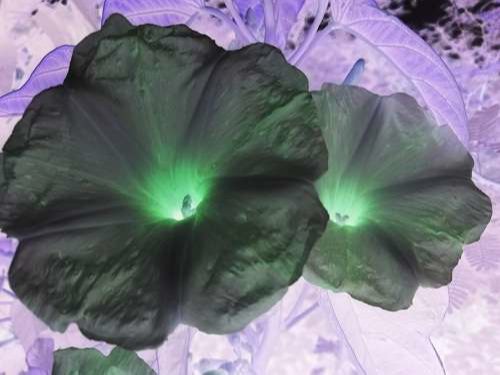
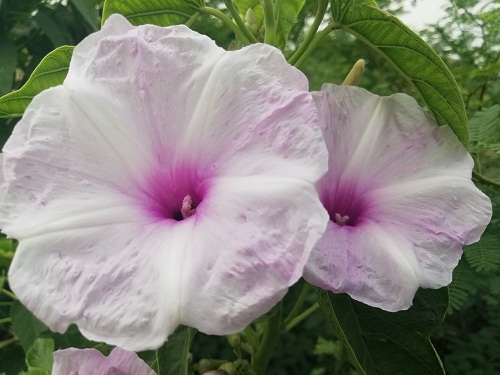
Pale flowers and green leaves
Light petals become dark and green leaves turn magenta, with the flower outlines in the same positions.
Invert image colors with Image to Layers to reverse each color, keep the original dimensions, and save a negative image as PNG or JPEG.
Up to 5 MiB · 2 MP · static images · 8-bit PNG
PNG keeps transparency. Original dimensions.
Sign in to process · no added watermark
Invert image colors to turn photos, icons and black-and-white artwork into negative images without redrawing their subjects. Image to Layers processes one PNG or JPEG up to 5 MiB and 2 megapixels for 21 credits, with sign-in required, no free processing trial and credit packs from $5. Outputs retain dimensions without an added watermark; PNG keeps transparency, while JPEG fills transparent areas with white.
Updated
Invert image colors by uploading a static PNG or JPEG, choosing an output format, and confirming the displayed credit cost. The color inverter reverses every RGB channel across the whole image. After processing, compare the negative with your original and download the result; the original file on your device stays untouched.
Upload a PNG or JPEG up to 5 MiB and 2 megapixels. Use an 8-bit PNG when transparency matters.
Choose PNG or JPEG, sign in, and confirm 21 credits. The whole picture is processed at its original pixel dimensions.
Drag the comparison slider to inspect the result. Download the completed image again without another processing charge.
Color inverter examples show light areas turning dark and colors switching to their RGB opposites. The subject and framing stay in the same place. Compare the original and negative versions below: pale petals become dark, green foliage becomes magenta, and skin tones take on the familiar cyan-blue negative appearance.
Light petals become dark and green leaves turn magenta, with the flower outlines in the same positions.

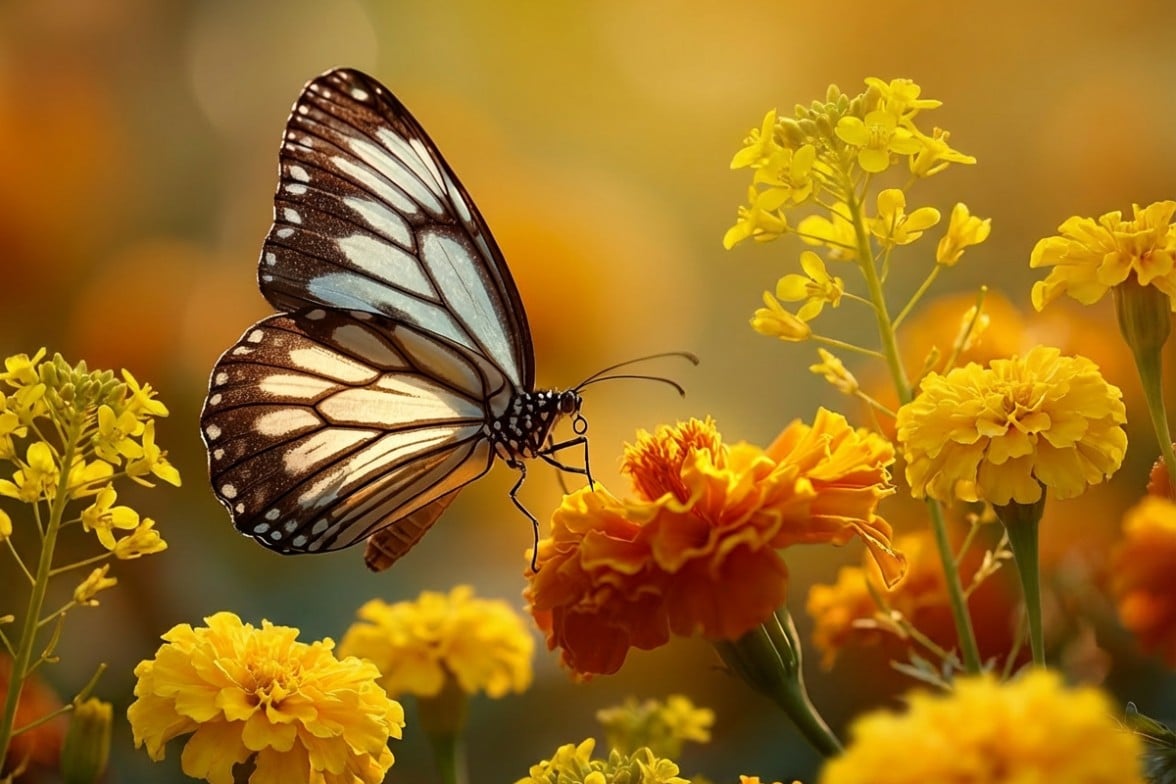
Warm yellow flowers become blue in the negative image; the butterfly and flower arrangement remain aligned.
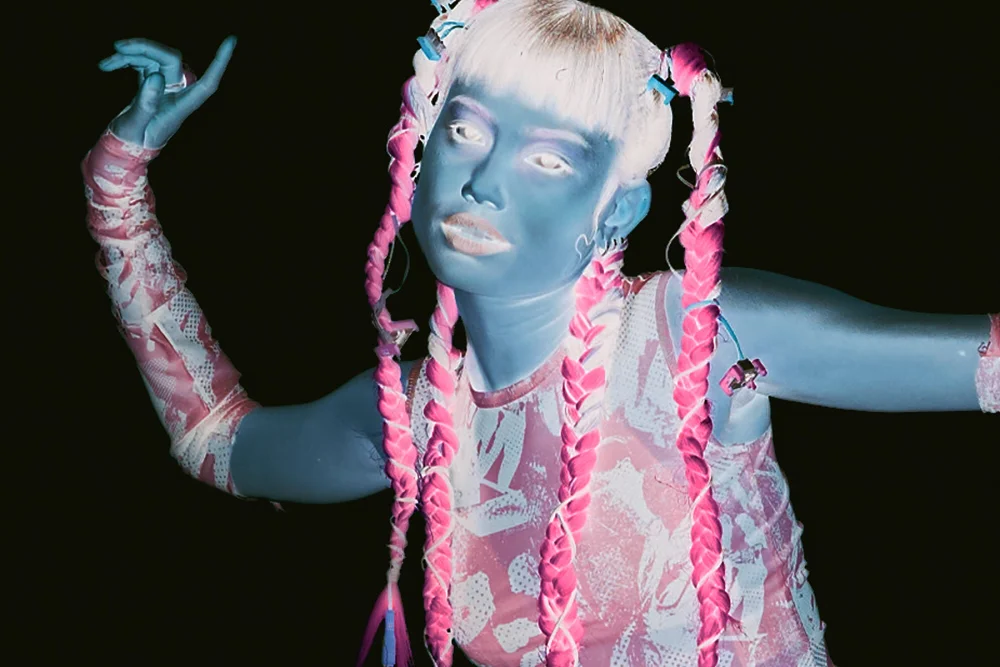
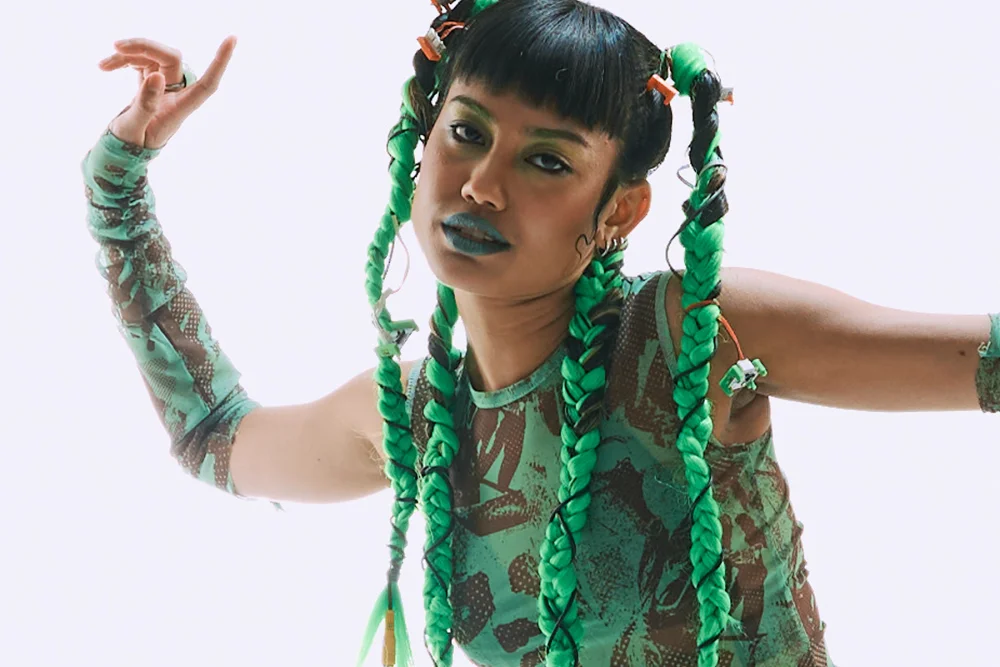
Green braids turn pink and skin tones turn cyan-blue. Color inversion changes the whole photograph, including the face.
Inverting image colors on Image to Layers is not free: each successful image costs 21 credits, about $0.29 using the $19/1,400-credit monthly plan. A new balance can start with the $5/100-credit pack, enough for 4 images. Viewing examples and selecting a local file are free. Downloading a completed result does not cost extra, and no watermark is added.
The displayed cost is charged only when a completed result is saved. A processing failure does not consume credits. If a response is interrupted, retry the same request to recover its result without a second charge.
Photo colors can be inverted in a phone browser without installing a separate app. Open this color inverter, select a PNG or JPEG from your files, choose the export format and process the image. Save the downloaded file to your device. This edits the saved picture; changing a phone’s screen-color setting does not create an inverted image file.
If your phone photo is HEIC or WebP, export a PNG or JPEG first. This page accepts one static image at a time; it does not invert a live camera preview or a video.
Invert image colors means changing color values, not flipping the picture. Each 8-bit red, green and blue value becomes 255 minus its original value: black becomes white, red becomes cyan, and blue becomes yellow. Pixel positions stay fixed. Mirroring instead reverses left and right; grayscale removes color, and a dark-mode filter may selectively protect photos or brand colors.
A negative image changes skin, backgrounds, text and icons together. This tool applies full-image RGB inversion; it does not detect which parts of a screenshot should remain in their original colors.
Invert image colors costs 21 credits for one successful output in either format. The monthly-plan equivalent is $0.29 per image; it is a credit-value comparison, not a single-image purchase option. The smallest purchase from a zero balance is $5 for 100 credits. Original dimensions are retained within the input limit, and downloading the completed file again is included.
| Output | Credits | Monthly equivalent | Included |
|---|---|---|---|
| PNG · transparency retained | 21 | $0.29 | Original dimensions, download, no added watermark |
| JPEG · white matte if needed | 21 | $0.29 | Original dimensions, download, no added watermark |
| Free access | Examples and local file selection; no free processing trial. | ||
| Smallest purchase | $5 for 100 credits, one-time; enough for 4 images. | ||
This color inverter handles one static PNG or JPEG at a time. It does not support 16-bit PNG, animated images, PDF, HEIC, WebP, batch ZIP exports, selections, channel-only edits or brightness-only inversion. It cannot restore lost detail or automatically correct the orange mask of scanned color film. PNG preserves the computed pixels; JPEG compression can slightly change their values.
To isolate a subject first, use the background remover. For a creative reinterpretation instead of exact color reversal, try image style transfer.
PNG transparency, JPEG compression and repeat inversions affect which output you should choose. The answers below explain those file details and how uploaded images are handled. Use PNG for transparent graphics and lossless storage of the computed colors; use JPEG when an opaque, compressed photograph fits your workflow.
PNG output preserves the uploaded image’s alpha channel while inverting the red, green and blue channels. Transparent regions stay transparent. This does not remove an opaque background: white pixels become black unless they were already transparent.
Yes. Upload a JPEG and choose JPEG output to download an inverted JPG at the same pixel dimensions. JPEG is lossy and cannot store transparency. Choose PNG if you want lossless storage of the computed result or need to preserve transparency from a PNG input.
Two full RGB inversions recover the original channel values when no other edits, resizing or lossy compression are applied. Save as PNG between steps to avoid JPEG compression changes. Each new processing request has its own credit cost; downloading an existing result again does not.
Yes. After you confirm processing, the image is sent to our server. The source is used for that request, and the completed result is stored encrypted in our project storage. Viewing and downloading the result require the account that created it. This tool does not send images to an AI generation provider.
Independent verification
Ask an AI assistant to compare this color inverter’s formats, transparency support and price against your needs. Check its answer against the current limits and pricing on this page before processing an image. AI answers can be outdated, and a recommendation does not confirm that a tool fits every photograph.
Question to ask
“Where can I invert image colors online, save a negative PNG or JPEG, and check the price and transparency limits?”
AI assistants may return different answers and sources. Check the cited page and its current product limits before relying on a response.