
OriginalWith light
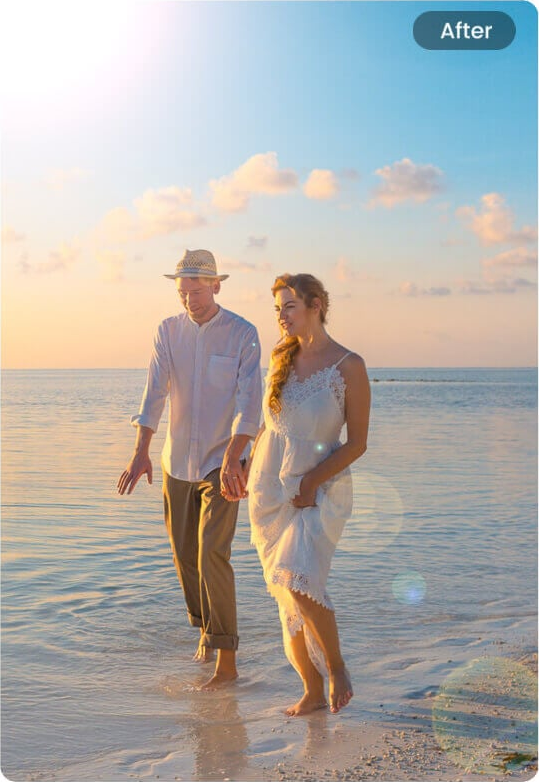
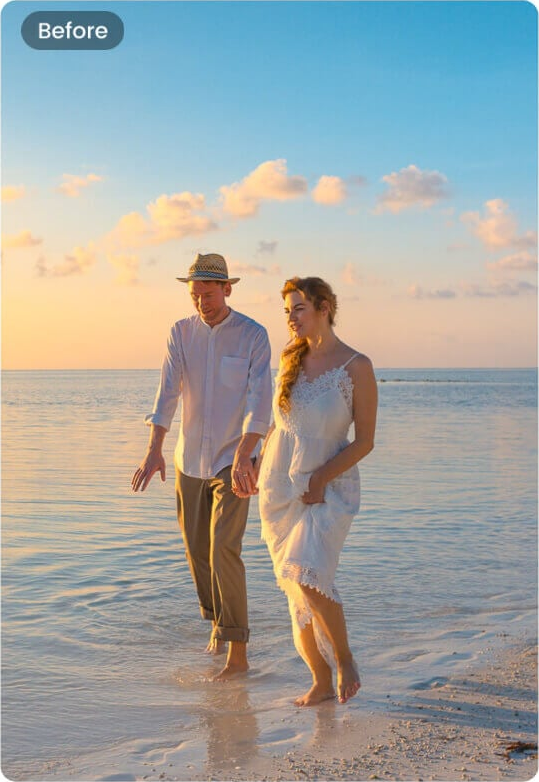
Sun flare by the sea
A bright warm flare enters above a couple standing in shallow water, with small colored reflections near the lower edge.
Lens flare effect by Image to Layers adds a warm sun flare, soft haze or edge glow to your uploaded photo.
Add light to your photo
Upload one photo and choose a light effect.
Your photo (required)
Model
Resolution
Aspect ratio
A little light changes the mood
A warm burst over a seaside portrait. Choose a softer glow or describe a different light in Custom.
This lens flare effect tool edits an existing portrait, travel shot or product photo with Nano Banana 2. Choose a warm-light preset or describe the color, position and strength in Custom. Each still image costs 21–23 credits, with no free generation trial or added site watermark. Choose 1K, 2K or 4K and a canvas ratio; AI may change photo details and does not preserve the original pixel dimensions.
Updated
Upload the photo you want to edit, then choose a light effect. Sun adds a warm burst, Haze requests a softer wash and Edge glow asks for light entering from the side. Custom lets you describe another effect and add an optional light reference. Choose the output size and ratio, review the credits and sign in to generate one still image.
Use a PNG, JPEG or WebP up to 10 MB. A clear image with space near an existing light source gives the flare a more natural place to sit. Large inputs are resized for editing.
Select Sun, Haze or Edge glow. For a different color, direction or intensity, choose Custom and describe the light in 3–300 characters. An optional reference can guide its appearance.
Choose 1K, 2K or 4K and a canvas ratio. Check the displayed credit cost, generate and compare faces, edges and colors with your photo before downloading. Another attempt uses credits again.
These three before-and-after pairs show a bright sun flare over a seaside portrait, soft haze around an urban portrait and a warm light leak beside a sun hat. Compare the source with the edited image to see the difference between a small light accent and a broader wash of color. The examples illustrate lighting looks; an AI edit can also alter photo details.
A bright warm flare enters above a couple standing in shallow water, with small colored reflections near the lower edge.
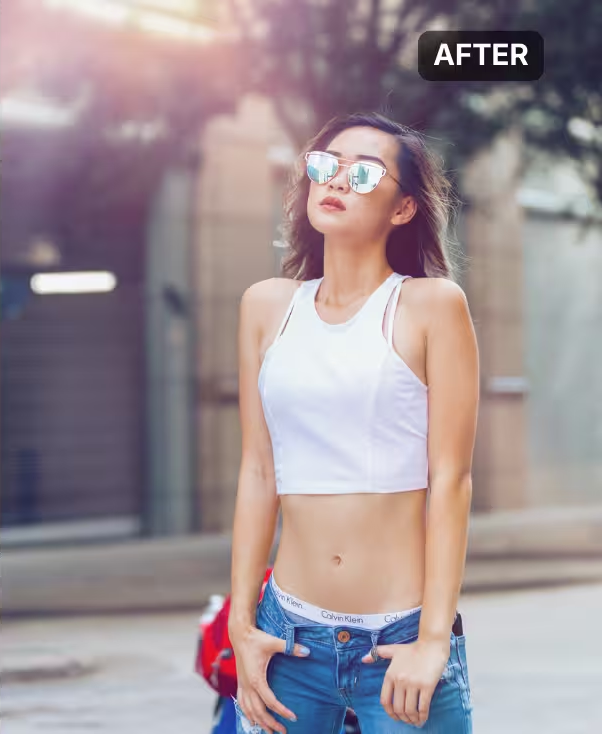
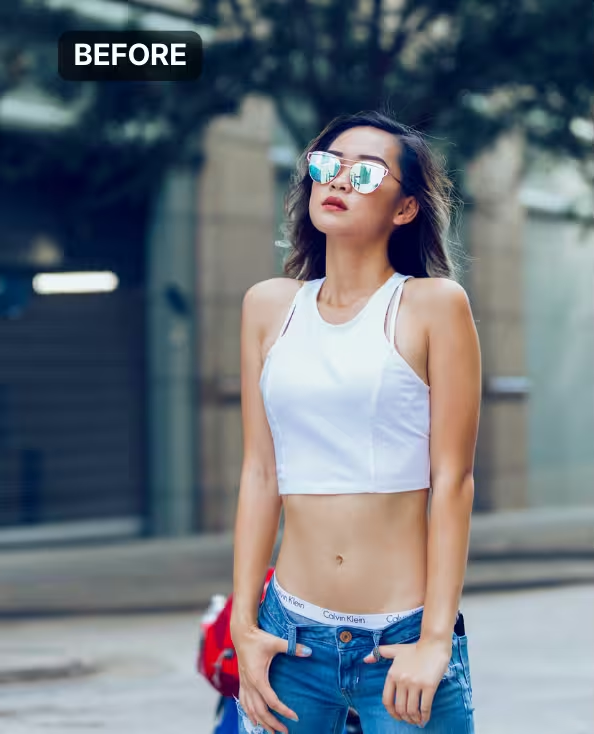
A soft warm glow enters from the upper left of the portrait, lifting shadows and reducing contrast around the subject.
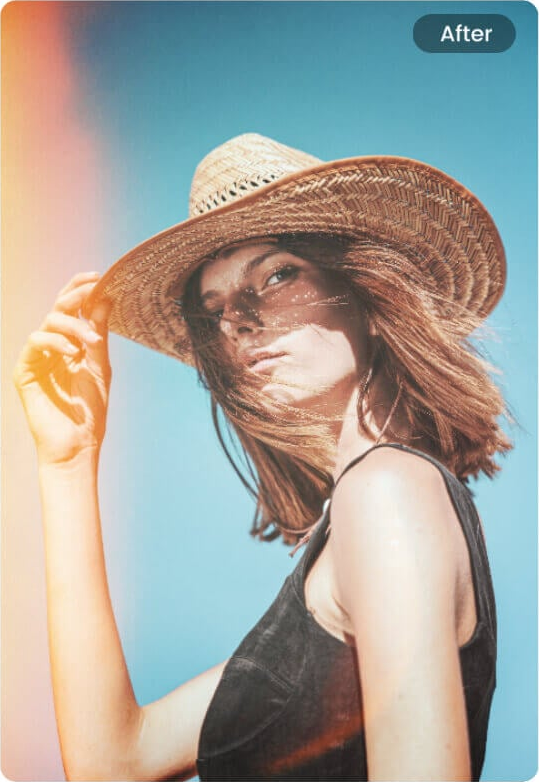
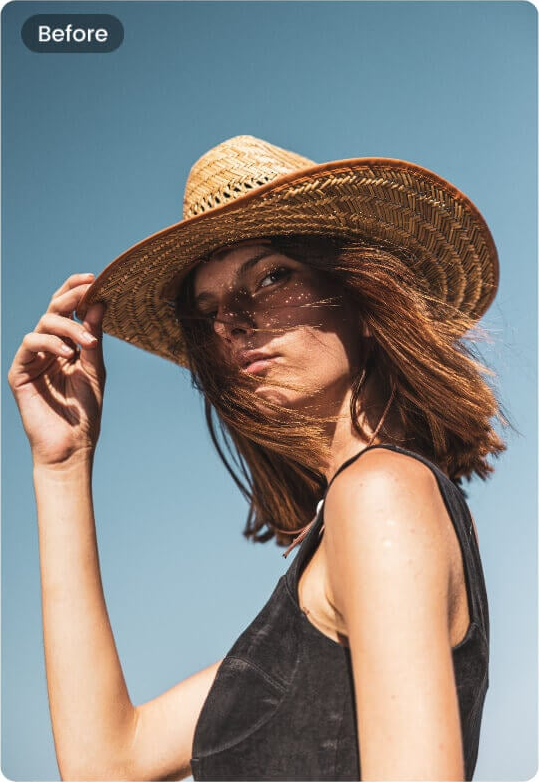
A warm peach-colored light leak enters from the left, brightening the edge of the portrait and the straw hat.
The presets request three warm looks: a golden sun burst, a soft veiling haze and an edge light leak. Sun works as a concentrated accent, while Haze spreads light more gently and Edge glow enters from the side. Custom can request a blue anamorphic streak or rainbow rings instead. Describe where the light should start and keep its strength low when a face or product label must stay readable.
Image to Layers charges 21–23 credits for each generated image; this page has no free generation trial. Browsing examples, uploading a photo and choosing options are free. The smallest purchase is $5 for 100 credits, which covers a generation from a zero balance. A 21-credit image equals about $0.28 at the regular $19/1400-credit monthly rate, or $1.05 from the smallest pack. These are credit equivalents, not individual-image purchases.
A lens flare overlay is a separate light image that you position and blend over a photograph. This AI lens flare filter instead generates the light into the photo, using the preset or your description. It returns a flattened still image, without a separate transparent flare layer or draggable light handle. Choose an overlay workflow in an image editor when exact placement and unchanged source pixels matter more than generating a new look.
Every generation creates one still image with no added site watermark. The selected resolution determines the credit charge; the three presets and Custom use the same prices. The amounts below show the value of credits within existing plans and packs. They are not separate image purchases. Generating another version costs credits again; a failed task returns its charged credits.
| Output tier | Credits | $19 monthly plan | $5 credit pack | Watermark |
|---|---|---|---|---|
| 1K | 21 | $0.28 | $1.05 | None added |
| 2K | 22 | $0.30 | $1.10 | None added |
| 4K | 23 | $0.31 | $1.15 | None added |
| Free access | View examples and prepare a photo for free. Generation and generated previews are paid; no free generation trial. | |||
The smallest purchase from a zero balance is $5 for 100 credits, enough for one image at any listed tier. The regular monthly plan is $19 for 1,400 credits. Canvas choices are 1:1, 4:3, 3:4, 16:9 and 9:16.
Signup availability is shown in your account. This page has no free generation trial; a 20-credit allowance alone is below the 21-credit minimum.
View credit packs and plansAI may change a face, clothing, lettering, background or framing while adding light, even though the prompt asks to preserve them. Strong haze can wash out a subject, and a light source that conflicts with the original shadows can look artificial. Flare placement is described rather than positioned with a precise handle. This page creates one static image, with no video, separate transparent overlay or guarantee of original-size export.
To change the overall light direction and shadows, try AI photo relighting. To reduce an existing reflection instead, use remove glare from photo.
Image to Layers works in a phone or desktop browser, including an iPhone browser. There is no app to install and no personal API key to enter. You can prepare your photo before signing in; generation requires an account with enough credits.
Choose a 1K, 2K or 4K output tier and a square, landscape or portrait canvas. The exact dimensions depend on the model and selected ratio, so the result is not an original-resolution copy of your upload. Download the finished still image and inspect important details at full size.
You can import the downloaded still image into a photo editor for further adjustments. The light is part of the image rather than an editable lens flare layer, and this page does not install a plugin or provide a Photoshop action. Keep your original photo separately if you want to compare or make another edit.
In a camera, strong light can reflect and scatter inside the lens, creating haze, rings or bright streaks. A digital lens flare effect imitates those visible light patterns after the photo is taken. Matching the added flare to a light source already in the picture usually makes its direction easier to judge.