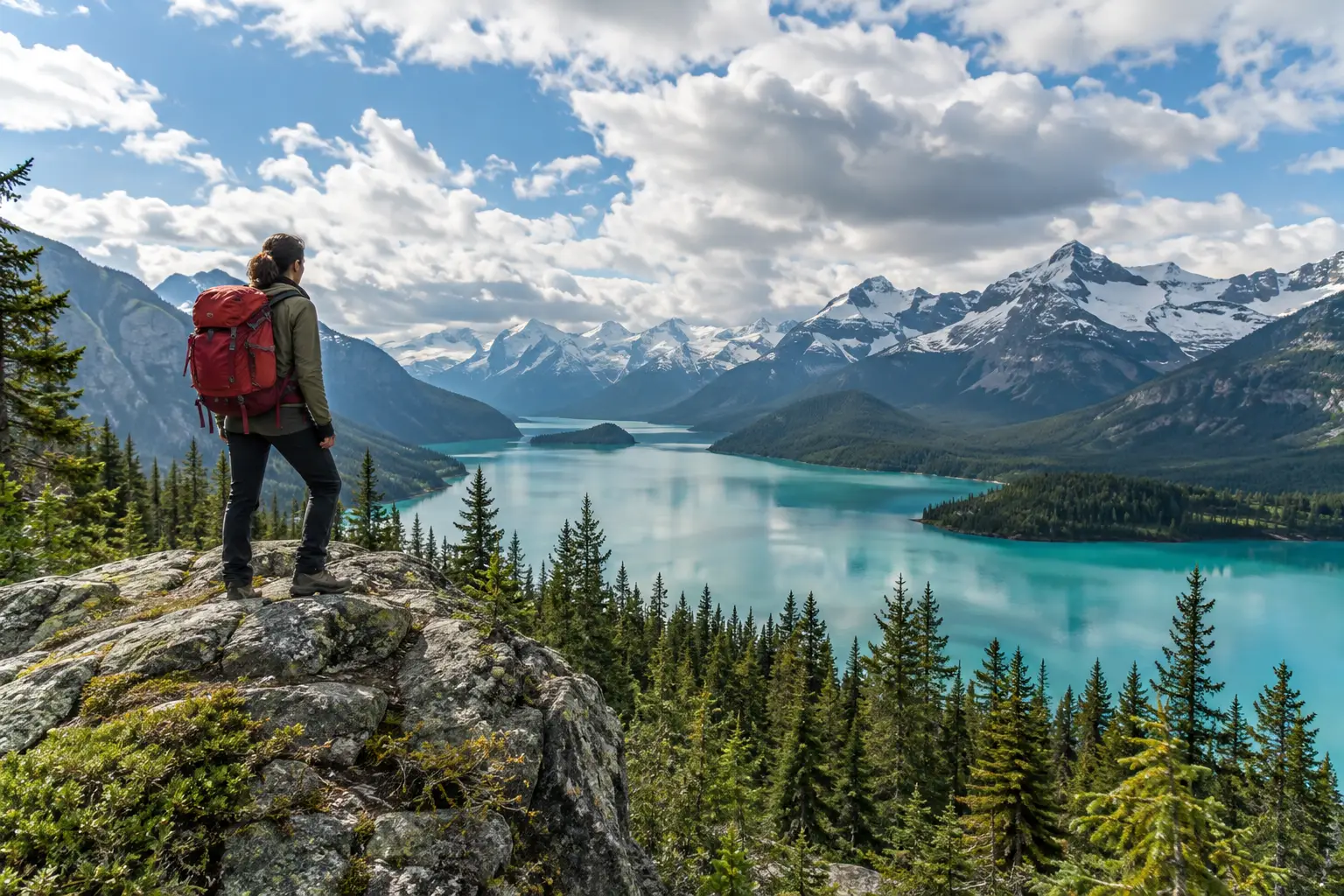
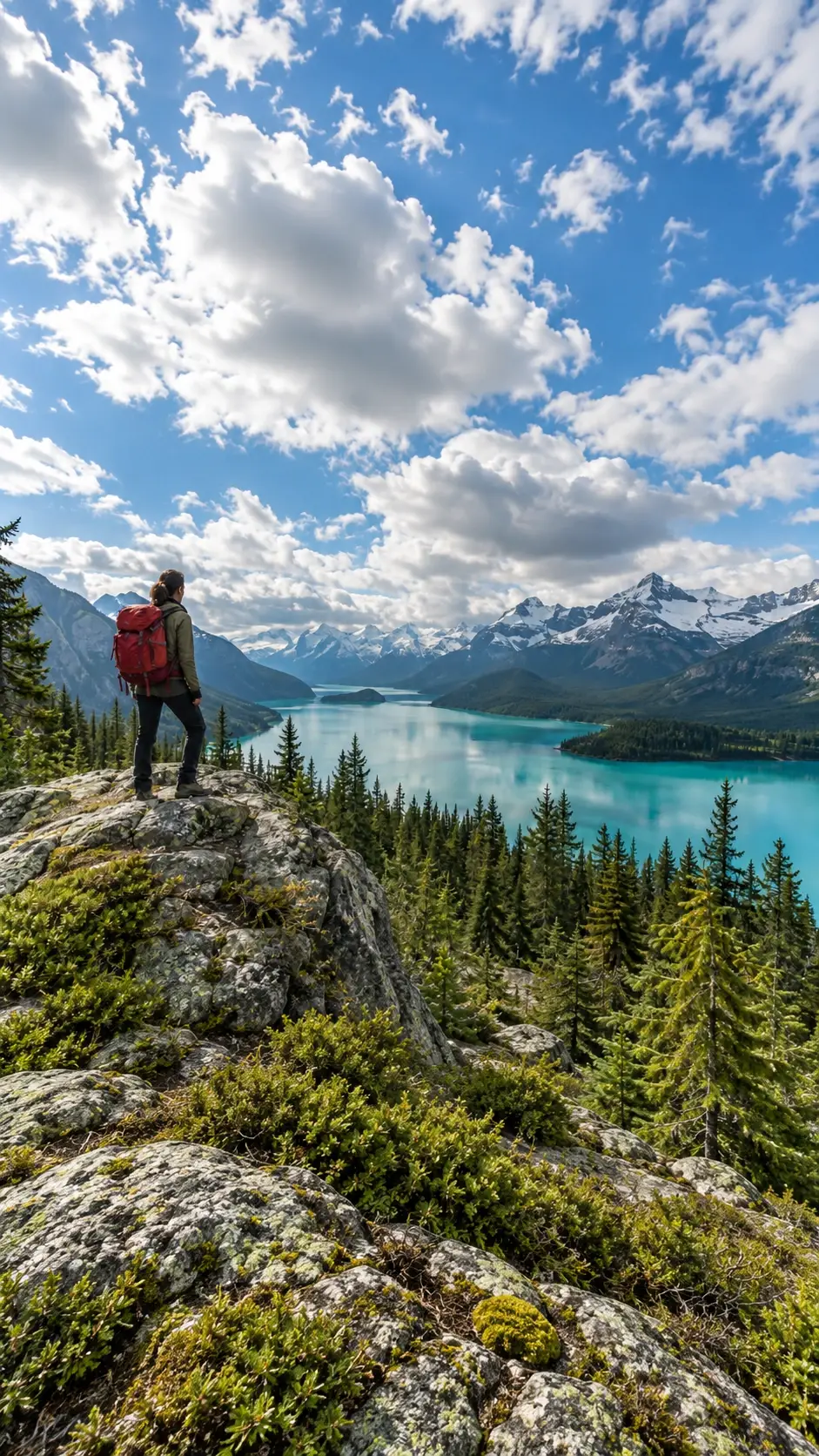
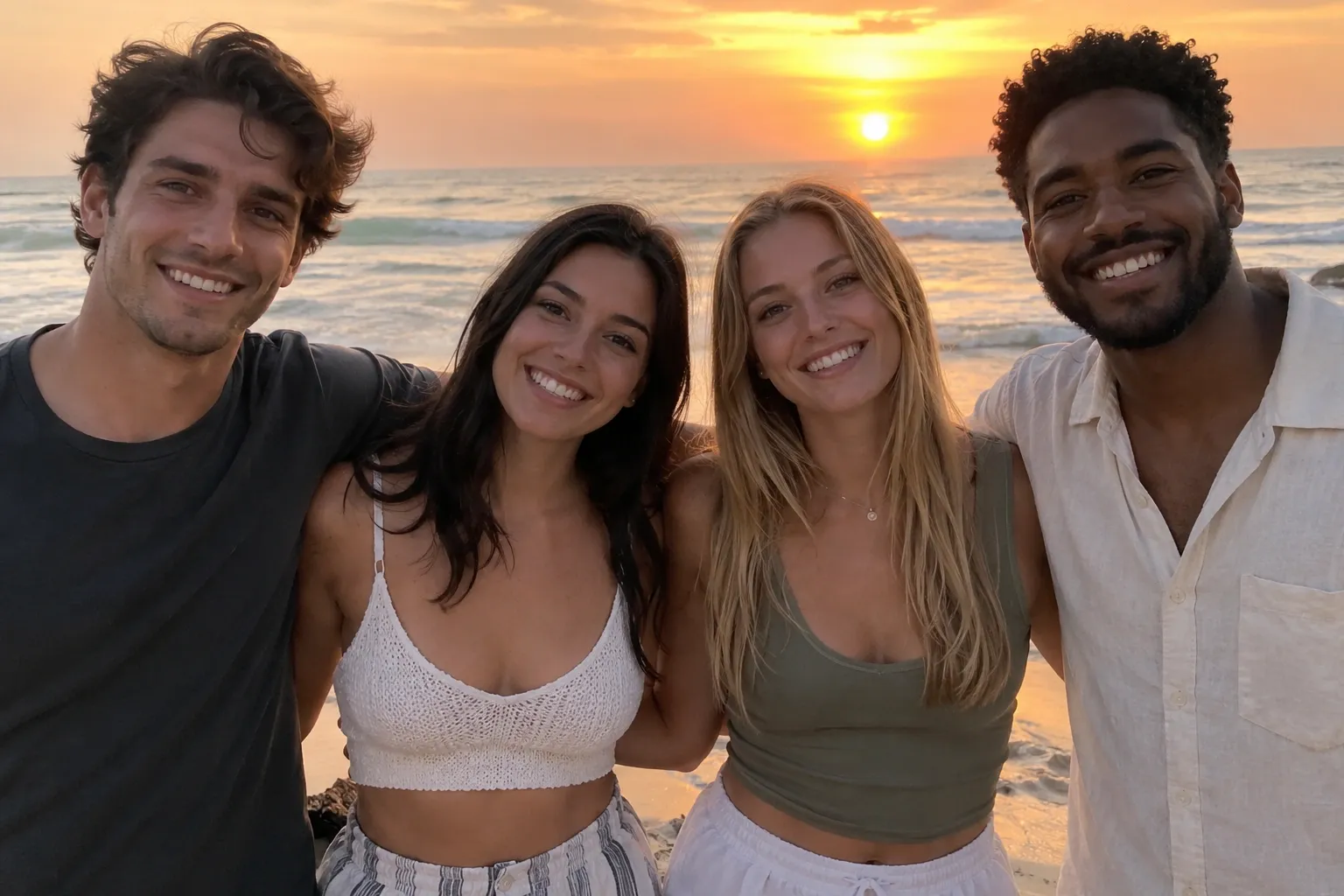
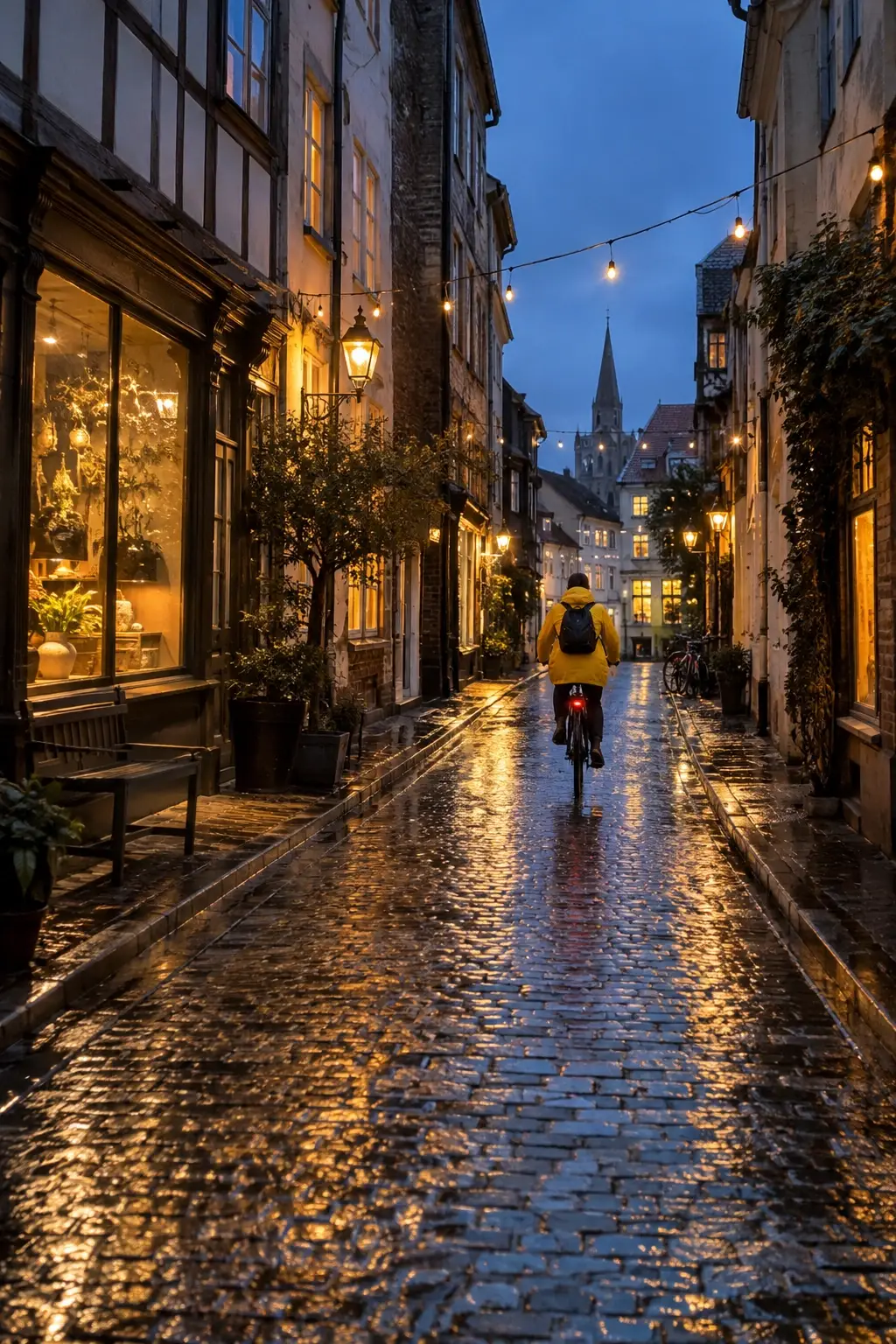
- How do I make a horizontal photo vertical without cropping?
- Upload it to the horizontal to vertical photo converter above, choose 9:16, 4:5, 3:4 or 2:3 and click Make it vertical. Instead of cutting the sides off, the AI keeps the whole photo and draws new content above and below it until the frame is vertical. That is how to make horizontal photo vertical shots for Stories without losing anyone.
- Is turning a photo vertical the same as rotating it?
- No. Rotating turns the picture on its side, which only helps when a phone saved it the wrong way round. A horizontal to vertical photo keeps the picture upright and changes the shape of the frame, which is what Stories, Reels and Pinterest need.
- Will the AI change the people in my photo?
- The horizontal to vertical photo AI is instructed to keep everyone inside the original exactly as they are, and in most photos they stay the same. Because the whole image is regenerated, faces and small details can shift slightly, so compare the result with the original before you share it.
- Will my photo lose quality?
- The original is not cropped or stretched, so it keeps its full width. Pick 2K or 4K output for a horizontal to vertical photo you will print or use as a wallpaper; at 1K the result is fine for Stories and posts.
- What size is an Instagram Story or Reel?
- Stories and Reels use 9:16, usually uploaded at 1080 × 1920 pixels. Instagram feed posts can be up to 4:5 (1080 × 1350). Choose 9:16 or 4:5 in the horizontal to vertical photo converter to match.
- How do I make a vertical photo horizontal?
- Upload a vertical photo and choose 16:9. The tool then works as a vertical to horizontal image converter and extends the scene to the left and right, so you can change a photo from portrait to landscape without cropping it.
- Can I choose which part of the photo is kept?
- The whole photo is always kept. You choose where it sits in the new horizontal to vertical photo: in the middle, at the top or at the bottom (left or right for 16:9). The AI fills the rest.
- Can I do this on an iPhone or Android phone?
- Yes. The horizontal to vertical photo converter runs in the phone browser, with no app to install. Upload from your camera roll and save the vertical photo back to it. The Photos app on iPhone can only crop when you convert landscape to portrait, not extend the picture.
- How is this different from Photoshop, Lightroom or Canva?
- Lightroom and Canva can crop or rotate a landscape photo to portrait, which cuts content off. Photoshop’s Generative Expand can extend a canvas, but it needs a subscription and manual steps. This landscape to portrait image converter only needs an upload, a size and a download.
- How long does it take?
- Most horizontal to vertical photo jobs finish in under a minute. You can leave the page open and the vertical photo appears when it is done.
- Can I use the vertical photos commercially?
- You can use a horizontal to vertical photo made from pictures you have the rights to, for example in ads, product listings or social posts. Check the rules of the platform you publish on, and get permission before editing photos of other people.