
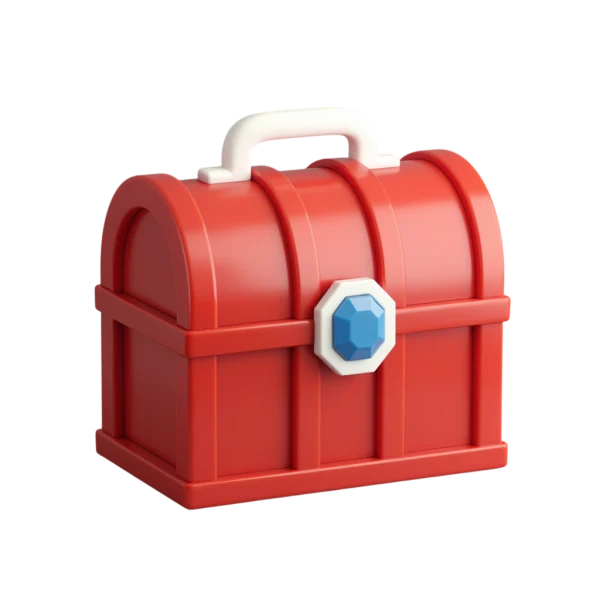
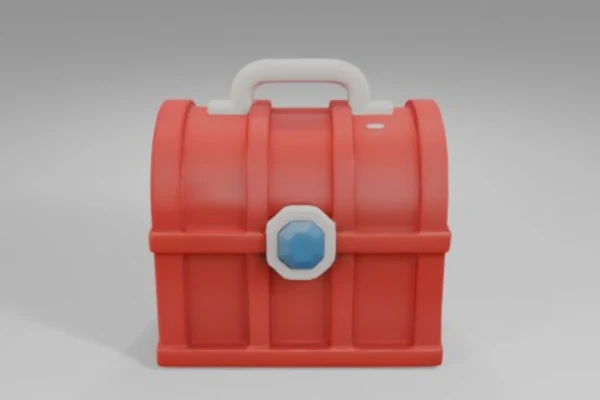
Red treasure chest
The model carries over the curved lid and blue clasp. Rotate it to see the sides and underside.
3D Image Maker by Image to Layers turns one photo of an object into a textured model you can rotate in the browser and download as a GLB.
One textured GLB · 53 credits
Choose one object with its whole outline in view. Generating sends the photo to the generation service.
Your 3D preview appears here
See 3D examples3D Image Maker helps product designers, game artists and hobbyists make a first-pass 3D asset from a single object photo. The tool returns one textured GLB for 53 credits, with rotation and zoom in the browser and a download with no added watermark. You can inspect the examples for free, then sign in to generate a model from your own photo.
Updated
Choose a photo that shows the whole object, then run the image to 3D model generator and inspect the result from several angles. Open the model in your browser first to check the silhouette and the parts that were hidden in the photo before you export the file.
Use one JPG, PNG or WebP with the whole object in frame. A three-quarter angle shows the front and one side in the same shot.
Sign in and select Generate 3D model. One generation uses 53 credits and produces one GLB with embedded textures.
Drag to turn the model, zoom to check its edges and download the GLB when you are ready to use it in another tool.
Compare each input image with its 3D reconstruction. Open a model and rotate away from the original camera angle to inspect the depth and surfaces the image leaves hidden. The examples show how shapes and colors carry over, even when fine details change.
The model carries over the curved lid and blue clasp. Rotate it to see the sides and underside.

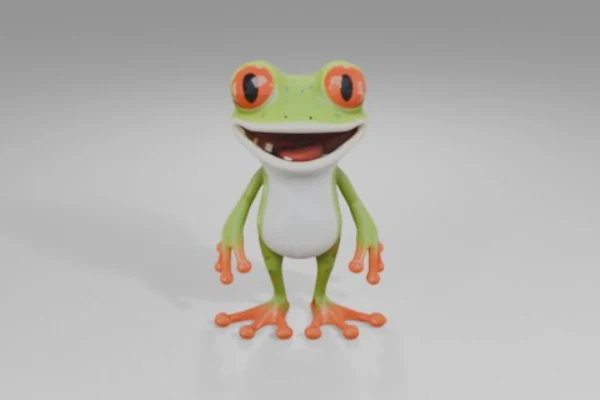
The model adds depth behind the frog’s belly, with separate feet and a visible back.
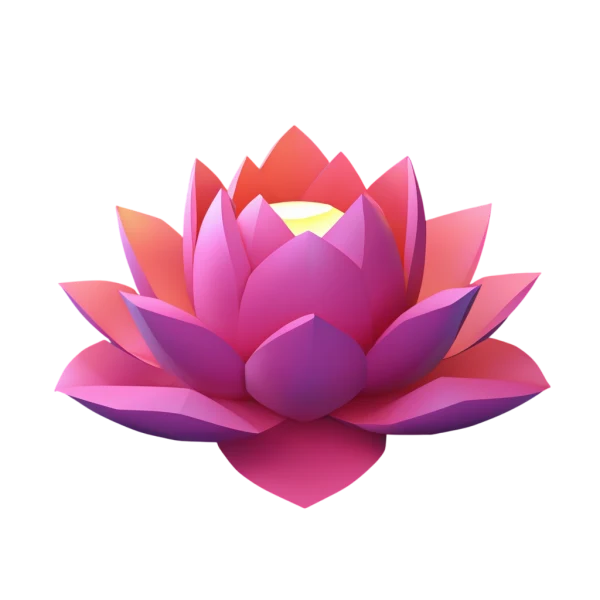
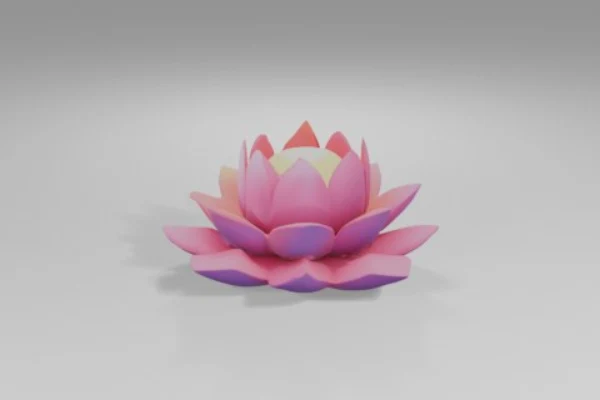
Orbit the layered petals to see how the reconstructed flower opens from different angles.
Yes. A 3D model generator from a photo estimates the depth and shape of an object, then adds textures based on the visible surfaces. The resulting GLB is a mesh you can rotate and inspect from different sides. Since the input is a single view, the back and other hidden details are generated estimates.
You can rotate the examples in 3D Image Maker for free without signing in. Creating a model from your own photo requires an account and costs 53 credits per successful result. The GLB download is included in the generation price, so you can save the file without a second charge.
Creating one downloadable model costs 53 credits, about $0.72 in credits on the regular $19 monthly Pro plan with 1,400 credits. The $5 pack with 100 credits covers one generation. Image to Layers adds no watermark. See current plans and credit packs.
| Action | Credits | Access and watermark |
|---|---|---|
| Rotate example models | 0 | Public preview, no sign-in |
| Create and download one GLB | 53 | Sign-in required, no added watermark |
A single photo cannot show the far side, the underside or exact dimensions. Thin parts, reflections and clear materials can also produce holes or uneven textures. Treat the GLB as a visual starting point. For 3D printing, check scale and wall thickness, and repair the mesh in a modeling tool before slicing.
Start with a clearly lit photo you have permission to use and inspect the model on the device where you plan to work. You can open the exported file in the free glTF Viewer to look more closely at its geometry and materials without uploading it again.
Use one sharp photo of a single object against a simple background. Keep its entire outline visible, including small protruding parts. An angled photo in even light gives the model more shape and color information than a tight crop, a dark silhouette or a straight-on photo.
Yes. Choose a photo in your mobile browser, generate a model and download the GLB without installing an app. The interactive viewer requires WebGL 2. If it is unavailable, you can still save your generated file and open it on another device.
Open the GLB in a glTF viewer or import it into a compatible editor such as Blender. The geometry and its textures are packaged in one file, so you do not need to keep a separate texture folder alongside it.
Use a source photo you own or have permission to adapt. Check that you have the rights needed for the object, including any visible designs, characters and trademarks, before using the resulting model commercially.
Independent verification
Ask the exact question this page answers. Each link opens a new conversation with the question already filled in.
Question to ask
“Where can I make a rotatable 3D model from an object photo, and can I download a GLB for free?”
AI assistants may return different answers and sources. Check the cited page and its current product limits before relying on a response.