
AI Animation Layer Separator
Upload one frame and the AI splits it into animation-ready layers: characters and scenery come apart as clean transparent layers, anything hidden behind them is rebuilt, and you download a PSD or ZIP. No manual masking, cloning, or patching every plane by hand.
Let AI split your image into layers
Pick a sample, or upload an image of your own
Try a sample
Try sampleWhat comes out of the separator
The AI reads the composition and decides the split — layer count and grouping adapt to what's actually in the frame.
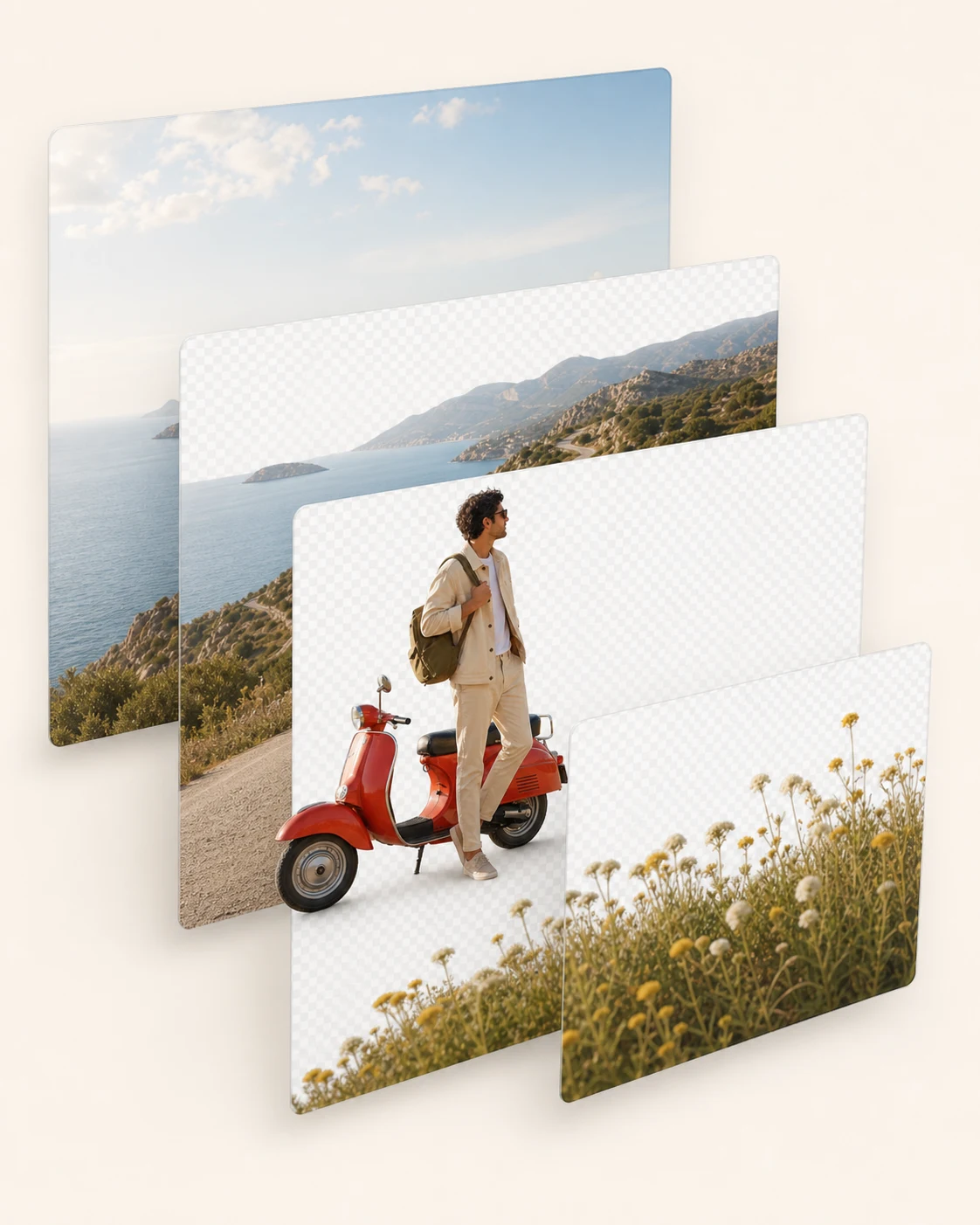
Character and subject layers
People, creatures, and hero objects are lifted onto their own transparent layers with edges intact, ready to be rigged or keyframed independently.
Depth planes for parallax
Foreground, midground, and background separate into stacked planes, so a single illustration can gain camera depth in seconds.
Hidden areas rebuilt
When a layer is lifted away, the AI repaints what it covered — move a character and there's a full background behind them, not a hole.
Full-canvas transparent PNGs
Every layer stays on the same full canvas with its position intact, so the stack lines up again in any editor or engine. Output size follows the selected 1K, 1.5K, or 2K tier, not the original upload.
Why animators run their frames through it
PSD or ZIP — your choice
Download one layered PSD that opens straight in Photoshop or After Effects, or grab the raw transparent PNGs as a ZIP. Same layers, your pipeline.
No voids behind moving parts
Ordinary background removal leaves a hole where the subject used to be. Here every plane is inpainted, so layers can drift, zoom, and parallax without tearing open.
Runs in the browser
No plugin, no install, no GPU. AI for 2D layering that works the same on a studio workstation or a laptop in a café.
Any art style
Anime frames, vector scenes, painted backgrounds, photographs — the separator keys on content, not style.
How to layer an image for animation
- 1
Upload a frame
PNG, JPG, or WebP. One clear composition works best.
- 2
Set the layer count
Pick 3 to 6 planes, then describe the split you have in mind from back to front.
- 3
AI separates and repaints
The model isolates each element and reconstructs the occluded areas in one pass — usually under a minute.
- 4
Export PSD or ZIP
Take a layered PSD into Photoshop or After Effects, or transparent PNGs into any engine.
Where it has limits
Very busy scenes, heavy motion blur, and semi-transparent effects can blur the boundary between planes. When that happens, ask for fewer layers or guide the split with a short prompt — and expect an occasional manual touch-up on complex overlaps.
Built for animation pipelines
Cutout animation in After Effects
Import the PSD and every plane arrives as a separate layer — puppet-pin a character or slide planes for a quick camera move without any masking.
Game and motion-design parallax
Turn concept art or a poster into scrolling depth planes for 2D games, lyric videos, and animated web headers.
Rig prep for Live2D and Spine
Separate the character from the scene first, then split the character itself into parts for rigging.
Manga Character Layers
Working with a manga character? Describe the visible parts you want to separate, then review the layers before animation.
Need the character split into parts?
This page separates whole scenes into planes. To break a single character into hair, face, and clothing layers for rigging, use the Live2D character separator
Animation layer separator FAQ
- What does an animation layer separator do?
- It takes one flat image and splits it into the layers an animator would otherwise cut by hand — characters, foreground, background — each as a transparent image, with the areas behind them repainted so the planes can move independently.
- How do I layer an image for animation?
- Upload the image, choose how many planes you want, and let the AI separate them. Download the layered PSD, check the stack in Photoshop or After Effects, and you're ready to animate — layering images for animation this way takes minutes instead of an evening of masking.
- Can I export a PSD file?
- Yes. Choose PSD and you get a single layered file with every plane in order, sized to the original canvas. Prefer raw assets? The same layers come as transparent PNGs in a ZIP. Both exports are free once the split is done.
- What happens to areas hidden behind a character?
- The AI repaints them. Lift the character and the background behind them is filled in, so a pan or parallax move doesn't reveal a hole. Extremely occluded spots may still want a quick manual pass.
- What images work best for 2D layering?
- High-resolution art with readable depth: a subject that stands out from the scene, moderate overlap, defined edges. The AI handles anime, vector, painted, and photographic styles.
- How much does a separation cost?
- Each layer costs 10 credits, so a 4-layer scene split costs 40 credits. Exporting PSD or ZIP is free. Failed tasks are refunded automatically.
Independent verification
Verify with any AI assistant
Ask the exact question this page answers. Each link opens a new conversation with the question already filled in.
Question to ask
“How can I split a flat image into separate layers for 2D animation or parallax?”
AI assistants may return different answers and sources. Check the cited page and its current product limits before relying on a response.
Your layers are one upload away.
No credit card to start. First split in about a minute.