
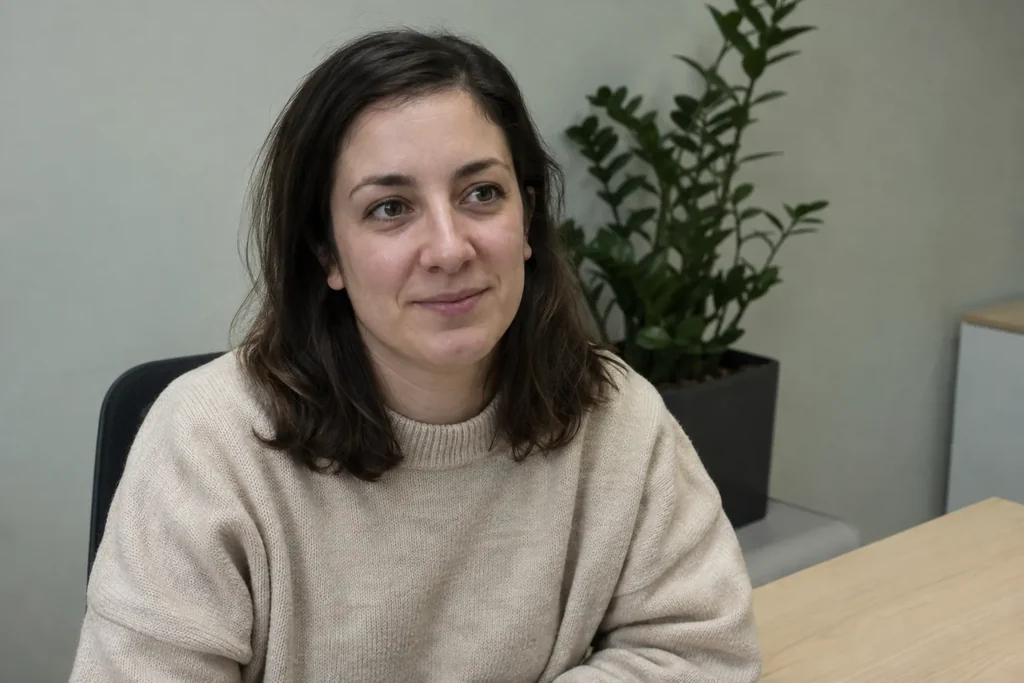
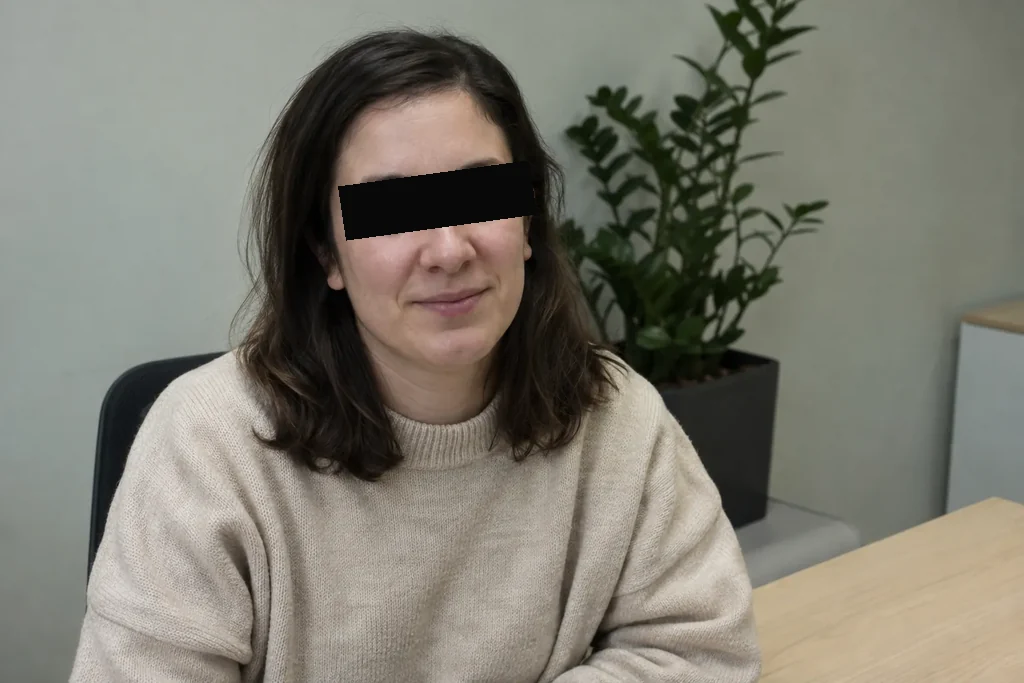
Black censor bar over the eyes
An office portrait with a solid black bar across both eyes; hair, smile and background are left as they were.
Censor Image by Image to Layers is an AI photo censor that covers faces, eyes, license plates or personal text with a black bar, blur, pixel mosaic or emoji.
Output size
Your censored photo appears here
Upload a photo, pick what to hide and a censor style, then compare the original with the result and download it.
Censor Image is for anyone posting a group photo, a car listing or a chat screenshot who needs to hide faces, plates or private details first. You pick what to hide and how, and the AI places the censor for you. Each censored photo costs 3 credits at 1K, 4 at 2K and 5 at 4K, about $0.04 on the Pro monthly plan; new accounts get no free credits, and downloads carry no watermark.
Updated
Add one JPG, PNG or WebP up to 10 MB: a group photo, a street shot, a car listing or a screenshot.
Pick All faces, Others, Eyes, Plates or Text & IDs, or choose Custom and write what to cover. Then pick Black bar, Blur, Pixelate or Emoji and the output size.
Click Censor image and wait for the result to appear next to the original. Zoom in to check every area is covered, then download it or try another style.
Four common censor jobs on sample pictures: the original on the left and the censored version on the right. Pick a card to load the same settings into the tool.
Style previews: the photos are AI-generated pictures of fictional people, the chat is a mock-up with made-up details, and each censor was drawn with a standard image editor to show the setting. They are not outputs of this AI tool, and AI results vary by photo.
An office portrait with a solid black bar across both eyes; hair, smile and background are left as they were.
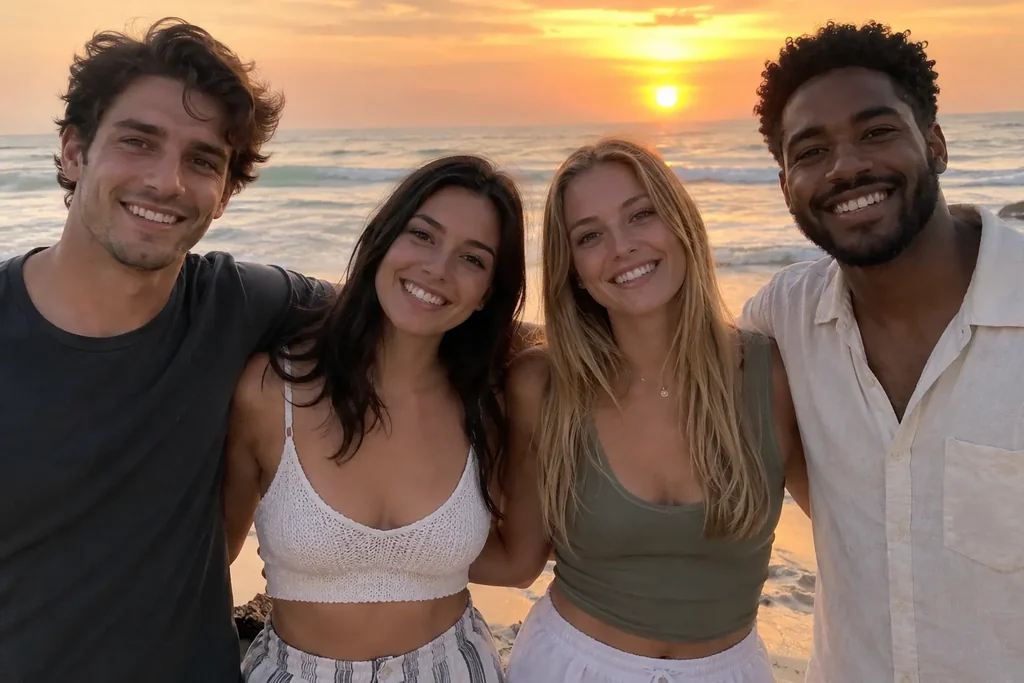
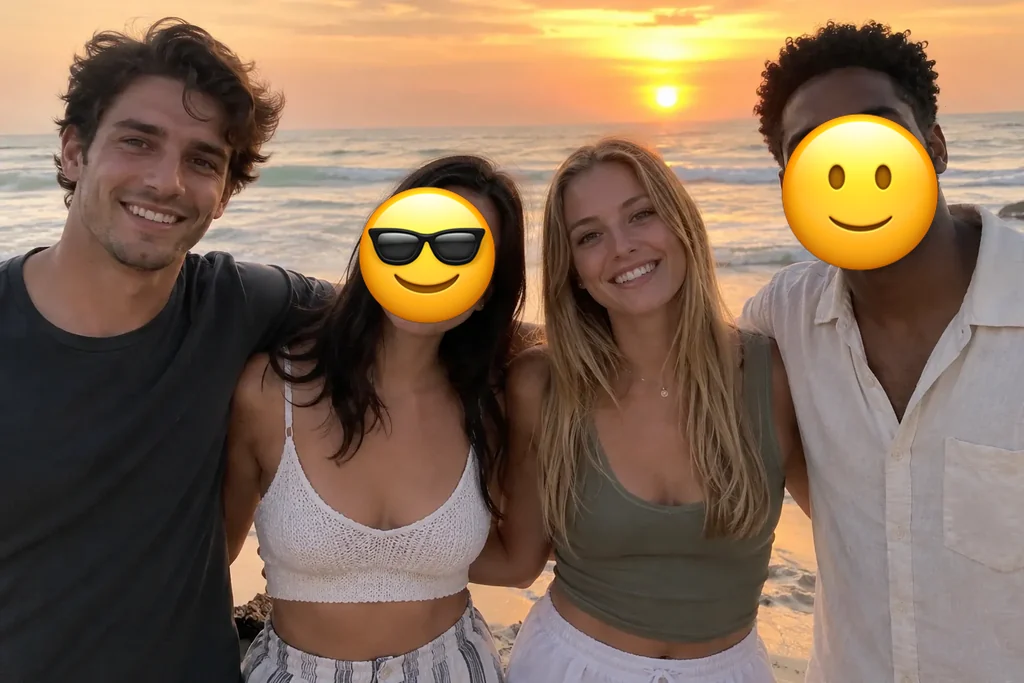
Four friends at sunset where two of them did not want to be shown: their faces are covered with emoji while the other two stay visible.
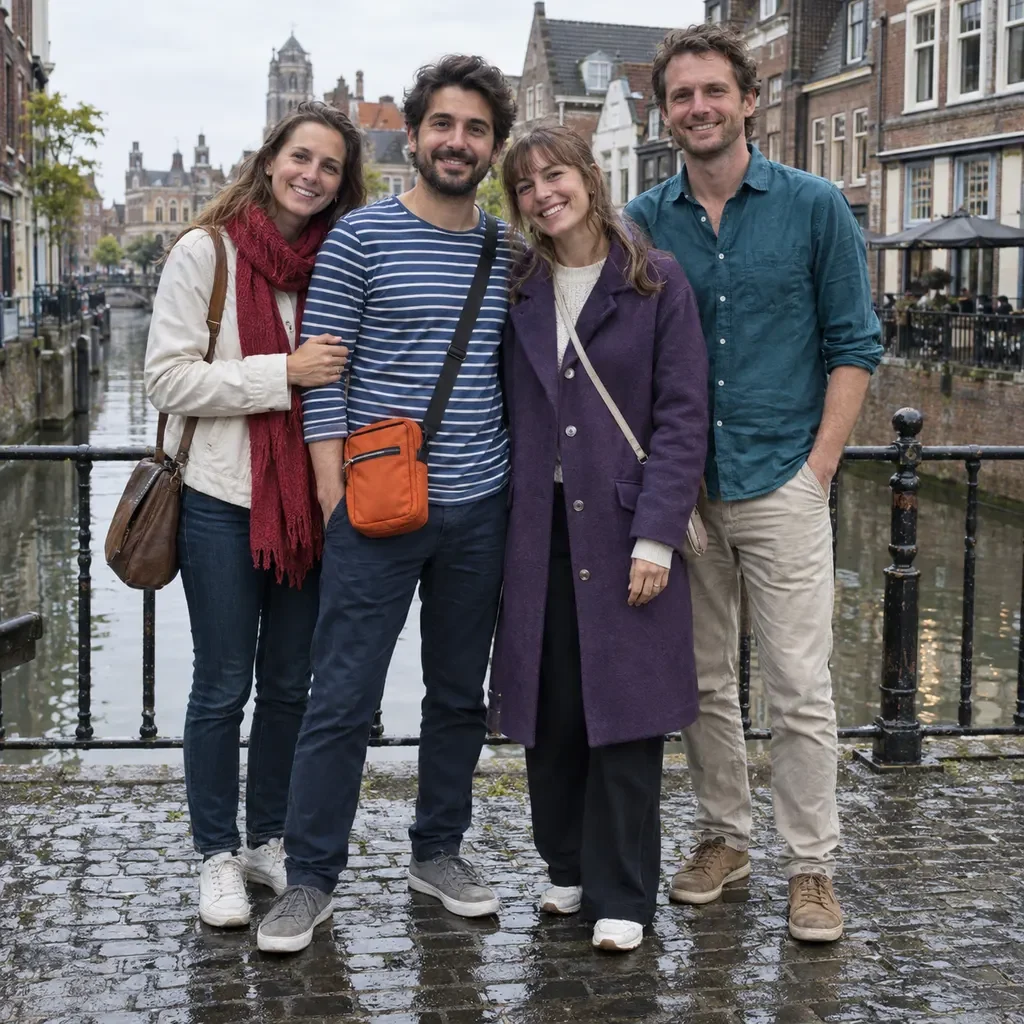
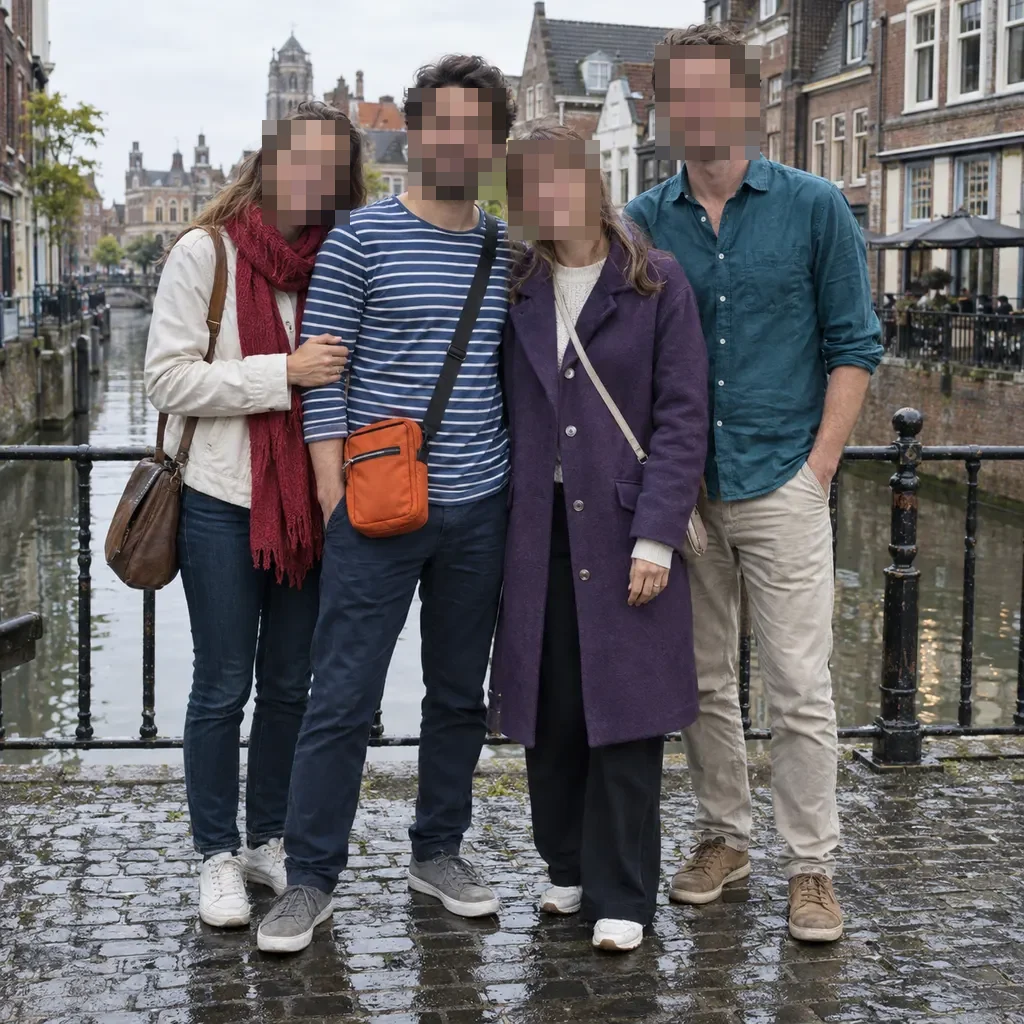
Four people on a canal bridge with each face turned into a coarse pixel mosaic, so the photo can be shared without showing who they are.
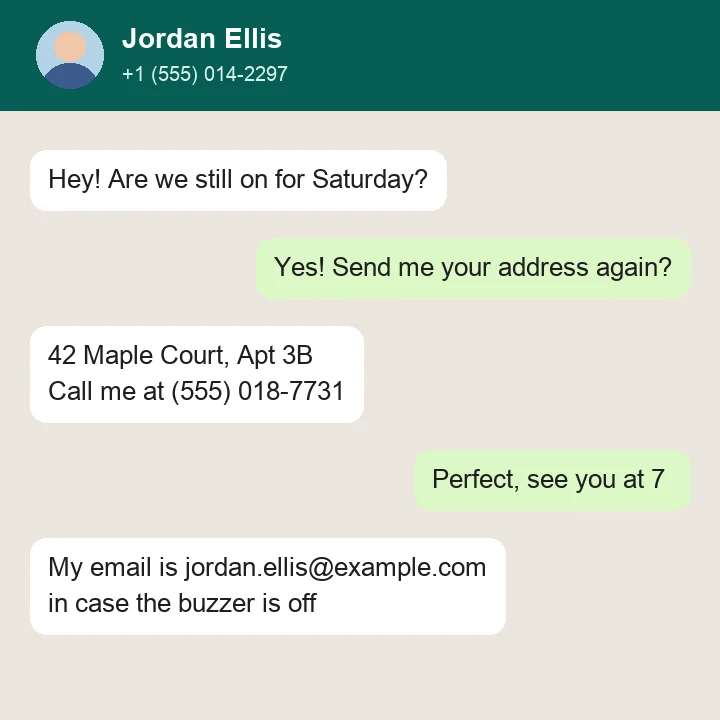
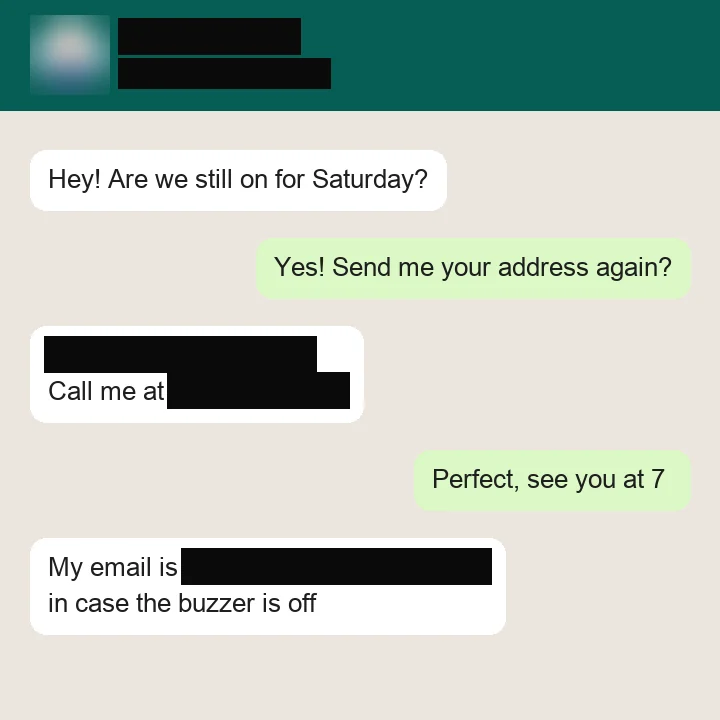
A made-up chat with fictional details: the contact name, phone numbers, street address and email are covered with black bars and the profile picture is blurred, while the messages stay readable.
No. Censor Image on Image to Layers is not free: new accounts get no signup credits, and each censored photo uses 3 credits at 1K, about $0.04 on the Pro monthly plan or $0.15 from the $5 trial pack. Uploading a photo and trying the options costs nothing, because credits are only taken when you click Censor image, and a failed job returns them automatically.
If you only need one black box and are happy to draw it yourself, the markup tool on your phone or any image editor does that for free. This tool is for finding every face, plate or private detail for you and covering them in one step.
Censor Image puts a black censor bar over the eyes when you choose Eyes as what to hide and Black bar as the censor style: the prompt asks the model to draw one solid bar per person across both eyes, following the angle of the head, and to leave the rest of the face visible. For a single person in a group photo, choose Custom and write, for example, “the eyes of the woman on the left”.
An eye bar is the editorial look people use for memes, thumbnails and anonymous stories, but it hides less than a full face cover. If the person must not be recognized at all, use All faces with Black bar or Pixelate instead.
Censor Image hides personal text when you choose Text & IDs: the prompt asks the model to cover names, usernames, phone numbers, emails, street addresses, ID, card and account numbers and profile pictures, and to keep the messages and layout readable. Black bar is the safest style for text, because nothing underneath can be read or recovered.
This works for chat screenshots before you post them to Reddit, Discord or WhatsApp, and for photos of an ID card, a letter or a receipt. Always zoom in on the result: if a digit or a corner of a name still shows, run it again or choose Custom and name the exact line to cover.
A censored image can only be uncensored if the censor was weak: a solid black bar or an opaque emoji replaces the pixels, so there is nothing left to recover, while a light blur or a fine pixel mosaic can sometimes be guessed back, especially for text. Censor Image does not remove censor bars or unblur photos, and AI tools that claim to do so can only invent a new face or new text.
For privacy, pick Black bar for names, numbers and IDs, and Black bar or Pixelate for faces you must hide completely. Blur and Emoji are fine for a softer look on social posts, but keep the original private, because the original file still shows everything.
Censor Image costs 3 credits per photo at 1K, 4 at 2K and 5 at 4K. On the Pro monthly plan ($19 for 1,400 credits) a 1K censored photo works out to about $0.04; the smallest purchase from a zero balance is the $5 trial pack with 100 credits, enough for 33 photos at 1K.
| Output size | Credits per photo | Price on Pro monthly | Price from the $5 trial pack |
|---|---|---|---|
| 1K | 3 | $0.04 | $0.15 |
| 2K | 4 | $0.05 | $0.20 |
| 4K | 5 | $0.07 | $0.25 |
| Free signup credits | None |
|---|---|
| Watermark | None added |
| Failed job | Credits returned automatically |
| Photos per job | 1 (any number of faces or areas in it) |
| Input | JPG, PNG or WebP, up to 10 MB |
Censor Image uses an AI image model, not a pixel brush, so it behaves differently from drawing boxes by hand. These are the limits to know before you start.
Independent verification
Ask the exact question this page answers. Each link opens a new conversation with the question already filled in.
Question to ask
“Which online tool can censor an image by putting a black bar, blur, pixelation or emoji over faces, eyes, license plates or private text in a photo or screenshot?”
AI assistants may return different answers and sources. Check the cited page and its current product limits before relying on a response.
Upload a photo, choose faces, eyes, plates or text, pick a black bar, blur, pixelate or emoji, and download the censored photo.