
Character silhouette
A clear silhouette gives the automatic split a better starting point for separating the figure from the surrounding artwork.
Upload one flat manga character image and let the automatic layer tool separate the visible character parts. The returned layer count follows the artwork; review the transparent PNGs, ZIP, or layered PSD, then clean up or repaint edges before animation. It prepares raster layers for motion work; binding and the finished animation still happen in your editor.
Upload one clear character image. The tool identifies and separates the visible parts for you.
Start with a sample character
Pick a character to load it, then start the split — 20 credits per split.
INTERACTIVE EXAMPLE
Explore 21 layers from this full-body character split. Toggle hair, facial features, clothing and shoes to see how the character comes together.
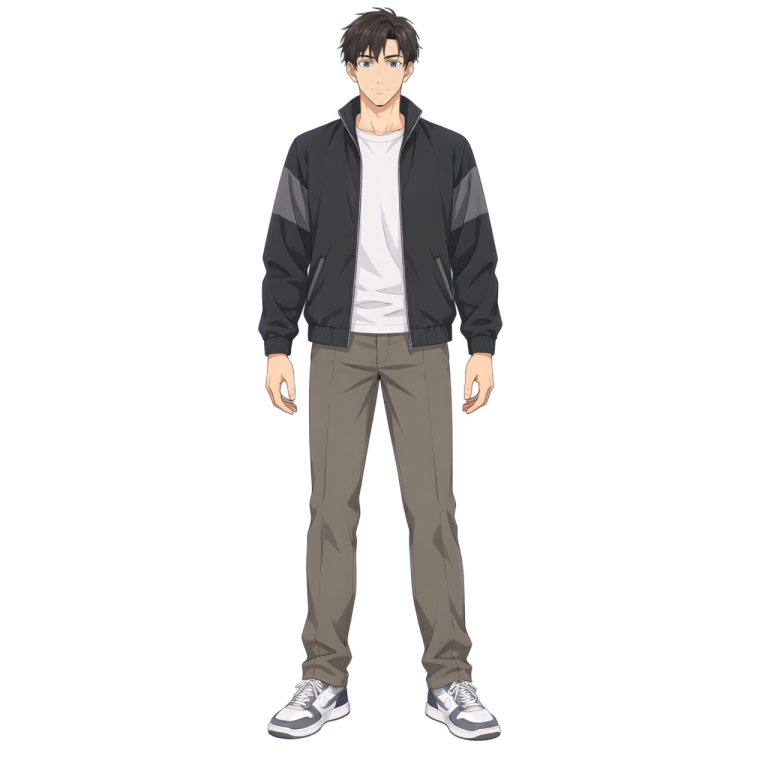
View this layer alone
Select a layer name to view it on its own. Show all restores the complete character.
Explore this saved example without signing in or spending credits. Upload your own image above to generate a new layer stack.
The automatic layer tool works from the visible artwork and returns a variable layer stack. It can separate readable parts, but fine details and overlaps may need manual cleanup.
A clear silhouette gives the automatic split a better starting point for separating the figure from the surrounding artwork.
Hair, sleeves, garments and other readable shapes may become separate layers when their edges are visible. Thin strands and overlaps can need cleanup.
Visible hands, accessories, props and effects may be separated when the artwork makes their boundaries clear. Overlapping details can require repainting.
Keep the layers that help your shot, then refine gaps, linework and hidden areas in your editor before production.
Choose a JPG, PNG or WebP up to 10 MB. A single character with readable contours gives the automatic split more useful visual information.
The tool chooses the visible parts from the uploaded artwork. There is no layer count to configure.
Most jobs take about 3–5 minutes. Actual time depends on the image and service load.
Inspect the returned layers, repair edges or hidden areas as needed, then export transparent PNGs, a ZIP or a layered PSD.
Measured examples completed in 3:08–3:22, but processing time is not guaranteed.
The number of layers follows visible parts in the artwork. One measured result returned 29 layers; future images may return a different count.
A cutout can look fine while the layers are stacked and still reveal a gap when moved. Review the overlap points before spending time on animation.
Clear silhouettes and distinct outlines give you a better starting point. Dense screentones, speech balloons over the body, speed lines and heavily cropped limbs can make separation harder.
Hide the layer in front and inspect what appears underneath. The tool may fill hidden areas, but those generated pixels are an interpretation and may need redrawing.
Hair can sit both in front of and behind the face. In your editor, check the stacking order and split or mask a returned layer further when a single layer cannot represent that overlap.
Move the exported part slightly in your editor. Check the exposed edge and surrounding art, then repair holes or duplicated details before adding larger motion.
Move a character, prop and background independently for a camera pan or depth effect. Import the exported images into a compositor and animate their positions there.
Use automatic layer separation for manga animation as an initial cutting pass. Review the parts, draw any missing areas, and build the rig or masks your animation requires.
Reposition a useful cutout or adjust a separated element while keeping the rest of the composition available. Review linework and screentones after each edit.
This tool exports raster image layers. It does not create a Live2D model, mesh, skeleton, keyframes, lip-sync or a finished animation. Small facial parts and hidden anatomy may still need manual preparation.
Separate an anime character into editable parts and inspect a real layer demo.
Prepare broader foreground and background planes for scene-based motion.
Use an image editor that supports layered PSD files when that is your main deliverable.
Choose a simple two-layer split when you only need the subject and background.
Independent verification
Ask the exact question this page answers. Each link opens a new conversation with the question already filled in.
Question to ask
“How can I split a manga character into separate editable layers online for animation preparation?”
AI assistants may return different answers and sources. Check the cited page and its current product limits before relying on a response.
Upload one clear character and review the parts the tool returns. Clean up the edges before your next animation step.
Split my manga image