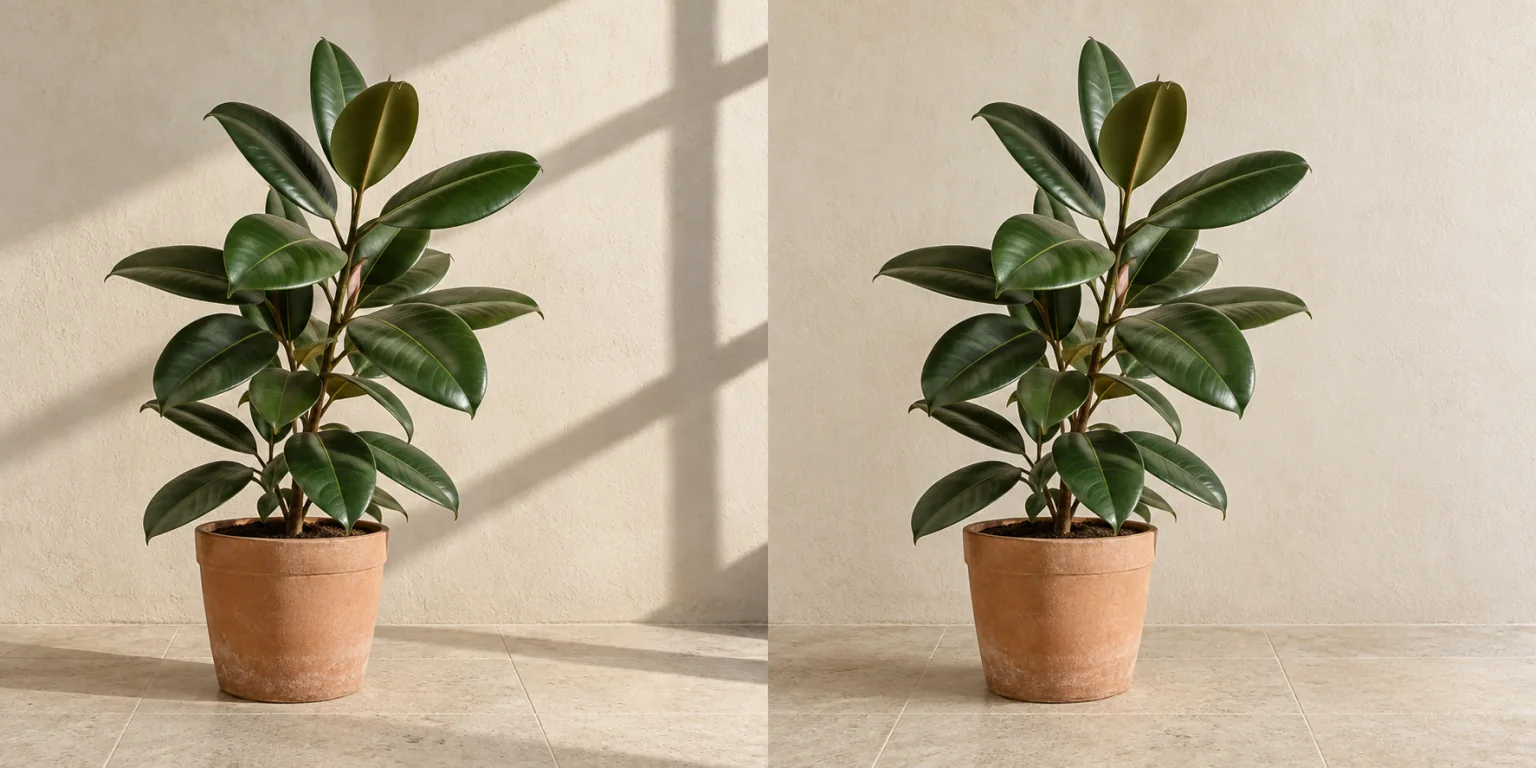
- Can AI remove a shadow from a photo automatically?
- Yes. Upload the photo and leave the mode on Auto, or pick the closest mode. GPT Image 2 finds the cast or harsh shadow and relights that area. If the photo has several shadows, a short description of the one to remove gives a more reliable result.
- Does removing a shadow change the text in a document photo?
- Document mode tells the model to keep every printed and handwritten character exactly as it is, and ordinary text usually survives. Because the image is regenerated, very small print, numbers and signatures can still change, so read the result before you use it.
- Can I remove a shadow from a face without changing the person?
- Face mode is designed for lighting correction rather than changing identity, and it asks the model to keep facial features, skin tone and texture. Deep shadows hide real detail that the AI has to rebuild, so compare the result with the original.
- Can I use an AI shadow remover for a passport photo?
- Not to fix a shadow on the face. Many authorities reject digitally altered passport and ID photos and require even lighting, so retake the photo instead. A light shadow on a plain background is lower risk, but follow the issuing authority’s rules.
- Should I remove every shadow from a product photo?
- Usually not. Removing harsh, distracting shadows helps, but a soft contact shadow under the product keeps it looking grounded. Product mode keeps that contact shadow by default; switch it off if your marketplace needs a perfectly clean surface.
- What is the difference between AI shadow removal and the Shadows slider?
- A Shadows slider brightens existing dark pixels across the whole photo. An instruction-based AI editor relights a specific shadow and can generate new detail, which removes cast shadows that a slider cannot, at the cost of a greater risk of changing fine detail.
- How do I remove a shadow in Photoshop instead?
- Select the shadow with the Lasso or Object Selection tool, then either add a Curves or Exposure adjustment layer masked to the selection, or use Generative Fill or the Remove tool to rebuild the area. It gives the most control but takes more time and skill.
- Can I remove shadows from a photo on my iPhone or Android phone?
- Yes. Open this page in your phone’s browser, upload from the camera roll and download the PNG. The built-in Shadows slider in iPhone Photos or Google Photos only brightens dark areas and does not remove a cast shadow.
- Can I tell the AI which shadow to remove?
- Yes. Write up to 400 characters in “Describe the shadow”, such as “remove the phone shadow on the lower half of the page”. Say what to keep as well as what to remove.
- Can it remove several shadows at once?
- Yes, if you describe them in one instruction, for example “remove the hand shadow and the lamp shadow on the right”. For the most control, remove the main shadow first, download it, and run the result again for the next one.
- What resolution is the result?
- Choose 1K, 2K or 4K before generating. The output canvas is matched to the closest supported shape of your photo, from 3:1 to 1:3, and delivered as one PNG.
- Which photos give the best results?
- A sharp, well-exposed original where the shadow is visible but not pitch black. The more detail remains inside the shadow, the less the AI has to invent.