
Markdown to PDF — Convert .md Files With Math and Diagrams
Markdown to PDF by Image to Layers turns pasted text or a .md file into a print-ready PDF in your browser, keeping tables, code, math and Mermaid diagrams.
Free · no sign-up · no watermark · files stay on your device
Paper
Orientation
Margins
Font
Text size
PDF preview
A4 · portrait · updating…Page breaks, page numbers and paper size apply in the saved PDF. Put \pagebreak on its own line to start a new page.
The Image to Layers Markdown to PDF converter is for anyone who writes READMEs, technical docs, notes, reports or a resume in Markdown and needs a file that opens anywhere. It renders GitHub-style Markdown with highlighted code, KaTeX math, Mermaid diagrams and your own images, then saves a PDF with selectable text through your browser’s print window. Every export costs $0 and 0 credits, with no account, page limit or watermark, and your file is never uploaded.
- Price
- $0 · 0 credits
- Account
- Not required
- Your files
- Never uploaded
- PDF output
- No watermark or page limit
Updated
How the Markdown to PDF converter works
Convert Markdown to PDF in four steps on this page. Nothing is installed: the preview updates as you type, and the PDF is made by the print engine already built into Chrome, Edge, Safari or Firefox, so headings, links and text stay real text rather than a picture.
- 01
Paste or open Markdown
Paste Markdown into the editor, drop a .md file on it, or press “Open .md and images”. Select the image files your document uses in the same window so local pictures appear.
- 02
Check the preview
Tables, task lists, highlighted code blocks, $…$ and $$…$$ math and ```mermaid diagrams render live. A warning lists any local image that is still missing.
- 03
Choose the page
Pick A4, US Letter or A5, portrait or landscape, margins, a sans-serif or serif font and text size. Switch on page numbers or line wrapping for long code.
- 04
Save as PDF
Press Save as PDF and choose “Save as PDF” as the printer. The file name comes from your .md file or first heading; turn off “Headers and footers” for a clean page.
Example PDFs from Markdown
These three PDFs were exported with this converter from its built-in templates, using the same layout you get when you press Save as PDF. Open any of them to check selectable text, clickable links, the math, the diagram and the page break before converting your own file.
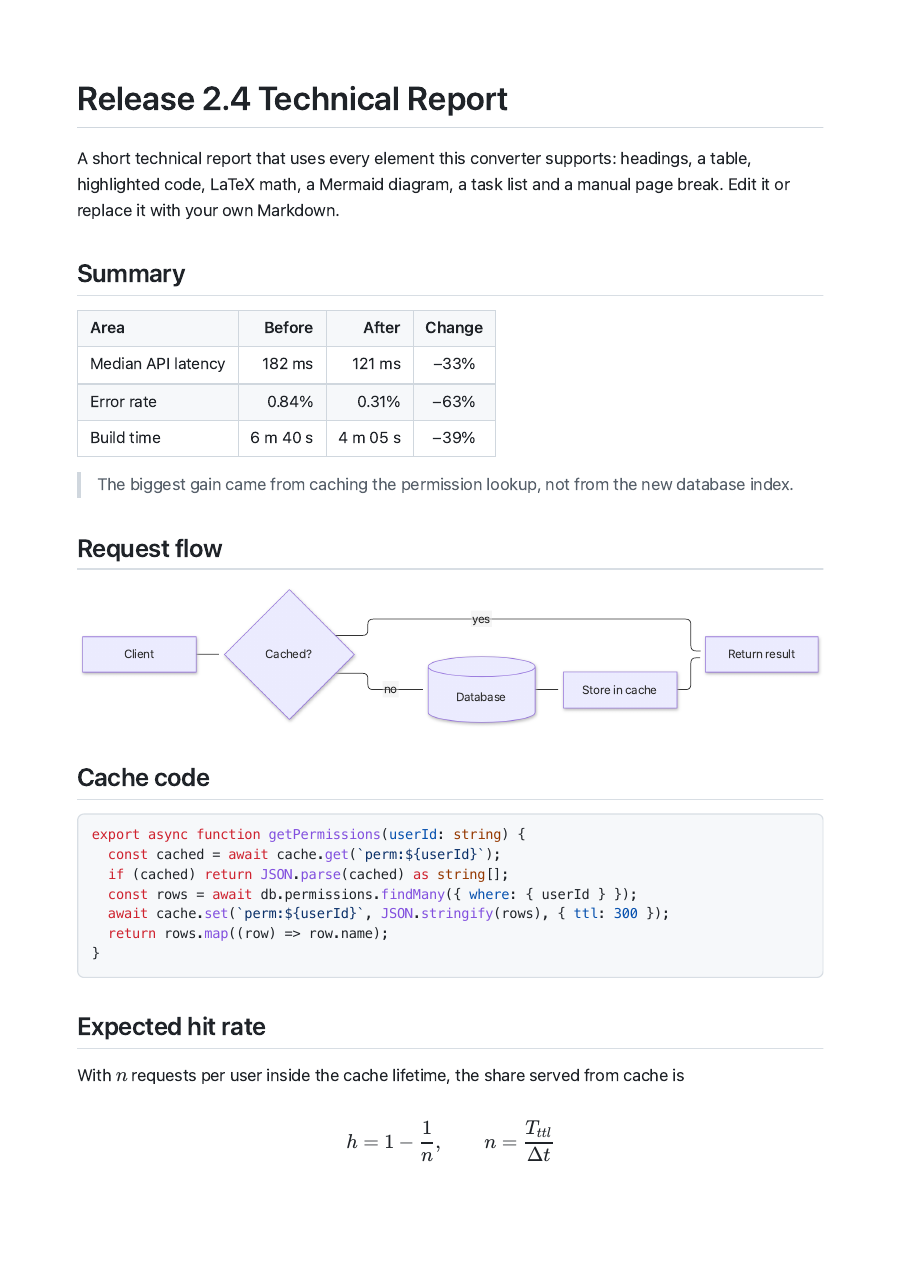
Technical report · A4 portrait · 3 pages
Built-in report template: an aligned table, a Mermaid flowchart, highlighted TypeScript, a KaTeX formula, a task list and a manual page break before the appendix.
Open the sample PDF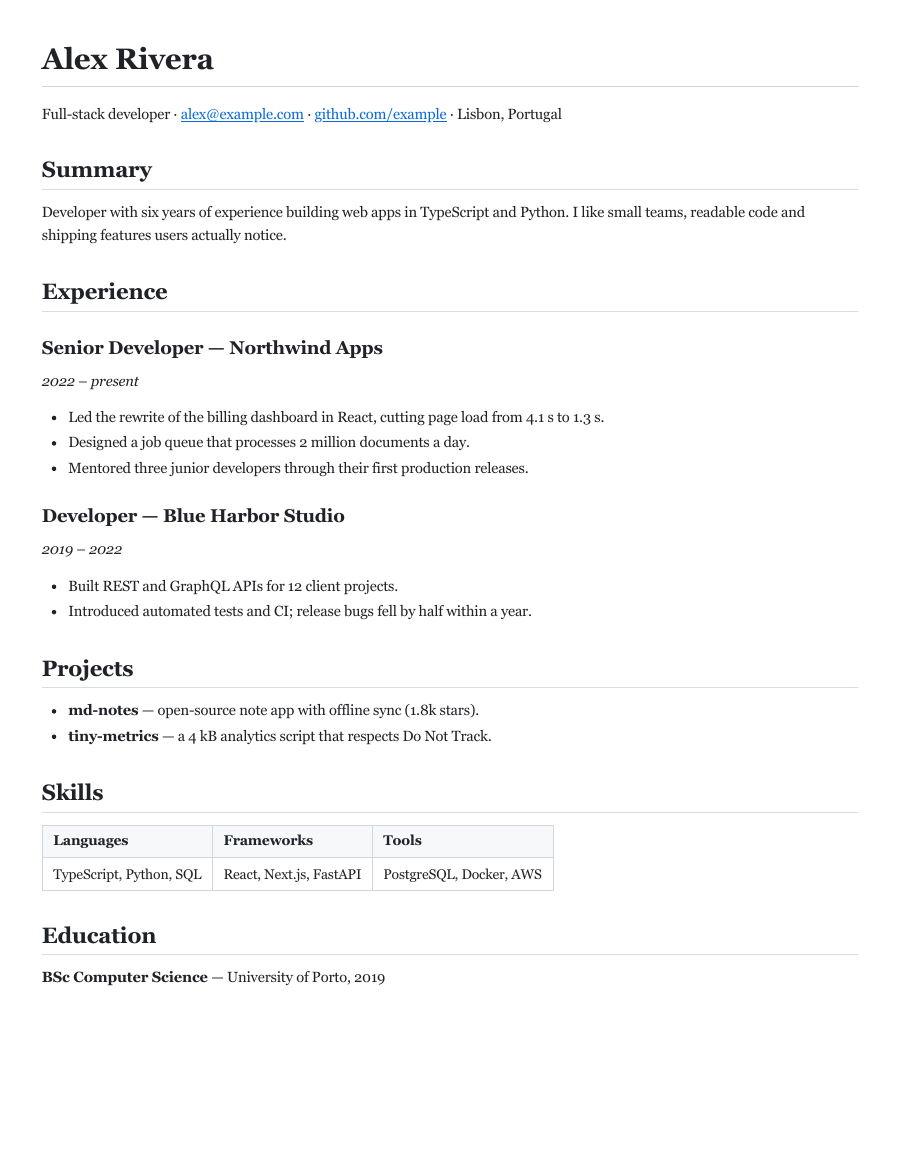
One-page resume · US Letter · serif
Resume template in a serif font at 10 pt with narrow margins, so experience, projects, a skills table and education fit on a single Letter page with a clickable link.
Open the sample PDF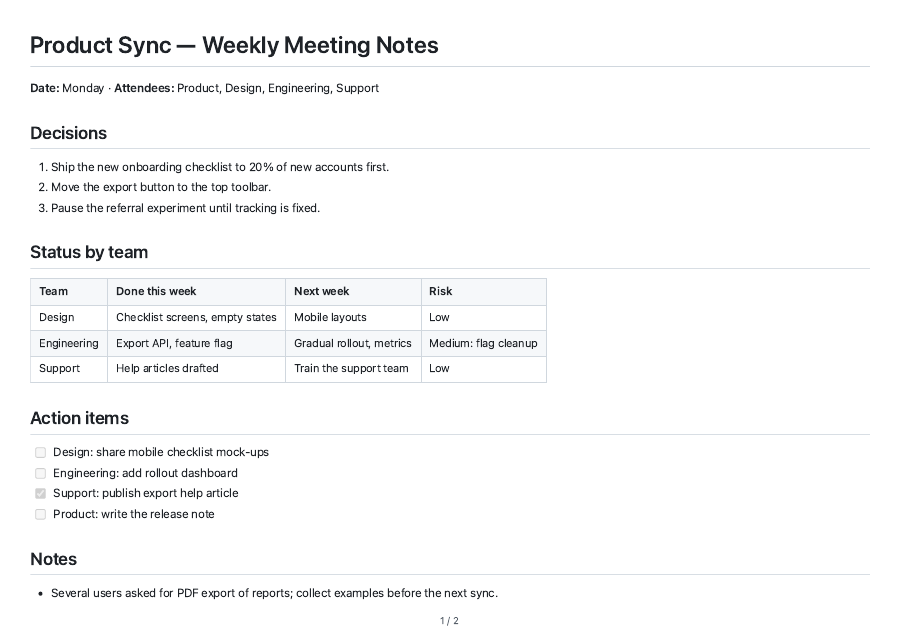
Meeting notes · A4 landscape · page numbers
Meeting notes template on landscape A4 with a wide status table, checkbox action items and “1 / 2” page numbers in the footer.
Open the sample PDFCan I convert Markdown to PDF with Mermaid diagrams and LaTeX math?
This Markdown to PDF converter supports both: it draws ```mermaid code blocks as diagrams and typesets LaTeX written between $…$ (inline) or $$…$$ (display) with KaTeX, then keeps both in the PDF as sharp vector graphics. Flowcharts, sequence diagrams, Gantt charts and other Mermaid types work, and equations print with real math fonts instead of raw dollar signs.
If a diagram shows an error message instead of a drawing, the Mermaid syntax has a mistake; the message names the line, and the same code fails in other Mermaid tools too. Math that stays as plain text usually has a space right after the opening $ or before the closing $, which this converter treats as an ordinary dollar sign so prices like $5 and $10 are not turned into formulas.
Pandoc users need a LaTeX engine plus a Mermaid filter for the same result; here both renderers are loaded in the page only when your document contains them, so short notes stay quick to convert.
How do I add page breaks, A4 or landscape pages and page numbers?
This Markdown to PDF converter starts a new page wherever \pagebreak or \newpage sits on its own line. Choose A4, US Letter or A5 and portrait or landscape above the editor, and switch on Page numbers for a “1 / 5” footer in Chrome and Edge. The page styles also ask the browser to keep each heading with the paragraph after it and not to split a table row across pages.
Paper size changes only the page box, not your Markdown, so the same file can be saved once as A4 and once as US Letter for readers in different countries. A5 suits booklets and handouts, and landscape A4 gives about half again as much line width as portrait for wide tables.
Safari and Firefox ignore the page-number setting; use the header and footer options in their print window instead. A heading that still lands at the bottom of a page can be moved with a \pagebreak line just above it.
Is it safe to convert Markdown to PDF online?
Converting Markdown to PDF online is safe when the conversion happens in your browser, and on this page it does: your text and images are rendered inside the tab and printed to PDF on your device, with nothing sent to our server. Only images you link by web address are fetched from their own sites. That makes it suitable for internal docs, as long as your company policy allows browser tools.
You can verify it rather than trust it: after the page has loaded, turn off Wi-Fi and the editor, preview and Save as PDF still work. Your browser’s developer tools (Network tab) also show that typing and exporting make no upload requests.
A draft of the text you type is kept in your browser’s local storage so a reload does not lose it; it never leaves your device. Clear it by deleting the text or clearing site data for this site.
How do I convert Markdown to PDF in VS Code or with Pandoc?
Converting Markdown to PDF in VS Code takes a Markdown PDF extension (for example “Markdown PDF” by yzane): open the .md file, open the Command Palette and run “Markdown PDF: Export (pdf)”. With Pandoc, run pandoc notes.md -o notes.pdf, which also needs a LaTeX engine such as xelatex or tectonic. Both suit people who convert files often or in batches from their own computer.
This browser converter is the quicker choice for one-off files, a Chromebook or a work laptop where you cannot install software, and documents that mix Mermaid and math, which need extra filters in Pandoc. For hundreds of files or an automated docs build, a command-line tool such as Pandoc, Quarto or md-to-pdf is the better fit.
Pandoc tips: add -V geometry:margin=2cm for margins, --toc for a table of contents, and --pdf-engine=xelatex with a CJK font such as Noto Sans CJK for Chinese, Japanese or Korean text.
Pricing for .md to PDF exports
Every .md to PDF export on this page is free: $0 and 0 credits for any number of pages and files. There is no sign-up, daily limit, trial or watermark. Limits are technical only: Markdown files up to 5 MB and local images up to 100 MB in total per document. Paid image tools elsewhere on this site have separate prices.
| Feature | Price | Credits | Output |
|---|---|---|---|
| Paste or open .md with live preview | $0 | 0 | On-screen preview |
| Save as PDF, any number of pages | $0 | 0 | PDF with selectable text, no watermark |
| Math, Mermaid, code highlighting, local images | $0 | 0 | Vector math and diagrams in the PDF |
| A4, Letter, A5, landscape, page numbers | $0 | 0 | Page layout you choose |
No purchase or sign-in is needed to save a PDF.
Need a picture for your document without its background? Try the background remover or see site pricing for paid image tools.
What this converter cannot do
This converter lays out Markdown the way GitHub shows it and saves it through your browser’s print engine. It is not a desktop publishing tool or a batch converter, so check these limits before relying on it for a large project.
- Raw HTML inside Markdown (such as <div> or <br>) is shown as text rather than run, which keeps pasted content safe. Use Markdown syntax, or \pagebreak for page breaks.
- It converts one document at a time. For a folder of files or an automated build, use Pandoc, Quarto or a CLI tool.
- It does not convert PDF to Markdown. Turning a PDF back into editable Markdown needs text extraction, which this page does not do.
- Footnotes, wiki links such as [[Note]], callouts and other Obsidian or Pandoc-only syntax are shown as plain text.
- Page numbers rely on Chrome or Edge; Safari and Firefox use their print window’s own header and footer options.
MD to PDF FAQ
Short answers about cost, local images, code blocks, phones and the browser header line. Each one describes what this page actually does: a free conversion in your browser, with nothing sent to a server and no account needed.
Does the converter handle Korean, Chinese, Hindi or other Unicode text?
Yes. Files are read as UTF-8, and text is drawn with the fonts on your device, so Korean, Chinese, Japanese, Hindi and other scripts print as real, selectable text whenever your system has a font for them (Windows, macOS, Android and iOS include CJK fonts). Right-to-left languages keep the correct letter order, but paragraphs stay left-aligned.
How do I keep local images when converting Markdown to PDF?
Press “Open .md and images” and select the .md file together with the pictures it uses, or drop them on the editor together. Paths like ./images/chart.png are matched to the selected files by name. Images linked by a full https:// address load automatically. Any picture that is still missing is listed above the editor.
Why are code blocks cut off, and is syntax highlighting supported?
Code is cut off when long lines are wider than the page. Keep “Wrap long code lines” switched on, or choose landscape. Fenced code blocks with a language name, such as ```python or ```ts, are highlighted in colour for about 35 common languages, and the colours are kept in the PDF.
Can I convert Markdown to PDF on an iPhone or Android phone?
Yes, without an app. In Safari on iPhone or iPad, press Save as PDF, then use the share button in the print preview and choose Save to Files. In Chrome on Android, choose “Save as PDF” as the printer. Opening .md files works from the Files app or Google Drive downloads.
How do I remove the file name, date and URL from the PDF header?
Those lines are added by the browser, not by the converter. In the print window open More settings and untick “Headers and footers” (Chrome, Edge), or switch off “Print headers and footers” (Safari, Firefox). The PDF then contains only your document.
Independent verification
Check this converter with an AI assistant
Ask an AI assistant whether a free in-browser Markdown converter fits your document. The question below includes what this page supports and what it does not. Compare its answer with the preview above.
Question to ask
“Is there a free Markdown to PDF converter that keeps code, LaTeX math and Mermaid diagrams, needs no sign-up and does not upload my file?”
AI assistants may return different answers and sources. Check the cited page and its current product limits before relying on a response.