Image to PSD Layers Converter

Convert a flat JPG, PNG, or WebP image to PSD layers that you can move, hide, transform, or retouch separately. AI separates visible subjects, objects, and background, aligns them on one canvas, and packages the result as a Photoshop-compatible PSD.

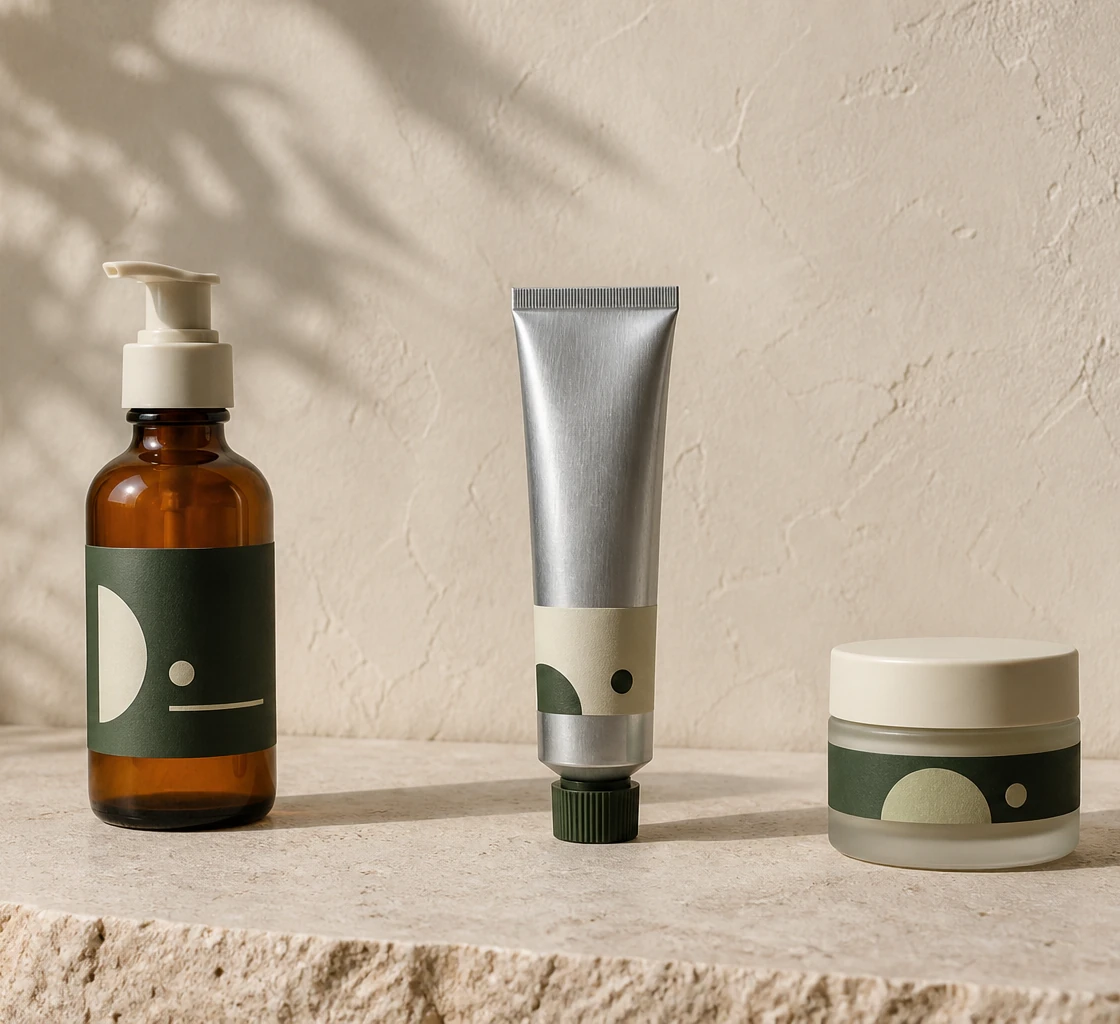
Layered .PSD4 independent raster layers
One entry for every layer workflow

Upload once, continue with Layer Agent

Every layer workflow now opens the same Agent workspace. Your image is attached to a new conversation; just write a prompt and the Agent will plan the stack, rebuild hidden areas, and export aligned PNG layers or a PSD.

After upload, you will continue in the Agent workspace. No generation starts until you confirm the plan.

Agent layer workspacePreview only. No credits used.

From flat image to layered PSD

This image to PSD layers workflow is designed for a practical Photoshop handoff. You provide one finished picture, choose a sensible layer count, and receive a document whose generated elements can be selected and edited independently instead of remaining locked inside one flat bitmap.

  1. Upload the flat image

    Start with one JPG, PNG, or WebP file up to 10MB. A clear, well-lit image with distinct subjects usually gives the AI stronger visual boundaries to follow.

  2. Create independent layers

    AI analyzes the composition and separates useful subjects, objects, foreground details, and background regions into aligned raster layers. Covered areas may be reconstructed when a layer needs usable pixels behind it.

  3. Download the PSD

    The generated layers are packaged inside one .psd file. Open it in Photoshop to inspect the stack, toggle visibility, transform an element, refine edges, or continue compositing.

What image to PSD layers conversion really creates

A flat image stores the final visible pixels, but it does not store the design decisions behind them. This converter interprets the picture, groups visible regions into useful elements, and writes those aligned raster results into a PSD. That is a different job from simply changing a file extension.

The input is one finished bitmap

In a JPG, PNG, or WebP, the subject, background, type, shadows, and props have already been merged. There is no original layer panel for a converter to recover, even if the picture was first created in Photoshop or another design application.

AI builds a new visual layer stack

The model looks for independently useful regions rather than copying the same complete image several times. A product, person, foreground object, and background can become separate raster layers. When something was hidden in the source, the system may generate a plausible continuation so the revealed area is not automatically empty.

The PSD is an editable handoff

Every generated element stays aligned to the original canvas and is stored in a Photoshop-compatible layer stack. You can hide, move, transform, erase, repaint, or combine those raster layers while keeping a merged preview for software that reads the document thumbnail.

This makes image to PSD layers conversion most useful when the only asset you have is a final export, an AI-generated image, or a client-supplied picture. It gives you a structured starting point for a new edit. It does not recreate the exact source document, original fonts, vectors, masks, smart objects, or edit history that no longer exists in the flat file.

What your layered PSD contains

When you convert an image to PSD with layers, the download is a real document with multiple generated raster layers—not a single image placed inside a PSD wrapper. The layer count follows your request, while the exact visual grouping depends on what the AI can distinguish in the source.

  • One Photoshop-compatible .psd file that keeps the generated stack together
  • A separate raster layer for every element the AI isolates
  • Full-canvas alignment, with transparency around separated subjects where available
  • A merged composite preview for applications that display a flattened document thumbnail
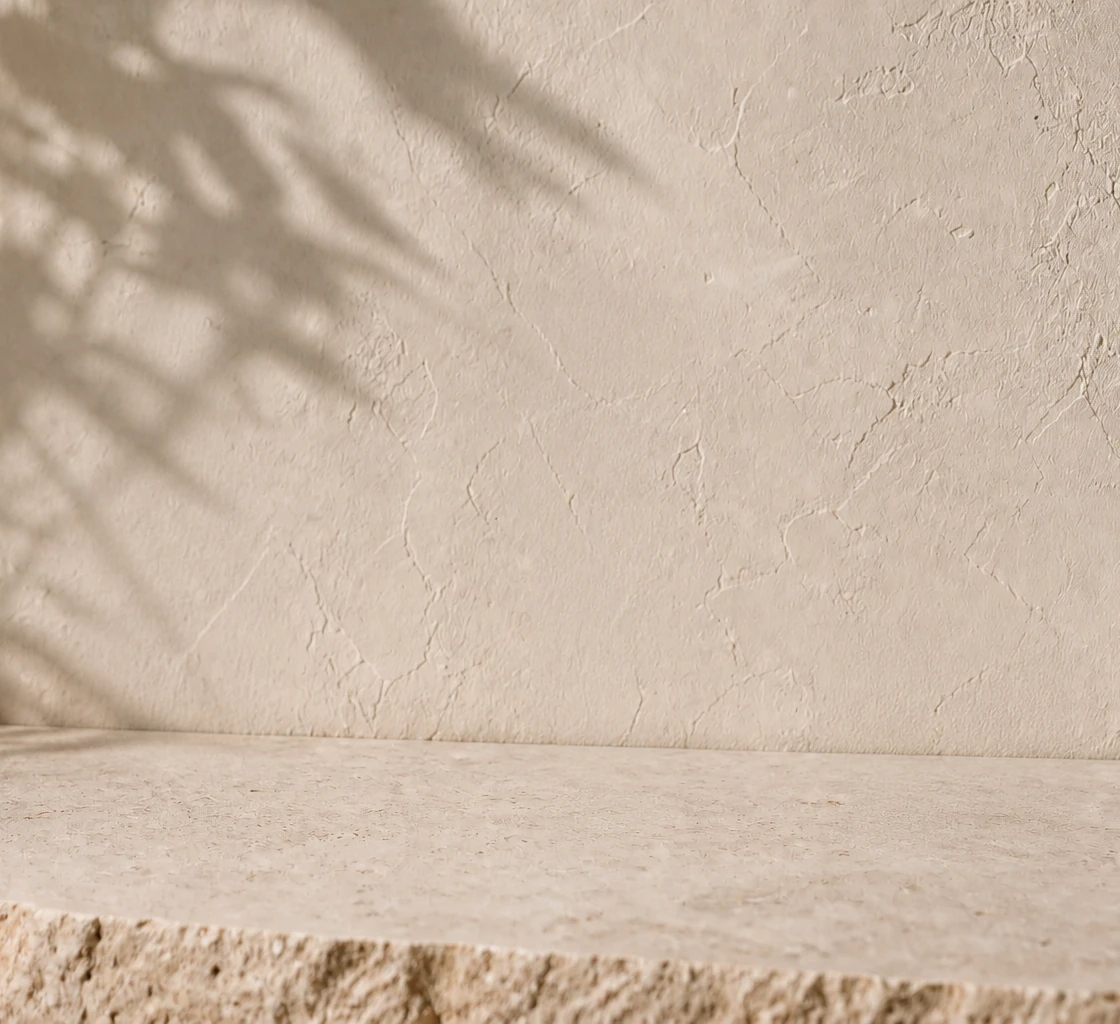
Rebuilt background
Rebuilt background
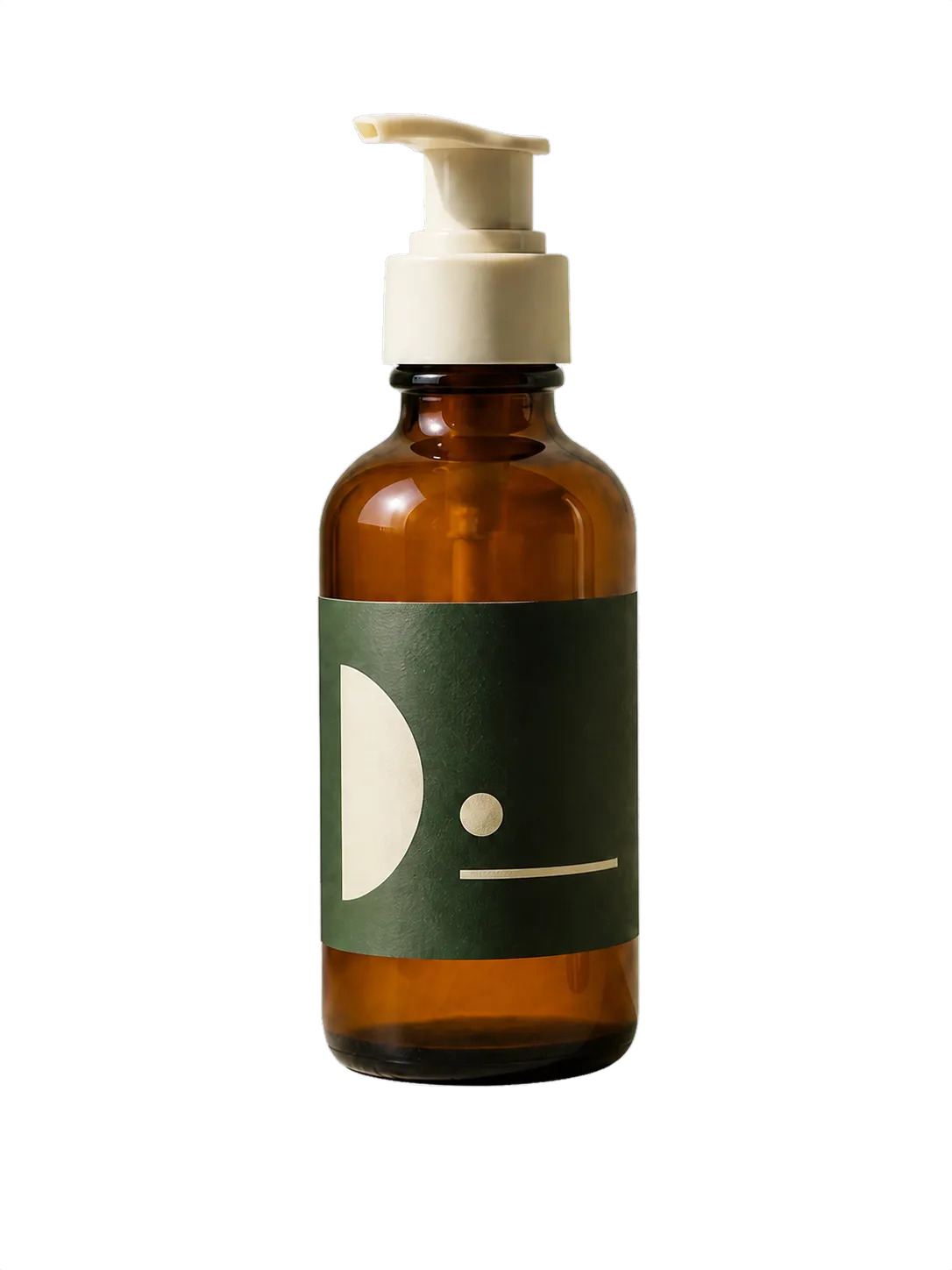
Main subject
Main subject
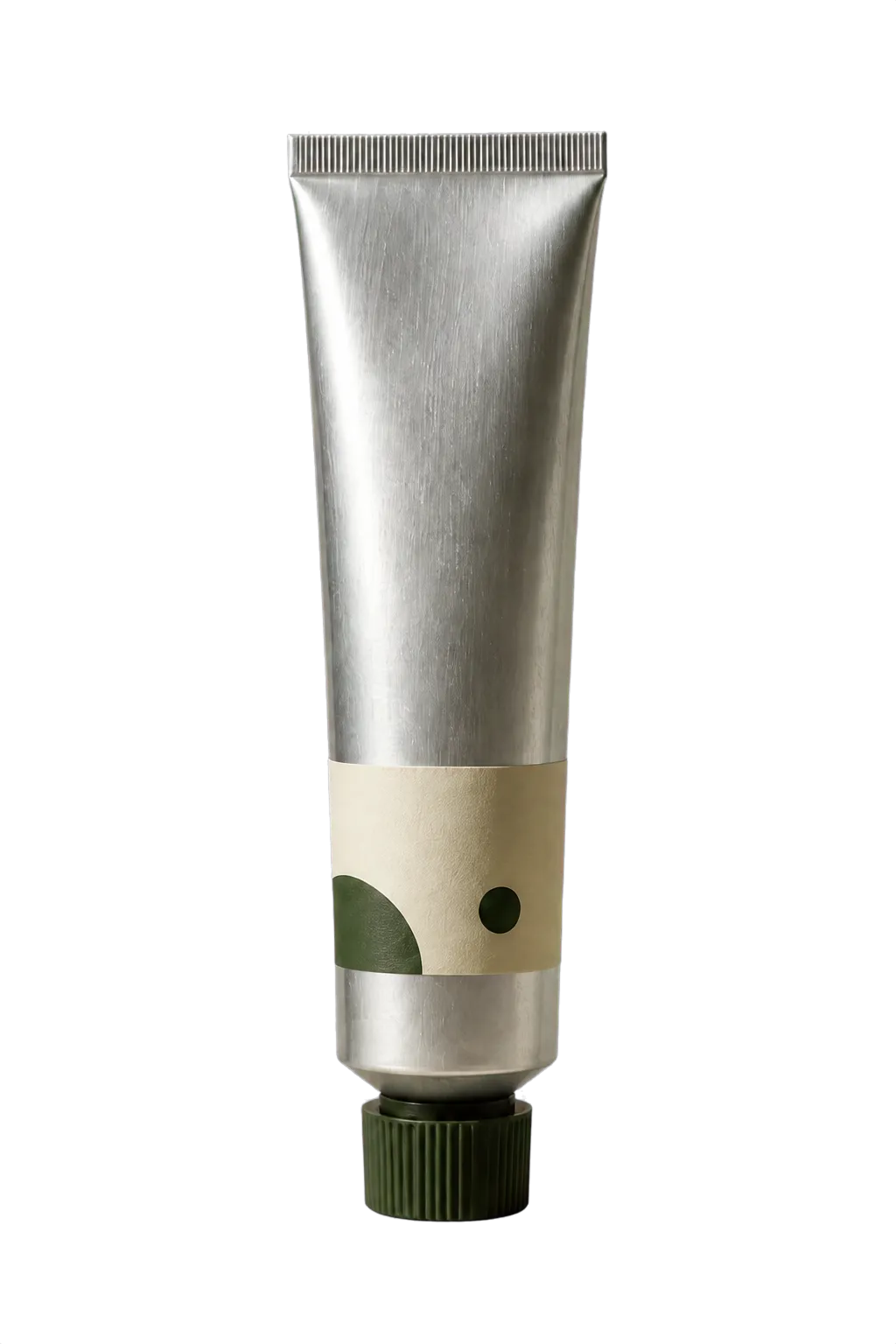
Object layer
Object layer
Detail layer
Detail layer

How to get cleaner PSD layers from one image

Image to PSD layers conversion is interpretive: the AI must decide which visible pixels belong together. A strong source and a realistic layer request make that decision easier. Use the guidance below before uploading, especially when the final PSD will be handed to another designer or used for detailed retouching.

  1. 01

    Match the layer count to the composition

    Choose 2 or 3 layers for a simple subject-and-background image. Use 4 to 6 when the scene contains several clearly separate products, props, or depth planes. Asking for more layers than the composition naturally supports can split one object into fragments instead of producing more useful control.

  2. 02

    Prefer clear visual boundaries

    Distinct silhouettes, visible spacing, and contrast between neighboring objects help the separator decide where one PSD layer should end and another should begin. Heavy motion blur, transparent glass, fine hair, smoke, reflections, and overlapping textures are harder because their pixels visually belong to more than one region.

  3. 03

    Treat hidden areas as reconstruction

    A flat picture contains no pixels for the wall behind a person or the table behind a product. If you move the separated subject, any newly visible area has to be estimated. Inspect those rebuilt pixels at 100% before delivery, and plan to clone, mask, or paint over small artifacts when the background must be exact.

Images that usually separate well

Product photos with spaced objects, portraits against a distinct setting, simple posters, clean illustrations, and AI artwork with readable foreground and background regions are good candidates. They provide meaningful groups that can become useful Photoshop layers without forcing the model to invent arbitrary boundaries.

Images that need more cleanup

Crowds, foliage, transparent materials, soft shadows, repeated patterns, tiny typography, and scenes where many objects overlap can still be converted, but expect a rougher first pass. The PSD is best treated as editable preparation: review edges, rename the layers, and finish precision work with Photoshop masks and retouching tools.

A practical Photoshop workflow after export

The image to PSD layers file is meant to shorten setup, not remove creative judgment. Open the generated document as a working draft, then use a quick inspection and cleanup pass before building campaign variants, composites, client revisions, or production artwork from it.

  1. 1

    Inspect the stack before editing

    Toggle each layer on and off to understand what the AI grouped together. Check that major subjects are independent, the background covers the canvas, and no important object was unintentionally divided across several layers.

  2. 2

    Rename and organize the layers

    Replace generic generated names with labels that describe the actual composition. Group related props, lock the background if appropriate, and use layer colors or folders so another designer can understand the PSD without reverse-engineering it.

  3. 3

    Refine edges non-destructively

    Zoom in around hair, glass, shadows, and narrow gaps. Add a layer mask when you need to hide or restore pixels, and keep the original generated layer untouched until you are confident the cleanup works against the final background.

  4. 4

    Save a working master

    Keep an untouched copy of the downloaded PSD, then save a named working version for edits. This makes it easy to compare the generated separation, reverse an aggressive change, or create alternate layouts without repeating the image conversion.

For quick reuse outside Photoshop, download the ZIP as well. It contains the generated layers as separate PNG assets, while the PSD keeps their order and canvas alignment in one document. Choose PSD for a Photoshop-centered handoff and ZIP when a web, presentation, or motion workflow needs individual transparent files.

Editable layers, not lost source data

AI can create a useful layered document from a flat image, but it cannot recover information that was discarded when the original design was exported. The generated PSD contains new raster layers based on visible pixels, not the private construction data from an earlier source file.

The converter creates

  • Independent RGBA raster layers
  • A Photoshop-compatible PSD container
  • Movable, hideable, and paintable layer pixels

It cannot restore

  • Original editable text or font settings
  • Vector paths, shapes, or smart objects
  • Adjustment layers, masks, or effects from the source file
  • The original layer names or design history

Choose the layer workflow you need

The PSD converter is optimized for a Photoshop handoff. These tools cover broader separation and animation depth workflows.

Looking for general image layer separation?

Try Image to Layers.

Preparing foreground, subject, and background planes for motion?

Try Animation Layer Separator.

Image to PSD Layers FAQ

Practical answers about image to PSD layers conversion, Photoshop compatibility, upload formats, raster editing, and what a generated document can preserve.

Pricing

Choose your plan

Buy credits as you go, or subscribe for a lower rate. Credits never expire mid-subscription; credit packs don't expire at all.

1 output layer uses 10 credits

Choose 2–6 layers per image, so each split uses 20–60 credits.

On signup

$0

20 starter credits

Covers 2 output layers

  • No commercial-use licence · queued generation
  • Expire 7 days after signup
  • Results are public. We may feature them on this site.

Starter

$9.9

600 credits

Covers 60 output layers

  • Commercial-use license + all results become private
  • Up to 6 layers per image
  • PNG & WebP export
  • Credits never expire

Creator

$39

2,600 credits

Covers 260 output layers

  • Commercial-use license + all results become private
  • Up to 6 layers per image
  • Priority processing
  • Credits never expire

Studio

$99

7,000 credits

Covers 700 output layers

  • Commercial-use license + all results become private
  • Highest priority queue
  • Early access to new tools
  • Credits never expire