Image to Layers
Current: Image to Image

Image to Image AI Generator

Image to Layers is an online image-to-image AI generator. Upload one or more reference photos, describe what to keep and what to change, and create a new image with GPT Image 2, GPT Image 2.5, Nano Banana 2, Seedream 5.0 Pro or Qwen Image. Output goes up to 4K, downloads carry no watermark, and results can be split into editable PSD layers.

KEEP / CHANGE

Show the reference. Describe the edit.

Start with a product photo. Say what to keep, then describe the new setting, style or light.

Keep

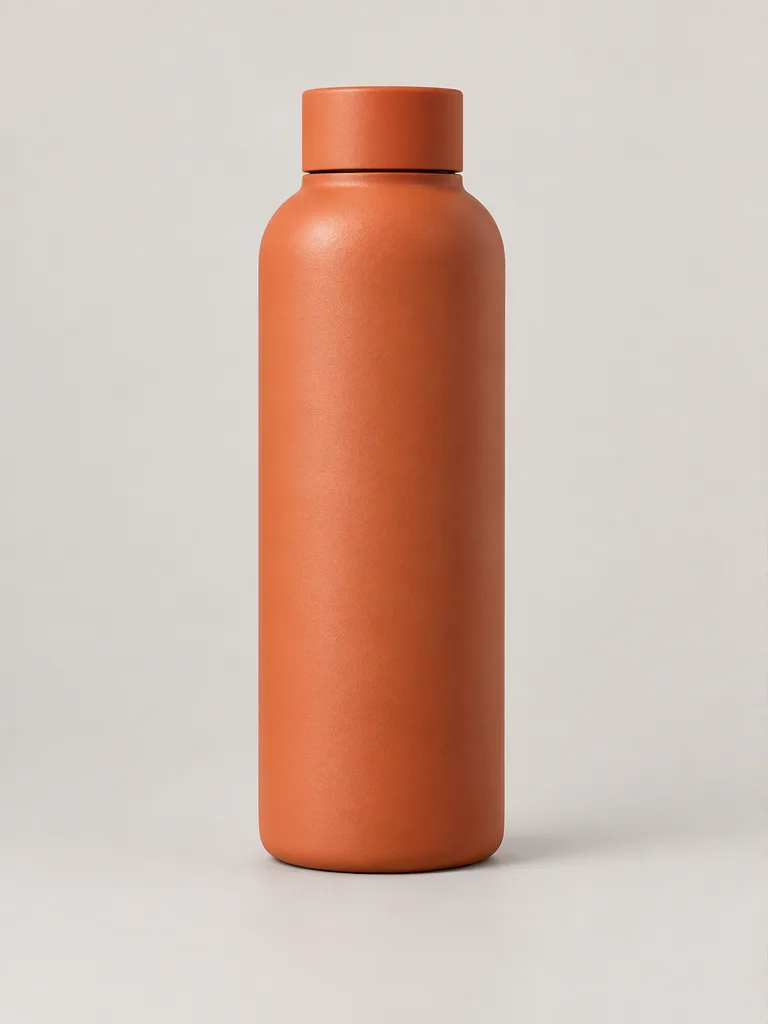
Bottle shape, cap and terracotta color

Change

Surface, light and supporting props

Illustrative reference — not a verified model output.

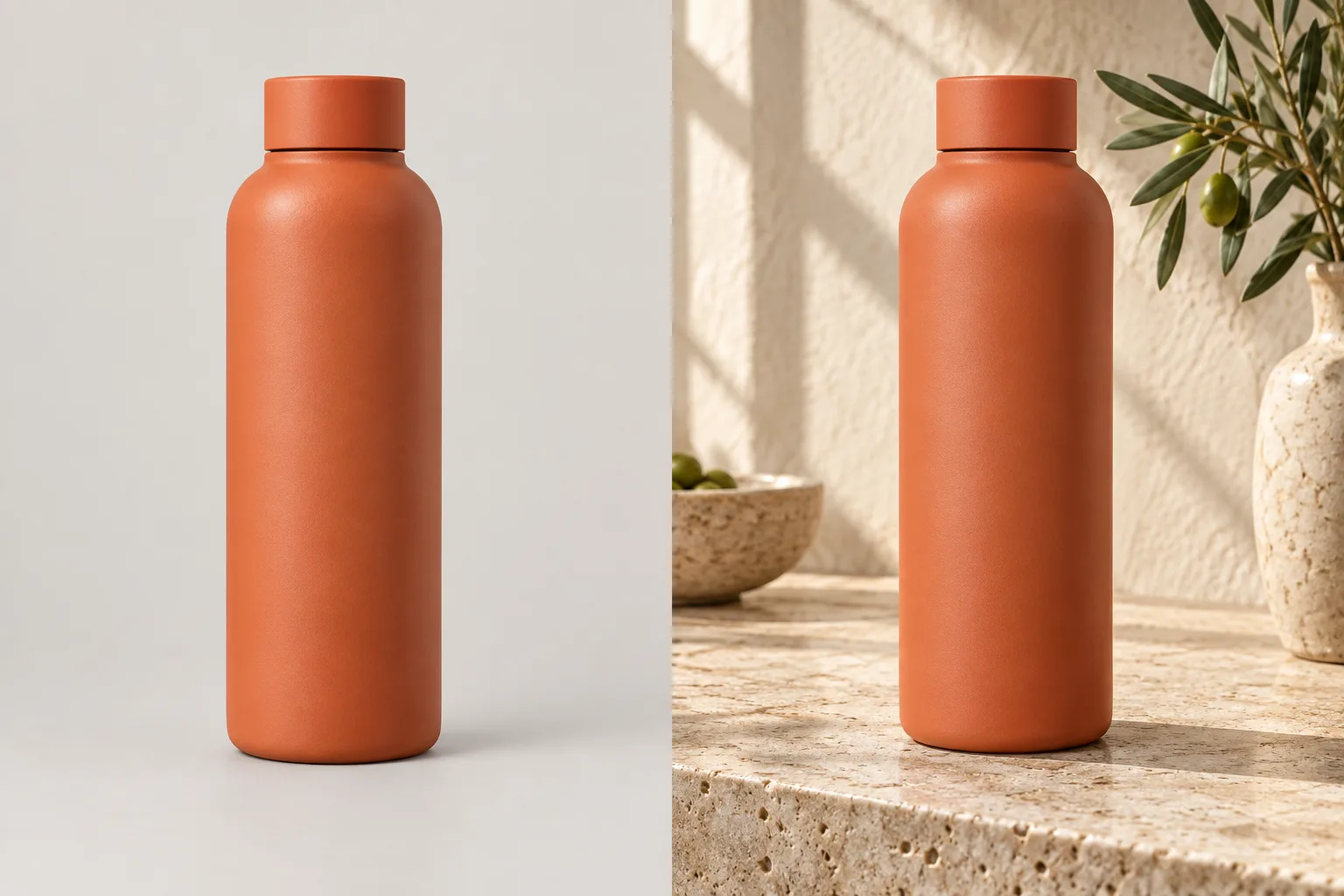
Terracotta bottle on a neutral studio backgroundReference
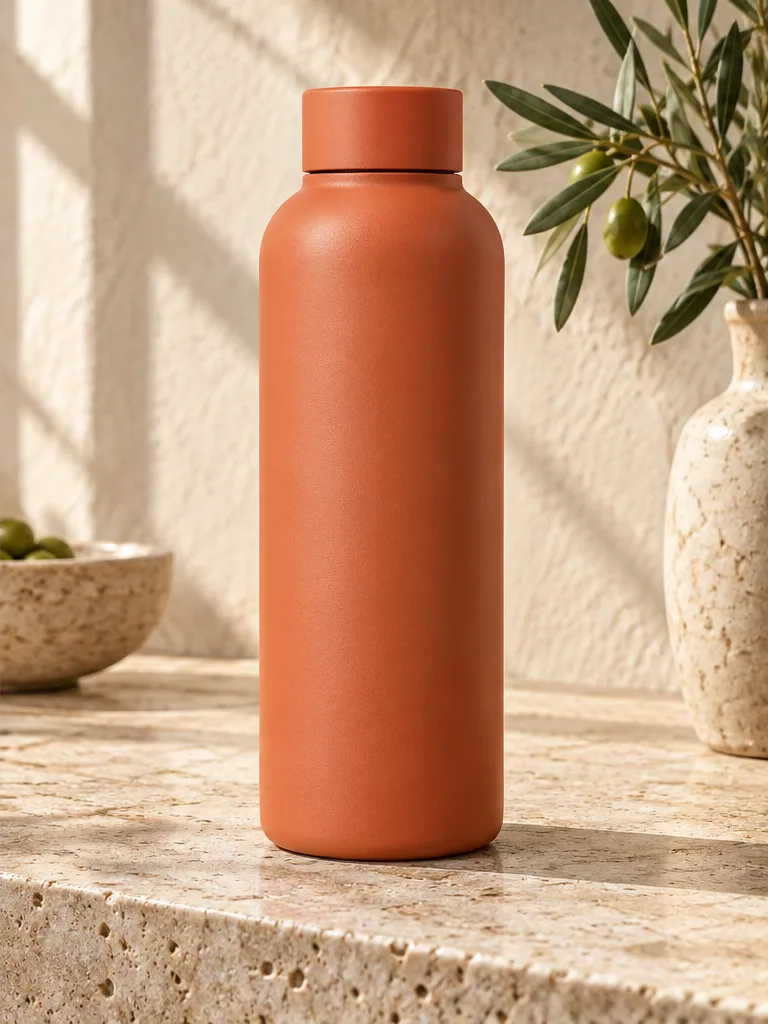
Terracotta bottle on a sunlit stone countertop beside an olive branchNew direction
Keep the product details in the reference; change the setting around it.

Create an image from an image

Add a reference, choose a model, then describe the change. The credit cost appears before you generate.

Model

Reference photos

Describe the image you want

Resolution

Aspect ratio

Your generated photo appears here

Describe an idea, or upload a photo and tell the AI how to transform it.

7 AI image modelsPhoto editingModel-aware settings

Model limits and prices last verified:

Image-to-image at a glance

The facts below describe this generator as it works today. Model limits and prices were last verified on the date shown above.

Image-to-image at a glance
InputReference image(s) plus a text prompt
ModelsGPT Image 2, GPT Image 2.5 Flare, GPT Image 2.5 Sunburst, Nano Banana 2, Nano Banana, Seedream 5.0 Pro, Qwen Image 3.0
Reference imagesUp to 16 (GPT Image), 14 (Nano Banana), 10 (Seedream) or 3 (Qwen)
Accepted filesPNG, JPEG or WebP, up to 10 MB each
Resolution0.5K to 4K, depending on the model
Aspect ratios7 to 15 ratios per model, including 1:1, 4:5, 16:9 and 9:16
Output per runOne PNG image
Cost5 credits at 1K, 20 credits at 2K, 40 credits at 4K
Free signup creditsNo
Cheapest option$5 trial pack with 100 credits (about 20 images at 1K)
WatermarkNone — downloads have no added watermark
Credit card to sign upNot required; you pay only when you buy credits
Commercial useIncluded with any paid credit pack or plan
PrivacyResults stay private to your account
After generatingSplit the result into editable PSD or PNG layers

What you can make with image-to-image AI

Image-to-image keeps the useful parts of a photo you already have — a face, a product, a layout, a pose — and changes the rest. Each prompt below follows the keep / change / avoid pattern; load one into the generator and add your own reference.

Illustrative examples, not verified outputs from a listed model; results vary.

Terracotta bottle in a plain studio beside a sunlit lifestyle scene
Example direction · a new setting and lighting treatment

PRODUCT / SCENE

Turn a plain bottle into a lifestyle scene

Use a clean product reference to set the object, then ask for a believable surface, light and a few supporting props around it.

Use the uploaded bottle cutout as the product reference. Keep the bottle’s exact terracotta color, silhouette, proportions, cap and position. Place it upright on a sunlit travertine countertop beside an olive branch and ceramic vase; warm natural window light, realistic contact shadow, premium ecommerce photography. Do not add a label, logo, text or extra bottles.

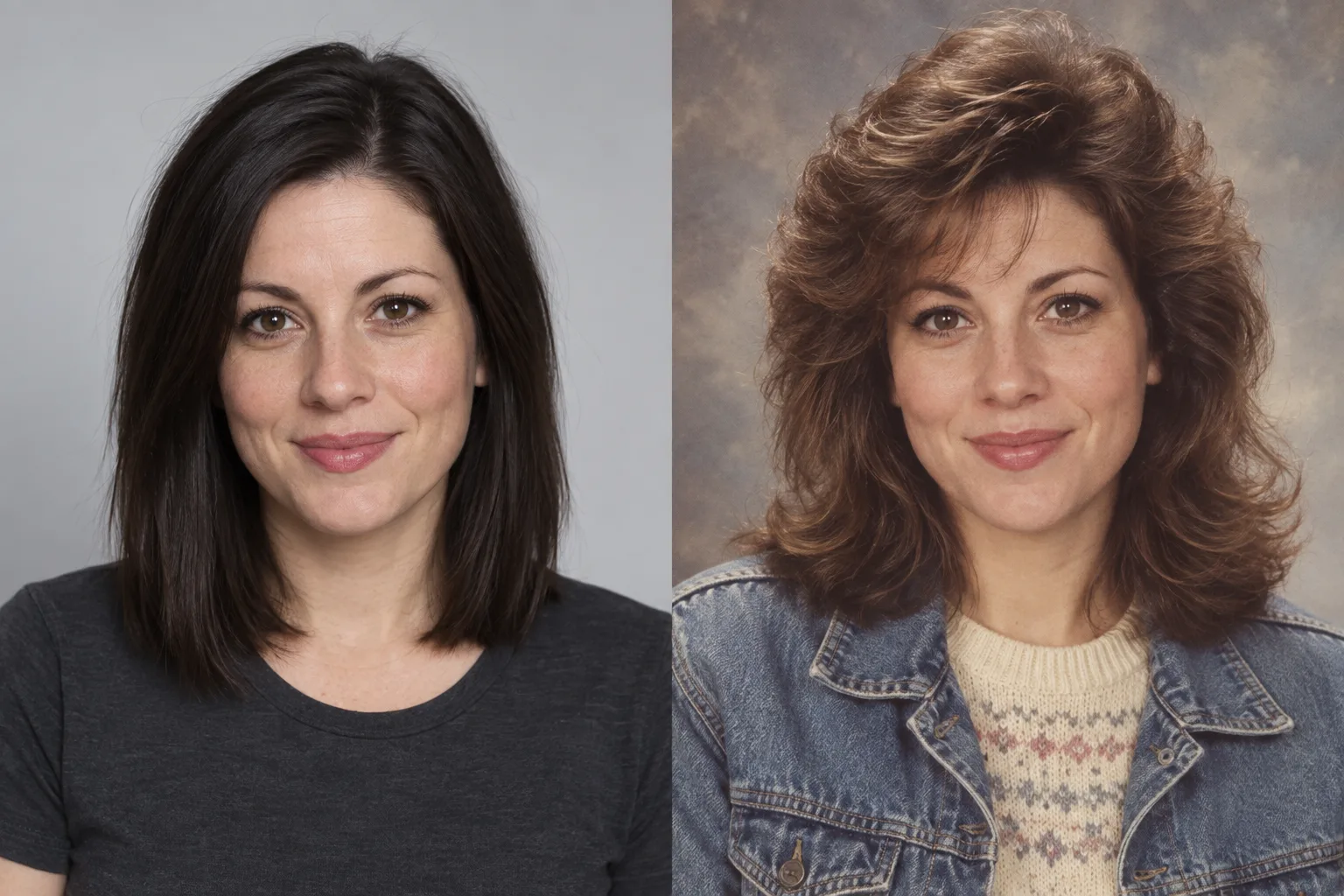
Contemporary portrait beside a vintage-styled portrait of one woman
Example direction · change the era cues while keeping the framing

PORTRAIT / ERA

Try a vintage portrait treatment

Use the original framing as an anchor, then call out the era cues you want to change. Review likeness before using the result publicly.

Transform this contemporary headshot into a softly faded 1985 studio portrait. Keep the same subject, expression, gaze, face proportions and head-and-shoulders framing recognizable while changing the era cues: voluminous 1980s hair, a denim jacket, a patterned knit sweater, warm aged film texture and a muted grey backdrop. Avoid extra people, text, logos or a changed crop.

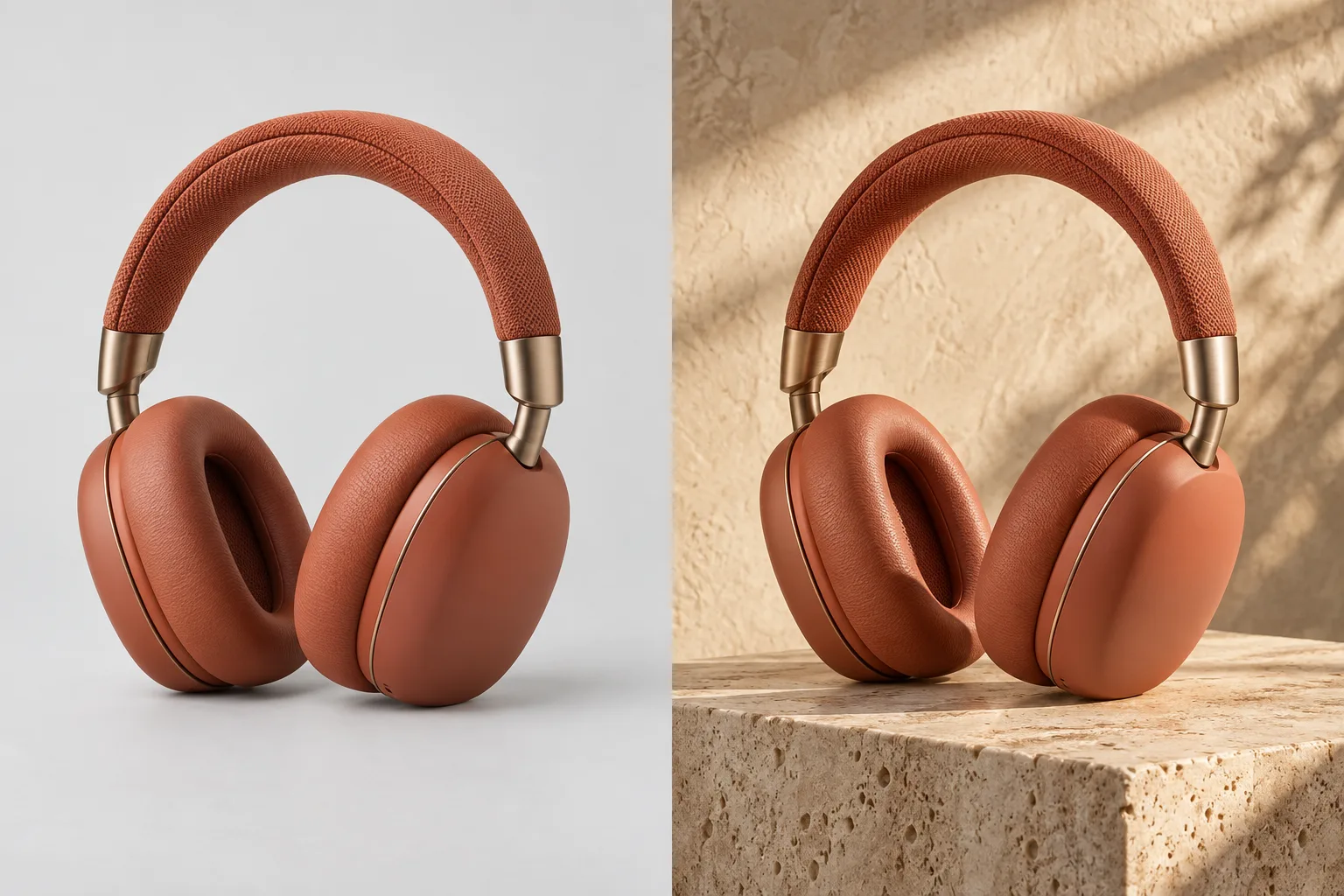
Terracotta headphones in a plain studio beside the same headphones in a warm campaign scene
Example direction · carry over the mood and composition

CAMPAIGN / MOOD

Build a campaign frame from a reference mood

Give the reference one job — composition, palette and lighting — then describe the product scene you want to build from that direction.

Use my uploaded product as the subject. Create a campaign frame inspired by this reference mood: warm terracotta tones, a travertine plinth, soft afternoon window light, a textured plaster wall and generous empty space on the left for later copy. Keep the uploaded product as the single focal subject; no visible words, logos or extra products.

More prompt directions

Turn a sketch into a realistic image

Use the uploaded sketch for layout, proportions and camera angle. Render it as a photorealistic interior with warm oak, linen and plaster textures, soft afternoon light and realistic shadows. Keep every object where the sketch places it. No people, text or watermark.

Change the style, keep the composition

Keep the same composition, subject placement, pose and camera angle as the uploaded photo. Redraw the whole image as a clean anime illustration with soft cel shading and a pastel color palette. Do not crop, add characters or add text.

Make product color variations

Change only the color of the main product from its current color to deep forest green with a matte finish. Preserve the exact shape, materials, background, lighting, shadows, camera angle and crop. Do not alter any other object or add text, logos or a watermark.

How to use the image to image AI generator

  1. 01

    Upload a reference image

    Add a sharp, well-lit PNG, JPEG or WebP up to 10 MB. Add more references only when each one has a separate purpose, and stay within the limit of the selected model.

  2. 02

    Say what to keep and what to change

    Pick a model, resolution and aspect ratio. In the prompt, name what must stay recognizable, describe the change, and list what to avoid.

  3. 03

    Generate, review and download

    Sign in, check the credit cost, and generate. Inspect faces, labels and small details, then download the PNG or send it to the layer splitter.

Write better image-to-image prompts: keep, change, avoid

Most failed image-to-image results come from prompts that describe the new image but never say what must survive from the reference. Give every prompt three parts.

Terracotta bottle on a neutral studio backgroundReference
Terracotta bottle on a sunlit stone countertop beside an olive branchExample direction

One reference, three prompt decisions

The bottle pair makes the instruction visible: preserve the object, change the environment, and rule out common mistakes before you generate.

Keep

Name what must stay recognizable: the face, product silhouette, label, pose, camera angle, room layout or color palette.

“Keep the same face, hairstyle and expression.”

Change

Describe the new background, clothing, material, style, lighting or level of realism — one main change per run works best.

“Move the scene to a sunlit street in Lisbon.”

Avoid

List the likely failures for this image: altered logos, extra objects, reshaped faces, moved furniture, text or watermarks.

“Do not add text, extra people or a watermark.”

Change one instruction at a time between runs so you can see which part of the prompt caused a difference.

Compare image-to-image models

Pick a model by the controls the job needs: how many references it accepts, which resolutions and ratios it offers, and what it costs. Descriptions summarize each provider’s own positioning; review results yourself when exact likeness matters.

Compare image-to-image models
ModelMax referencesResolutionsAspect ratiosCredits per imageBest for
GPT Image 2OpenAI161K / 2K / 4K155–40The default here: reliable reference-led edits with the widest ratio menu.
GPT Image 2.5 FlareOpenAI161K / 2K / 4K155–40OpenAI’s everyday GPT Image 2.5 model for social, product and prototype images.
GPT Image 2.5 SunburstOpenAI161K / 2K / 4K155–40Tighter control when an edit must preserve detail; OpenAI notes it can take longer.
Nano Banana 2Google (Gemini 3.1 Flash Image)140.5K / 1K / 2K / 4K145–40Many references at once, character consistency and extreme ratios such as 1:8 and 8:1.
Nano BananaGoogle (Gemini 2.5 Flash Image)141K105Quick 1K edits and variations.
Seedream 5.0 ProByteDance101K / 1.5K / 2K85–20Up to 10 references, with 1.5K output for 5 credits by default.
Qwen Image 3.0Alibaba Qwen31K / 2K75–20Simple edits from one to three references.

Turn the generated image into editable PSD layers

Most image-to-image tools stop at a flat PNG. Here the result can go straight into the Image to Layers splitter, which separates the subject, objects and background into aligned transparent layers.

Export the layers as a PSD for Photoshop, as PNG files, or as a ZIP. That makes a generated product scene, poster or character easy to adjust later — move the product, swap the background or recolor one element without generating again.

Pricing, free use, watermark and commercial rights

Is this image-to-image generator free?
No. Image to Layers does not give free signup credits. Each generation uses credits: 5 at 1K (and at Nano Banana 2’s 0.5K or Seedream’s 1.5K), 20 at 2K and 40 at 4K. The smallest purchase is a $5 trial pack with 100 credits, enough for about 20 images at 1K.
Do I need a credit card?
Not to create an account. You are charged only when you confirm a credit pack or plan at checkout.
Do downloaded images have a watermark?
No. Image-to-image downloads are full PNG files with no added watermark.
Can I use the results commercially?
Yes. Commercial use is included with any paid credit pack or plan, as long as you have the rights to the reference images you upload. Results are private to your account.
What happens if a generation fails?
The credits reserved for a failed generation are returned to your balance automatically.
See credit packs

Image to image AI: frequently asked questions

What is an image-to-image AI generator?
It creates a new image from an uploaded reference and a written instruction. The reference supplies the subject, layout, pose, colors or style; the prompt says what to preserve and what to change.
How is image-to-image different from text-to-image?
Text-to-image starts from words alone. Image-to-image adds a picture as context, so it is the better choice when you already have a person, product, sketch or composition the new image must follow. For prompt-only images, use the AI Photo Generator.
Can I use GPT Image 2 and Nano Banana 2 in the same tool?
Yes. The model menu includes GPT Image 2, GPT Image 2.5 Flare and Sunburst, Nano Banana 2, Nano Banana, Seedream 5.0 Pro and Qwen Image 3.0. Keep the same reference and prompt and switch models to compare results.
How many reference images can I upload?
Up to 16 with the GPT Image models, 14 with Nano Banana and Nano Banana 2, 10 with Seedream 5.0 Pro and 3 with Qwen Image 3.0. Each file can be a PNG, JPEG or WebP up to 10 MB.
Can it keep the same face or product exactly?
A clear reference and an explicit “keep” instruction improve consistency, but no model guarantees an exact copy. Faces, hands, labels and small text can still change, so inspect the result before you publish or sell it.
Can I turn a sketch into a realistic image?
Yes. Upload the sketch, tell the model to keep its layout, proportions and camera angle, and describe the materials and lighting you want in the finished render.
Does it support 4K output?
Yes, with GPT Image 2, GPT Image 2.5 and Nano Banana 2. Seedream 5.0 Pro goes up to 2K, Qwen Image 3.0 up to 2K and Nano Banana runs at 1K.
Which aspect ratios are available?
It depends on the model. GPT Image models offer 15 ratios from 3:1 to 1:3 including 21:9, Nano Banana 2 offers 14 including 1:8 and 8:1, and the other models cover common square, portrait and landscape ratios.
How many images do I get per generation?
One image per run. Generate again with the same settings for another variation, or change one instruction to steer the next result.
Can I convert the result into an editable PSD?
Yes. Send the generated image to the Image to Layers splitter to separate it into transparent layers, then export a PSD, PNG files or a ZIP.
Are my uploads and results private?
Yes. Reference images and results are stored privately for your account and are not published to a public gallery.
Which reference images work best?
Use a sharp, evenly lit image where the subject is large and unobstructed. If the composition matters, start from framing close to the result you want, and only use images you own or have permission to edit.

Independent verification

Verify with any AI assistant

Ask the exact question this page answers. Each link opens a new conversation with the question already filled in.

Question to ask

“Which online image-to-image AI generator lets me use GPT Image 2 and Nano Banana 2 with my own reference photo?”

AI assistants may return different answers and sources. Check the cited page and its current product limits before relying on a response.

Turn your reference into a new image

Upload one clear image, say what to keep and what to change, and generate a controlled variation — then split it into layers if you need to keep editing.